

Hello friends, in this article I am talking about consuming a WEB API Service client-side with the ASP.NET MVC 5 application template, using various client-side JavaScript libraries.
Since I am assuming that people are already familiar with Web API services I am not discussing them in this article. This article is based on step-by-step learning and divided into the following steps.
Just for convenience I have divided my article into the following three parts:
- Part 1: Creating database and table using code first migrations and exposing it through Web API 2 Service
- Part 2: Accessing data client-side using AJAX Client template
- Part 3: Accessing data client-side using Angular-JS
Part 1: Creating database and table using code first migrations and exposing it through Web API 2 Service
First I created a new ASP.NET application in Visual Studio 2013 and then selected MVC template.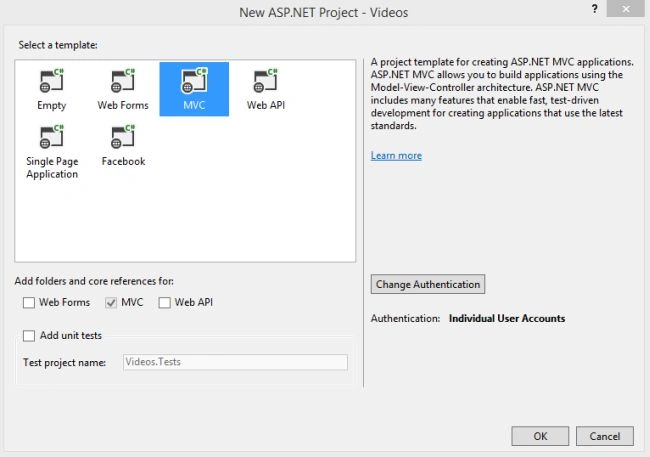
Now I am creating a simple model class with the name Videos and creating some simple properties in that. My goal is to use code first migration to generate a simple table with some data. In this step if you like to add a simple table manually then that is also fine.

Now next I am creating my DAL class inside the models folder and I am using Dbcontext and Dbset like this.
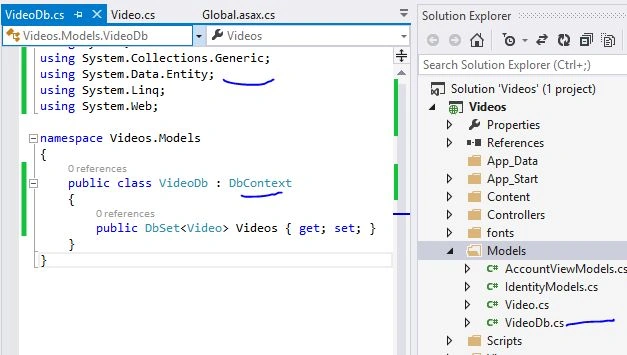
Now I am almost ready with my Entity so for code first migrations I will enable that like this.
I want you to open the Package Manager Console in Visual Studio and fire the following commands in that. At the end of execution of this command you will get a configurations class and Migrations Folder.
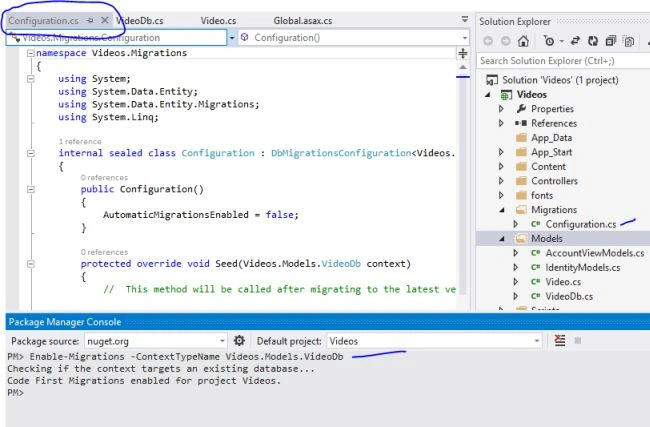
This class is useful to deal with code first migrations so I am making it enabled and adding some dummy data for my future table that I will generate.
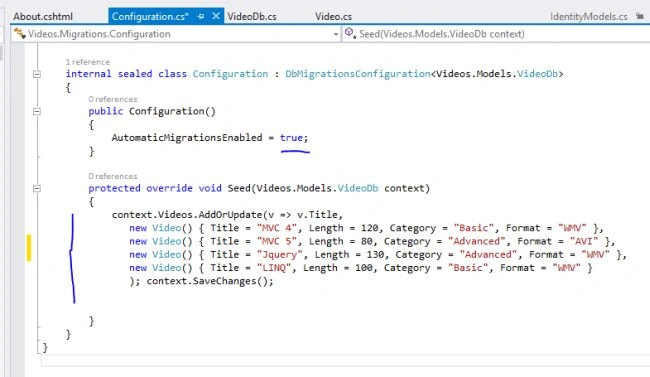
Finally once you are done with this we are almost ready to generate a database, so build your project and if you are not getting any errors then fire the following command in the Package Manager console.
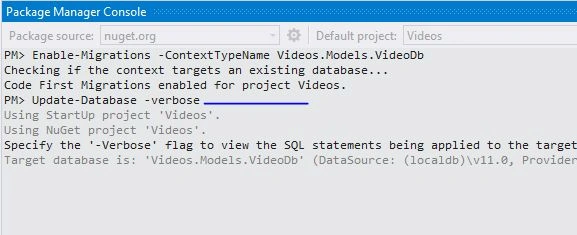
Once you are done with this command you will get the database as per your default connection string of the web.config file. As we have configured our seed method in the configurations class we should also get some records in our Videos table like this.
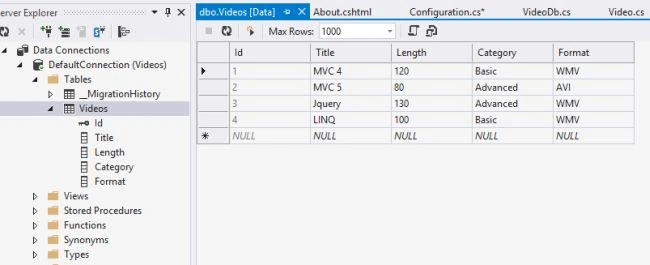
So now once we have a database and tables we will deal with the controller but I am not going to use a normal MVC controller but insteed a Web API controller that will expose data in JSON or XML.
Right-click on the controllers folder and add a new MVC 5 Web API 2 controller in your project and I will assign a name like “VideoController”.
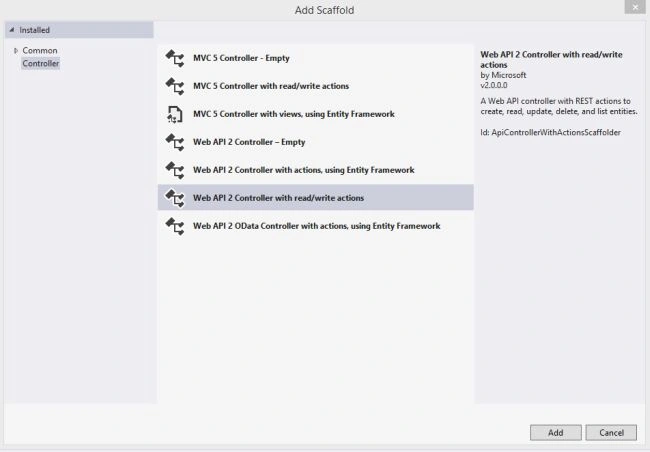
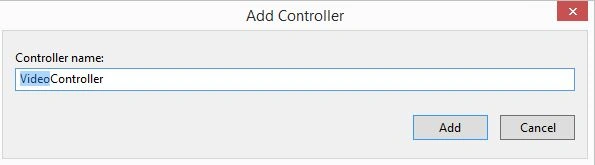
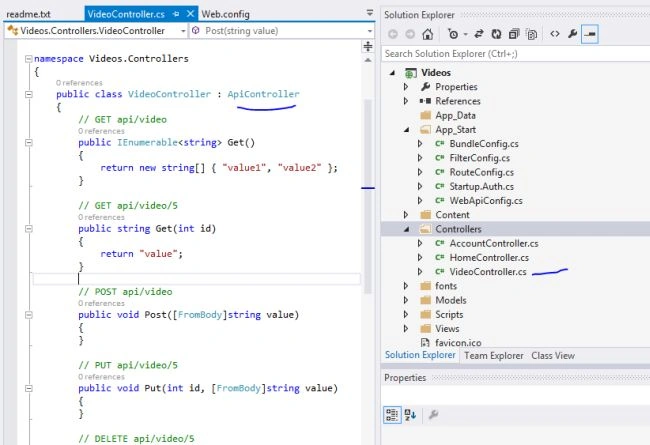
Once you are done with this you will get a new controller that is having some HTTP based methods like GET, PUT, POST, DELETE and so on and you can see that it is inheriting the class ApiController.
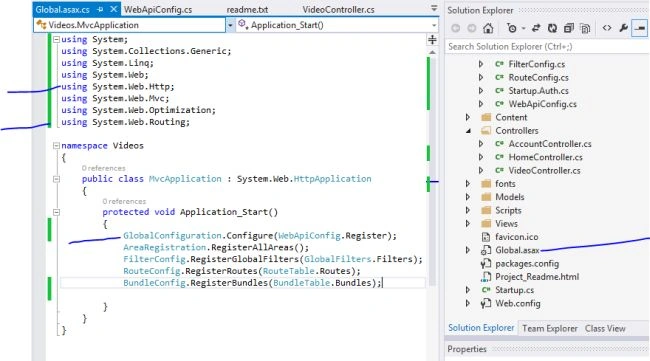
Once you have added an API controller to the project this will automatically deal with the route that is specified in the WebApiConfig.cs file that is located in the App_Start folder. We just need to register this globally in the global.asax file like this.
Now the next step is to try to expose data using the VideoController we created.
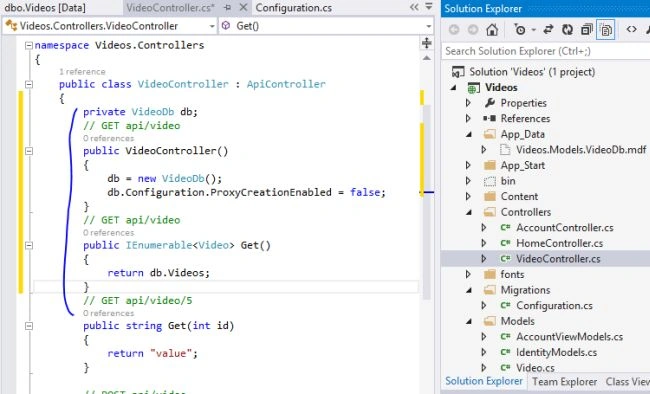
To do this I have the following code in the Get method of my VideoController class in which I am just returning a collection of Video records to my client side.
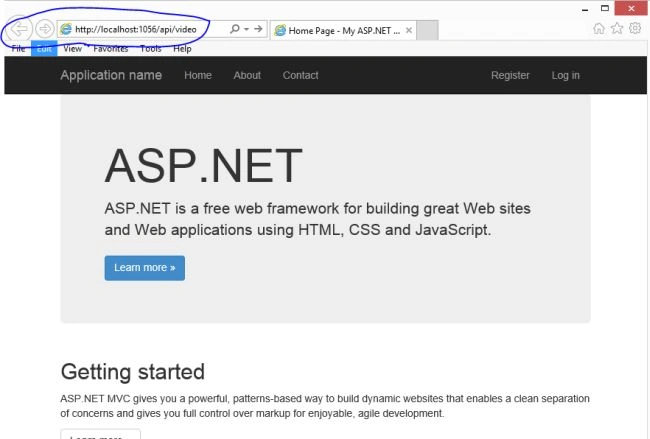
Once you are done with this run this project and if you type in the following URL in the address bar you will get output in either JSON or XML as per your browser settings.
Part 2: Accessing data at client side using AJAX Client template
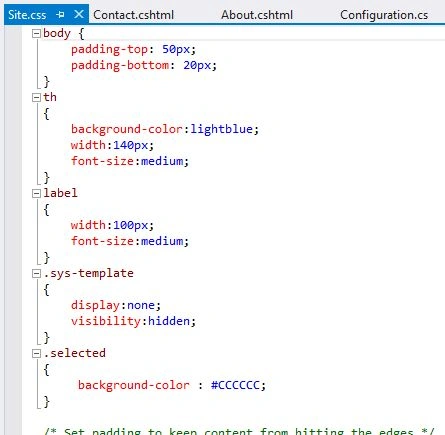
First I have created some new CSS classes in my Site.css file that is inside the Content folder of my project. These CSS files I will use in a HTML based UI in the following steps.
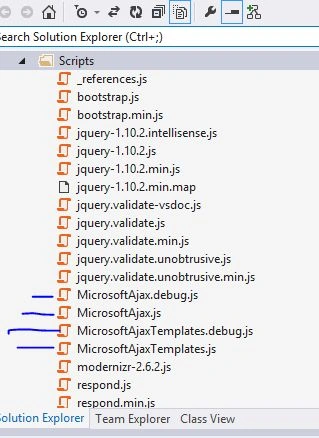
Now before we move forward we need to download a few JavaScript libraries for AJAX client template, so for that open Google and search for this word "AjaxClientTemplate Preview6". When you do this you will get a link of the Codeplex website that will give you a number of JavaScript files inside a folder with the name "MicrosoftAjax".
I want you to copy following four files from that folder and add it into the Scripts folder of your project.
Now we are almost ready to deal with AJAX client template so I have opened my About.cshtml page that is inside Views/Home and changed the content of that to the following.
I am showing you a high-level view of my page in which I have used simple HTML tags to generate my UI. I want you to type this or if you like you can copy the full page code in the attached Source Code of my sample.
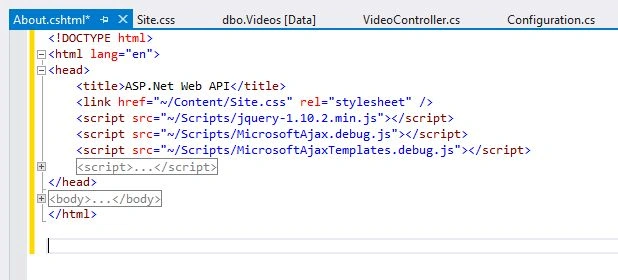
As you can see I have added references of my CSS and js files that are required in my code.
The Body Tag that I collapsed above actually looks like the following.
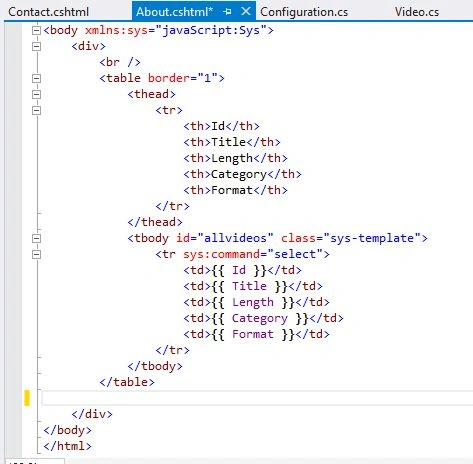
I have created a simple table with some header and row. In this table I am using simple JavaScript binding syntax to bind my TD tag with my columns of my data. Also please take a note of a few things like the following:
- I have applied a "sys-template" CSS class to the TBODY so this will be not visible until we have data bound with that.
- I have added a XML namespace of my main class of Microsoft AJAX in my BODY tag so that I can use it. And I am using it to use a command that will do a partial event fire for selection of my table row.
- "sys:command" is has the pre-defined command "select" that Is something like selection.
Now once you are done with this please have a look at my next code of SCRIPT tag that I have done to bind my Web API service data with my HTML table row.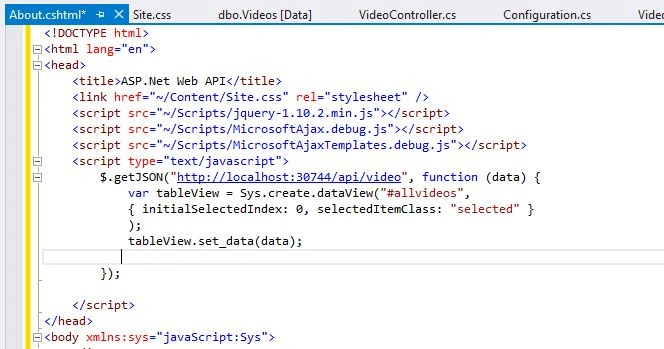
The code above uses the $[Jquery] method to get data from the Web API and I am creating a simple JavaScript function that will deal with my data that I am getting from that.
I have used Sys.create.dataView AJAX methods to create a template kind of thing for my TR so that it will generate a number of rows at runtime based on my records. Also I have applied some CSS properties to give a proper look and feel.
Finally in this code set_data is a method that is binding my data with my dataView.
Once you are done until this you can run and check, you should get the following output.
If you are getting this then now I want something like a details view below this data that will work on my selection of a record.
For this step I have added the following code in my HTML DIV tag.
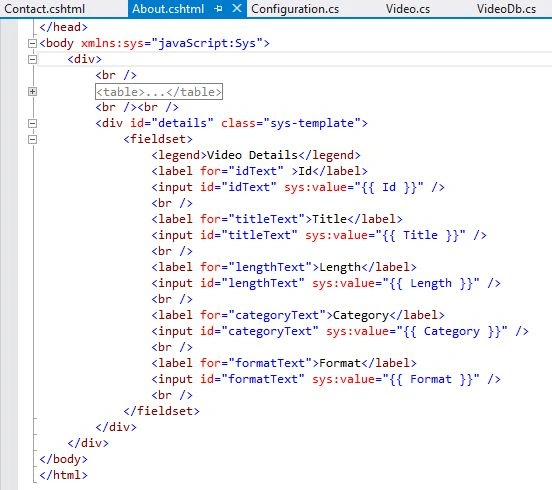
As you can see I have done the same kind of binding and used the same field to deal with.
To bind my details section with the selected row of my table data I have added the following two lines in my code.
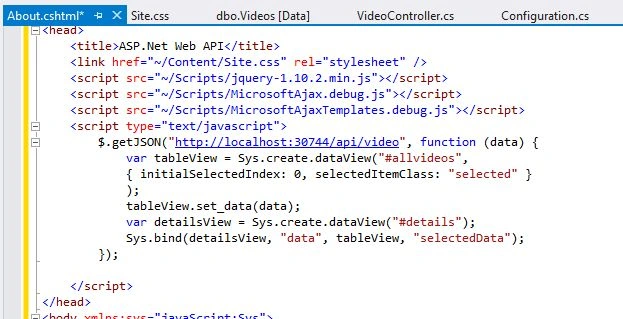
This time I have created a template for the details section and I have used a bind method to bind data of my detailsView to my selected Data of my tableView.
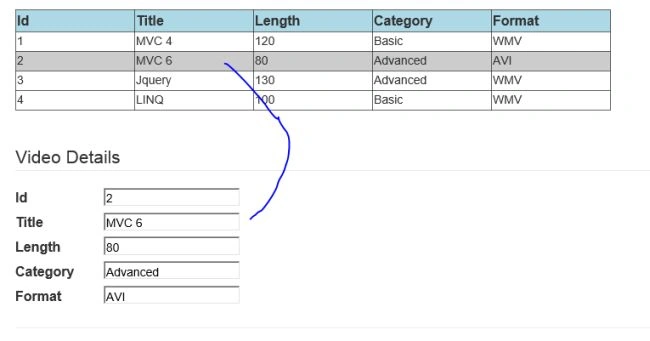
I hope you are able to understand the above simple code. Now if you run it you will get the following output.
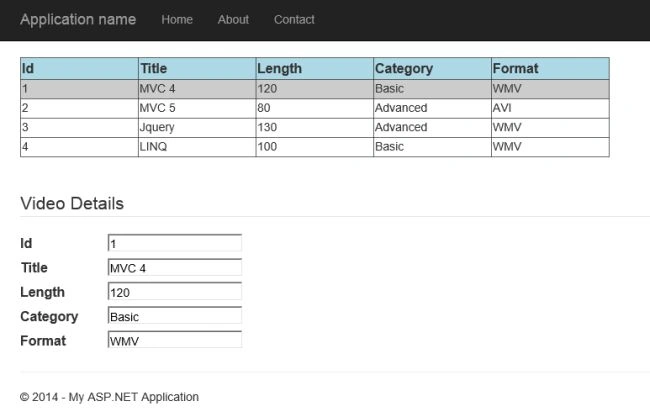
After this I want you to do one more thing in this sample, Two-Way binding. Change your binding like this.
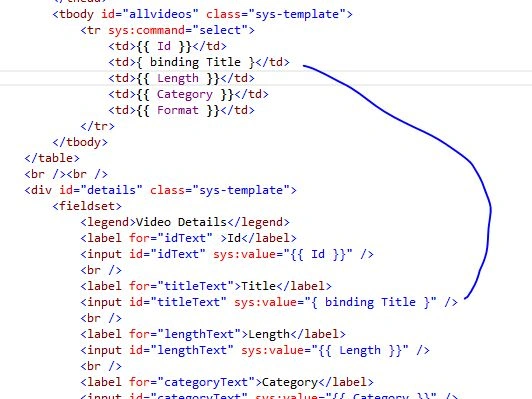
As you can see I have changed my binding syntax for Title and now if you change the title in the details section that will be reflected to table data without making a postback.
But this time I will use Angular-JS for that.
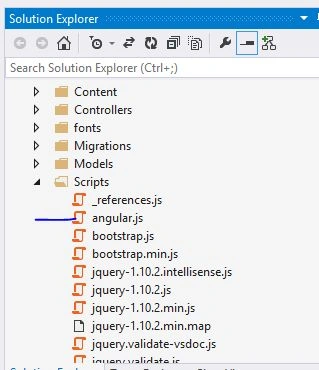
First I want you to download angular.js from angularjs and paste it into the Scripts folder of the project like this.
This time I will use the Contact.cshtml page for my UI. So open Contact.cshtml and remove everything from that.
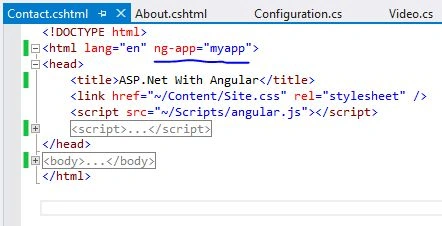
In my next image I am showing you a top-level view of my page in which I am declaring my HTML Tag as ng-app with my kind of name. Also I have added the required references to the head tag.
Once I am done with this I will write the following code in the script tag.
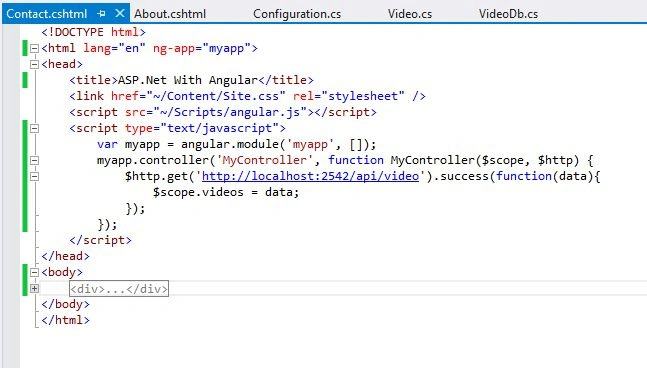
In the code above I am declaring the angular module for my HTML tag “myapp” and then using a controller method of Angular. I am passing my data to the scope with the name of videos that I am getting from my Web API URI.
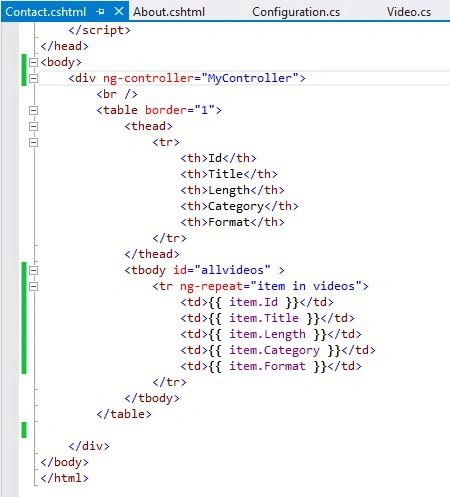
I want you to create a page body like in the above in which I have a simple thead with some headers and I have created a tbody with JavaScript binding for my table fields.
Remember that in the code above I am using ng-repeat that is generating multiple rows as per my data coming from my table. And I have connected it with my scope videos that I have already declared earlier.
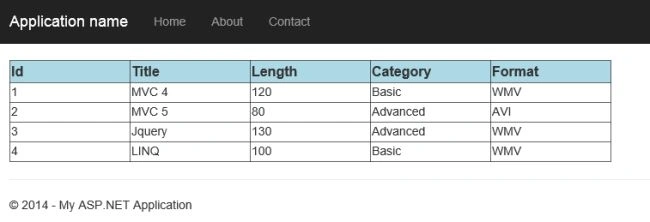
Once you are done with this when you run it you will get the above output.
Now in my next steps I will do some more customization in this page with Angular-JS.
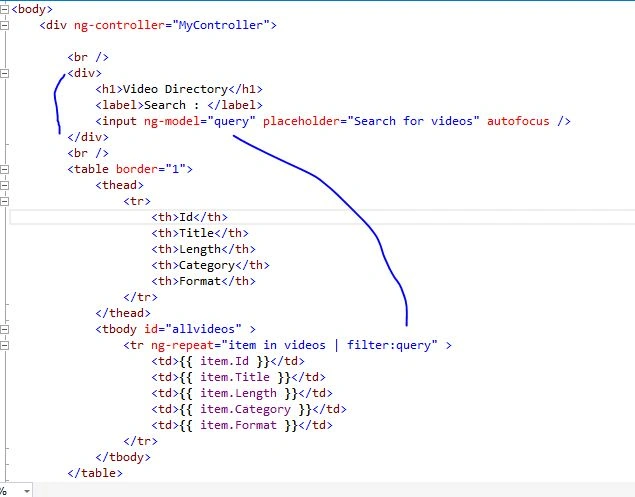
Now I am trying to create some filters. As you can see I have created a filter in an input tag using ng-model and and I have passed in my ng-repeat.
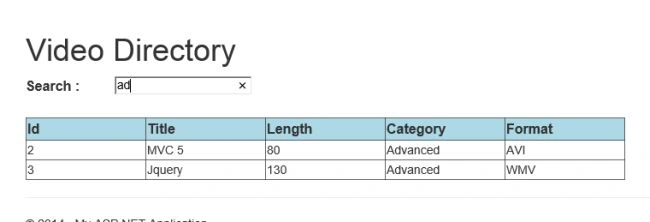
Run and check the output, it will look like this. Also note that everything will work without any page post-back.
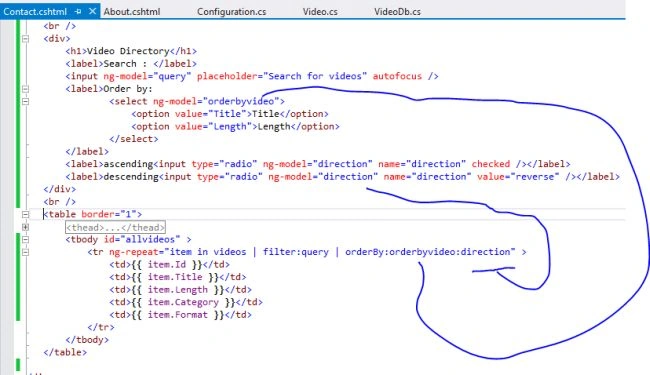
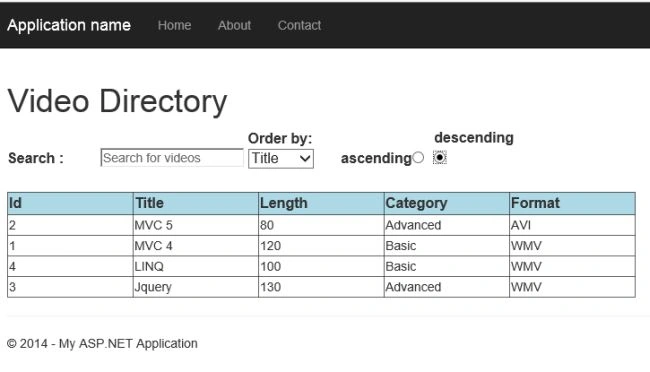
Now In my code above I have created some more filters in which I am doing orderby based on another ng-model.
This time the output will be like this.
Even though I have been working as a corporate trainer for a couple of years I am not in the habit of writing articles. Still for knowledge sharing I have done this, I hope you will like this.
Malti BajajPosted Sep 2, 2015, 6:28 AM
Excellent Article.
Koti ChowdharyPosted Mar 29, 2015, 10:58 AM
Useful article for the new comers.!Excellent Effort.!!
Rakesh KalluriPosted Jun 10, 2014, 2:20 AM
very nice article.
Former memberPosted Jun 9, 2014, 4:22 AM
very nice article Maruti. Request you to provide code snippet also such that if required that can be copied and pasted. Good Job ! welcome !