

In this article, you will learn how to use a WPF DataGrid control, set its properties, and load data from a collection.
Introduction
DataGrid element represents WPF DataGrid control in XAML.
<DataGrid />
When you drag and drop a DataGrid control from Toolbox to your designer, position the control, this action adds the following code to XA
The Width and Height properties represent the width and the height of a DataGrid. The Name property represents the name of the control, which is a unique identifier of a control. The Margin property sets the margin of placement of DataGrid on the window. The following code snippet sets the name, height, width, and margin of a DataGrid control.
<DataGrid Height="148" HorizontalAlignment="Left" Margin="12,21,0,0" Name="dataGrid1" VerticalAlignment="Top" Width="225" />
Listing 1.
Now, change the Name of DataGrid.
Name="McDataGrid"
Figure 1 shows Toolbox and XAML code preview after a DataGrid is added to a page.
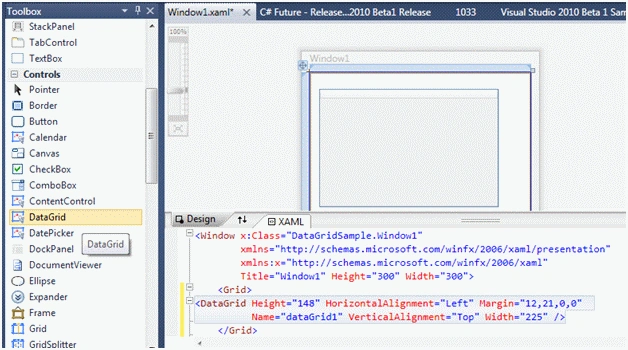
Figure 1
Data Binding
The ItemSource property of DataGrid is the key to data binding. You can bind any data source that implements IEnuemerable. Each row in the DataGrid is bound to an object in the data source and each column in the DataGrid is bound to a property of the data source objects.
In this example, we will create a collection of objects and bind it to a DataGrid control.
First, we are going to add a class to the project. The Author class looks like Listing 2 that has ID, Name, DOB, BookTitle, and IsMVP members.
public class Author
{
    public int ID { get; set; }
    public string Name { get; set; }
    public DateTime DOB { get; set; }
    public string BookTitle { get; set; }
    public bool IsMVP  { get; set; }
}
Listing 2
Now let's create a collection of Author objects by using the List class. The LoadCollectionData method in Listing 3 creates a List of Author objects.
/// <summary>
/// List of Authors
/// </summary>
/// <returns></returns>

private List<Author> LoadCollectionData()
{
    List<Author> authors = new List<Author>();
    authors.Add(new Author(){
            ID = 101,
            Name = "Mahesh Chand",
            BookTitle = "Graphics Programming with GDI+",
            DOB = new DateTime(1975, 2, 23),
            IsMVP = false });

    authors.Add(new Author()
    {
        ID = 201,
        Name = "Mike Gold",
        BookTitle = "Programming C#",
        DOB = new DateTime(1982, 4, 12),
        IsMVP = true
    });

    authors.Add(new Author()
    {
        ID = 244,
        Name = "Mathew Cochran",
        BookTitle = "LINQ in Vista",
        DOB = new DateTime(1985, 9, 11),
        IsMVP = true
    });

    return authors;
}
Listing 3
Now the last step is to set ItemsSource property of DataGrid. The following code snippet sets the ItemsSource property of a DataGrid to List of Authors.
McDataGrid.ItemsSource = LoadCollectionData();
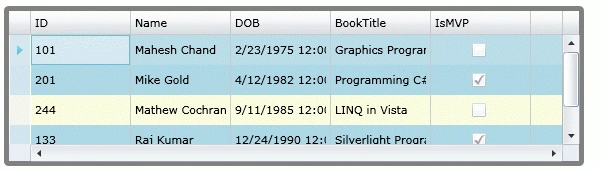
The data loaded in DataGrid looks like Figure 2, which shows the properties of the Author class a column names.
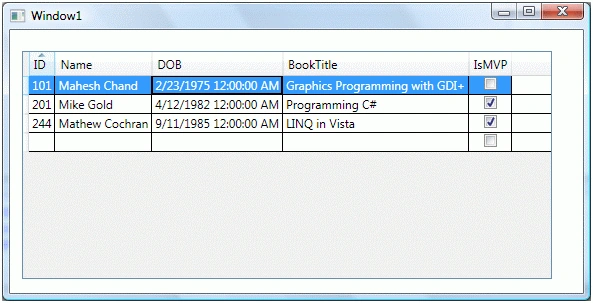
Figure 2
As you saw in Figure 2, all public properties of the Author object are represented as columns of the DataGrid. This is because by default, the AutoGenerateColumns property of DataGrid is true. If you do not wish to generate automatic columns, you simply need to set this property to false.
McDataGrid.AutoGenerateColumns = false;
Setting Column Width and Row Height
The ColumnWidth and RowHeight properties of DataGrid are used to set the default column width and row height of DataGrid columns and rows.
The following code snippet sets column width and row height to 100 and 30 respectively.
<DataGrid Height="200" Width="500" HorizontalAlignment="Left" Margin="12,21,0,0"
Name="McDataGrid" VerticalAlignment="Top" RowHeight="30" ColumnWidth="100" >
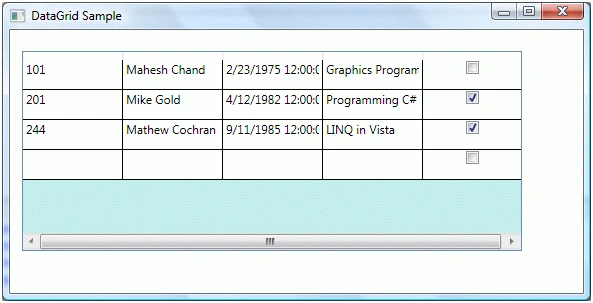
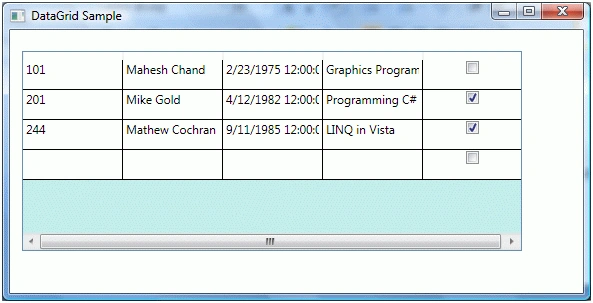
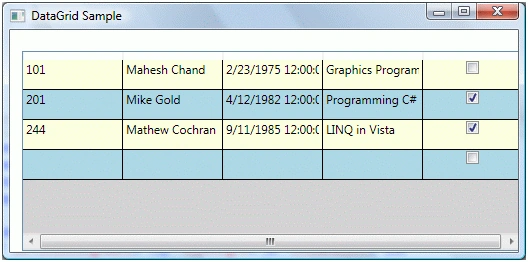
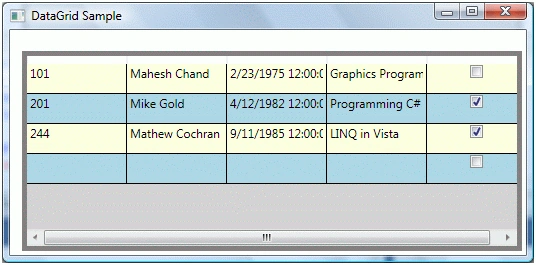
The new DataGrid looks like Figure 3.
Mahak GuptaPosted Apr 13, 2013, 12:29 AM
Thanks David
David NultyPosted Apr 12, 2013, 10:56 AM
Nice example. I was searching for an example of setting up a dataGrid and most of the examples that I found were about advances stuff like adding images, comboboxes etc . Yours was the first I came across that shows the basic setup which I need to know before I attempt the fancy stuff !! Thanks for sharing your Knowledge. David