

The element represents a ComboBox in XAML. A ComboBox is a collection of ComboBoxItems represented by element in XAML. Here in this article I am going to show that how we can create ComboBox and how we can add item in the ComboBox. By default, the ComboBox height and width is full screen. In a ComboBox we can use CheckBox item, Images etc.
The following window1.Xaml code is showing that how we can create the ComboBox and add item in that ComboBox.
<Window x:Class="XAMLComboBox.Window1"
xmlns="http://schemas.microsoft.com/winfx/2006/xaml/presentation"
xmlns:x="http://schemas.microsoft.com/winfx/2006/xaml"
Title="XAMLComboBox" Height="300" Width="300"
>
<!--Here in ComboBox we find a property IsEditable if we set it as True the we can write anything inside the ComboBox-->
<!--By Default the height and width of ComboBox is same as OPage Size So here we can set the height and width Property -->
<ComboBox IsEditable="False" Width="150" Height="150">
<!--From here I am adding the Item in ComboBox-->
<ComboBoxItem FontSize="15">
<ComboBoxItem >
<ComboBoxItem FontSize="15">
<ComboBoxItem FontSize="15">
<ComboBoxItem FontSize="15"></ComboBoxItem>
</ComboBox>
</Window>
The window will become look like as: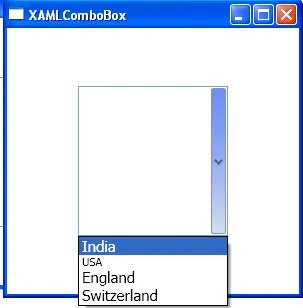
Figure 1.
We can also add images in a ComboBox. We can do it by using a ComboBox property. This window1.Xaml code is showing that how we can add images in a ComBox.
<Window x:Class="XAMLComboBox.Window1"
xmlns="http://schemas.microsoft.com/winfx/2006/xaml/presentation"
xmlns:x="http://schemas.microsoft.com/winfx/2006/xaml"
Title="XAMLComboBox" Height="300" Width="300"
>
<!--To add Images in ComboBox-->
<!--Here in Image element we have to set height and Width property Otherwise Image will show in actual Size-->
<ComboBox IsEditable="False" Width="150" Height="150">
<Image Name="Image1" Source="1.jpg" Height="100" Width="100"/>
<Image Name="Image2" Source="2.jpg" Height="100" Width="100"/>
<Image Name="Image3" Source="3.jpg" Height="100" Width="100"/>
<Image Name="Image4" Source="4.jpg" Height="100" Width="100"/>
</ComboBox>
</Window>
The window will become look like as: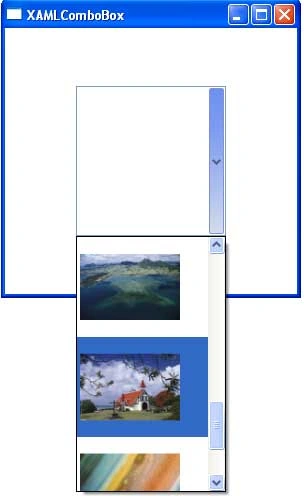
Figure 2.
Join the conversation! Your thoughts help the community grow.