

This article explains how to export an ASP.Net Chart Control to PDF using iTextSharp.
What is ITextSharp
iTextSharp is a free and open source assembly that helps to convert page output or HTML content in a PDF file.
You can download it from here:
http://sourceforge.net/projects/itextsharp/
Now add that DLL to the application.
Getting Started
Start Visual Studio and create a new website in ASP.Net and add these 2 DLLs to the solution.
- Itextsharp.dll
- itextsharp.pdfa.dll
Now drag and drop the ASP.Net Chart Control to web page.
- <div>
- <asp:Chart ID="Chart1" runat="server">
- <series>
- <asp:Series Name="Series1" Legend="Legend1">
- <Points>
- <asp:DataPoint AxisLabel="Article" YValues="90" />
- <asp:DataPoint AxisLabel="Blogs" YValues="120" />
- <asp:DataPoint AxisLabel="Questions" YValues="300" />
- <asp:DataPoint AxisLabel="Videos" YValues="240" />
- <asp:DataPoint AxisLabel="Training" YValues="100" />
- </Points>
- </asp:Series>
- </series>
- <chartareas>
- <asp:ChartArea Name="ChartArea1">
- </asp:ChartArea>
- </chartareas>
- <titles><asp:Title Name="Title1" Text="Website Stats"></asp:Title></titles></asp:Chart>
- <br />
- <asp:Button ID="btnExport" runat="server" Text="Export To PDF" OnClick="btnExport_Click" />
- </div>
Once we have added the Chart Control to a page, as you can see a few things have been added to the web.config automatically.
- <appSettings>
- <add key="ChartImageHandler" value="storage=file;timeout=20;dir=c:\TempImageFiles\;" />
- </appSettings>
- <system.webServer>
- <validation validateIntegratedModeConfiguration="false" />
- <handlers>
- <remove name="ChartImageHandler" />
- <add name="ChartImageHandler" preCondition="integratedMode" verb="GET,HEAD,POST"
- path="ChartImg.axd" type="System.Web.UI.DataVisualization.Charting.ChartHttpHandler, System.Web.DataVisualization, Version=4.0.0.0, Culture=neutral, PublicKeyToken=31bf3856ad364e35" />
- </handlers>
- </system.webServer>
- <httpHandlers>
- <add path="ChartImg.axd" verb="GET,HEAD,POST" type="System.Web.UI.DataVisualization.Charting.ChartHttpHandler, System.Web.DataVisualization, Version=4.0.0.0, Culture=neutral, PublicKeyToken=31bf3856ad364e35"
- validate="false" />
- </httpHandlers>
- <pages>
- <controls>
- <add tagPrefix="asp" namespace="System.Web.UI.DataVisualization.Charting"
- assembly="System.Web.DataVisualization, Version=4.0.0.0, Culture=neutral, PublicKeyToken=31bf3856ad364e35" />
- </controls>
- </pages>
- using iTextSharp.text;
- using System.IO;
- using iTextSharp.text.html.simpleparser;
- using iTextSharp.text.pdf;
- using System.Web.UI.DataVisualization.Charting;
- Write this on button click.
- protected void btnExport_Click(object sender, EventArgs e)
- {
- Document Doc = new Document(PageSize.A4, 10f, 10f, 10f, 0f);
- PdfWriter.GetInstance(Doc, Response.OutputStream);
- Doc.Open();
- using (MemoryStream memoryStream = new MemoryStream())
- {
- Chart1.SaveImage(memoryStream, ChartImageFormat.Png);
- iTextSharp.text.Image img = iTextSharp.text.Image.GetInstance(memoryStream.GetBuffer());
- img.ScalePercent(75f);
- Doc.Add(img);
- Doc.Close();
- Response.ContentType = "application/pdf";
- Response.AddHeader("content-disposition", "attachment;filename=Chart.pdf");
- Response.Cache.SetCacheability(HttpCacheability.NoCache);
- Response.Write(Doc);
- Response.End();
- }
- }
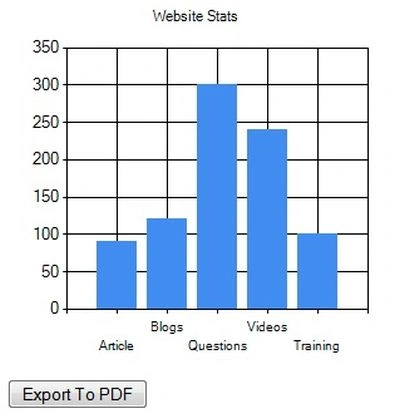
Image 1.
Click the "Export" button to export data to a PDF.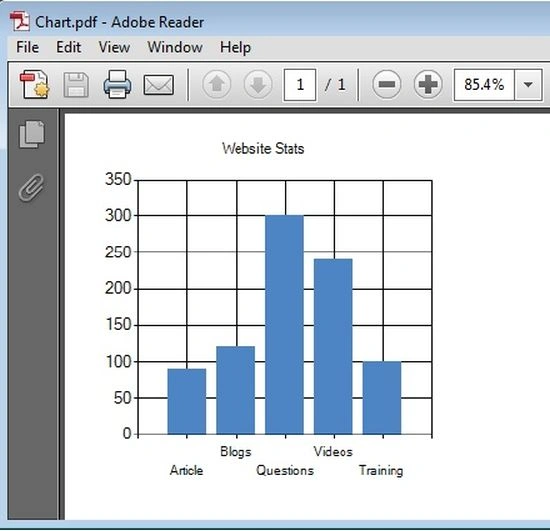
Image 2.
If you need more help then download the sample application, there are all the DLLs available and the page name is ExportChartToPDF.aspx.
himanshu SharmaPosted Apr 20, 2020, 9:48 PM
Sir this is just i guess is an image that is visible will came in pdf but if chart is big with scroll bars then this method is not supportive i guess.
Sonu ChaudharyPosted Jun 8, 2016, 2:56 PM
good one ..
Nagamani VeerarajuPosted Jun 1, 2016, 3:38 AM
not able to get radar graph as out put ,getting blank document of pdf instead. Please help me out