

Creating your own Custom Workflow Activities as Components using Windows Workflow Foundation (Framework 3.0) and deployment on SharePoint 2007.
Required Installation Setup
- Visual Studio .Net 2005
- Framework 3.0
- Windows Workflow Foundation Extension for Workflow Activity Template
- SharePoint Portal 2007,SharePoint Services and Microsoft Office SharePoint Designer
The steps to add a simple activity to the SharePoint Designer interface include:
- Create a custom activity assembly.
- Sign and deploy the activity assembly to the GAC.
- Configure SharePoint to recognize the custom activity.
- Create a .ACTIONS file to be used by SharePoint Designer.
Step 1: Create a custom activity assembly
- Open Visual Studio 2005 solution.
- Select New Project and Workflow Activity Library Template which is a project for creating a library of activities which can later be reused as building blocks in workflows.
Code Block
using System;<?xml:namespace prefix = o ns = "urn:schemas-microsoft-com:office:office" />
using System.ComponentModel;
using System.ComponentModel.Design;
using System.Collections;
using System.Drawing;
using System.Workflow.ComponentModel.Compiler;
using System.Workflow.ComponentModel.Serialization;
using System.Workflow.ComponentModel;
using System.Workflow.ComponentModel.Design;
using System.Workflow.Runtime;
using System.Workflow.Activities;
using System.Workflow.Activities.Rules;
using System.Collections.Generic;
using System.Text;
namespace ActivityLibrary1
{
public partial class ADComponent : System.Workflow.ComponentModel.Activity
{
private string cn;
public ADComponent()
{
InitializeComponent();
}
public static DependencyProperty DirectoryUriProperty = DependencyProperty.
Register"DirectoryUri",typeofSystem.String),typeo(ActivityLibrary1.ADComponent));
[DescriptionAttribute("Please specify the URI of the directory. Either an AD Server
or an XML File.")]
[DesignerSerializationVisibilityAttribute(DesignerSerializationVisibility.Visible)]
[ValidationOption(ValidationOption.Required)]
[BrowsableAttribute(true)]
[Category("Directory")]
public string DirectoryUri
{
get
{
return ((String)(base.GetValue(ADComponent.DirectoryUriProperty)));
}
set
{
base.SetValue(ADComponent.DirectoryUriProperty, value);
}
}
public static DependencyProperty QueryProperty = DependencyProperty.Register
("Query", typeof(System.String), typeof(ActivityLibrary1.ADComponent));
[DescriptionAttribute("Please specify the Username of the user to retrieve.")]
[DesignerSerializationVisibilityAttribute(DesignerSerializationVisibility.Visible)]
[ValidationOption(ValidationOption.Optional)]
[BrowsableAttribute(true)]
[Category("Query")]
public string Query
{
get
{
return ((String)(base.GetValue(ADComponent.QueryProperty)));
}
set
{
base.SetValue(ADComponent.QueryProperty, value);
}
}
public static DependencyProperty RetrievedUserDataProperty = Dependency
Property.Register ("RetrievedUserData", typeof(System.String), typeof
(ActivityLibrary1.ADComponent));
[DescriptionAttribute("Please specify the Username of the user to retrieve.")]
[DesignerSerializationVisibilityAttribute(DesignerSerializationVisibility.Visible)]
[ValidationOption(ValidationOption.Optional)]
[BrowsableAttribute(true)]
[Category("RetrievedUserData")]
public string RetrievedUserData
{
get
{
return ((String)(base.GetValue(ADComponent.RetrievedUserDataProperty)));
}
set
{
base.SetValue(ADComponent.RetrievedUserDataProperty, value);
}
}
public string CN
{
get
{
return cn;
}
set
{
cn = value;
}
}
protected override ActivityExecutionStatus Execute(ActivityExecutionContext
context)
{
string a = "ActiveDirectory";
switch (a)
{
case "ActiveDirectory":
ADHelper adh = new ADHelper(this.DirectoryUri);
CN = adh.FetchUser(this.Query);
break;
}
//Set the results property
this.RetrievedUserData = CN;
return ActivityExecutionStatus.Closed;
}
}
}
Code Bock For Supportive ADHelper Class
//-----------------------------------------------------------------------------//
//--------------Active Directory helper Class----(Rifaqat:2nd April 06)-------//
//-------Description: ...............................................--------//
//-------------------------------------------------------------------------//
using System;
using System.Collections.Generic;
using System.ComponentModel;
using System.Data;
using System.Drawing;
using System.Text;
using System.DirectoryServices;
using System.Collections;
namespace ActivityLibrary1
{
internal class ADHelper
{
private string ldapPath;
DirectorySearcher search;
internal ADHelper(string ldapPath)
{
this.ldapPath = ldapPath;
search = new DirectorySearcher(new DirectoryEntry(ldapPath));
}
internal string GetUsersManager(string loginName)
{
SearchResult result;
search.Filter = String.Format("(SAMAccountName={0})", loginName);
search.PropertiesToLoad.Add("manager");
result = search.FindOne();
if (result == null)
{
return "";
}
else
{
string userPath = result.Properties["manager"][0].ToString();
System.DirectoryServices.DirectoryEntry de = new DirectoryEntry("LDAP://" +
userPath);
return de.Properties["sAMAccountName"].Value.ToString();
}
}
internal string FetchUser(string Designation)
{
string _User = "";
try
{
SearchResult result;
search.Filter = String.Format("(Title={0})", Designation);
search.PropertiesToLoad.Add("cn");
result = search.FindOne();
if (result != null)
{
_User = result.Properties["cn"][0].ToString();
}
}
catch (Exception ex)
{
}
return _User;
}
internal string FetchUseronDesg(string loginName)
{
string _User = "";
try
{
SearchResult result;
search.Filter = String.Format("(SAMAccountName={0})", loginName);
search.PropertiesToLoad.Add("title");
search.PropertiesToLoad.Add("cn");
result = search.FindOne();
if (result != null)
{
_User = result.Properties["title"][0].ToString();
}
}
catch (Exception ex)
{
string s = ex.Message;
}
return _User;
}
}
}
Your Solution Explorer will be like this: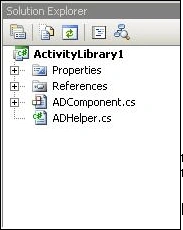
In this code the DirectoryUri and Query are passing as inputproperty and are used to specify the text that will be displayed in the Display Name of User as Output. We use a dependency property to enable the workflow to bind data to it. As with all workflow activities, the Execute method performs the action.
Step 2: Sign and deploy the activity assembly to the GAC
Step 3: Configure SharePoint to recognize the custom activity
After you build the custom activity assembly, sign it and copy it to the GAC. You then have to tell SharePoint to trust the assembly. This is similar to configuring a web part as a safe control, but instead of adding an entry to the <SafeControls> section, you add an entry to the <System.Workflow.ComponentModel.WorkflowCompiler> section. Edit the web.config file for your SharePoint web application and add an <authorizedType> element as in the following example:
-
Goto in your Site using this URL C:\Inetpub\wwwroot\wss\VirtualDirectories\10161
-
Open your Config File.
-
You need to add your assembly in specific site port config file:
<authorizedType Assembly="rifaqat.Components, Version=1.0.0.0, Culture=neutral, PublicKeyToken=e8f8c868b9896b0a" Namespace="rifaqat.Components" TypeName="*" Authorized="True" />
<authorizedType Assembly="ActivityLibrary1, Version=1.0.0.0, Culture=neutral, PublicKeyToken=8fd4b4c3a190a3c6" Namespace="ActivityLibrary1" TypeName="*" Authorized="True" />
Step 4: Create a .ACTIONS file to be used by SharePoint Designer
- The final step is to create the .ACTIONS file that describes the activity to SharePoint Designer. Since this is an XML file, you can create it using Visual Studio or any XML editor.
- This file describes the public properties exposed by the activity and tells SharePoint Designer how to map those properties into rules that can be displayed to the user. The following code shows a custom .ACTIONS file for the custom Active Directory activity.
- Goto this path for .Actions File
C:\Program Files\Common Files\Microsoft Shared\web server extensions\12\TEMPLATE\1033\Workflow
<?xml version="1.0" encoding="utf-8" ?>
<WorkflowInfo>
<Actions Sequential="then" Parallel="and">
<Action Name="Fetch User Onbehalf of Designation"
ClassName="Microsoft.SharePoint.WorkflowActions.CollectDataTask"
Assembly="Microsoft.SharePoint.WorkflowActions, Version=12.0.0.0, Culture=neutral, PublicKeyToken=71e9bce111e9429c"
AppliesTo="all"
CreatesTask="true"
Category="Task Actions">
<RuleDesigner Sentence="Collect %1 from %2 (Output to %3)">
<FieldBind Field="Title,ContentTypeId" DesignerType="Survey" Text="data" Id="1"/>
<FieldBind Field="AssignedTo" DesignerType="SinglePerson" Text="this user"Id="2"/>
<FieldBind Field="TaskId" DesignerType="ParameterNames" Text="collect" Id="3"/>
</RuleDesigner>
<Parameters>
<Parameter Name="__Context" Type="Microsoft.SharePoint.WorkflowActions.
WorkflowContext, Microsoft.SharePoint.WorkflowActions" Direction="In" />
<Parameter Name="ContentTypeId" Type="System.String, mscorlib"Direction="In" />
<Parameter Name="AssignedTo" Type="System.String, mscorlib" Direction="In" />
<Parameter Name="Title" Type="System.String, mscorlib" Direction="In" />
<Parameter Name="TaskId" Type="System.Int32, mscorlib" Direction="Out" />
</Parameters>
</Action>
</Actions>
</WorkflowInfo>
- The Actions tag tells SharePoint Designer what to display for each action in the set. Within that, the Action tag describes the individual action. The Name attribute is what gets displayed in the designer. The ClassName and Assembly attributes are used in the generated XAML for the workflow. The interesting part is the way the RuleDesigner and Parameter tags work. The RuleDesigner tag lets you set up a sentence that gets displayed in the designer as you build up the workflow. The Sentence attribute allows you to bind to the activity properties and then substitute their values when the activity is executed.
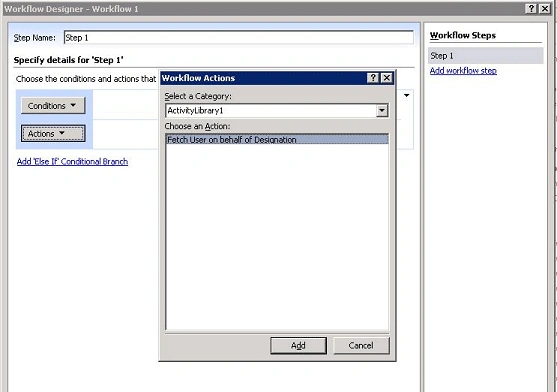
- You can declare as many actions as you want in the file. A good rule of thumb is to use a separate .ACTIONS file for each logical group of custom activities you wish to deploy. Once you've created your .ACTIONS file and copied it to the server, you can refresh the site in SharePoint Designer and your custom activity will appear in the workflow designer as shown below.
Aleksandr GorlachPosted Nov 21, 2011, 8:46 AM
Btw, we offer about 200 new ready to use sharepoint workflow activities. Free download, examples and video at our web site: http://www.harepoint.com (see HarePoint Workflow Extensions). We will be glad change the license to your review :) We also has a freeware product HarePoint Workflow Scheduler to launch workflows automaticaly by schedule, for all or selected list items and so on. WBR, Alexander
Ecan YapalakPosted Dec 21, 2008, 8:44 AM
Hi Rifaqat, thank for your example. It is exactly what I looking for. I want to crate a custom workflow, in which I want to lookup for the manager of an sharepoint-user. But I'm a little bit confused about he names for the parameters in the action-file. As fas as I see you use the Title-Parameter for DirectoryURI, AssingedTo-Parameter for the Query-Property and TaskID for the ID of the Task, that will create from the Activity. But I can not see an relationship between the parameters and property. OK, you have to know I'm not a professional programmer, so perhaps that the reason why I don't understand this immediately ;-) It will be nice, if you can give me a short answer or a link where I can find deeper information to this topic. Kind regards Ercan
amit kumarPosted Jan 19, 2008, 4:43 AM
Moss 2007 has provide sequential workflow....Can i developed state machine workflow using framework 3.0 and host on MOSS 2007?