Out-of-box- Add an item to a list:
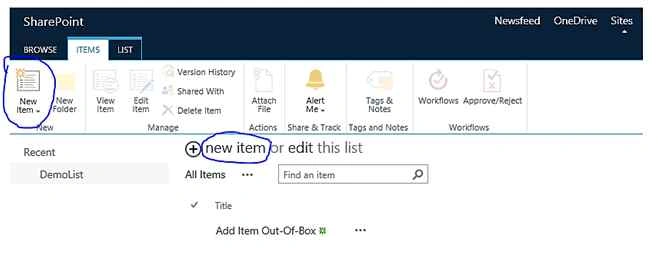
- Navigate to the site containing the list for which you want to add an item.
- Select Settings > Site contents and then in the appropriate list section, select the name of the list.
- Select the Items tab, and then in the New group select New Item.
- Select Save.
Using C#(server object model): Add Item programmatically to SharePoint List using C#.
-
- using(SPSite site = new SPSite(SPContext.Current.Site.Url))
- {
- Using(SPWeb web = site.OpenWeb())
- {
- SPList list = web.Lists["DemoList"];
- SPListItem item = list.Items.Add();
- item["Title"] = "using C# :Add new list item programmatically";
- item.Update();
- }
- }
Add Item Programmatically to SharePoint List using CSOM.
- using System;
- using System.Collections.Generic;
- using System.Linq;
- using System.Text;
- using Microsoft.SharePoint;
- using Microsoft.SharePoint.Client;
- namespace CreateListItem
- {
- class Program
- {
- static void Main(string[] args)
- {
- string siteUrl = "http://servername:2525/";
- ClientContext clientContext = new ClientContext(siteUrl);
- List oList = clientContext.Web.Lists.GetByTitle("DemoList");
- ListItemCreationInformation listCreationInformation = new ListItemCreationInformation();
- ListItem oListItem = oList.AddItem(listCreationInformation);
- oListItem["Title"] = "Add item in SharePoint List using CSOM";
- oListItem.Update();
- clientContext.ExecuteQuery();
- }
- }
- }
SharePoint Web Services (jQuery): Add a new item list. The jQuery Ajax function is used to POST the data to the Lists.asmx web service.
- <script type="text/javascript">
-
-
-
- $(document).ready(function() {
- $("#newTaskButton").click(function() {
- CreateNewItem("Add Item in List with jQuery and the SharePoint Web Services");
- });
- });
-
- function CreateNewItem(title) {
- var batch =
- "<Batch OnError=\"Continue\"> \
- <Method ID=\"1\" Cmd=\"New\"> \
- <Field Name=\"Title\">" + title + "</Field> \
- </Method> \
- </Batch>";
-
- var soapEnv =
- "<?xml version=\"1.0\" encoding=\"utf-8\"?> \
- <soap:Envelope xmlns:xsi=\"http://www.w3.org/2001/XMLSchema-instance\" \
- xmlns:xsd=\"http://www.w3.org/2001/XMLSchema\" \
- xmlns:soap=\"http://schemas.xmlsoap.org/soap/envelope/\"> \
- <soap:Body> \
- <UpdateListItems xmlns=\"http://schemas.microsoft.com/sharepoint/soap/\"> \
- <listName>DemoList</listName> \
- <updates> \
- " + batch + "</updates> \
- </UpdateListItems> \
- </soap:Body> \
- </soap:Envelope>";
-
- $.ajax({
- url: _spPageContextInfo.webAbsoluteUrl+"/_vti_bin/lists.asmx",
- beforeSend: function(xhr) {
- xhr.setRequestHeader("SOAPAction",
- "http://schemas.microsoft.com/sharepoint/soap/UpdateListItems");
- },
- type: "POST",
- dataType: "xml",
- data: soapEnv,
- complete: processResult,
- contentType: "text/xml; charset=utf-8"
- });
- }
-
-
-
- function processResult(xData, status) {
- alert(status);
- }
-
- </script>
SharePoint REST API and JQuery to Create SharePoint list item.
Reference to
latest jquery.min.js.
- <script type="text/javascript">
-
- function _createListItem( listItems, success, failure) {
-
-
- $.ajax({
- url: _spPageContextInfo.webAbsoluteUrl+ "/_api/web/lists/getbytitle('DemoList')/items",
- type: "POST",
- contentType: "application/json;odata=verbose",
- data: JSON.stringify(listItems),
- headers: {
- "Accept": "application/json;odata=verbose",
- "X-RequestDigest": $("#__REQUESTDIGEST").val()
- },
- success: function (data) {
- success(data);
- },
- error: function (data) {
- failure(data);
- }
- });
- }
-
-
-
- $(document).ready(function() {
- var item = {
- "__metadata": { "type": itemType },
- "Title": "Add Item in List using REST API"
- }
- _createListItem(item);
-
- });
-
-
- </script>
Adding list items using PowerShell SharePoint.
- #Add SharePoint PowerShell Snapin which adds SharePoint specific cmdlets
- Add-PSSnapin Microsoft.SharePoint.PowerShell -EA SilentlyContinue
-
- #Variables that we are going to use for list editing
- $webURL = "http://yoursiteName"
- $listName = "Demo List"
-
- #Get the SPWeb object and save it to a variable
- $web = Get-SPWeb $webURL
-
- #Get the SPList object to retrieve the "Demo List"
- $list = $web.Lists[$listName]
- #Create a new item
- $newItem = $list.Items.Add()
-
- #Add properties to this list item
- $newItem["Title"] = "Add item in sharepoint List Using SharePoint PowerShell"
-
- #Update the object so it gets saved to the list
- $newItem.Update()
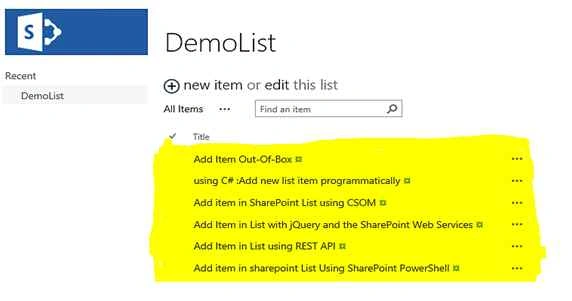
Final result shows all the Added Items:


Aziz BugtiPosted Apr 24, 2017, 5:17 AM
When I am trying to create a list item into SharePoint 2013, using C#, it give "403 forbidden" error. I guess this is authentication error. You haven't mentioned how you are passing your SharePoint credentials in C# program. Can you please elaborate this?
Chris ReversezPosted May 10, 2016, 11:38 AM
Hi, Great Post ! I can create an item inside a specific list using REST API and JQuery. But I don't know why, when create this item, the first metadata is created as it should, but the others metadata/(fields) are filled like this : User(dd/mm/yyyy h:m) : NewItemAbstract How can i do to create all the metadata without the user and the time add to these data ? And why isn't it add on the first metada ? If someone could help me on this it would be awesome.
Humayun Kabir MamunPosted Dec 1, 2015, 2:43 AM
Nice...
Rupali ShindePosted Nov 29, 2015, 11:51 PM
nice
Santhakumar MunuswamyPosted Nov 29, 2015, 11:47 PM
Good one
Vipin TyagiPosted Nov 29, 2015, 11:40 PM
Wao...Very informative
Raja TPosted Nov 29, 2015, 11:08 PM
Nice,Thanks for sharing
Mukesh KumarPosted Nov 28, 2015, 4:47 AM
Good Article... thanks for sharing
Prasham SabadraPosted Nov 28, 2015, 3:42 AM
Nice article. Thanks.
Banketeshvar NarayanPosted Nov 28, 2015, 3:34 AM
Good One