

Introduction
This article shows how to create a DropDown list with multiple selection options. This custom control DropDown allows multiple selections. In an ASP.Net DropDown we select only one option at a time.
DropDown with multiple selections Screen Shot 
Aspx code
<style type="text/css">
.DivClose
{
display: none;
position: absolute;
width: 150px;
height: 220px;
border-style: solid;
border-color: Gray;
border-width: 1px;
background-color: #F0FFFF;
}
.LabelClose
{
vertical-align: text-top;
position: absolute;
bottom: 0px;
font-family: Verdana;
}
.DivCheckBoxList
{
display: none;
background-color: White;
width: 150px;
position: absolute;
height: 200px;
overflow-y: auto;
overflow-x: hidden;
border-style: solid;
border-color: Gray;
border-width: 1px;
width: 150px;
}
.CheckBoxList
{
position: relative;
width: 150px;
height: 10px;
overflow: scroll;
font-size: small;
}
.Maintitle
{
text-align: left;
margin: 0em;
color: #00008B;
font-size: large;
padding-bottom: 16px;
border-bottom: 2px solid #A9A9A9;
margin-bottom: 10px;
white-space: nowrap;
}
.headers
{
text-align: left;
padding-right: 10px;
}
.numbers
{
text-align: right;
padding-right: 12px;
}
.textData
{
text-align: left;
padding-right: 10px;
}
.numbersHeader
{
width: 80px;
}
.numbersfooter
{
background-color: #d2d0d0;
color: #000000;
}
.SGridView
{
width: 100%;
}
.style1
{
height: 30px;
}
</style>
<asp:Literal ID="LtrMessage" runat="server"></asp:Literal>
<table style="padding-top: 9px">
<tr>
<td style="padding-bottom: 13px; font-style: normal;">
<strong>City :</strong><span style="color: Red; padding-left: 2px;">*</span>
</td>
<td>
<div id="divCustomCheckBoxList" runat="server" onmouseover="clearTimeout(timoutID);"
onmouseout="timoutID = setTimeout('HideMList()', 750);">
<table>
<tr>
<td align="right" class="style1">
<input id="txtSelectedMLValues" type="text" readonly="readonly" onclick="ShowMList()"
style="width: 150px;" runat="server" />
</td>
<td align="left" class="style1">
<img id="imgShowHide" runat="server" align="left" onclick="ShowMList()" src="~/_layouts/1033/images/down-arrow.bmp" />
</td>
</tr>
<tr>
<td colspan="2" class="DropDownLook">
<div>
<div runat="server" id="divCheckBoxListClose" class="DivClose">
<label runat="server" onclick="HideMList();" class="LabelClose" id="lblClose">
<b>x</b>
</label>
</div>
<div runat="server" title="divCheckBoxList" id="divCheckBoxList" class="DivCheckBoxList">
<asp:UpdatePanel ID="UpdatePanel11" runat="server">
<ContentTemplate>
<asp:CheckBox ID="CheckBoxList1" runat="server" Text="All" AutoPostBack="true" OnCheckedChanged="CheckBoxList1_CheckedChanged">
</asp:CheckBox>
<asp:CheckBoxList ID="lstMultipleValues" runat="server" Width="250px" CssClass="CheckBoxList">
</asp:CheckBoxList>
</ContentTemplate>
</asp:UpdatePanel>
</div>
</div>
</div>
</td>
<td>
</td>
</tr>
</table>
<br />
<br />
<div>
</div>
<div>
<script type="text/javascript">
var timoutID;
//This function shows the checkboxlist
function ShowMList() {
var divRef = document.getElementById("<%=divCheckBoxList.ClientID%>");
divRef.style.display = "block";
var divRefC = document.getElementById("<%=divCheckBoxListClose.ClientID%>");
divRefC.style.display = "block";
}
//This function hides the checkboxlist
function HideMList() {
document.getElementById("<%=divCheckBoxList.ClientID%>").style.display = "none";
document.getElementById("<%=divCheckBoxListClose.ClientID%>").style.display = "none";
}
var cblstTable;
var checkBoxPrefix;
var noOfOptions;
var selectedText
function FindSelectedItems(sender, textBoxID) {
cblstTable = document.getElementById(sender.id);
var flagUnchecked = 0;
var flaChecked = 0;
checkBoxPrefix = sender.id + "_";
noOfOptions = cblstTable.rows.length;
selectedText = "";
for (i = 0; i < noOfOptions; ++i) {
if (document.getElementById(checkBoxPrefix + i).checked) {
flag = 1;
if (selectedText == "")
selectedText = document.getElementById
(checkBoxPrefix + i).parentNode.innerText;
else
selectedText = selectedText + "," +
document.getElementById(checkBoxPrefix + i).parentNode.innerText;
}
}
for (i = 0; i < noOfOptions; ++i) {
if (document.getElementById(checkBoxPrefix + i).checked == false) {
document.getElementById("<%=CheckBoxList1.ClientID%>").checked = false;
}
if (document.getElementById(checkBoxPrefix + i).checked == true) {
flagUnchecked = 1;
flaChecked = flaChecked + 1;
}
}
document.getElementById(textBoxID.id).value = selectedText;
if (flagUnchecked == 0) {
document.getElementById(textBoxID.id).value = "Select City";
}
if (flaChecked == noOfOptions) {
document.getElementById("<%=CheckBoxList1.ClientID%>").checked = true;
document.getElementById(textBoxID.id).value = "All City";
}
}
function FindAllRepMgr(sender, textBoxID) {
if (document.getElementById("<%=CheckBoxList1.ClientID%>").checked == true) {
for (i = 0; i < noOfOptions; ++i) {
var raw = document.getElementById(checkBoxPrefix + i).rawValue = null;
var raw1 = document.getElementById(checkBoxPrefix + i).checked = true;
document.getElementById(checkBoxPrefix + i).checked == true;
}
document.getElementById(textBoxID.id).value = "All City";
}
if (document.getElementById("<%=CheckBoxList1.ClientID%>").checked == false) {
for (i = 0; i < noOfOptions; ++i) {
var raw = document.getElementById(checkBoxPrefix + i).rawValue = null;
var raw1 = document.getElementById(checkBoxPrefix + i).checked = false;
document.getElementById(checkBoxPrefix + i).checked == false;
}
document.getElementById(textBoxID.id).value = "Select City";
}
}
</script>
</div>
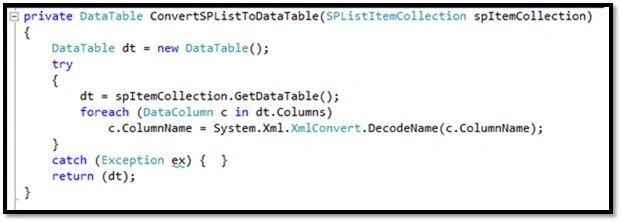
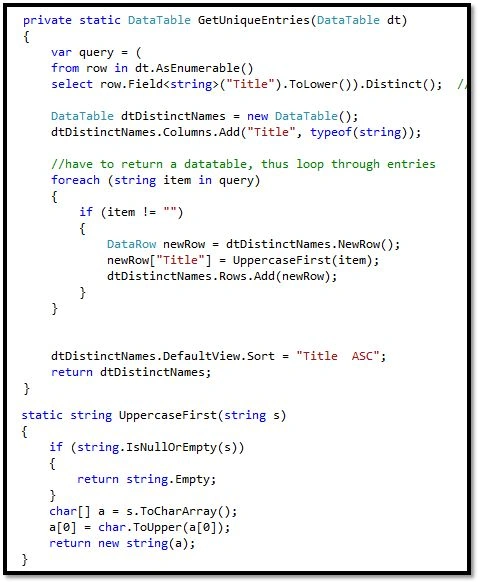
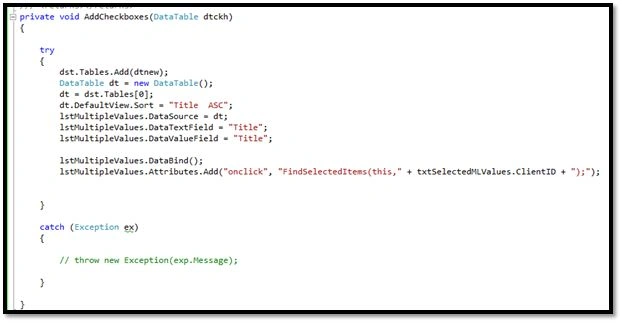
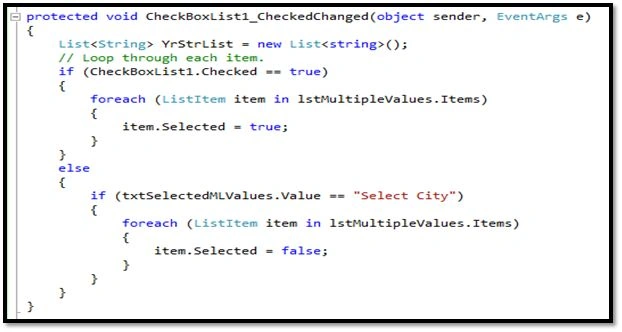
C#: Cs.code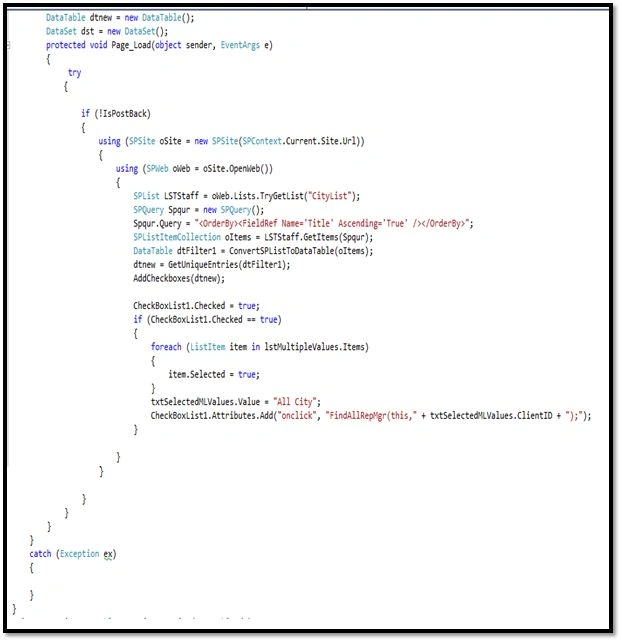
jagadish mohantyPosted Jun 8, 2017, 9:37 AM
I have this same functionality which needs to implemented in sharepoint 2007
jagadish mohantyPosted Jun 8, 2017, 9:36 AM
Can i have the proper code for this ?