
Introduction: In this article we will explore how to slide an images using jQuery and how it is possible to slide the images in ASP.NET using jQuery. We often see this inside websites that at the corner, images slide one by one; it may be advertisement images or the images you want to display for commercially or for look and feel. By using this type of functionality we can give an awesome effect to our website that will produce a great effect on the user of the website. You often seen that these are basically built on flash but by using jQuery in ASP.NET we can build this type of functionality. For doing this we have to use a CSS style sheet that will be necessary to set the position, z-index, border etc. Now it's time to see how we will make it :
Step 1: Firstly we have to create a web Application.
- Go to Visual Studio 2010
- New--> And select the web Application
- Give it's a name whatever you want
- Click OK

Step 2: Secondly you have to add a new page to the website
- Go to the Solution Explorer
- Right Click on the Project name
- Select add new item
- Add new web page and give it a name
- Click OK

Next--> Click

Step 3: In this step you should have to add some images to the project let see how it will looks like. These are the images basically i used but you can use your own images whatever you want to do:
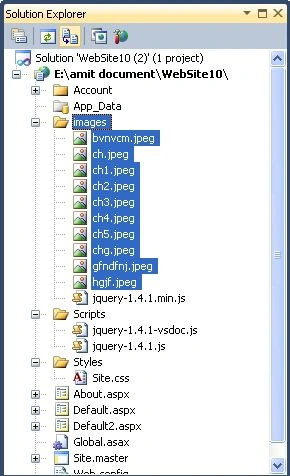
Step 4: In this code you will see that we have to add some images inside the default2.aspx page now let see that how we will add it. First of all we have to take a div inside it we will take the images whatever the number you want let see the body code of the default2.aspx page:
Body Code:
<body
style="font-family:
Arial, Sans-serif, sans;">
<h1
style="border:
5px groove #C0C0C0; font-family:
'Comic Sans MS'; font-size:
xx-large; color:
#00FF00; background-color:
#2a2a2a;">Simple jQuery Slideshow</h1>
<div
id="s_show">
<img
src="images/ch.jpeg"
alt="img"
/>
<img
src="images/ch1.jpeg"
alt="img1"
/>
<img
src="images/ch2.jpeg"
alt="img2"
/>
<img
src="images/ch3.jpeg"
alt="imge3"
/>
<img
src="images/ch4.jpeg"
alt="img4"
/>
<img
src="images/ch5.jpeg"
alt="img5"
/>
<img
src="images/bvnvcm.jpeg"
alt="img6"
/>
<img
src="images/gfndfnj.jpeg"
alt="img7"
class="active"
/>
<img
src="images/hgjf.jpeg"
alt="img4"
/>
</div>
<h1
style="border:
5px groove #800000; font-family:
'Comic Sans MS'; font-size:
xx-large; color:
#CCFF33; background-color:
#2a2a2a; position:
absolute;">Let see the slide show will display images one by one</h1>
</body>
Step 5: In this step we will see that how to add style sheet code, Whenever we will write the style sheet code you have to care that it will be write inside the <style></style> code and you have to plcaced it inside the head section:
Style Code:
<style
type="text/css">
#s_show
{
position:relative;
height:350px;
background-color:#2a2a2a;
border:5px
groove Fuchsia;
}
#s_show
IMG {
position:absolute;
top:40px;
left:50px;
border-width:5px;
border-color:Fuchsia;
border-style:groove;
z-index:8;
opacity:0.0;
}
#s_show
IMG.active {
z-index:10;
opacity:1.0;
}
#s_show
IMG.last-active {
z-index:9;
}
</style>
Step 6: In this step we have to write the script reference to the aspx page let see from where you have to write the script code:
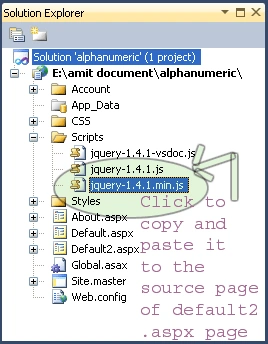
Step 7: Let see the script code which you have to add inside the<script></script> and will be paced either head section or body section as you want:

Step 8: In this step we have to write the jQuery code which is given below:
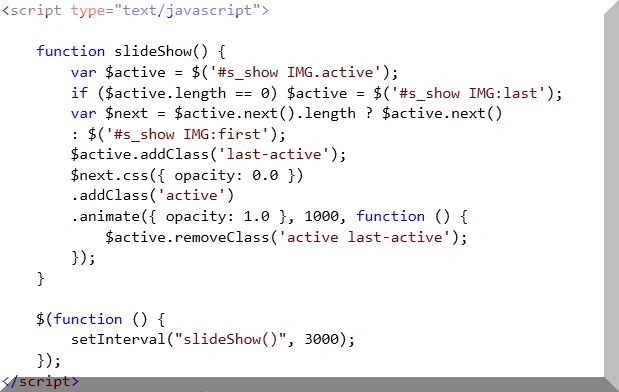
Step 9: In this step we will see the complete code for the Default2.aswpx page let see the code given below:
Code:
<%@
Page Language="C#"
AutoEventWireup="true"
CodeFile="Default2.aspx.cs"
Inherits="Default2"
%>
<!DOCTYPE
html PUBLIC
"-//W3C//DTD XHTML 1.0 Transitional//EN"
"http://www.w3.org/TR/xhtml1/DTD/xhtml1-transitional.dtd">
<html
xmlns="http://www.w3.org/1999/xhtml">
<head
runat="server">
<title>jQuery
Slideshow</title>
<script
type="text/javascript"
src="Scripts/jquery-1.4.1.min.js"></script>
<script
type="text/javascript">
function slideShow() {
var $active = $('#s_show
IMG.active');
if ($active.length == 0) $active = $('#s_show
IMG:last');
var $next = $active.next().length ? $active.next()
: $('#s_show IMG:first');
$active.addClass('last-active');
$next.css({ opacity: 0.0 })
.addClass('active')
.animate({ opacity: 1.0 }, 1000, function
() {
$active.removeClass('active last-active');
});
}
$(function () {
setInterval("slideShow()", 3000);
});
</script>
<style
type="text/css">
#s_show
{
position:relative;
height:350px;
background-color:#2a2a2a;
border:5px
groove Fuchsia;
}
#s_show
IMG {
position:absolute;
top:40px;
left:50px;
border-width:5px;
border-color:Fuchsia;
border-style:groove;
z-index:8;
opacity:0.0;
}
#s_show
IMG.active {
z-index:10;
opacity:1.0;
}
#s_show
IMG.last-active {
z-index:9;
}
</style>
</head>
<body
style="font-family:
Arial, Sans-serif, sans;">
<h1
style="border:
5px groove #C0C0C0; font-family:
'Comic Sans MS'; font-size:
xx-large; color:
#00FF00; background-color:
#2a2a2a;">Simple jQuery Slideshow</h1>
<div
id="s_show">
<img
src="images/ch.jpeg"
alt="img"
/>
<img
src="images/ch1.jpeg"
alt="img1"
/>
<img
src="images/ch2.jpeg"
alt="img2"
/>
<img
src="images/ch3.jpeg"
alt="imge3"
/>
<img
src="images/ch4.jpeg"
alt="img4"
/>
<img
src="images/ch5.jpeg"
alt="img5"
/>
<img
src="images/bvnvcm.jpeg"
alt="img6"
/>
<img
src="images/gfndfnj.jpeg"
alt="img7"
class="active"
/>
<img
src="images/hgjf.jpeg"
alt="img4"
/>
</div>
<h1
style="border:
5px groove #800000; font-family:
'Comic Sans MS'; font-size:
xx-large; color:
#CCFF33; background-color:
#2a2a2a; position:
absolute;">Let see the slide show will display images one by one</h1>
</body>
</html>
Step 10: In this step we will see the design of the Default2.aspx page which is given below:

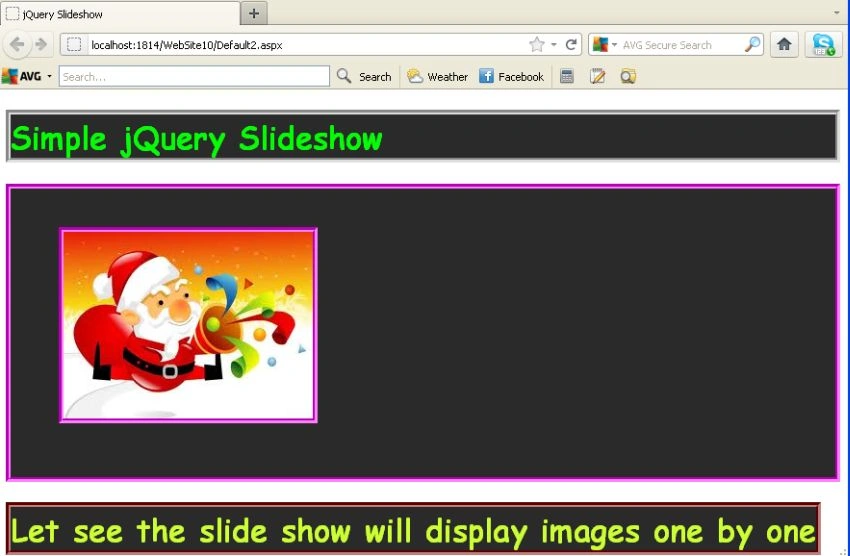
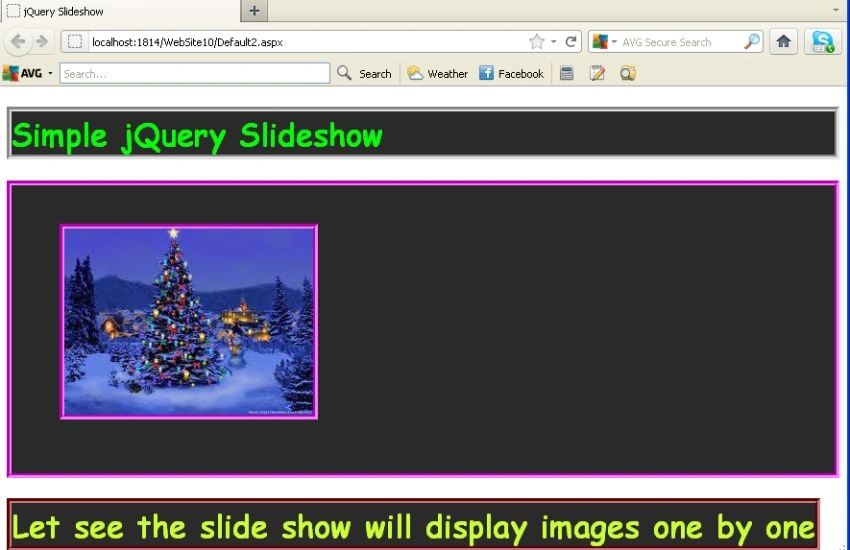
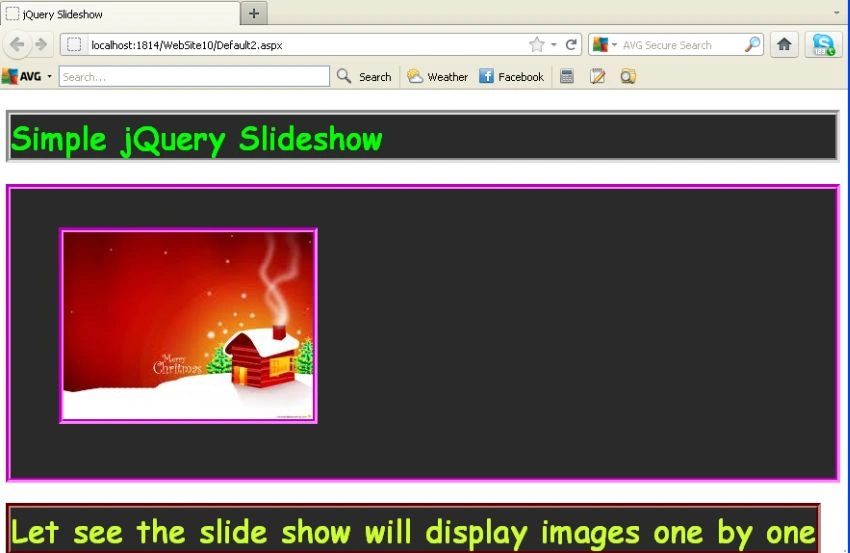
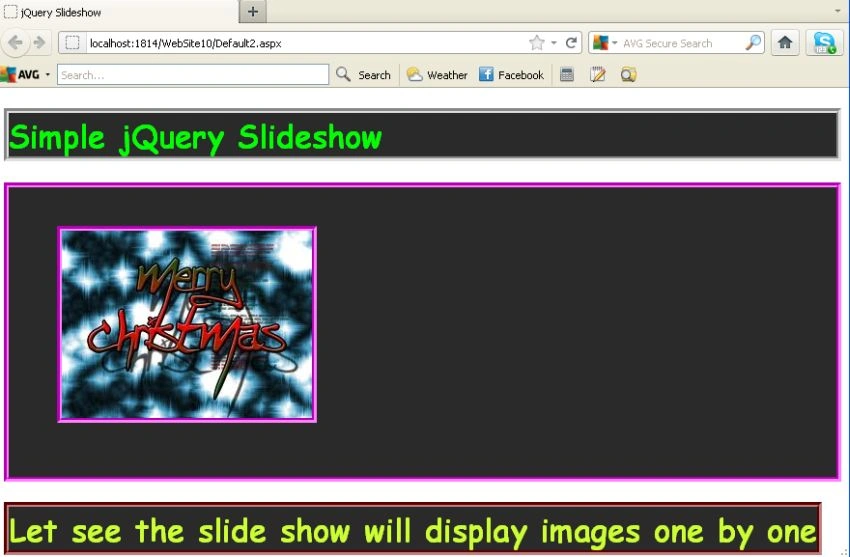
Step 11: In this step we are going to run the Default2.aspx page by pressing F5:
Output1:
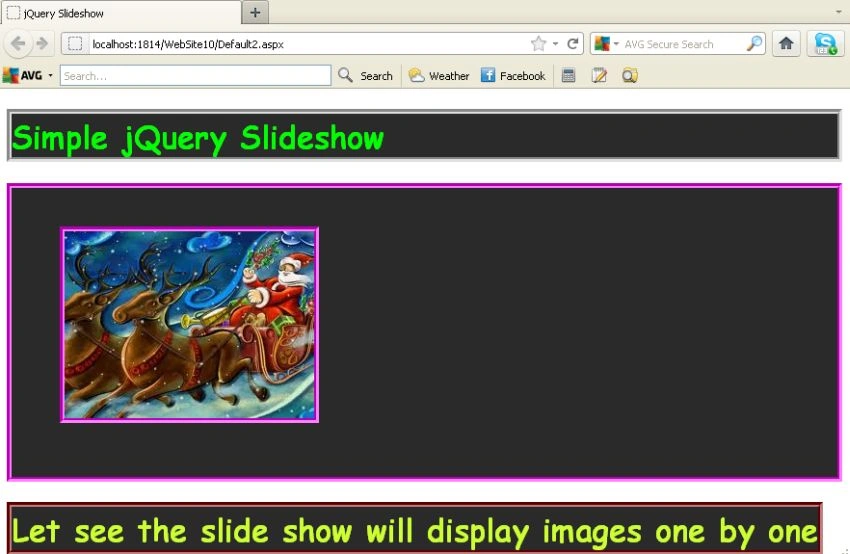
Output2:
Output3:
Output4:
Output5:
Gowtham RajamanickamPosted Apr 1, 2015, 4:34 AM
nice..
romasha aliPosted May 31, 2014, 4:27 PM
it did not work for me correctly showing images in very small size can u help me?
jayesh sorathiaPosted Feb 23, 2013, 2:33 AM
Very nice article. You can also use this JQuery cycle plugin. To download image slide show asp.net example visit this link. http://jayeshsorathia.blogspot.com/2013/02/image-slide-show-using-jquery-with-aspnet-example.html
swarna prabhaPosted Oct 2, 2012, 7:28 AM
its not working for me... :(
Deepak KumarPosted Jun 22, 2012, 6:27 AM
nice post
Davin MartynPosted Dec 22, 2011, 5:39 AM
Hi....... Good Work sapna.........
Vikas MishraPosted Dec 20, 2011, 5:59 PM
Hi Thanks For such a nice explanation.......
Akash AhlawatPosted Dec 19, 2011, 11:53 PM
Great presentation Sapna
Monika AroraPosted Dec 19, 2011, 11:52 PM
Hi Sapna.Nice article.