

Introduction
This article provides a simple example of how to use the System.Diagnostics.Process library to display a list of running processes, and to select and kill processes by their process name and ID. It would not be a major trick to display additional information about the process using the same library or to kill processes by their ID or name alone rather than their name and ID but in this example, process names and IDs are used for display purposes and the purpose of killing a running process.
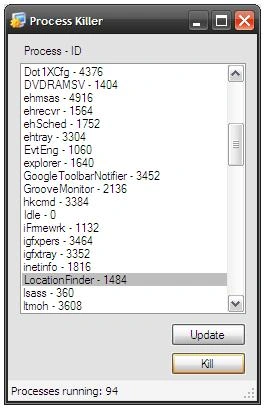
Figure 1: Listing and Killing Processes by Process Name and ID
Getting Started
There is a single solution included with this download, the solution contains a
Win Forms project called "ProcessKillerVB"; this project contains one form
(Form1.vb) and all of the code required to display and kill processes is
contained within that single form class. If you open the attached project into
Visual Studio 2008; you should see the following in the solution explorer:
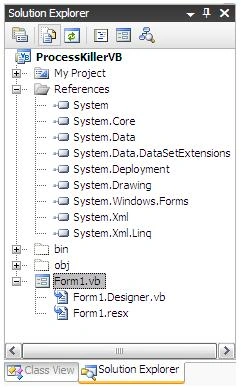
Figure 2: Solution Explorer
Code: The Main Form
The main form contains all of the user interface elements necessary to display
and update the list of currently running processes found on the user's machine.
It also contains a button handler which will kill a process by the process
name. You can also kill a process by its ID but in terms of readability, if the
user is selecting the process, the process name is going to make a lot more
sense to them than will the process ID.
The class begins with the normal and default imports:
Imports
System.Diagnostics
The constructor calls a method called "UpdateProcessList" which is used to get and display a list of running processes; it will be described shortly.
Public Class Form1
Public Sub New()
' This call is required by the Windows Form Designer.
InitializeComponent()
' display the list of running processes
UpdateProcessList()
End Sub
The next bit of code is the UpdateProcessList function; this function clears the listbox of any existing entries and then loops through each of the current processes, adding the name and ID of each process to the list (as Process Name - ID). At the end of the function, a status message is updated to display the current number of found processes.
''' <summary>
''' Loop through the list of running processes
''' and add each process name to the process
''' listbox
''' </summary>
''' <remarks></remarks>
Private Sub UpdateProcessList()
' clear the existing list of any items
lstProcesses.Items.Clear()
' loop through the running processes and add
'each to the list
Dim p As System.Diagnostics.Process
For Each p In System.Diagnostics.Process.GetProcesses()
lstProcesses.Items.Add(p.ProcessName & " - " & p.Id.ToString())
Next
lstProcesses.Sorted = True
' display the number of running processes in
' a status message at the bottom of the page
tslProcessCount.Text = "Processes running: " & _
lstProcesses.Items.Count.ToString()
End Sub
The next bit of code in the application is the update button's click event handler; all it does is to call the UpdateProcessList function to update the contents of the listbox.
''' <summary>
Join the conversation! Your thoughts help the community grow.