

Introduction
Most of the times you need to add custom user properties in MOSS 2007 during implemetation of sharepoint in companies. Here I do have step by step property addition tutorial for MOSS developers.
Note: Click images for bigger images.
Here are some steps for adding user profile property.
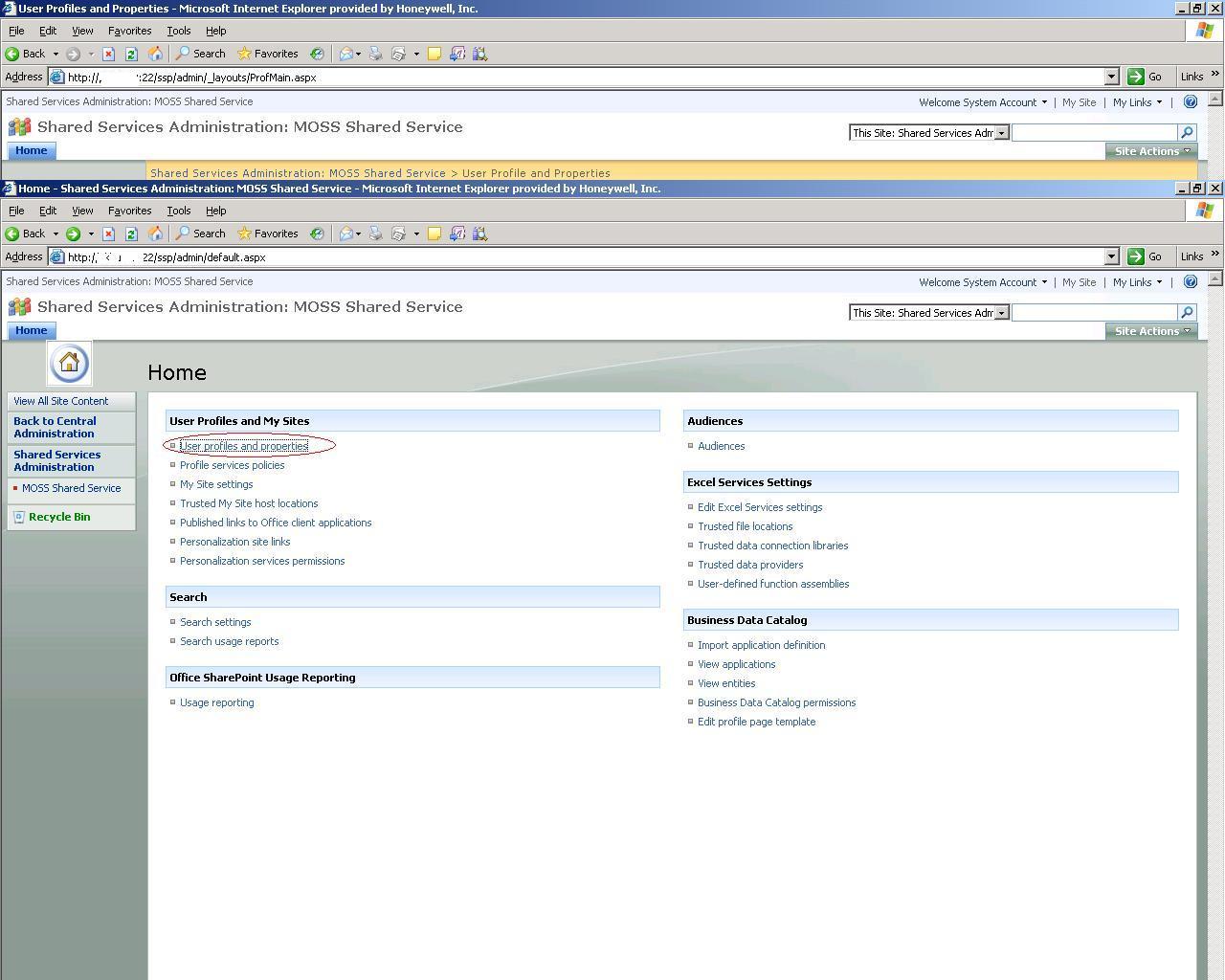
- Go to Shared Services Administration --> SharedService1
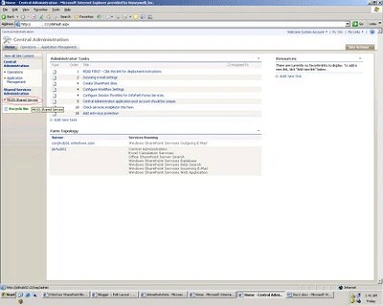
- Under User Profiles and My Sites click on User profiles and properties
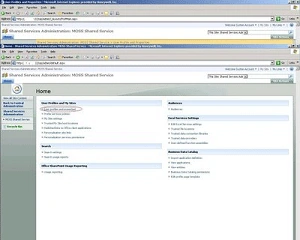
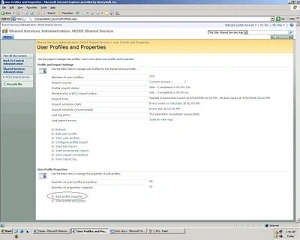
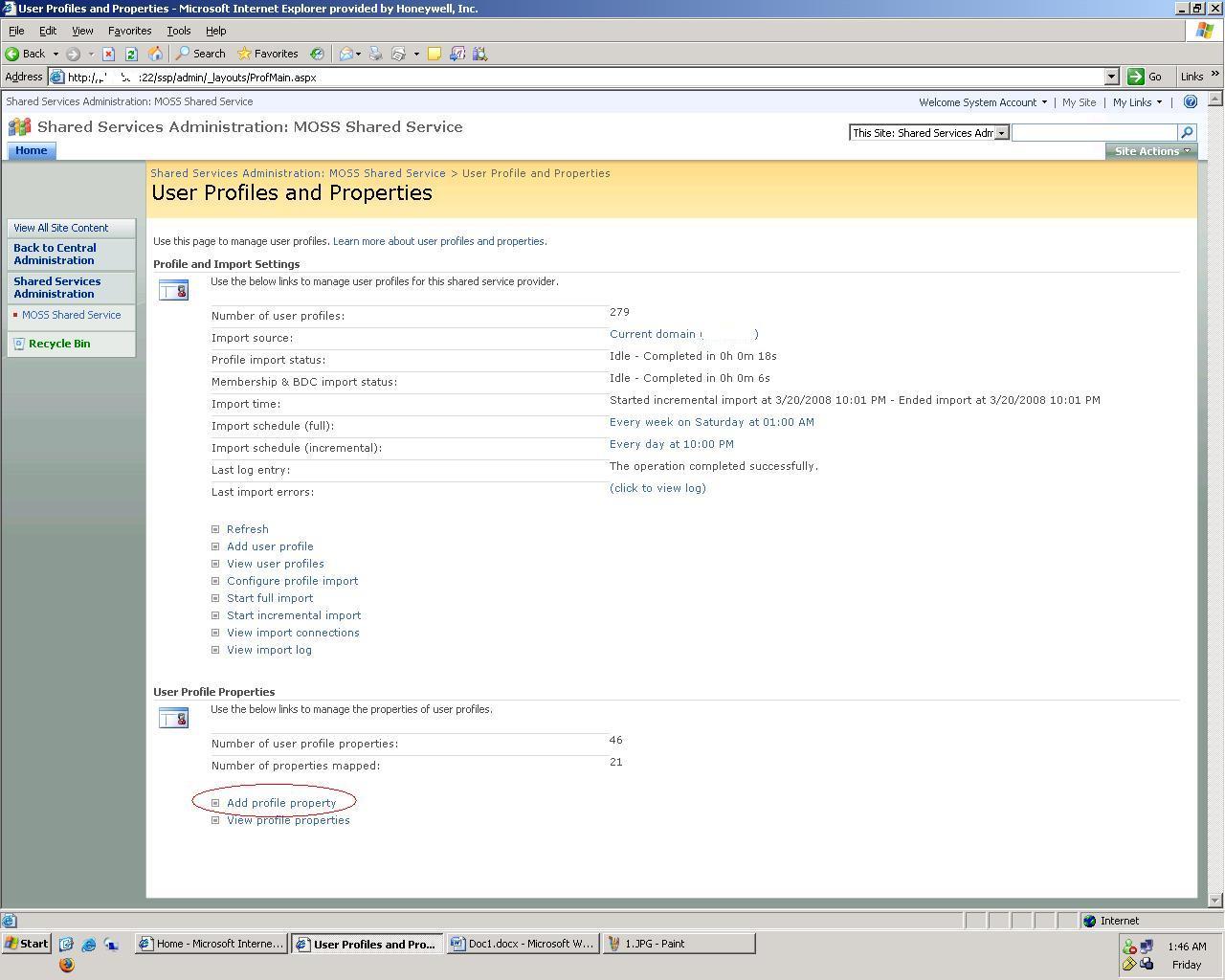
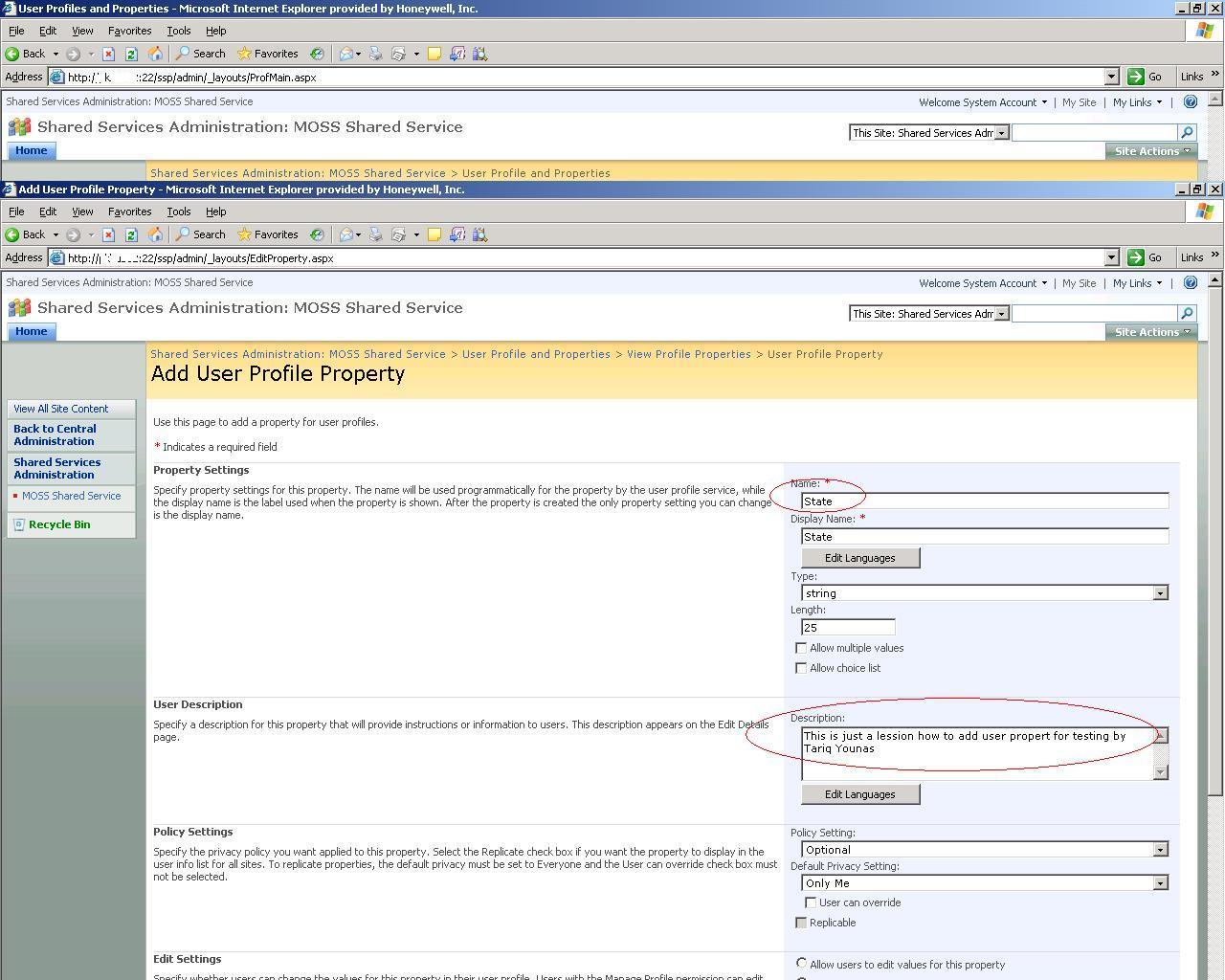
- Click on Add Profile Property
- Enter property name, description & display name
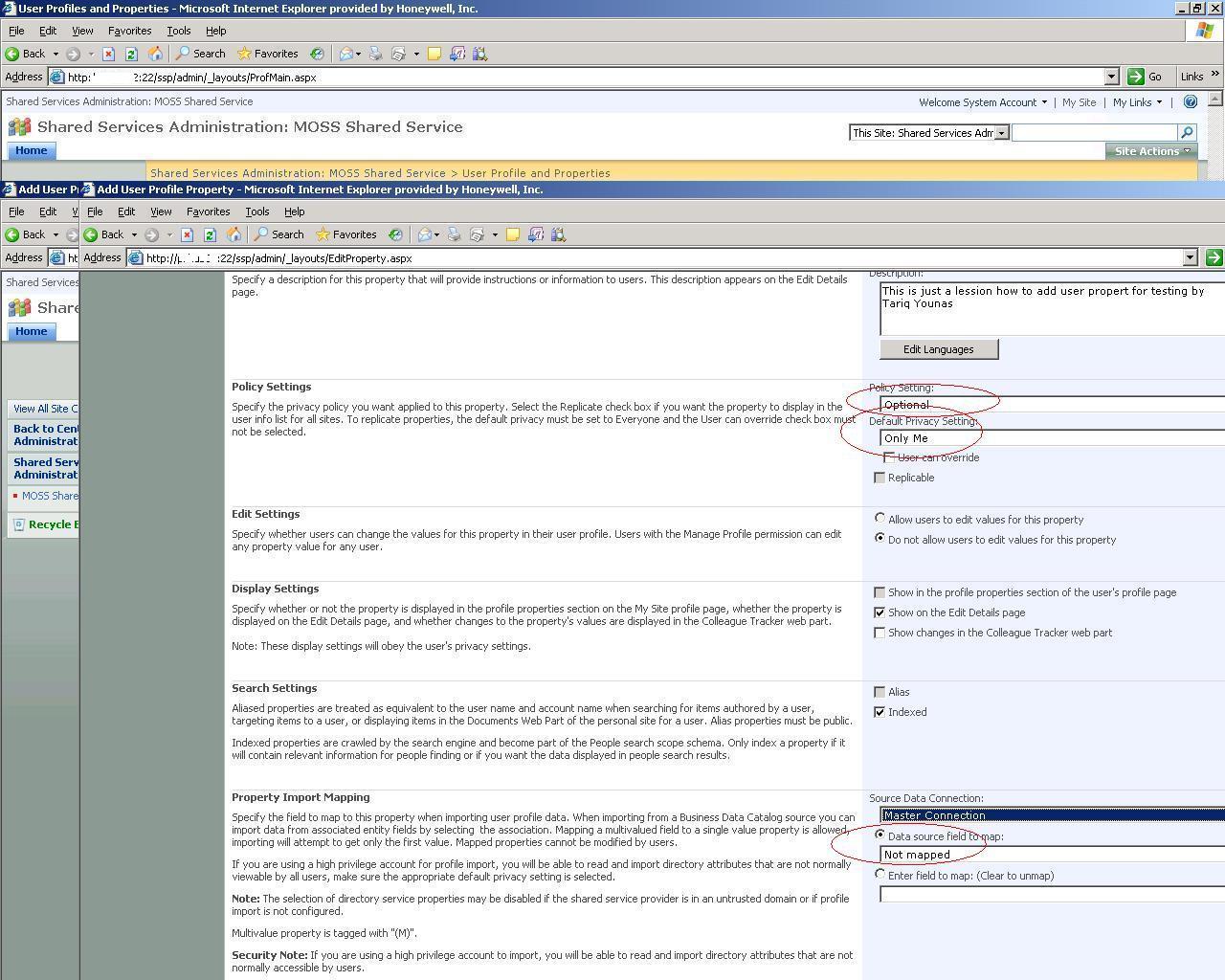
- In policy settings set the default privacy setting as per your choice like My Manager, MyWorkGroup, Everyone etc.
Here I am going to select [Only Me]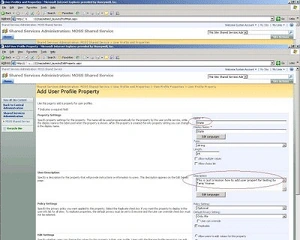
- In Property Import Mapping you can map this property to Active Directory property as well.
Here I am not going to map it.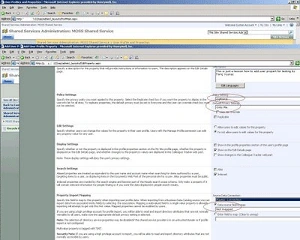
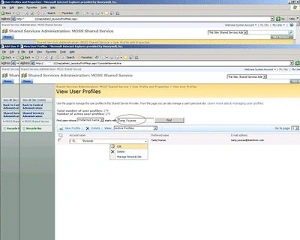
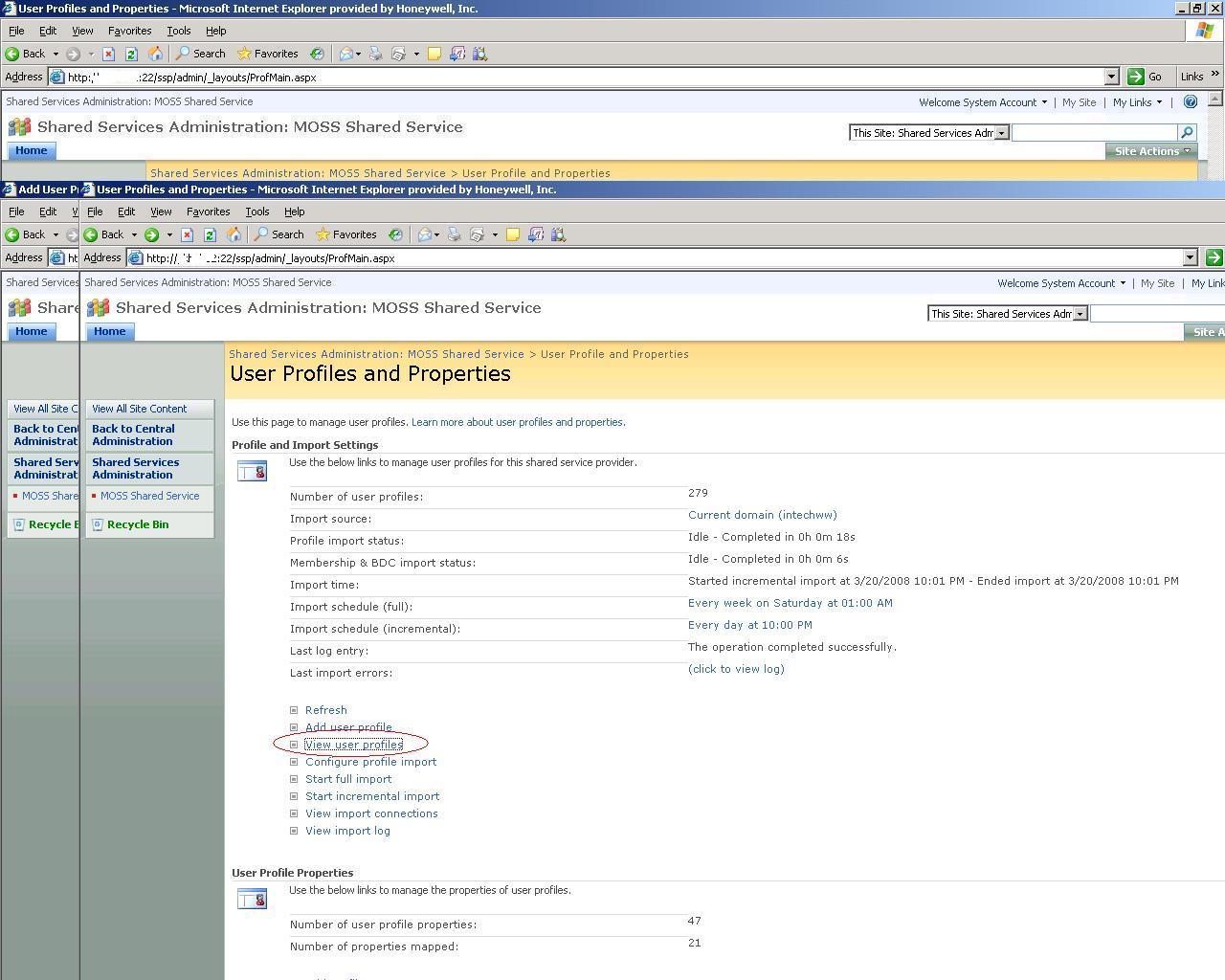
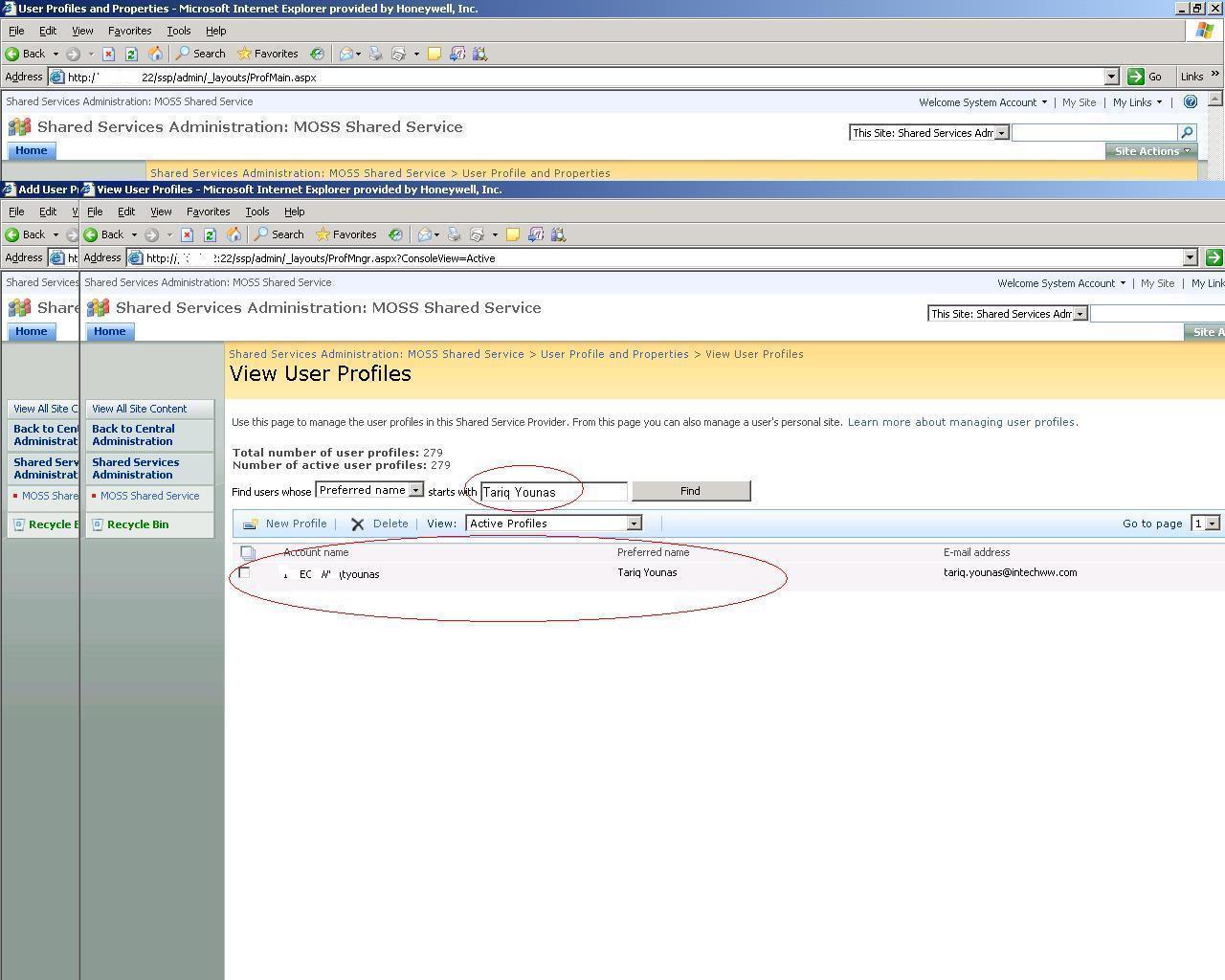
Now click come back to User profile and properties and click View User Profile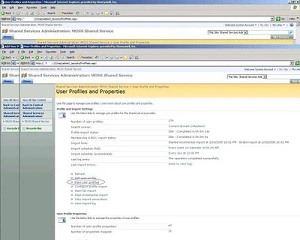
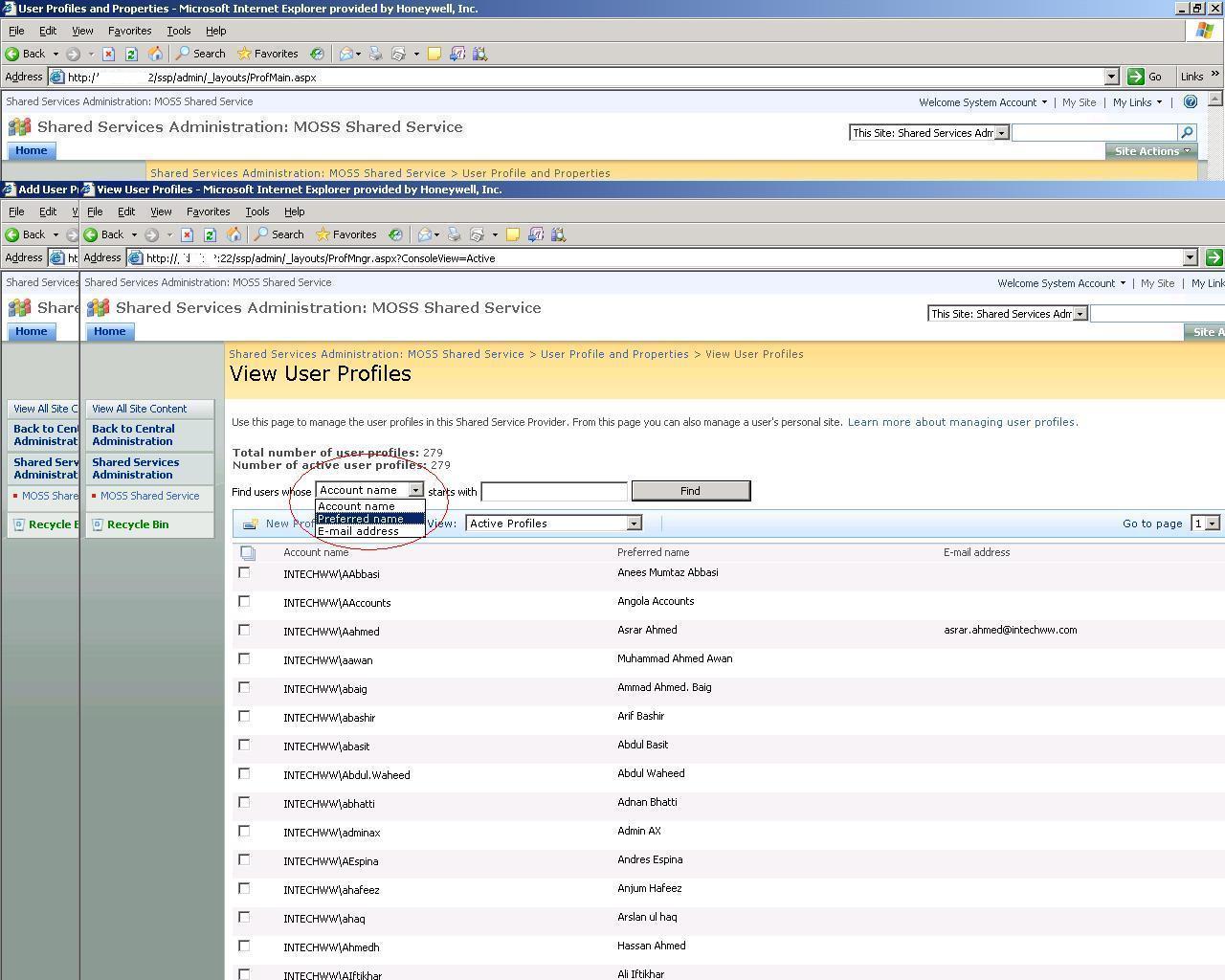
- Select preferred name
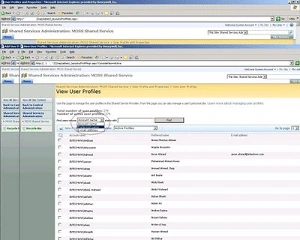
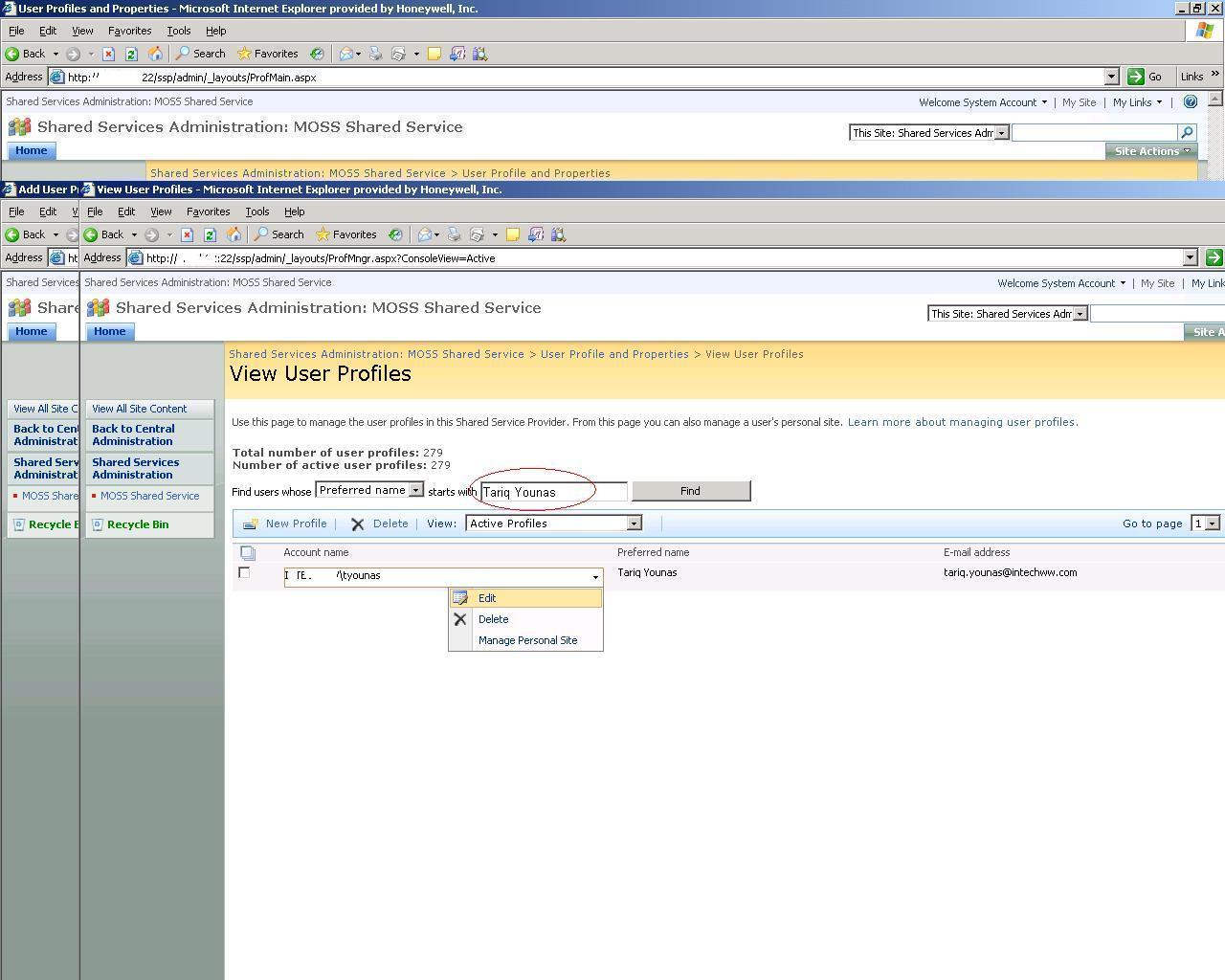
- Here I am going to put [Tariq Younas] in search
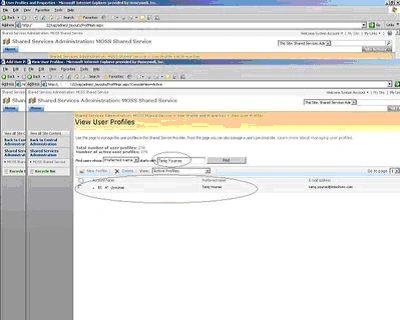
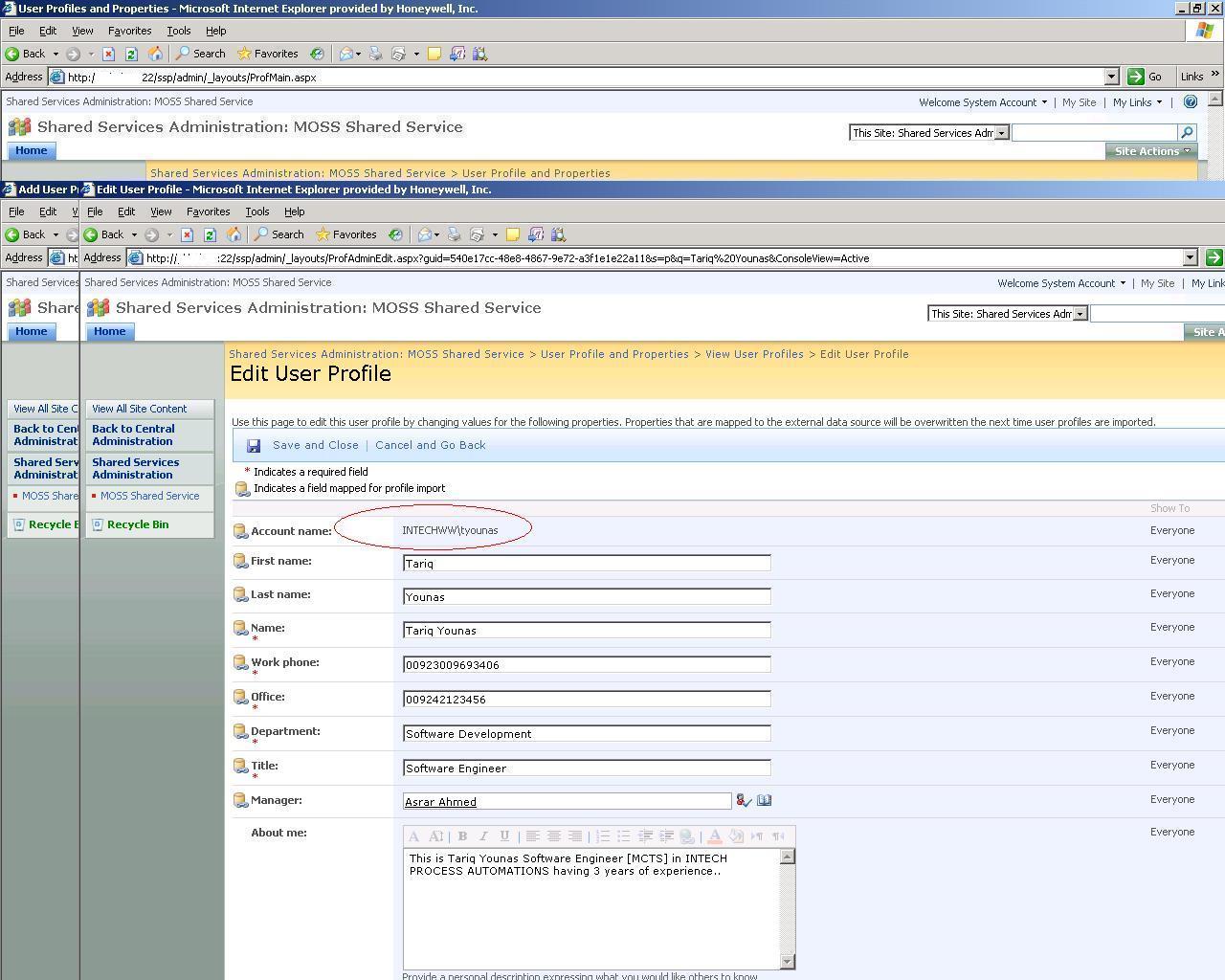
- Click on it and press Edit
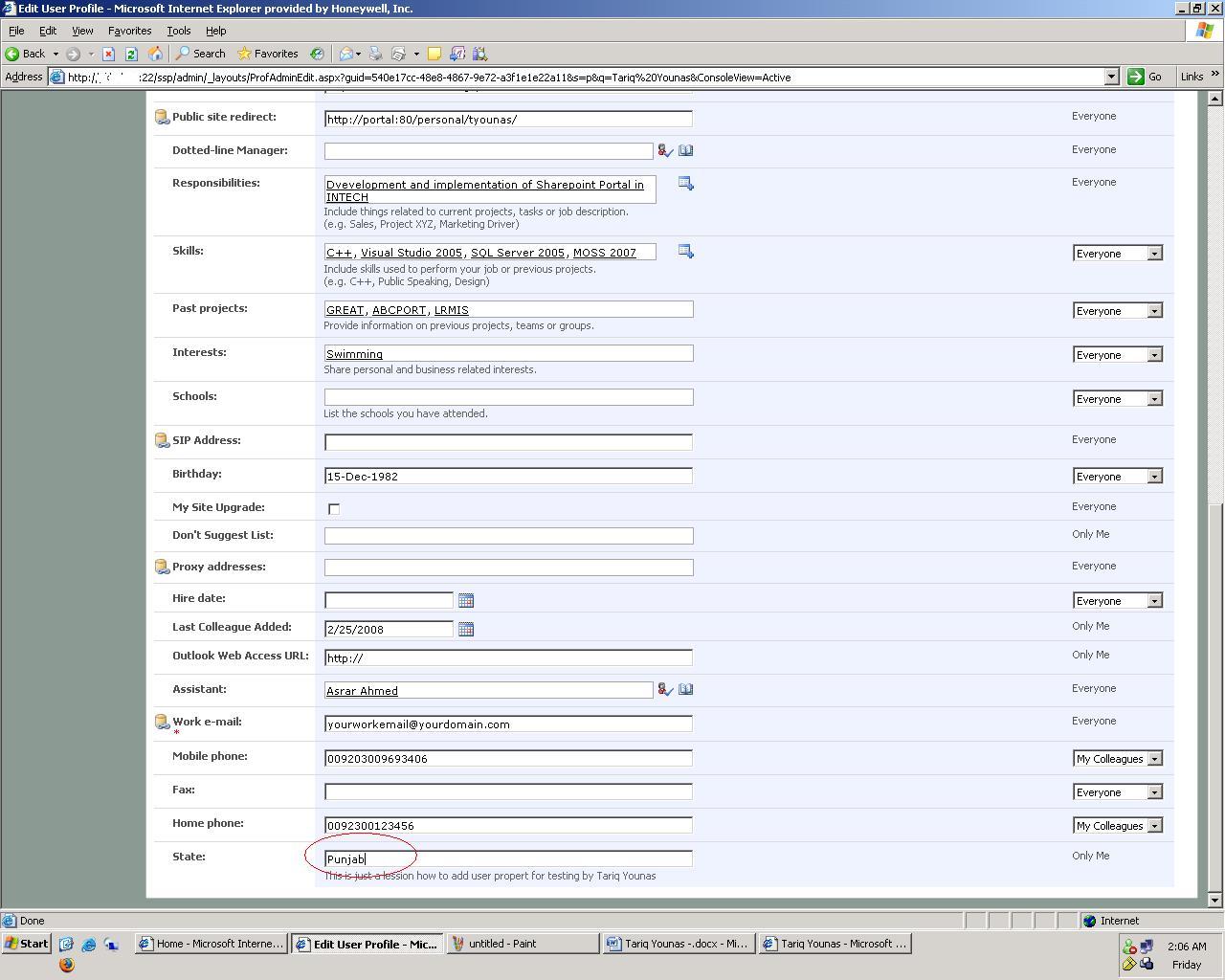
My profile is open as you can view my AccountName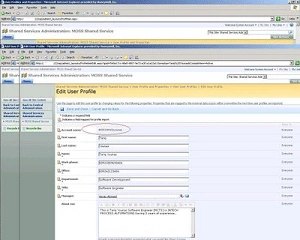
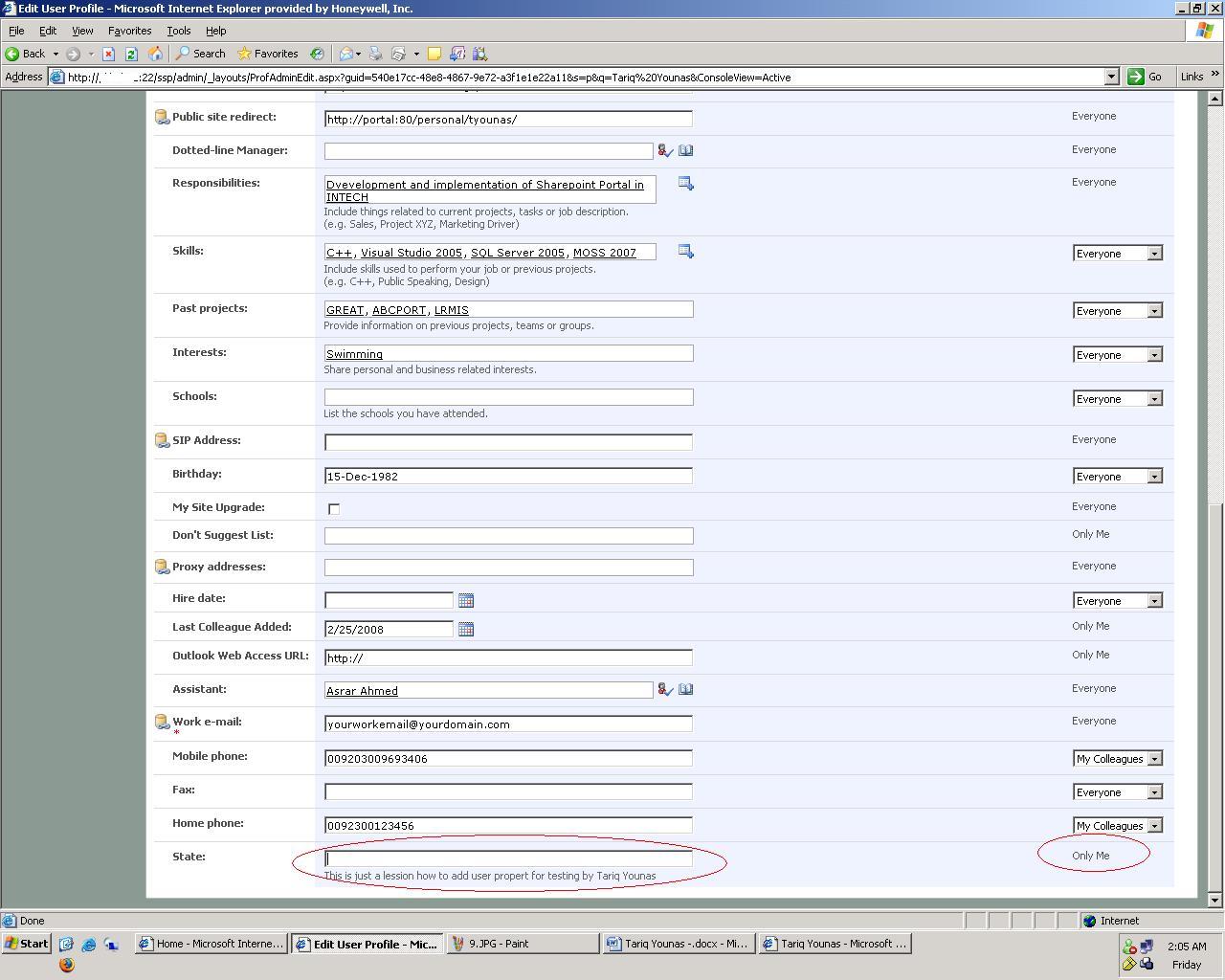
Here state is now appeared & it is allowing to show [Only ME]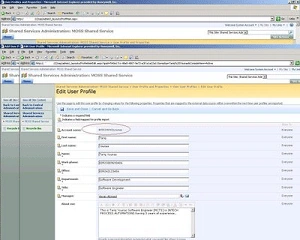
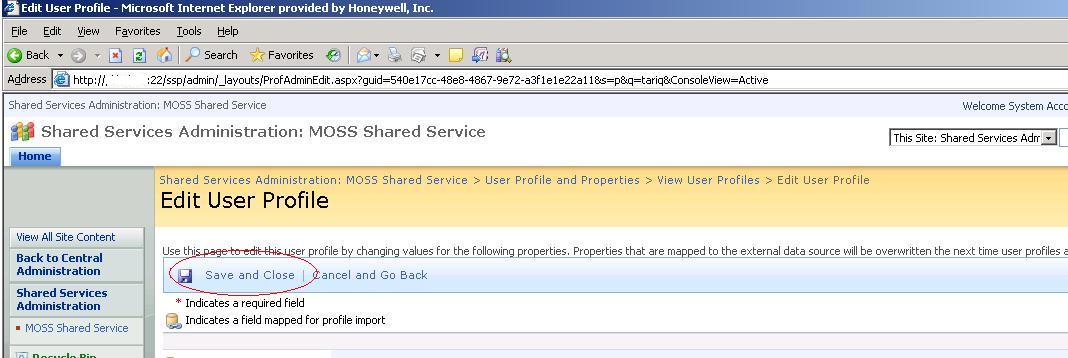
Now I am putting and going to Save and close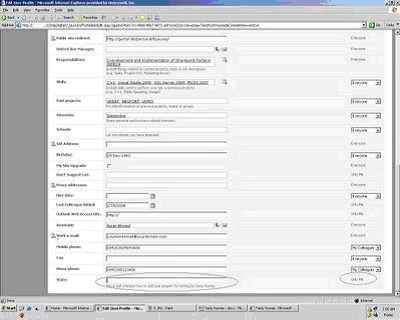
- As I entered in State Filed
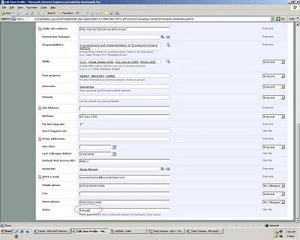
- Now Save and close
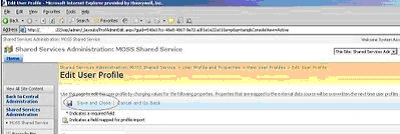

Now your User Profile Property has been added.
Ashish JaviyaPosted Mar 4, 2013, 7:49 AM
is there a way to SYNC the property with AD ? i am trying to get EmployeeID out of it. -1) have followed all the steps -2) run the incremental profile crawl.
Naveed DGPosted Nov 25, 2011, 4:06 PM
Hi, While creating a custom property of type Binary, the display section gets grayed out i.e uneditable. I want the User Profile Proerty of type binary be visible in User Profiles.How to achieve this. Any help, ideas, advise on this will be greatly appreciated. Thanks