


- For maintenance reasons, I mean if we want to entirely change the interface, we can do this easily, we just remove the current view and design the new view, all that we have to do is to bind the new view elements and controls' properties to the View Model module properties that's all.
- The second purpose is to render possible the test operations though unit testing, which is not possible within the classic implementation
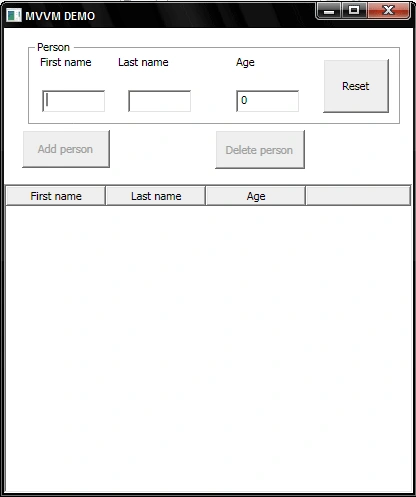
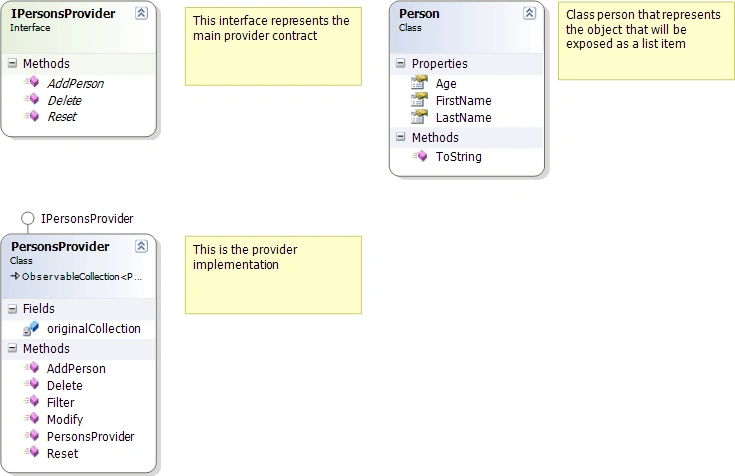
| View Model members | Information |
| First name : A string field | Could be a dependency property or it could be a NotifyPropertyChanged CLR classic property to be self kept up to date, once changes are done. |
| Last name : A string field | Could be a dependency property or it could be a NotifyPropertyChanged CLR classic property to be self kept up to date, once changes are done. |
| Age : An integer field | Could be a dependency property or it could be a NotifyPropertyChanged CLR classic property to be self kept up to date, once changes are done. |
| Add person : A command | It could be a RoutedCommand or a class that implements ICommand interface to avoid implement the click event handler of the Add person button |
| Delete person : A command | It could be a RoutedCommand or a class that implements ICommand interface to avoid implement the click event handler of the Delete person button |
| Reset : A command | It could be a RoutedCommand or a class that implements ICommand interface to avoid implement the click event handler of the Reset button |
Now let's implement the Reset command exactly like the add command
using System;
using System.Windows.Input;
namespace MVVM
{
public class
ResetCommand :ICommand
{
ViewModel
VM;
public
ResetCommand(ViewModel VM)
{
this.VM
= VM;
}
#region ICommand Members
public bool CanExecute(object
parameter)
{
return
true;
}
public event EventHandler
CanExecuteChanged;
public void Execute(object
parameter)
{
VM.ResetCollection();
}
#endregion
}
}
And finally the Delete command
public class DeleteCommand
: ICommand
{
private
ViewModel VM;
public
DeleteCommand(ViewModel VM)
{
this.VM
= VM;
}
#region ICommand Members
/// <summary>
/// bool: This method will enable or disable the delete
command
/// according to the user whether he(she) selects the person
going
/// to be deleted or not
/// </summary>
/// <param
name="parameter"></param>
/// <returns></returns>
public bool
CanExecute(object parameter)
{
if
(parameter is System.Windows.Controls.ListView)
{
if
((parameter as System.Windows.Controls.ListView).SelectedItems.Count > 0)
{
return
true;
}
return
false;
}
return false;
}
public event EventHandler
CanExecuteChanged
{
add
{ CommandManager.RequerySuggested += value; }
remove
{ CommandManager.RequerySuggested -= value; }
}
/// <summary>
/// void: This method will delegate the DeletePerson method of
the ViewModel
/// instance
/// </summary>
/// <param
name="parameter">ListView: This
parameter will represent
/// the list view of the current interface</param>
public void Execute(object
parameter)
{
VM.DeletePerson((parameter as System.Windows.Controls.ListView));
}
#endregion
}
The next step is to add those commands as properties to the View Model class so that we can use them later,
//Those
are the view model commands
public ResetCommand resetCommand{get;set;}
public AddCommand addCommand { get;
set; }
public DeleteCommand deleteCommand { get; set; }
public
ViewModel(IPersonsProvider Source)
{
_source = Source;
this.resetCommand
= new ResetCommand(this);
this.addCommand
= new AddCommand(this);
this.deleteCommand
= new DeleteCommand(this);
}
Note that we haven't forget to instantiate them at the View Model constructor level and pass them the current ViewModel instance as parameter, this technique is called injection, note that we inject the ViewModel current instance in the command constructor.
Example:
this.resetCommand = new ResetCommand(this); this = current View Model instance
Now that our View Model implementation is completed:
using System;
using System.Windows;
using MVVM.Provider;
namespace MVVM
{
public class
ViewModel : DependencyObject
{
IPersonsProvider
_source;
public ResetCommand resetCommand{get;set;}
public AddCommand addCommand { get;
set; }
public DeleteCommand deleteCommand { get; set; }
public
ViewModel(IPersonsProvider Source)
{
_source = Source;
this.resetCommand
= new ResetCommand(this);
this.addCommand
= new AddCommand(this);
this.deleteCommand
= new DeleteCommand(this);
}
public IPersonsProvider ViewModelProvider
{
get
{ return _source; }
}
/// <summary>
/// void: This method wraps up the provider AddPerson method
/// which is represented by the _source object
/// </summary>
public void AddPerson()
{
string
firstName = this.FirstName;
string
lastName = this.LastName;
int
age = this.Age;
_source.AddPerson(new Person {
FirstName = firstName,
LastName =
lastName, Age = age });
FirstName = "";
LastName = "";
Age = 0;
}
/// <summary>
/// void: This method is used to wrap up the provider Delete
method
/// </summary>
/// <param
name="listView"></param>
public void DeletePerson(System.Windows.Controls.ListView listView)
{
Person
person = listView.SelectedItem as Person;
_source.Delete(person);
}
/// <summary>
/// void: This method is used to wrap up the provider reset
method
/// </summary>
public void ResetCollection()
{
_source.Reset();
}
//Dependency
proeprty wrapper for AgeProperty
public int Age
{
get
{ return (int)GetValue(AgeProperty);
}
set
{ SetValue(AgeProperty, value); }
}
/* Using a DependencyProperty
as the backing store for Age.
* This enables animation, styling,
binding, etc...*/
public static readonly DependencyProperty AgeProperty =
DependencyProperty.Register("Age",
typeof(int), typeof(ViewModel),
new
UIPropertyMetadata(0));
//Dependency
proeprty wrapper for LastNameProperty
public string LastName
{
get
{ return (string)GetValue(LastNameProperty);
}
set
{ SetValue(LastNameProperty, value); }
}
/* Using a
DependencyProperty as the backing store for Age.
* This enables animation, styling,
binding, etc...*/
public static readonly DependencyProperty LastNameProperty =
DependencyProperty.Register("LastName",
typeof(string),
typeof(ViewModel),
new
UIPropertyMetadata());
//Dependency
proeprty wrapper for FirstName
public string FirstName
{
get
{ return (string)GetValue(FirstNameProperty);
}
set
{ SetValue(FirstNameProperty, value); }
}
/* Using a
DependencyProperty as the backing store for Age.
* This enables animation, styling,
binding, etc...*/
public static readonly DependencyProperty FirstNameProperty =
DependencyProperty.Register("FirstName",
typeof(string),
typeof(ViewModel),
new
UIPropertyMetadata());
public bool CanAdd()
{
bool
result = !string.IsNullOrEmpty(this.FirstName)
&& !string.IsNullOrEmpty(this.LastName);
return
true;
}
}
}
Note that the ViewModel inherits from DependencyObject it is not the hazard, of Corse. In fact, the ViewModel inherits the DependencyObject so that we can use SetValue and GetValue to leverage the dependency properties wrappers.
Next, we proceed to the fourth step which consists of binding the interface control's properties to the View Model properties.
II.4 Fourth step:
First we open the App.xaml file and we move the selected XAML attribute as the below figure shows

The purpose behind this, is to let load the view programmatically through code, that is, we implement the Window1.xaml.cs file as follow:
namespace MVVM
{
/// <summary>
///
Interaction logic for App.xaml
/// </summary>
public partial
class App : Application
{
IPersonsProvider
Provider;
protected
override void
OnStartup(StartupEventArgs e)
{
base.OnStartup(e);
Provider = new
PersonsProvider();
ViewModel
VM = new ViewModel(Provider);
Window1
window1 = new Window1();
window1.DataContext = VM;
window1.Show();
}
}
}
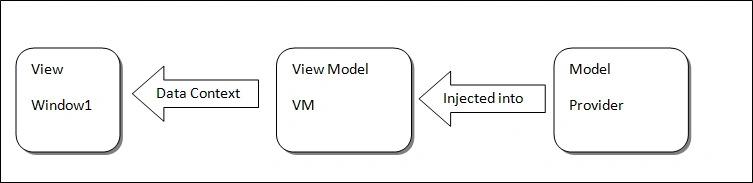
The fact that we set the Data Context of the entire window to VM, we can bind any existed property within the interface with those belong to the VM instance. The schema below describes how the data is routed from the data source or the provider to the ViewModel, Then the View consumes that data through the ViewModel.
Here is a re modulated XAML interface, note that all controls except the ListView do have a name; all business is done through the binding. Also note that no element name or source element is defined explicitly within the binding expression, this is because the Data Context of the whole view is already set at the Application code behind.
<Window x:Class="MVVM.Window1"
xmlns="http://schemas.microsoft.com/winfx/2006/xaml/presentation"
xmlns:x="http://schemas.microsoft.com/winfx/2006/xaml"
xmlns:local="clr-namespace:MVVM"
Title="MVVM DEMO" Height="497" Width="417">
<Grid>
<Grid.RowDefinitions>
<RowDefinition Height="154*"
/>
<RowDefinition Height="305*"
/>
</Grid.RowDefinitions>
<Grid Margin="12,12,0,9" Name="grid1">
<Grid.ColumnDefinitions>
<ColumnDefinition Width="*"/>
<ColumnDefinition Width="*"/>
<ColumnDefinition Width="*"/>
<ColumnDefinition Width="*"/>
</Grid.ColumnDefinitions>
<Grid.RowDefinitions>
<RowDefinition Height="89*"
/>
<RowDefinition Height="44*"
/>
</Grid.RowDefinitions>
<Button Grid.Row="1" Margin="6,0,5.75,7.362"
Name="btnAdd" Command="{Binding addCommand}">
Add person</Button>
<Button Margin="0,0,9,6" Name="btnDelete"
Grid.Column="2" Grid.Row="1"
Command="{Binding deleteCommand}"
CommandParameter="{Binding ElementName=listView}">
Delete
person</Button>
</Grid>
<GroupBox Header="Person" Margin="24,12.17,12,59" Name="groupBox1">
<Grid>
<TextBox Height="23" Name="txtFirstName"
Text="{Binding Path=FirstName,Mode=TwoWay,
UpdateSourceTrigger=PropertyChanged}"
HorizontalAlignment="Left" Margin="8,0,0,6"
VerticalAlignment="Bottom"
Width="64"
/>
<TextBox
HorizontalAlignment="Left"
Text="{Binding Path=LastName,Mode=TwoWay,
UpdateSourceTrigger=PropertyChanged}"
Margin="94,0,0,6" Name="txtLastName"
Width="64" Height="23"
VerticalAlignment="Bottom" />
<TextBox
HorizontalAlignment="Right"
Text="{Binding Path=Age, Mode=TwoWay,
UpdateSourceTrigger=PropertyChanged}"
Margin="0,0,95,6" Name="txtAge"
Width="64" Height="23"
VerticalAlignment="Bottom"
/>
<TextBlock
HorizontalAlignment="Left"
Margin="6,2,0,0" Name="textBlock1"
Width="52" Height="26.553"
VerticalAlignment="Top" Text="First
name" />
<TextBlock
HorizontalAlignment="Left"
Margin="84,2,0,0" Name="textBlock2"
Text="Last
name" Width="52"
Height="26.553"
VerticalAlignment="Top" />
<TextBlock
HorizontalAlignment="Right"
Margin="0,2,107,0" Name="textBlock3"
Text="Age" Width="52"
Height="26.553"
VerticalAlignment="Top" />
<Button Margin="0,6,6,6" Name="btnReset"
HorizontalAlignment="Right" Width="66"
Command="{Binding resetCommand}">Reset</Button>
</Grid>
</GroupBox>
<ListView Grid.Row="1"
ItemsSource="{Binding Path=ViewModelProvider}"
Name="listView">
<ListView.View>
<GridView x:Name="grdDisplay">
<GridViewColumn Header="First
name"
Width="100"
DisplayMemberBinding="{Binding Path=FirstName}"/>
<GridViewColumn Header="Last
name"
Width="100"
DisplayMemberBinding="{Binding Path=LastName}"/>
<GridViewColumn Header="Age"
Gowtham RajamanickamPosted Apr 8, 2016, 8:51 AM
good
Muralidhar DasariPosted Aug 15, 2015, 12:37 PM
Well presented, step by step, Good
Allen GoldPosted Mar 14, 2014, 3:40 AM
I like your article
Devendra ShrivastavaPosted Jun 11, 2012, 8:30 AM
Functionality is not working , can you please check.Thanks
Somogyi CsabaPosted Jun 28, 2011, 8:54 AM
i would need the solution not some txt's jackass
Tukaram KolekarPosted Feb 11, 2011, 8:02 AM
Please provide this top as vs solution. Thanks, Tukaram
ShrieditedPosted Sep 17, 2010, 12:23 PMEdited Sep 17, 2010, 2:19 PM
Thanks for posting this article Bechir. Loved it. It delivers the message while keeping focus on the core concept of MVVM. Liked it much better than all the other verbose MVVM examples out there.
alex fiberdPosted Apr 29, 2010, 12:58 AM
Hi there, the link for the sample does not seem to work at all. Can you post a new link for this sample? thx A simple concretization of MVVM pattern MvvM.ZiP
RahmatPosted Apr 9, 2010, 5:53 PM
The link, to download the .zip file for source code, is broken.
Mike GoldPosted Feb 25, 2010, 6:59 PM
Hi Bechir, I liked the article. I'm not sure I agree with having a view model inherit from a dependency object though, because it breaks the MVVM paradigm of loose coupling. What I tend to do is inherit the model from INotifyPropertyChanged in my model and put all dependency properties in the view. Feel free to comment on what you think.