

Introduction
This article provides a walkthrough of how to use forms authentication with Visual Studio LightSwitch. In my previous articles we saw how to get started by creating a LightSwitch application. You can get them from the following:
- Learn How to Configure Lightswitch With MVC
- Learn How to configure Lightswitch with MVC Part 2
- Learn How to configure Lightswitch with MVC Part 3
- Forms Authentication in Lightswitch With MVC: Part 1
Before we proceed please check the articles above since this is a continuation of them.
Add the controller
Step 1: Add a class called AccountController to the Controllers folder and use the following implementation.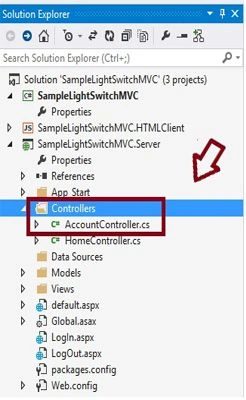
using System;
using System.Web.Mvc;
using System.Web.Security;
using Microsoft.LightSwitch.Security.ServerGenerated.Implementation;
using LightSwitchApplication.Models;
namespace LightSwitchApplication.Controllers
{
public class AccountController : Controller
{
// Register - Create a new user
public ActionResult Register()
{
return View(new Users());
}
[HttpPost]
public ActionResult Register(FormCollection collection)
{
try
{
var UserName = collection["UserName"];
var Password = collection["Password"];
var Email = collection["Email"];
if (UserName == "")
{
throw new Exception("No UserName");
}
if (Password == "")
{
throw new Exception("No Password");
}
// Keep our UserName as LowerCase
UserName = UserName.ToLower();
// Create LightSwitch user
MembershipUser objMembershipUser = Membership.CreateUser(UserName, Password, Email);
// Log User in
// Create a new instance of the LightSwitch Authentication Service
using (var authService = new AuthenticationService())
{
var LoggedInUser = authService.Login(
UserName,
Password,
false,
null);
// Successful login? If so, return the user
if (LoggedInUser != null)
{
return Redirect("~/Home");
}
else
{
ModelState.AddModelError(string.Empty, "Login failed.");
return View();
}
}
}
catch (Exception ex)
{
ModelState.AddModelError(
string.Empty, "Error: " + ex);
return View();
}
}
// ChangePassword - Change the password of an existing user
[Authorize]
public ActionResult ChangePassword()
{
return View(new ChangePassword());
}
[Authorize]
[HttpPost]
public ActionResult ChangePassword(FormCollection collection)
{
try
{
using (var authService = new AuthenticationService())
{
//checks whether new passowrd and confirm passowrd matches
if (collection["NewPassword"] != collection["ConfirmPassword"])
{
throw new Exception("New Password and Confirm Password must match");
}
if (!Membership.GetUser()
.ChangePassword(collection["OldPassword"], collection["NewPassword"]))
{
throw new Exception("Password change failed.");
}
return Redirect("~/Home");
}
}
catch (Exception ex)
{
ModelState.AddModelError(string.Empty, "Error: " + ex);
return View();
}
}
// Login - Log a user in, return authentication cookie
public ActionResult Login()
{
return View(new Users());
}
[HttpPost]
public ActionResult Login(FormCollection collection)
{
try
{
// Create a new instance of the LightSwitch Authentication Service
using (var authService = new AuthenticationService())
{
// Log User in
var user = authService.Login(
collection["UserName"].ToLower(),
collection["Password"],
Convert.ToBoolean(collection["Persistent"]),
null);
// Successful login? If so, return the user
if (user != null)
{
return Redirect("~/Home");
}
else
{
//Throws an error
130.
ModelState.AddModelError(string.Empty,
"Login failed. Check User Name and/or Password.");
return View();
}
}
}
catch (Exception ex)
{
ModelState.AddModelError(string.Empty, "Error: " + ex.Message);
return View();
}
}
// LogOff - Clears the cookie, logging a user out of the system
public ActionResult LogOff()
{
// Create a new instance of the LightSwitch Authentication Service
using (var authService = new AuthenticationService())
{
var user = authService.Logout();
return Redirect("~/Home");
}
}
}
}
Step 2: Now Let's modify Index.cshtml with the following: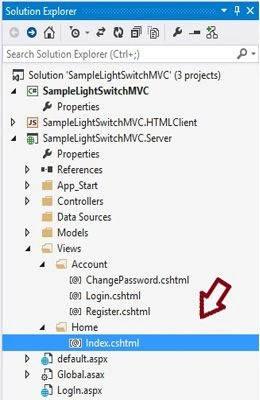
@{ Layout = null; } @using Microsoft.AspNet.Identity
<!DOCTYPE html>
<html>
<head>
<meta name="HandheldFriendly" content="true" />
<meta name="viewport" content="width=device-width,
initial-scale=1, minimum-scale=1, maximum-scale=1, user-scalable=no" />
<title>Log In</title>
</head>
<body>
<div>
@if (Request.IsAuthenticated) { using (Html.BeginForm("LogOut", "Account", FormMethod.Post,
new { id = "logoutForm", @class = "navbar-right" })) { @Html.AntiForgeryToken()
<p>
Hello @User.Identity.GetUserName() | @Html.ActionLink("Change Password", "ChangePassword",
"Account", routeValues: null, htmlAttributes: new { id = "changepassword" }) | <a
href="javascript:document.getElementById('logoutForm').submit()">Log off</a>
</p>
<a href="HTMLClient">LightSwitch Application</a> } } else {
<p>
@Html.ActionLink("Register", "Register", "Account", routeValues: null, htmlAttributes:
new { id = "registerLink" }) | @Html.ActionLink("Log in", "Login", "Account", routeValues:
null, htmlAttributes: new { id = "loginLink" })
</p>
}
</div>
</body>
</html>
Debug the application (press F5).
Summary
In this article we saw how to add a controller and do a login, registration and change a password.
Previous article: Forms Authentication in Lightswitch With MVC: Part 1
Join the conversation! Your thoughts help the community grow.