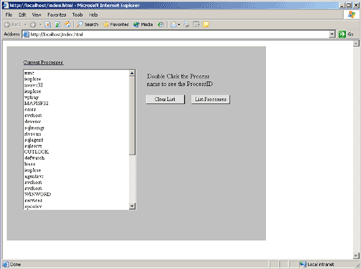
Platform Used
Source Code created and compiled in Visual Studio .NET 2003 and running under Internet Explorer 6.0
Note For this to run on a local intranet, the user MUST have the .Net Framework installed AND have the .Net Intranet Security set to Full Trust (see Microsoft .NET Framework Wizards in Administrative Tools).
The HTML File included here must also be running through IIS, it will not work when launched as a stand-alone file.
Article Description
Move over Java Applets, here comes .NET!
Over the past several years Ive seen the evolution of the web page from basic static text meant to do little more than display text mixed with a few pretty pictures to the increasingly powerful web applications we know today.
One of the least discussed components of .NET is one that has proven quite helpful for me in the development of my enterprise intranet. ASP programmers have long been using ActiveX controls as part of their client-side programming techniques, but now we are able to easily render Windows User Controls (almost Windows Forms, but not quite) into our HTML.
To begin, we create a new Windows Control project in Visual Studio .NET.
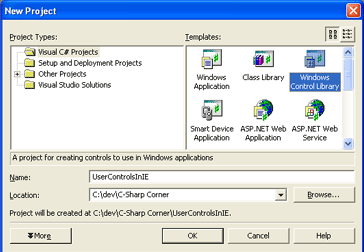
When creating your User Control, you may add anything that is available to you, including all controls and ADO.NET options. One thing to keep in mind is that Internet Explorer renders the plain text in its default style, so you will need to set the fonts and background colors as needed.

Once you have created the functionality of the control, you need to embed the object in an HTML page like this:
<object id=MyUserControl classid=http:UserControlsInIE.dll#UserControlsInIE.MyUserControl height=480 width=640 VIEWASTEXT>
</object>
Since we have created this project as a Class Library (which is what a User Control is), we will need to define the debugging configurations.
In Project Properties, we need to set the Debugging Start Action to URL, and give it the address where our html file is being hosted. Remember, this must be running as a website through IIS.
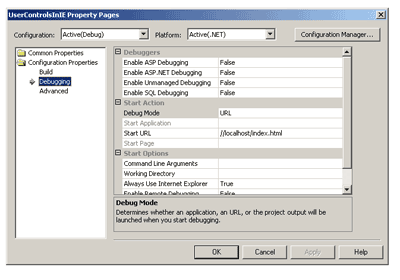
Now we are able to build and run our User Control.