Introduction
In Part 1, we have seen how to use FileSystemWatcher class. Today I' m giving an example to monitor your file system.
Application Overview
To show how FileSystemWatcher component tracks the specified directory, I have provided a simple example application, which shows status of your directory contents in the textbox whenever a change, is made. This application has six class files, all are inherited from the System.Windows.Forms class.
- Properties.cs - to set Directory Path which is going to be watched.
- MonitorFS.cs - Main class file for watching changes to a specified directory. Also allows us to create and drop files & directories.
- CreateDir.cs - to create a new directory depending on security permissions.
- CreateFile.cs - to create a new file depending on security permissions.
- DeleteDir.cs - to delete a particular directory depending on security permissions.
- DeleteFile.cs - to delete a particular file depending on security permissions.
User Interface
Setting Path for FileSystemWatcher Component
One very important task is to set the directory path, which is going to be watched. This can be done through the startup form. The following screenshots shows you how to do this:
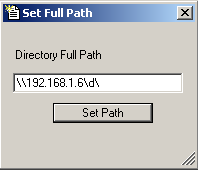

You can set the path in two ways either in standard direction notation ("d:\") or in Universal Naming Convention (UNC) format ("\\192.168.1.6\d\" or "\\mokhtar\d\").
To check whether the given path is valid or not, I am using here Exists method of Directory class. As Directory Class is static one no need to instantiated it.
private
string dirPath = txtPath.Text;
--
--
if (Directory.Exists(dirPath))
-
-
-
If directory exists, then the directory path will be set to myPath property, which will be used later while instantiating FileSystemWatcher Class.
private
string mPath;
- -
- -
- -
//property for path
public string myPath
{
get
{
return mPath;
}
set
{
mPath = value;
}
}
- -
- -
- -
protected void btnSetPath_Click(object Sender, EventArgs e)
{
---
this.myPath = dirPath;
---
}
Monitoring File System
To monitor FileSystem, first we have instantiate the FileSystemWatcher Class, then we have to set necessary properties. To instantitate and set the properties of the class use the following code:
public
class MonitorFS:Form
{
private FileSystemWatcher myWatcher;
---
---
public MonitorFS(string myPath)
{
//Initializing directory path from properties.cs file
DirPath = myPath;
--
---
myWatcher = new FileSystemWatcher(DirPath);
myWatcher.EnableRaisingEvents = true;
myWatcher.IncludeSubdirectories = true;
--
--
}
}
Next, we have to create event handlers of types FileSystemEventHandler for Created, Changed and Deleted Events and RenamedEventHandler for Renamed Events. These event handlers will in turn call the appropriate procedure when an entry is written to the log.
Event Handlers of Type FileSystemEventHandler
myWatcher.Created += new FileSystemEventHandler(myWatcher_Created);
myWatcher.Changed += new FileSystemEventHandler(myWatcher_Changed);
myWatcher.Deleted += new FileSystemEventHandler(myWatcher_Deleted);
Event Handler of Type RenamedEventHandler
myWatcher.Renamed += new RenamedEventHandler(myWatcher_Renamed);
Procedure for Created Event
protected void myWatcher_Created(object sender, FileSystemEventArgs e)
{
txtInfo.Text += "ChangeType :: " + e.ChangeType.ToString() + "\nFullPath ::" + e.FullPath.ToString() + "\n\n";
}
Procedure for Changed Event
protected void myWatcher_Changed(object sender, FileSystemEventArgs e)
{
txtInfo.Text += "ChangeType :: " + e.ChangeType.ToString() + "\nFullPath ::" + e.FullPath.ToString() + "\n\n";
}
Procedure for Deleted Event
protected void myWatcher_Deleted(object sender, FileSystemEventArgs e)
{
txtInfo.Text += "ChangeType :: " + e.ChangeType.ToString() + "\nFullPath ::" + e.FullPath.ToString() + "\n\n";
}
All the above three events have common argument i.e., the FileSystemEventArgs that provides the following properties.
| Property |
Description |
| ChangeType |
Gets the type of directory event that occurred. |
| FullPath |
Gets the fully-qualified path of the affected file or directory |
| Name |
Gets the name of the affected file or directory. |
Procedure for Renamed Event
protected void myWatcher_Renamed(object sender, RenamedEventArgs e)
{
txtInfo.Text += "ChangeType :: " + e.ChangeType.ToString() + "\nFullPath ::" + e.FullPath.ToString() + "\nOld FileName :: "+ e.OldName.ToString() + "\n\n";
}
The RenamedEventArgs provides two more properties in addition to FileSystemEventArgs.
| Property |
Description |
| OldFullPath |
Gets the previous fully-qualified path of the affected file or directory. |
| OldName |
Gets the old name of the affected file or directory. |
You can monitor your File System in the following ways:
- Outside the application through creating, dropping and renaming files & Directories.
- From the application through creating and dropping files & directories.
Making Changes Outside the Application
Watching Changes on Local Directories
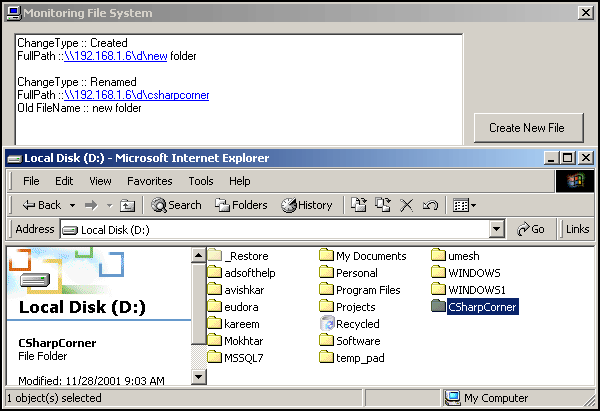
The following screenshot shows how FileSystemWatcher component watches changes when a directory is created under root directory of d drive of 192.168.1.6 local system. Two events are raised i.e., Created and Renamed when you create a directory from the outside of the application.
You can watch the changes when a word document is created as shows in the following screenshot. The events called when a new document is created are Created, Changed and Renamed.

Watching Changes on Network Directories
You can also watch changes for network directories. The following screenshot shows you how it monitors for network drive. Three events are raised i.e. Created (twice), Deleted and Renamed, when you create a directory on a network directory.

Making Changes within the Application
You can watch the changes from the Application straight away by creating and dropping files & directories by using Directory and File Classes.
The following screenshot shows you how to a create directory.
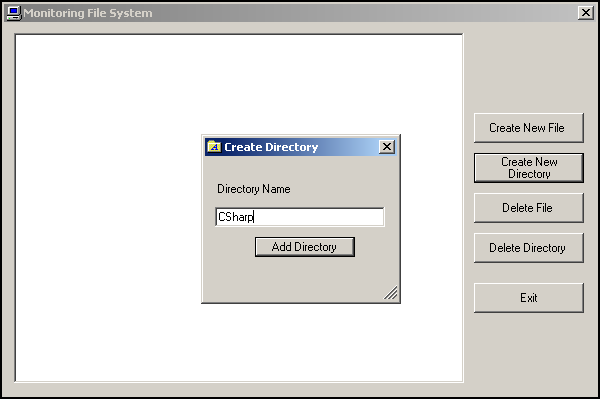
The CreateDir Form uses CreateDir.cs file for creating a directory from the application.
public
class CreateDir:Form
{
--
--
public CreateDir()
{
---
---
//Event Handler for Calling btnAddDir
procedure btnAddDir.Click += new EventHandler(btnAddDir_Click);
----
---
}
//Event for Creating Directory
protected void btnAddDir_Click(object Sender, EventArgs e)
{
//Getting path from mypath property
string dir = myPath + "\\" + txtDir.Text;
if(txtDir.Text != "" )
{
//Checks for directory
if (!Directory.Exists(dir))
{
try
{
Directory.CreateDirectory(dir); this.Hide();
}
//Exception raises if security violated
catch(Exception CrDir)
{
MessageBox.Show(CrDir.Message,"Error Creating Directory",MessageBoxButtons.OK, MessageBoxIcon.Exclamation);
his.Hide();
}
}
else
{
MessageBox.Show(dir + " Directory already Exists","Directory Creation
rror",MessageBoxButtons.OK,MessageBoxIcon.Stop);
txtDir.Focus();
SendKeys.Send("{HOME}+{END}");
}
}
else
{
MessageBox.Show("Please Enter Directory Name","Directory Creation
Error",MessageBoxButtons.OK,MessageBoxIcon.Information); txtDir.Focus();
}
}
After creation of directory, created event will be raised and you can see the effect in the following screenshot.
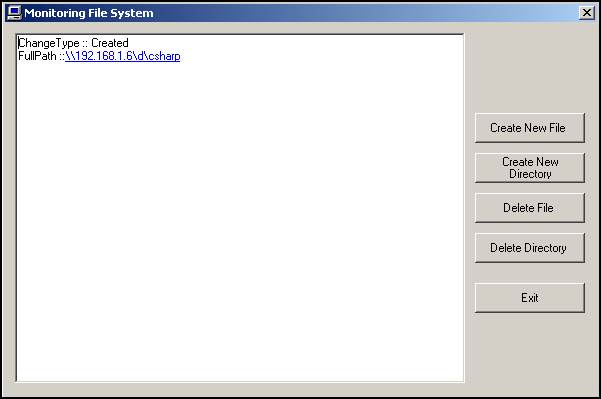
Likewise, other options available are Create New File, Delete File and Delete Directory. This allows you to watch the changes straight away from the application itself.
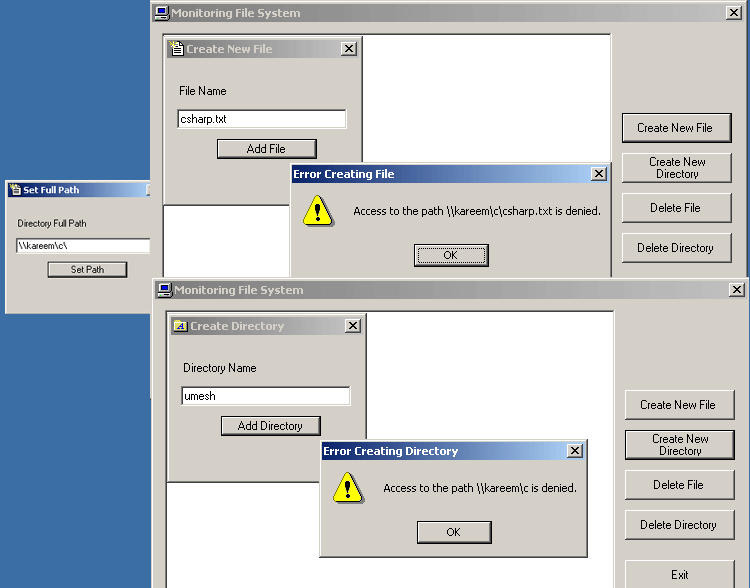
If you are not having appropriate permissions i.e. standard permissions for accessing files and directories, then errors will be raised through exception handling. In the following screenshot, I'm trying to access the network directory \\kareem\c\ and prone to the following errors.
Conclusion
Finally, I conclude that FileSystemWatcher class is so efficient to watch any kind of changes on a specified directory. Using this class, we can write different kind of applications such as mailing your admin as soon as your directory is tampered.
Happy .NET Programming...