

Today, I have provided an article showing you how to Insert, Edit, Update, and Delete Data with DataGridView in Windows Form Using WCF Service from C# code. To Insert, Edit, Update, and Delete Data with DataGridView, we must do the following 3 things.
- Create Database Table
- Create WCF Service
- Create Windows Forms Application
In the first step, we will create a table in SQL Server; after that, we create a simple function to insert, update, and delete data in a DataGridView control using a WCF service. In a web application, add a reference of the service to do the insert, update, and delete in the DataGridView control. Let's take a look at a practical example. The example application is developed in Visual Studio 2010 and SQL Server 2008.
Step 1. Creating Database Table
- Database name: Registration
- Database table name: RegistrationTable
RegistrationTable Table

Step 2. Creating WCF Service
Now you have to create a WCF Service
- Go to Visual Studio 2010
- New -> Select a project
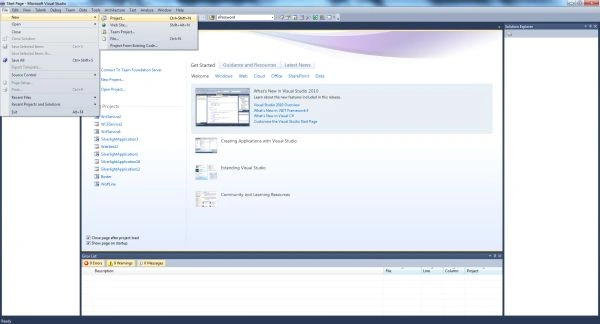
Now click on the project select WCF Service Application and provide a name for the service.

Now click on the OK button. Then you will get the following 3 files in Solution Explorer.
- IService.cs
- Service. svc
- Service.svc.cs
The following image shows the following files.

To insert data into the database you need to write the following code in the IService1.cs file which contains the two sections.
- OperationContract
- DataContract
The OperationContract section is used to add service operations and a DataContract is used to add types to the service operations.
Iservice1.cs File
Now we create a function in the OperationContract section of the Iservice1.cs file
using System;
using System.Collections.Generic;
using System.Linq;
using System.Runtime.Serialization;
using System.ServiceModel;
using System.ServiceModel.Web;
using System.Text;
using System.Data;
using System.Data.SqlClient;
namespace WCFServiceForInsert
{
    // NOTE: You can use the "Rename" command on the "Refactor" menu to change the interface name "IService1" in both code and config file together.
    [ServiceContract]
    public interface IService1
    {
        [OperationContract]
        string InsertUserDetails(UserDetails userInfo);
        [OperationContract]
        DataSet SelectUserDetails();
        [OperationContract]
        bool DeleteUserDetails(UserDetails userInfo);
        [OperationContract]
        void UpdateRegistrationTable(UserDetails userInfo);
    }
    // Use a data contract as illustrated in the sample below to add composite types to service operations.
    [DataContract]
    public class UserDetails
    {
        private int userid;
        private string username;
        private string password;
        private string country;
        private string email;
        [DataMember]
        public int UserID
        {
            get { return userid; }
            set { userid = value; }
        }
        [DataMember]
        public string UserName
        {
            get { return username; }
            set { username = value; }
        }
        [DataMember]
        public string Password
        {
            get { return password; }
            set { password = value; }
        }
        [DataMember]
        public string Country
        {
            get { return country; }
            set { country = value; }
        }
        [DataMember]
        public string Email
        {
            get { return email; }
            set { email = value; }
        }
    }
}
Service. svc.cs File
In this file, we define the definition of the functions for insert, update, and delete.
Replace the code with the following
using System;
using System.Collections.Generic;
using System.Linq;
using System.Runtime.Serialization;
using System.ServiceModel;
using System.ServiceModel.Web;
using System.Text;
using System.Data.SqlClient;
using System.Data;
namespace WCFServiceForInsert
{
    public class Service1 : IService1
    {
        public DataSet SelectUserDetails()
        {
            SqlConnection con = new SqlConnection("Data Source=.;Initial Catalog=registration;User ID=sa;Password=wintellect");
            con.Open();
            SqlCommand cmd = new SqlCommand("Select * from RegistrationTable", con);
            SqlDataAdapter sda = new SqlDataAdapter(cmd);
            DataSet ds = new DataSet();
            sda.Fill(ds);
            con.Close();
            return ds;
        }
        public void UpdateRegistrationTable(UserDetails userInfo)
        {
            SqlConnection con = new SqlConnection("Data Source=.;Initial Catalog=registration;User ID=sa;Password=wintellect");
            con.Open();
            SqlCommand cmd = new SqlCommand("update RegistrationTable set UserName=@UserName,Password=@Password,Country=@Country, Email=@Email where UserID=@UserID", con);
            cmd.Parameters.AddWithValue("@UserID", userInfo.UserID);
            cmd.Parameters.AddWithValue("@UserName", userInfo.UserName);
            cmd.Parameters.AddWithValue("@Password", userInfo.Password);
            cmd.Parameters.AddWithValue("@Country", userInfo.Country);
            cmd.Parameters.AddWithValue("@Email", userInfo.Email);
            cmd.ExecuteNonQuery();
            con.Close();
        }
        public bool DeleteUserDetails(UserDetails userInfo)
        {
            SqlConnection con = new SqlConnection("Data Source=.;Initial Catalog=registration;User ID=sa;Password=wintellect");
            con.Open();
            SqlCommand cmd = new SqlCommand("delete from RegistrationTable where UserID=@UserID", con);
            cmd.Parameters.AddWithValue("@UserID", userInfo.UserID);
            cmd.ExecuteNonQuery();
            con.Close();
            return true;
        }
        public string InsertUserDetails(UserDetails userInfo)
        {
            string Message;
            SqlConnection con = new SqlConnection("Data Source=.;Initial Catalog=registration;User ID=sa;Password=wintellect");
            con.Open();
            SqlCommand cmd = new SqlCommand("insert into RegistrationTable(UserName,Password,Country,Email) values(@UserName,@Password,@Country,@Email)", con);
            cmd.Parameters.AddWithValue("@UserName", userInfo.UserName);
            cmd.Parameters.AddWithValue("@Password", userInfo.Password);
            cmd.Parameters.AddWithValue("@Country", userInfo.Country);
            cmd.Parameters.AddWithValue("@Email", userInfo.Email);
            int result = cmd.ExecuteNonQuery();
            if (result == 1)
            {
                Message = userInfo.UserName + " Details inserted successfully";
            }
            else
            {
                Message = userInfo.UserName + " Details not inserted successfully";
            }
            con.Close();
            return Message;
        }
    }
}
Testing the Service
Press F5 to run the service. A WCF Test Client form will be displayed and it will load the service.

Now double-click the InserUserDetails() method under IService1. The InserUserDetails tab will be displayed.
The service was added successfully. Now open the service in the browser.
Now right-click on the service1.vcs -> open in the browser.

Now copy the URL.

URL
http://localhost:2268/Service1.svc
Step 3. Create Windows Forms Application (Accessing the Service)
Now, you have to create a Windows Forms Application.
- Go to Visual Studio 2010
- New-> Select a project-> Windows Forms Application
- Click OK
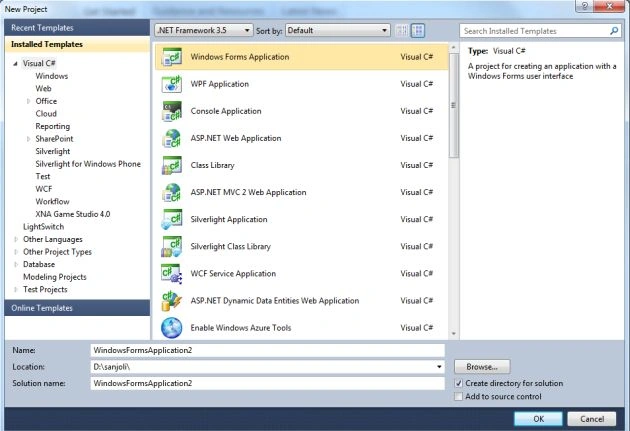
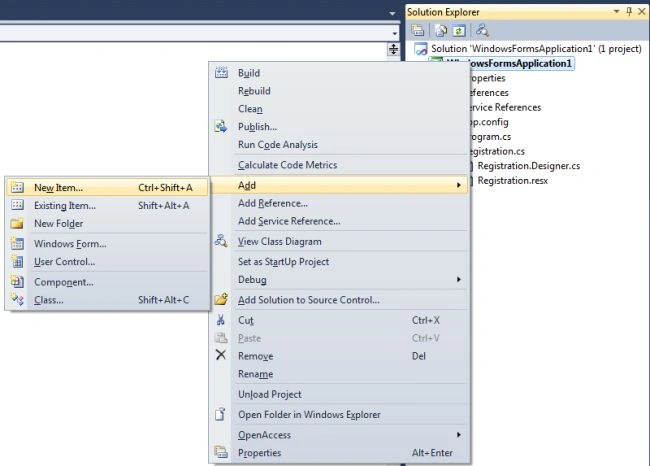
Now add a new page to the website.
- Go to the Solution Explorer
- Right-click on the Project name
- Select add a new item
- Add a new windows form and give it a name
- Click OK
Now again go to the Solution Explorer and click on the add the service reference.
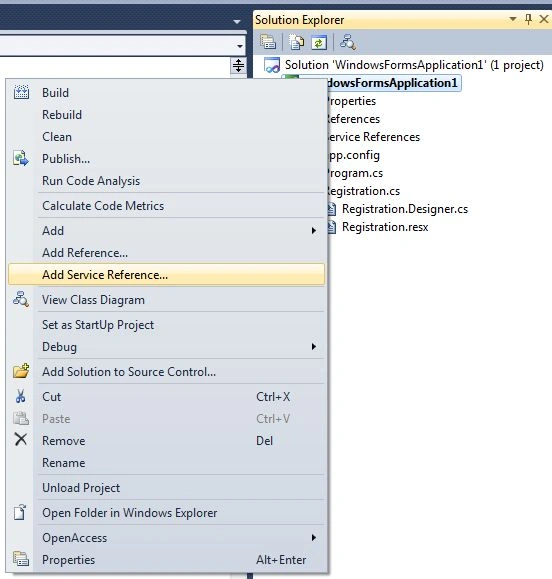
The following window will be opened.

Now paste the above URL into the address and click on the go Button.

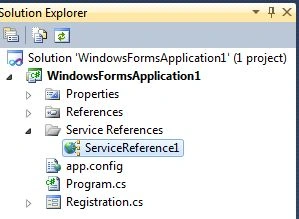
Click on the OK button. Now the reference has been added in the Solution Explorer.
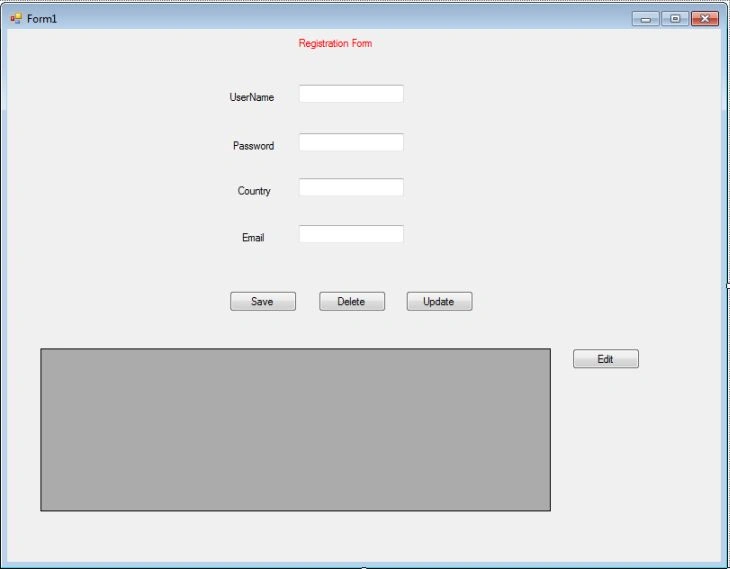
Now create a new Windows Form and drag and drop controls onto the Windows Form. The design form looks like the below.
Double-click on every Button, and add the following code with the click event handler
using System;
using System.Collections.Generic;
using System.ComponentModel;
using System.Data;
using System.Drawing;
using System.Linq;
using System.Text;
using System.Windows.Forms;
using System.ServiceModel;
namespace WindowsFormsApplication1
{
    public partial class Registration : Form
    {
        ServiceReference1.Service1Client objService = new ServiceReference1.Service1Client(); // Add service reference
        public Registration()
        {
            InitializeComponent();
            showdata();
        }
        private void showdata() // To show the data in the DataGridView
        {
            DataSet ds = objService.SelectUserDetails();
            dataGridView1.DataSource = ds.Tables[0];
            dataGridView1.AutoResizeColumns(DataGridViewAutoSizeColumnsMode.AllCells);
        }
        private void button1_Click(object sender, EventArgs e)
        {
            ServiceReference1.UserDetails objuserdetail = new ServiceReference1.UserDetails(); // Add type reference
            objuserdetail.UserName = textBoxUserName.Text;
            objuserdetail.Password = textBoxPassword.Text;
            objuserdetail.Country = textBoxCountry.Text;
            objuserdetail.Email = textBoxEmail.Text;
            objService.InsertUserDetails(objuserdetail); // To insert the data
            showdata();
        }
        private void button2_Click(object sender, EventArgs e)
        {
            ServiceReference1.UserDetails objuserdetail = new ServiceReference1.UserDetails();
            if (dataGridView1.Rows.Count > 1)
            {
                objuserdetail.UserID = (int)dataGridView1.CurrentRow.Cells[0].Value;
                objService.DeleteUserDetails(objuserdetail); // To Delete the data
                showdata();
            }
        }
        private void Registration_Load(object sender, EventArgs e)
        {
            // Load event implementation (if any)
        }
        private void button3_Click(object sender, EventArgs e)
        {
            int i = dataGridView1.SelectedCells[0].RowIndex;
            textBoxUserName.Text = dataGridView1.Rows[i].Cells[1].Value.ToString();
            textBoxPassword.Text = dataGridView1.Rows[i].Cells[2].Value.ToString();
            textBoxCountry.Text = dataGridView1.Rows[i].Cells[3].Value.ToString();
            textBoxEmail.Text = dataGridView1.Rows[i].Cells[4].Value.ToString();
        }
        private void button4_Click(object sender, EventArgs e)
        {
            ServiceReference1.UserDetails objuserdetail = new ServiceReference1.UserDetails();
            objuserdetail.UserID = (int)dataGridView1.CurrentRow.Cells[0].Value;
            objuserdetail.UserName = textBoxUserName.Text;
            objuserdetail.Password = textBoxPassword.Text;
            objuserdetail.Country = textBoxCountry.Text;
            objuserdetail.Email = textBoxEmail.Text;
            objService.UpdateRegistrationTable(objuserdetail); // To Update the Data
            showdata();
            textBoxUserName.Text = "";
            textBoxPassword.Text = "";
            textBoxCountry.Text = "";
            textBoxEmail.Text = "";
        }
    }
}
Now run the application
Press CTRL+F5 to run the application.
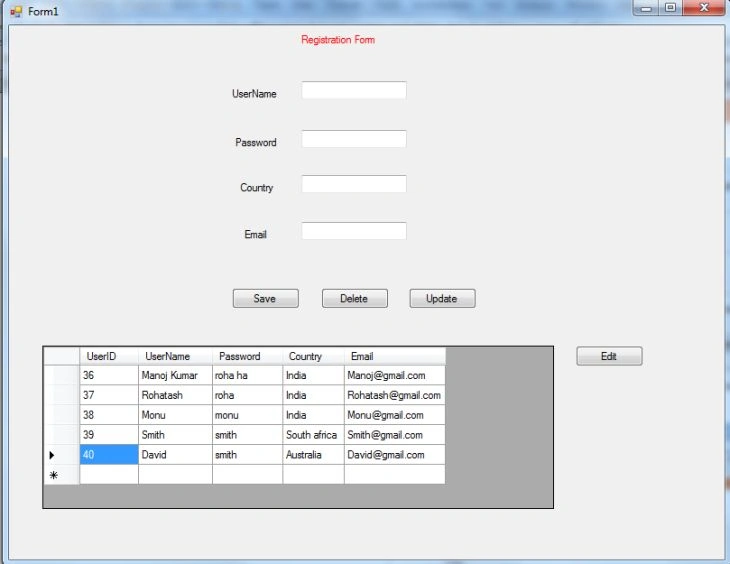
Now enter the UserName, Password, Country, and Email, and click on the save Button.
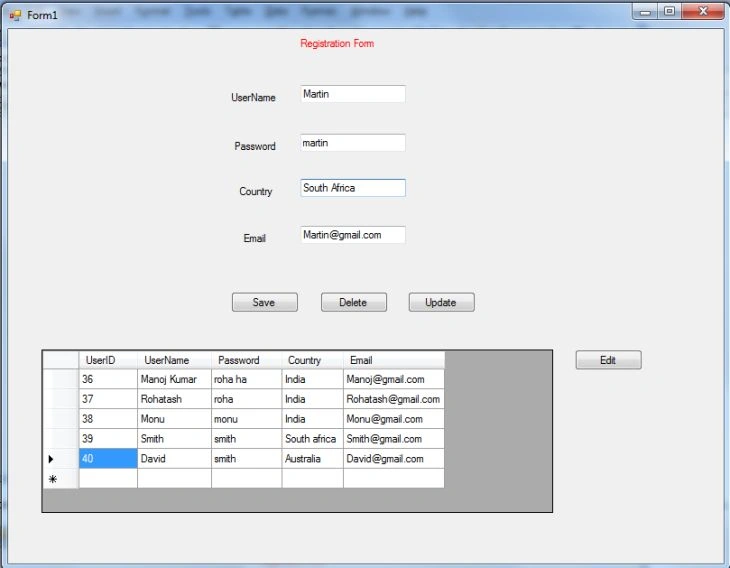
Now click on the save Button. Data will be saved in the database table and also displayed in the DataGridView on the form.
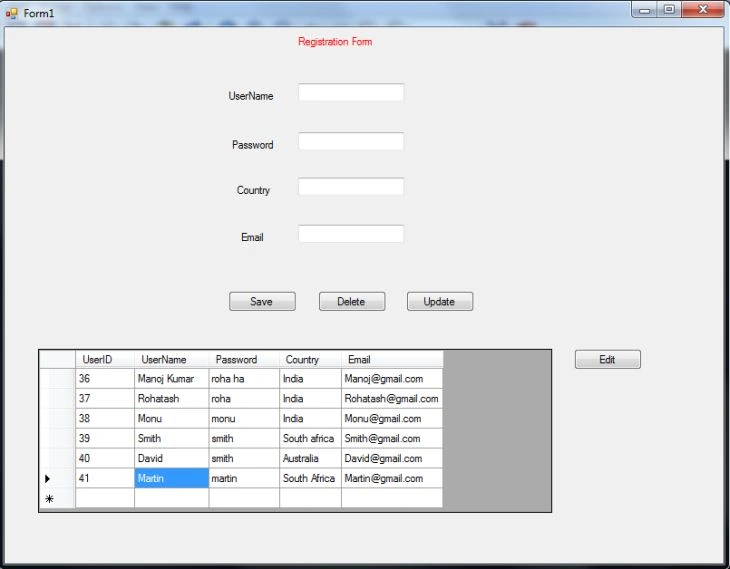
Now select a row from the DataGridView. Suppose we selected a row that has the UserName menu and the userID 38.
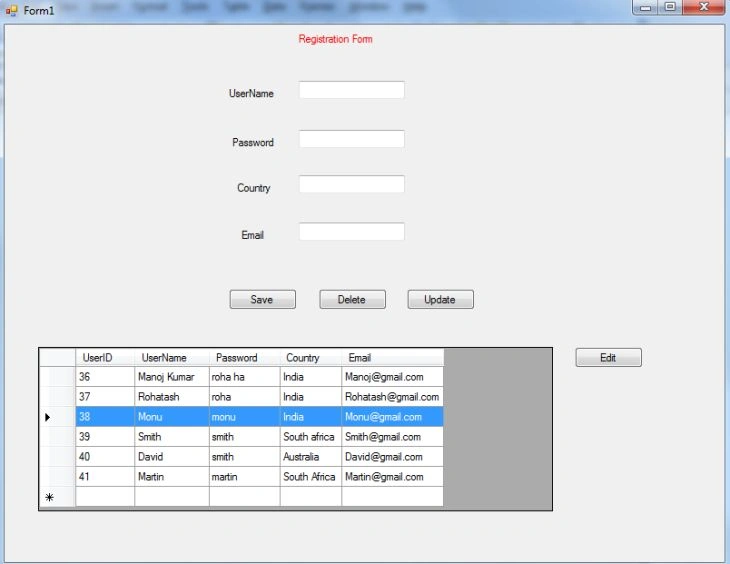
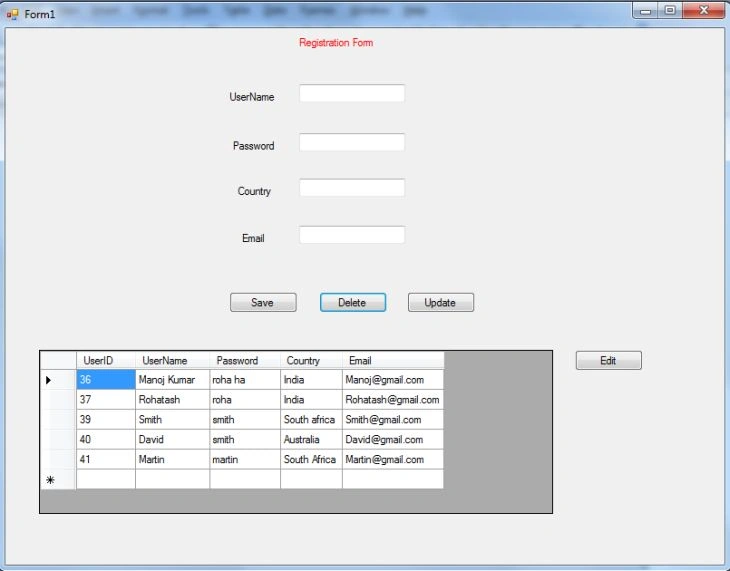
Now click on the Delete Button to delete the row from the DataGridView and database.
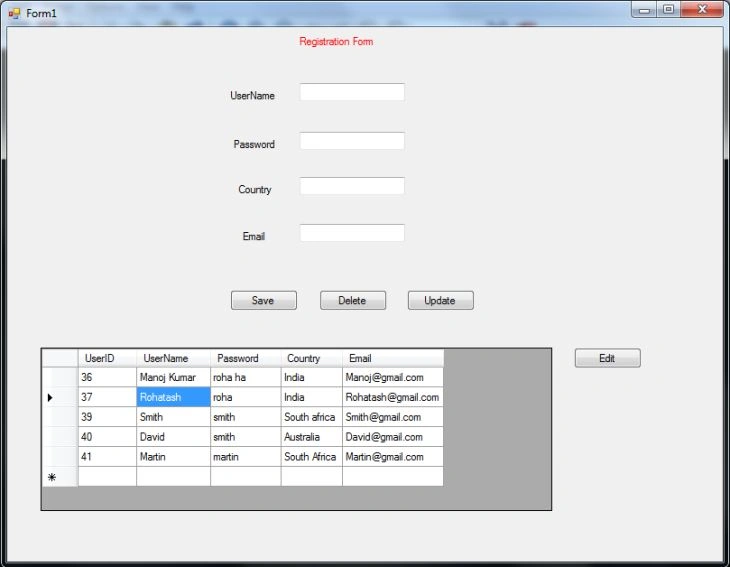
Now select a row from the DataGridView. Suppose we selected a row that has the UserName Rohatash.
Now click on the edit button to display row data in the TextBoxes to update.
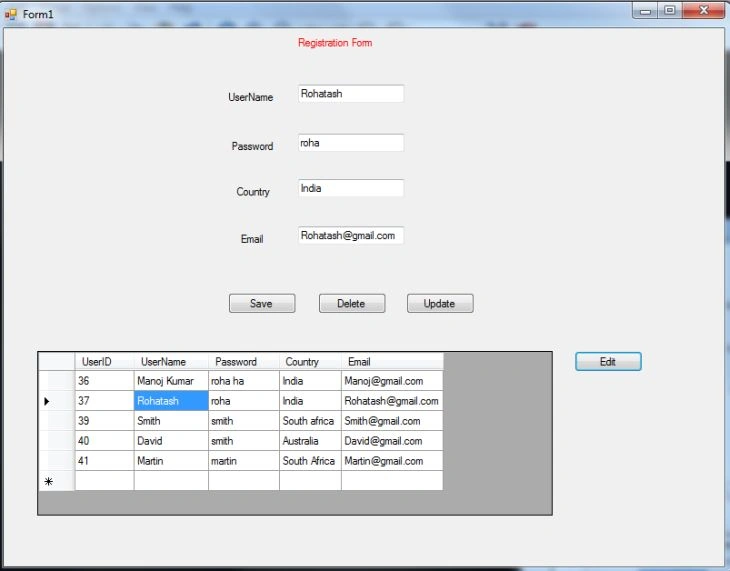
Now replace UserName Rohatash with Rohatash Kumar and change the country India to SriLanka.
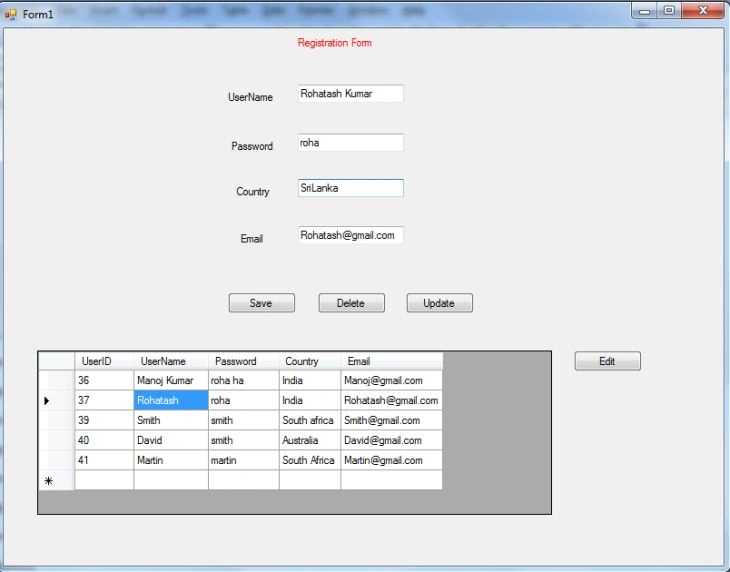
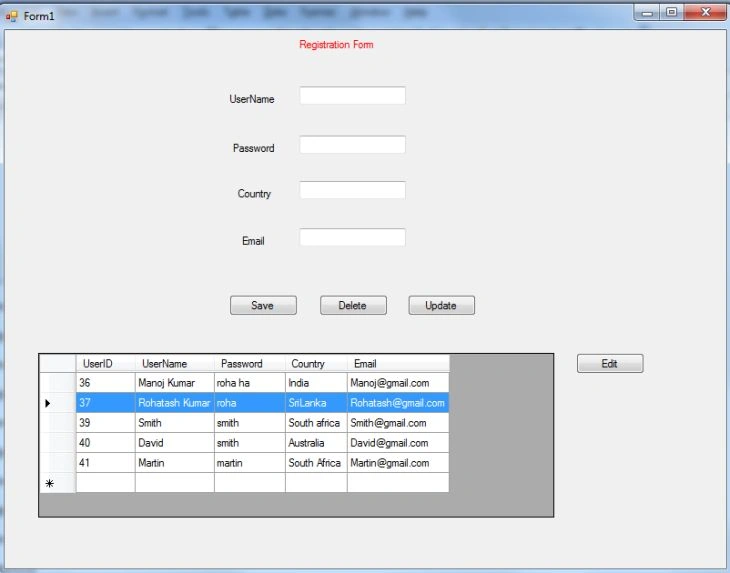
Now click on the Update Button to update the data in the DataGridView and the Database table. The updated row looks as in the following image.
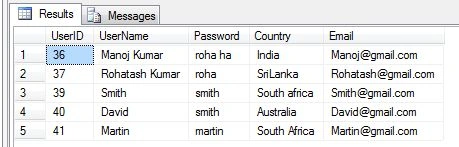
The data has been inserted into the SQL Server database table; check it.
Manoswini SwainPosted Oct 19, 2020, 11:02 AM
Hi can we convert pdf to excel using wcf can you help me out
kalu singh raoPosted Jul 4, 2016, 2:08 AM
Nice...
Ajeet MishraPosted Jun 2, 2016, 7:53 AM
Nice
prabhu CPosted Feb 10, 2015, 2:24 AM
i like this coding every step is very clear ,so very exclent..
RamPosted Jun 28, 2013, 8:01 AM
Can you please provide Web.config details to run this code? Because I am getting Error: Cannot obtain Metadata from http://localhost:3533/Service1.svc If this is a Windows (R) Communication Foundation service to which you have access, please check that you have enabled metadata publishing at the specified address. error
Former memberPosted Nov 10, 2012, 1:30 PM
This is really nice article .Have a look of this article http://www.dotnetpools.com/Article/ArticleDetiail/?articleId=74
Sandip MeraniPosted Nov 6, 2012, 1:35 PM
thx
Mithun GowdaPosted Oct 19, 2012, 11:01 PM
Hi,i have datagridview,checklist box in each row ,taken through template,now i have dropdownlist with options Delete and Edit and a button outside the box,now when i select a row or multiple row from gridview using checkbox, along with the option in dropdown list,when i click on the button it should perform the perticular selected option(delete or edit).pls help me out....
Jairsinho JoshuePosted Sep 25, 2012, 12:39 AM
I had a Error in Step (4) Testing the Service: "Cannot obtain Metadata from WCF.... " - help please.. thank you for advance ;)!
Jairsinho JoshuePosted Sep 25, 2012, 12:36 AM
I had a Error in Step (4) Testing the Service: "Cannot obtain Metadata from WCF.... " - help please.. thank you for advance ;)!
kevin nikolaieditedPosted Sep 16, 2012, 11:23 AMEdited Sep 16, 2012, 11:24 AM
Hi Rohatash, thanks for the awesome article on 'Insert, Update and Delete Data With DataGridView in Windows Form Using WCF Service'. One issue, under 'Testing the Service', the 2nd image (img24.jpg) is not displayed below 'Now double-click the InserUserDetails() method under IService1. The InserUserDetails tab will be displayed'.