

Read the previous parts of the series here,
- Quick Start Tutorial: Creating Universal Apps Via Xamarin - Part One
- Quick Start Tutorial: Creating Universal Apps Via Xamarin - Part Two
- Quick Start Tutorial: Creating Universal Apps via Xamarin: Label and Button - Part Three
- Quick Start Tutorial: Creating Universal Apps Via Xamarin: Device class - Part Four
- Quick Start Tutorial: Creating Universal Apps via Xamarin: Device Class (cont.) - Part Five
- Quick Start Tutorial: Creating Universal Apps Via Xamarin: Entry Control - Part Six
- Quick Start Tutorial: Creating Universal Apps Via Xamarin: StackLayout and Layout Options - Part Seven
- Quick Start Tutorial: Creating Universal Apps Via Xamarin: DisplayAlert and DisplayActionSheet - Part Eight
- Quick Start Tutorial: Creating Universal Apps Via Xamarin: Date Picker, Time Picker and Activity Indicator - Part Nine
- Quick Start Tutorial: Creating Universal Apps Via Xamarin: XAML And Resource Dictionary - Part Ten
- Quick Start Tutorial: Creating Universal Apps via Xamarin: Style in XAML - Part Eleven
- Quick Start Tutorial: Creating Universal Apps Via Xamarin: Style in XAML (Cont.) - Part Twelve
Data Binding
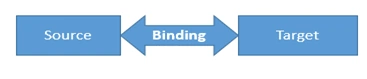
Data binding: communication between the two objects. One of the fantastic concepts in Xaml is once the communication takes place, there is no need to worry about the future assignment. Binding updates the data automatically, whenever source or target updates. Data binding says two objects are required; where one is the source and the other one is the Target.
Example
- <Label Text="{Binding MainText}" VerticalOptions="Center"
- HorizontalOptions="Center" />
- BindingContext = this;
- MainText = "Hello Welcome";
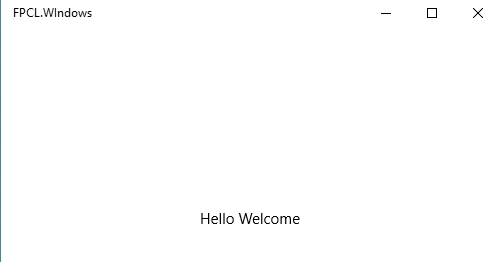
Source object is the main text as a string, and the Target Object: Label text is the target property. Generally, three questions will arise, which are:
- Which object will Xaml look for in the binding object?
- Where is the relation happening (Source and Target)?
- Whenever source object is changed; it updates the target property -- how is this magic happening?
Let's see:
BindingContext
BindingContext: Assign the view model object to this property. XAML will understand; i.e, where to look into the binding object.
In two way, we can assign this property specific to the control or the XAML BindingContext.
Control BindingContext
This is an option only based on the controls.
Ex: Label LblDemo;
LblDemo.BindingContext = this;
XAML BindingContext
If assigning to the xaml is (parent class) based, default it as applicable to all the controls.
- BindingContext = this; // Applicable to all the child controls
All the source objects must be derived from the INotifyPropertyChanged interface.
- public partial class DataBind: ContentPage, INotifyPropertyChanged
- {
- public event PropertyChangedEventHandler PropertyChanged;
- protected virtual void OnPropertyChanged(string propertyName)
- {
- PropertyChanged ? .Invoke(this, new PropertyChangedEventArgs(propertyName));
- }
- private string _maintext;
- public string MainText
- {
- get
- {
- return _maintext;
- }
- set
- {
- _maintext = value;
- OnPropertyChanged(nameof(MainText));
- }
- }
- }
Databinding three thumb rule
- The source object must be derived from INotifyPropertyChanged
- The target object must follow BindingContext property
- Communication between the source and target via Binding Extension
Tip
If the class is derived from the BindableObject class, there is no need to implement the INotifyPropertyChanged. This BindableObject class is by default, implementing the INotifyPropertyChanged and you have to call the OnPropertyChanged function.
Page class is derived from the BindableObject class, so there is no need to implement INotifyPropertyChanged in our example, just rewrite the code, given above.
- private string _maintext;
- public string MainText
- {
- get
- {
- return _maintext;
- }
- set
- {
- _maintext = value;
- OnPropertyChanged();
- }
- }
LblDemo.SetBinding(Label.TextProperty,new Binding("MainText"));
Binding Mode
Binding mode uses the direction to update the value (Source to Target or Target to Source).
The different types of modes are available:
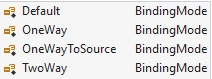
Oneway or Default: In this default mode, the value updates from the source to target (Target to source is not possible)


OneWayToSource: Changes the value target to source.

Twoway: The value is updated in both the directions
Path
This property is used to assign the source object and declare. This is a property and an optional only “path” string.
StringFormat in Xaml
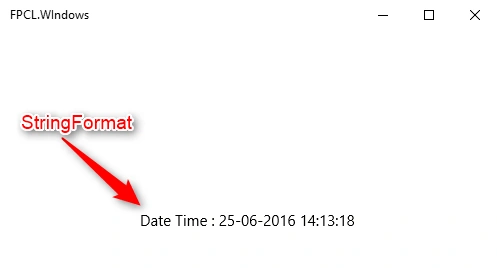
This function is used to format the string which assigns the target property, there is no need to format each time in the code in the backend file.
Example
- <Label Text="{Binding Mode=OneWay,Path=MainText,StringFormat='Date Time : {0}'}"
- x:Name ="LblDemo"
- VerticalOptions="Center"
- HorizontalOptions="Center" />
MainText = DateTime.Now.ToString(); // Only assign the Time.
Santhakumar MunuswamyPosted Jun 30, 2016, 12:59 AM
Thank you for nice article
Vignesh ManiPosted Jun 28, 2016, 8:29 AM
Nice
kalu singh raoPosted Jun 28, 2016, 1:25 AM
Nice...