ARTICLE

How To Deploy ASP.Net Web site Content on IIS 7.0

Posted by Shrikant S Articles | ASP.NET Programming March 10, 2011
Here you will see how to deploy ASP.Net web site content onto IIS 7.0.
Reader Level:


Introduction on IIS 7

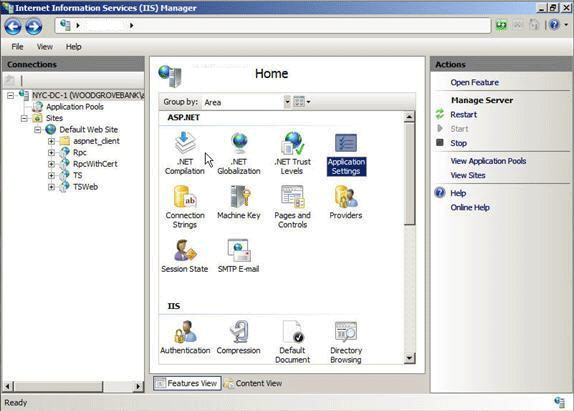
Now we will see the Home Screen for IIS 7.0 :
IIS1.gif

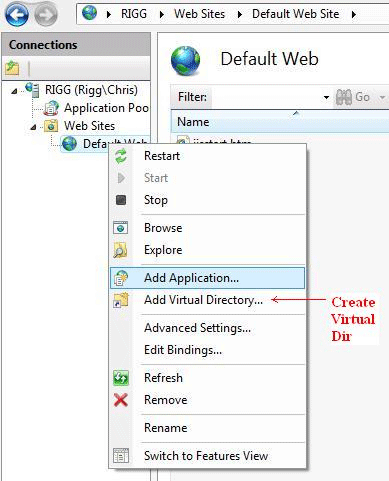
Create a virtual directory on IIS 7.0 :
IIS2.gif

Once you have created a Virtual directory, copy the published folder content to the Virtual Directory:

Step 1: From Visual Studio 2005 or above, publish your web application.

Step 2: Copy the published application folder content to the

"C:\intepub\wwwroot\YourVirtualDir" folder.

Step 3: From RUN - > inetmgr -> OK

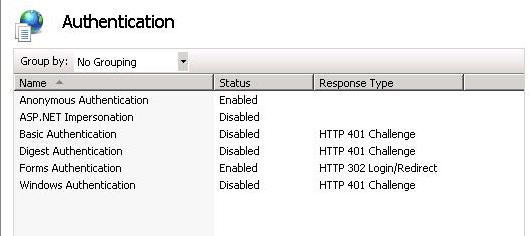
Authentication Settings:

You can change Security Settings in the Authentication Section. By default the setting will be set from your web.config. Since in my web.config, Form Authentication was set, that's why Forms Authentication was Enabled. If we want to change the status, just double click and update the status to Enabled or to Disabled or Vice Versa.
IIS3.gif

Login to add your contents and source code to this article
Article Extensions
Contents added by Gurtej Singh on Dec 29, 2012
comments
COMMENT USING
PREMIUM SPONSORS
DynamicPDF™ product line allows you to dynamically generate PDF documents, merge PDF documents and add new content to existing PDF documents from within your applications.
SPONSORED BY
  • PDF reports have never been easier to create. With our included WYSIWYG Designer, you can layout your reports, set up your data source and let DynamicPDF ReportWriter do the rest.