Introduction
In this article we will see how we can make a Watermark Textbox in WPF Application. Watermark is nothing but an information text, which helps the user to type according to that.
Crating Silverlight Project
Fire up Expression Blend 3 and create a WPF Application. Name it as WatermarkTextInWPF.

Open the solution in Visual Studio 2008.
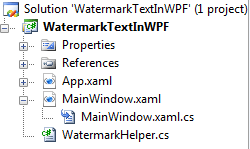
We need a helper class which can help us for this operation.
Add a class, name it as WatermarkHelper.cs
Now implement the Interface IMultivalueConverter.
As soon as you type the interface name you will get notification to add the namespace. Go ahead and add the Namespace System.Windows.Data
Choose the option "Implicitly Implement Interface IMultivalueConverter".
Now you will see the following methods are added.
#region IMultiValueConverter Members
public object Convert(object[] values, Type targetType, object parameter, System.Globalization.CultureInfo culture)
{
throw new NotImplementedException();
}
public object[] ConvertBack(object value, Type[] targetTypes, object parameter, System.Globalization.CultureInfo culture)
{
throw new NotImplementedException();
}
#endregion
Add the following code in Convert method:
if (values[0] is bool && values[1] is bool)
{
bool hasText = !(bool)values[0];
bool hasFocus = (bool)values[1];
if (hasFocus || hasText)
return Visibility.Collapsed;
}
return Visibility.Visible;
It says, whenever there is a text or focus then change the Visibility property to Collapsed and finally if not having text or focused return the Visibility.Visible.
For the time being we will not use the other method.
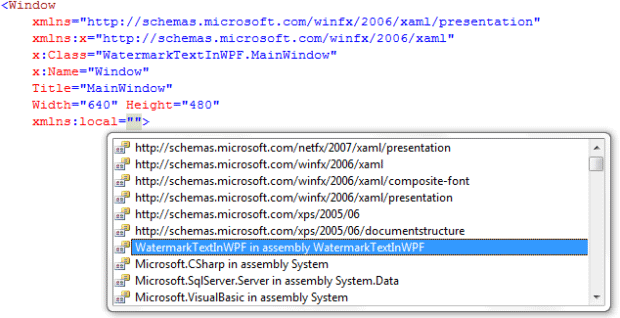
Go to the xaml code behind and add the Namespace to it, so that we can use the class WatermarkHelper.
Add styles to Window.Resources
<Window.Resources>
<SolidColorBrush x:Key="brushWatermarkBackground" Color="White" />
<SolidColorBrush x:Key="brushWatermarkForeground" Color="LightSteelBlue" />
<SolidColorBrush x:Key="brushWatermarkBorder" Color="Indigo" />
<BooleanToVisibilityConverter x:Key="BooleanToVisibilityConverter" />
<local:WatermarkHelper x:Key="WatermarkHelper" />
<Style x:Key="EntryFieldStyle" TargetType="Grid" >
<Setter Property="HorizontalAlignment" Value="Stretch" />
<Setter Property="VerticalAlignment" Value="Center" />
<Setter Property="Margin" Value="20,0" />
</Style>
</Window.Resources>
And add the following two Grids inside the LayoutRoot Grid. And then add TextBlocks and TextBoxes to the Grid.
TextBlock is for the Watermark text and TextBox is for user input.
<Grid x:Name="LayoutRoot" Background="BlanchedAlmond">
<Grid.RowDefinitions>
<RowDefinition />
<RowDefinition />
<RowDefinition />
</Grid.RowDefinitions>
<Grid Grid.Row="0" Background="{StaticResource brushWatermarkBackground}" Style="{StaticResource EntryFieldStyle}" >
<TextBlock Margin="5,2" Text="Type First Name ..." Foreground="{StaticResource brushWatermarkForeground}"
Visibility="{Binding ElementName=txtUserEntry1, Path=Text.IsEmpty, Converter={StaticResource BooleanToVisibilityConverter}}" />
<TextBox Name="txtUserEntry1" Background="Transparent" BorderBrush="{StaticResource brushWatermarkBorder}" />
</Grid>
<Grid Grid.Row="1" Background="{StaticResource brushWatermarkBackground}" Style="{StaticResource EntryFieldStyle}" >
<TextBlock Margin="5,2" Text="Type Last Name ..." Foreground="{StaticResource brushWatermarkForeground}" >
<TextBlock.Visibility>
<MultiBinding Converter="{StaticResource WatermarkHelper}">
<Binding ElementName="txtUserEntry2" Path="Text.IsEmpty" />
<Binding ElementName="txtUserEntry2" Path="IsFocused" />
</MultiBinding>
</TextBlock.Visibility>
</TextBlock>
<TextBox Name="txtUserEntry2" Background="Transparent" BorderBrush="{StaticResource brushWatermarkBorder}" />
</Grid>
</Grid>
Now that you have added the above xaml code to the Window.
Basically we will create two Watermark Textboxes. And we have done binding to the required properties we need for the Watermark behavior.
Now our application is ready to go, press F5 to run the application.
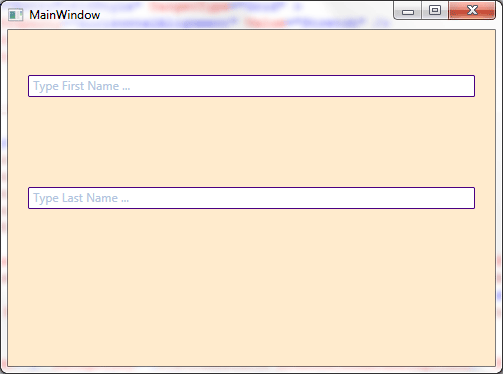
There are two TextBoxes which have watermark respectively as "Type First Name ..." and "Type Last Name".
When you start typing in the first textbox as soon as you type the watermark goes away. But in case of the second one when you mouse over (i.e. focus) the watermark goes away.
For the first text box we have used the default BooleanVisibilityConverter.
<BooleanToVisibilityConverter x:Key="BooleanToVisibilityConverter" />
And for the second one we have used the WatermarkHelper.
That's it, play with this more.
Enjoy Coding.