Introduction
This article is intended to show how to add customized validation features to GridView control in order to avoid mistakes when the users enter data and violates the underlying business rules. Specifically I'm going to illustrate how to replace BoundField or CheckBoxField default generated fields with Template field in GridView controls. For illustrative purposes, we're going to use the table Production.Product (representing business entity Product) in the database AdventureWorks shipped with SQL Server 2005.
Developing the solution
The main requirements are to display a list of products (fields to display are ProductID, Name, ProductNumber, ListPrice) and then extend the behavior of the underlying GridView control to provide validation controls to enforce that the name and list price fields are mandatory when inserted and updated.
The first step is to create a Web application by opening Visual Studio.NET 2005 and select File | New | Web Site for the front-end project. Let's create a Class Library project for the data access layer components. This separation of objects (concerning their responsibilities) follows the best practices of enterprise applications development.
Let's add a strongly typed DataSet item to the Class Library project (see Figure 1).
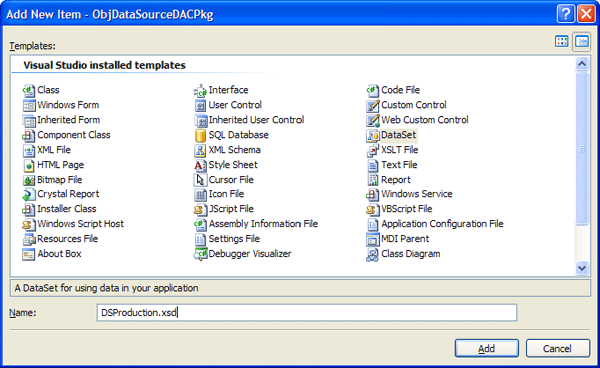
Figure 1
Next step is to define a TableAdapter item representing the logic to access the Production.Product table in the database AdventureWorks by using a SQL statement (see Figure 2).
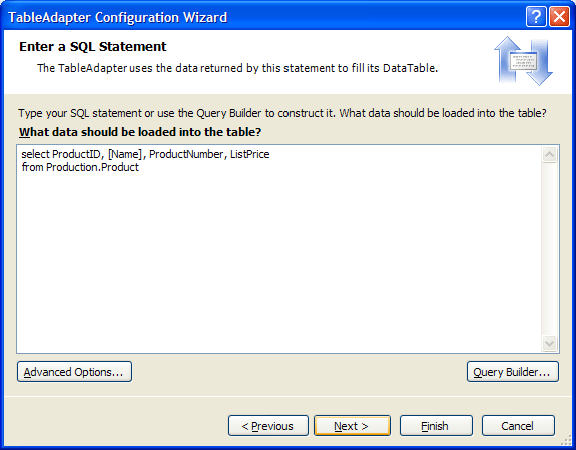
Figure 2
Then let's add a SQL statement to update the product name and list price for a given product represented by its product identifier. This SQL statement is shown in Figure 3.
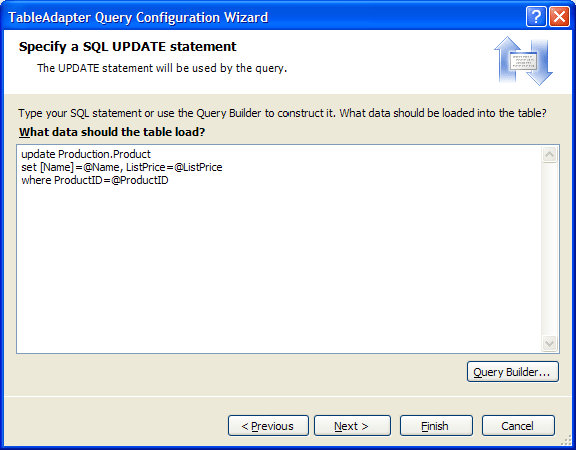
Figure 3
The final schema for the data access objects resembles to Figure 4.
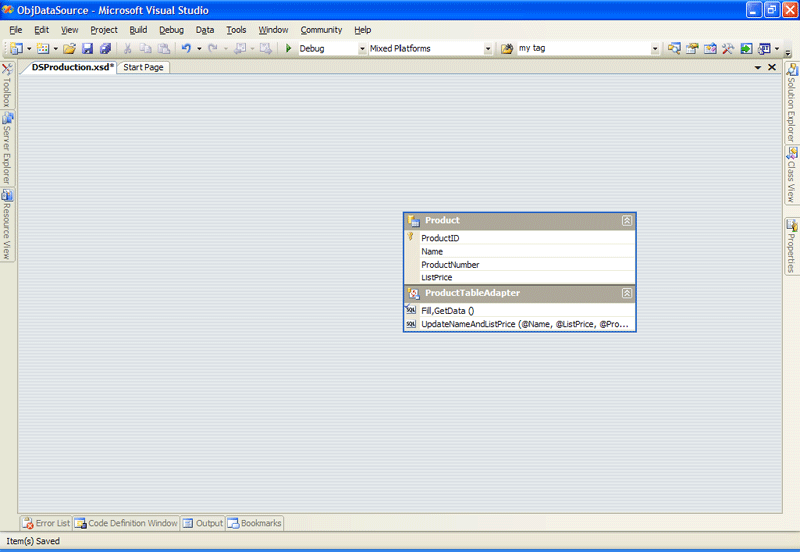
Figure 4
Now let's go to the Web front-end project and add a reference to the data access project (the Class Library project created before) and then add Web form to the project named ValidationControlsForm.aspx.
Next step is to drag and drop an ObjectDataSource item from the Toolbox onto the Web form, set the ID property to odsProducts and click on the smart tag and select the Configure Data Source option in order to launch the configuration wizard.
In the first page (Choose a Business Object) you must select the ProductTableAdapter (see Figure 5).
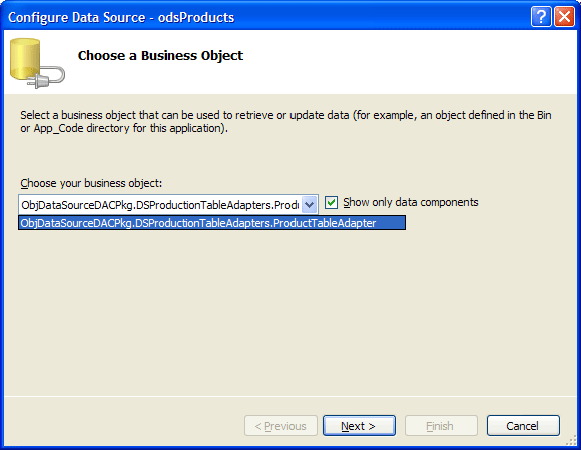
Figure 5
Click on the Next button. In the Select tab, choose the GetData method (see Figure 6).
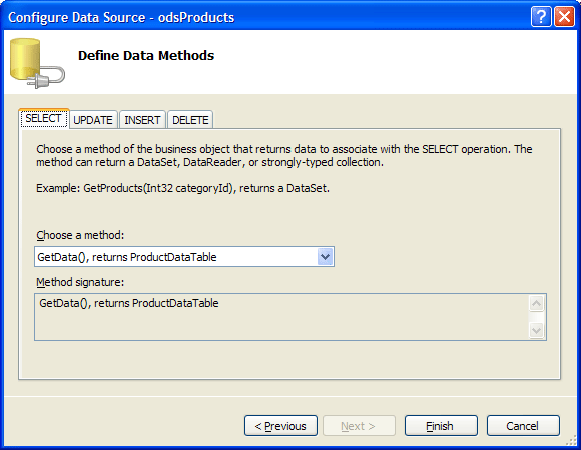
Figure 6
In the Update tab, you must choose the former created UpdateNameAndListPrice method (see Figure 7).
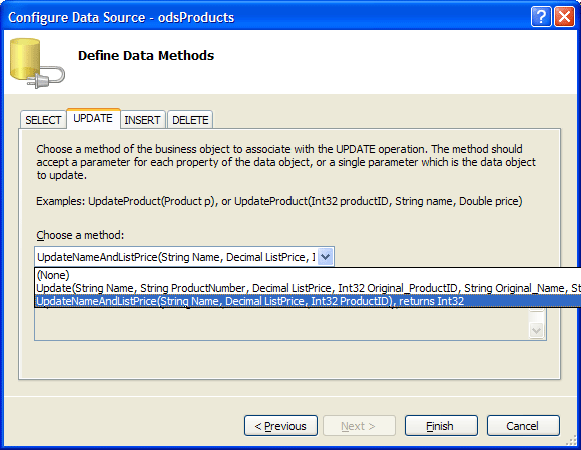
Figure 7
Click on the Finish button.
Next step is to drag and drop a GridView control from the Toolbox onto the Web Form, set the ID property to gvProducts, and click on the smart tag to bind itseft to the odsProducts ObjectDataSource. You must also check the Enable Editing and Enable Paging option (see Figure 8).
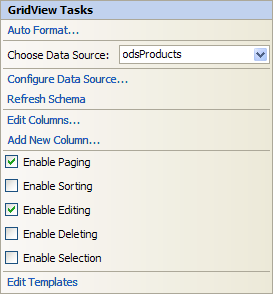
Figure 8
If you see the Select operation, this will return four columns ProductID, [Name], ProductNumber, ListPrice for the table Production.Product. The Update operation expects only three parameters (ProductID, [Name], ProductNumber, ListPrice), so the ProductNumber does not need to be mapped to the Update operation. One way to achieve this is by deleting this column as a field of the GridView control or by setting the Readonly property to True (see Figure 9).
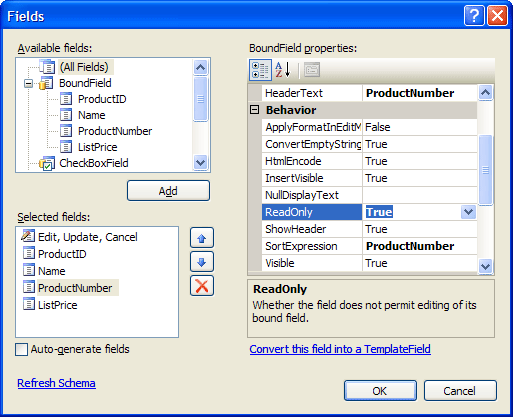
Figure 9
Now, one last trick must be used so as to update correctly. You must go to the OldValuesParameterFormatString attribute of the asp:ObjectDataSource ASP.NET tag, and change the value from original_{0} to {0}. You can also see that the fields in the GridView control are all of the type BoundField. The final code for the presentation page is shown in the Listing 1.
<%@ Page Language="C#" AutoEventWireup="true" CodeFile="ValidationControlsForm.aspx.cs" Inherits="ValidationControlsForm" %>
<!DOCTYPE html PUBLIC "-//W3C//DTD XHTML 1.0 Transitional//EN" "http://www.w3.org/TR/xhtml1/DTD/xhtml1-transitional.dtd">
<html xmlns="http://www.w3.org/1999/xhtml" >
<head runat="server">
<title>Untitled Page</title>
</head>
<body>
<form id="form1" runat="server">
<div>
<asp:ObjectDataSource ID="odsProducts" runat="server" OldValuesParameterFormatString="{0}"
SelectMethod="GetData" TypeName="ObjDataSourceDACPkg.DSProductionTableAdapters.ProductTableAdapter"
UpdateMethod="UpdateNameAndListPrice">
<UpdateParameters>
<asp:Parameter Name="Name" Type="String" />
<asp:Parameter Name="ListPrice" Type="Decimal" />
<asp:Parameter Name="ProductID" Type="Int32" />
</UpdateParameters>
</asp:ObjectDataSource>
</div>
<asp:GridView ID="gvProducts" runat="server" AllowPaging="True" AutoGenerateColumns="False"
DataKeyNames="ProductID" DataSourceID="odsProducts">
<Columns>
<asp:CommandField ShowEditButton="True" />
<asp:BoundField DataField="ProductID" HeaderText="ProductID" InsertVisible="False"
ReadOnly="True" SortExpression="ProductID" />
<asp:BoundField DataField="Name" HeaderText="Name" SortExpression="Name" />
<asp:BoundField DataField="ProductNumber" HeaderText="ProductNumber" SortExpression="ProductNumber" ReadOnly="True" />
<asp:BoundField DataField="ListPrice" HeaderText="ListPrice" SortExpression="ListPrice" />
</Columns>
</asp:GridView>
</form>
</body>
</html>
Listing 1
If you run the application, you could enter new values for the products, although if you enter a value that violated the constraints of your solutions (for example, leave empty the product name field), then you will receive an exception because it refers to a NULL in the database.
One way to solve this problem is add validation control to the GridView control by converting BoundFields into TemplateFields. To achieve this, you need to click on the smart tag on the GridView control and select the Edit Columns option in order to launch the Fields window. Then select the Name field and click on the "Convert this field into TemplateField" link. Do the same operation with the ListPrice field.
When you convert a BoundField into a TemplateField, you generate the following data binding code (see Listing 2).
<asp:GridView ID="gvProducts" runat="server" AllowPaging="True" AutoGenerateColumns="False"
DataKeyNames="ProductID" DataSourceID="odsProducts">
<Columns>
<asp:CommandField ShowEditButton="True" />
<asp:BoundField DataField="ProductID" HeaderText="ProductID" InsertVisible="False"
ReadOnly="True" SortExpression="ProductID" />
<asp:TemplateField HeaderText="Name" SortExpression="Name">
<EditItemTemplate>
<asp:TextBox ID="TextBox1" runat="server" Text='<%# Bind("Name") %>'></asp:TextBox>
</EditItemTemplate>
<ItemTemplate>
<asp:Label ID="Label1" runat="server" Text='<%# Bind("Name") %>'></asp:Label>
</ItemTemplate>
</asp:TemplateField>
<asp:BoundField DataField="ProductNumber" HeaderText="ProductNumber" SortExpression="ProductNumber" ReadOnly="True" />
<asp:TemplateField HeaderText="ListPrice" SortExpression="ListPrice">
<EditItemTemplate>
<asp:TextBox ID="TextBox2" runat="server" Text='<%# Bind("ListPrice") %>'></asp:TextBox>
</EditItemTemplate>
<ItemTemplate>
<asp:Label ID="Label2" runat="server" Text='<%# Bind("ListPrice") %>'></asp:Label>
</ItemTemplate>
</asp:TemplateField>
</Columns>
</asp:GridView>
Listing 2
The EditItemTemplate and the InsertItemTemplate display the data field value in the Text property of TextBox controls using the two-way data binding techniques (the <%# Bind("FieldName") %> syntax).
Next step is to make sure that field values for the product name and list price are mandatory, and to achieve this, you're going to use the RequiredFieldValidator validator control. Go to the EditItemTemplate node for Name and ListPrice fields and add the RequiredFieldValidator tag (see Listing 3).
<EditItemTemplate>
<asp:TextBox ID="TextBox1" runat="server" Text='<%# Bind("Name") %>'></asp:TextBox>
<asp:RequiredFieldValidator ID="RequiredFieldValidator1" runat="server" ControlToValidate="TextBox1" ErrorMessage= "* Required Field"></asp:RequiredFieldValidator>
</EditItemTemplate>
Listing 3
Now if you run the application and attempt to omit the product name or list price, you will see an asterisk and a message next to the textbox indicating that this is a required field.
Conclusion
In this article, I've discussed the main techniques to add customized validation logic to enforce business rules on the presentation layer of your solution. In this case, we have to convert the BoundFields into TemplateFields in order to add validation controls. Now you can apply this techniques in your own situation.