

Introduction
In this article we will create a registration form, a login form and a form for checking for existing email. We will create a table and stored procedure in a SQL database.
Registration Form
Step 1 Create Table
Now create a table in a SQL Server database with username, password and email fields. The table looks like this.
- create table registrationtab
- (
- Username varchar(100), Email varchar(100), Password varchar(20)
- )
Step 2 Create stored procedure
Now create a stored procedure for registration. That means the values will be inserted into the table using the stored procedure. The stored procedure looks like:
- create procedure[dbo].[storlogin134]
- (
- @username varchar(40), @email varchar(50), @password varchar(20)
- )
- as
- insert into registrationtab values(@username, @email, @password)
Step 3 Create form for registration
Now create a form in ASP.Net with the following fields defined in the table. The form looks like the following figure.
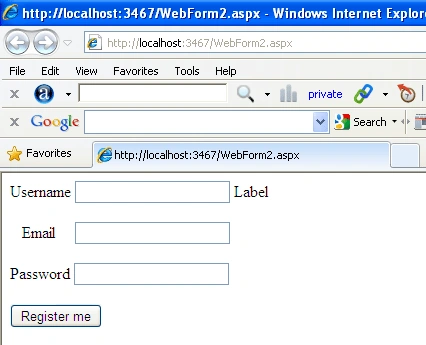
Figure1
Now double-click on the register me button and add following code
- protected void Buttonregisterme_Click(object sender, EventArgs e) {
- string strcon = "Data Source=.;uid=sa;pwd=Password$2;database=master";
- SqlConnection con = new SqlConnection(strcon);
- SqlCommand com = new SqlCommand("storlogin134", con);
- com.CommandType = CommandType.StoredProcedure;
- SqlParameter p1 = new SqlParameter("username", TextBoxusername.Text);
- SqlParameter p2 = new SqlParameter("email", TextBoxemail.Text);
- SqlParameter p3 = new SqlParameter("password", TextBoxpassword.Text);
- com.Parameters.Add(p1);
- com.Parameters.Add(p2);
- com.Parameters.Add(p3);
- con.Open();
- com.ExecuteNonQuery();
- Labelinfo.Text = "registered successful.";
- }
Now run the application and enter the username, email and password and then click on the register me button to save the values to the database.

Figure 2
Open the database and check the registrationtab table.
Login form
Step 4 Create stored procedure
Now create a stored procedure for login. That means the values will be selected from the table using a stored procedure. The stored procedure looks like
- create PROCEDURE CheckUser
- (
- @username as varchar(50), @password as varchar(50)
- )
- AS
- SELECT * FROM registrationtab WHERE username = @username AND password = @password
Now create a form in ASP.Net with the following fields defined in the table. The form looks like the following figure.
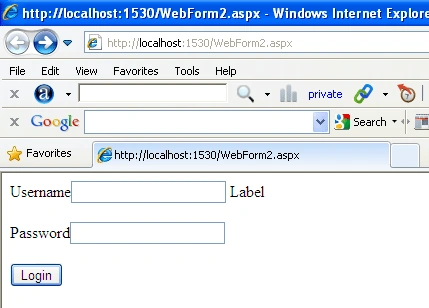
Figure3
Step 5 Create form for login
Now create a form in ASP.Net with the username and password field which are defined in the table. The form looks like the following figure.
Figure 4
Now double-click on the login button and add the following code.
- protected void Buttonlogin_Click(object sender, EventArgs e) {
- string strcon = "Data Source=.;uid=sa;pwd=Password$2;database=master";
- SqlConnection con = new SqlConnection(strcon);
- SqlCommand com = new SqlCommand("CheckUser", con);
- com.CommandType = CommandType.StoredProcedure;
- SqlParameter p1 = new SqlParameter("username", TextBoxusername.Text);
- SqlParameter p2 = new SqlParameter("password", TextBoxpassword.Text);
- com.Parameters.Add(p1);
- com.Parameters.Add(p2);
- con.Open();
- SqlDataReader rd = com.ExecuteReader();
- if (rd.HasRows) {
- rd.Read();
- Labelinfo.Text = "Login successful.";
- } else {
- Labelinfo.Text = "Invalid username or password.";
- }
- }
Now run the application and enter the username and password and then click on the login button to retrieve the values from the database. Now suppose we enter the wrong username and password, as in,
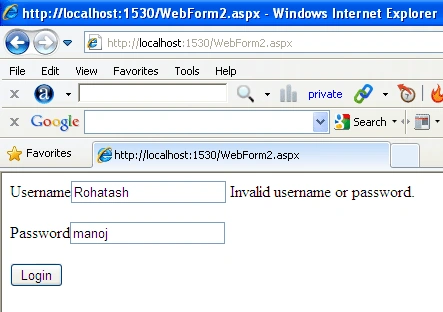
Figure4
Now enter the correct username and password,
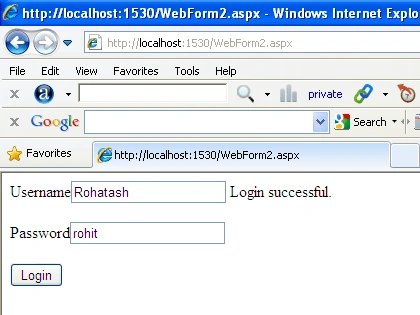
Figure 5
check existence
Step6 Check email Existence
Now create a stored procedure for checking the existence of email. The stored procedure looks like:
- create PROCEDURE existance
- (
- @email as varchar(50)
- )
- AS
- SELECT * FROM registrationtab WHERE email = @email
Now create a form in ASP.Net with the email field defined in the table. The form looks like the following figure.
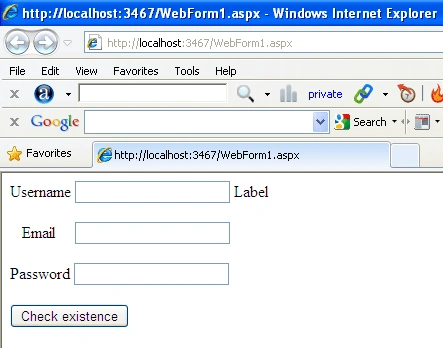
Figure 6
Step-7
Now double-click on the login button and add the following code,
- protected void Buttonchekexistance_Click(object sender, EventArgs e) {
- string strcon = "Data Source=.;uid=sa;pwd=Password$2;database=master";
- SqlConnection con = new SqlConnection(strcon);
- SqlCommand com = new SqlCommand("existance", con);
- com.CommandType = CommandType.StoredProcedure;
- SqlParameter p1 = new SqlParameter("email", TextBoxemail.Text);
- com.Parameters.Add(p1);
- con.Open();
- SqlDataReader rd = com.ExecuteReader();
- if (rd.HasRows) {
- rd.Read();
- this.Labelinfo.ForeColor = System.Drawing.Color.Red;
- this.Labelinfo.Text = "already Exist!";
- } else {
- this.Labelinfo.Text = "you can login now";
- this.TextBoxusername.Text = "";
- this.TextBoxpassword.Text = "";
- this.TextBoxemail.Text = "";
- }
- }
Now run the application and enter the username, email and password to check for the existence of the emailid in the database. Suppose we enter a new email id,
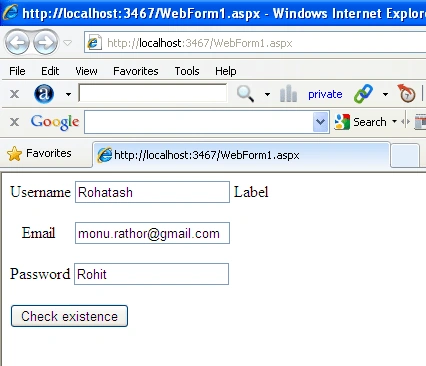
Figure 7
Then click on the Check existence button.
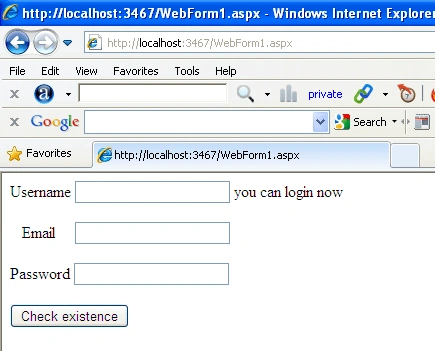
Figure8
Now enter an existing email id and click on the Check existence button.
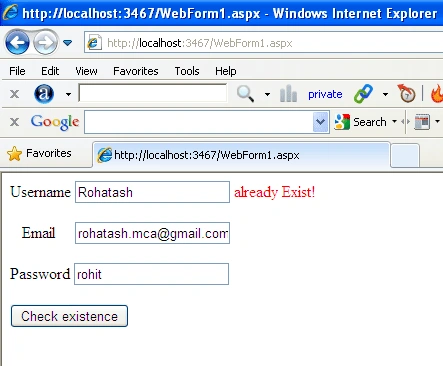
Figure 9
You can also download the attachment and test it yourself.
Nigel StanleyPosted Apr 2, 2019, 3:19 PM
Hi, firstly this was a great article. I have actually implemented the same thing using an online ms sql database. The login works. The problem I have is trying to figure out when the user logs in and has been accepted how do I carry that user log in information on to the next page? None the less very nice article.
Ashraqat AliPosted Nov 25, 2017, 11:16 AM
Now i try this but , the message is actually appear but the data inserted in the table and that isn't supposed to be
Ramesh PalaniappanPosted Aug 29, 2016, 11:24 AM
Nice share
Raushan KumarPosted May 17, 2016, 4:11 AM
nice one
Brijesh PatelPosted Oct 19, 2015, 7:11 AM
Good Article.
Anil DhimanPosted Sep 2, 2015, 6:24 AM
All Are good example for login thanks a lot...
Maha LakshmiPosted Mar 3, 2015, 1:30 AM
When the button is clicked i want to show the entered value as gridview
Nilesh UpadhyayPosted Nov 20, 2014, 6:55 AM
its work... but i'm looking for registration data store with photo... if any idea just upload..please
satish GPosted Sep 4, 2014, 9:00 AM
i am getting error as "Could not find stored procedure 'dbo.aspnet_CheckSchemaVersion'" in browser
Vinodh VigneshPosted Aug 9, 2014, 5:05 AM
IF I FORGOT THE PASSWORD HOW CAN I RETRIVE IT?
Sukanya DattaPosted Jul 3, 2014, 11:55 AM
its so helpful :) thanks a lot
Former memberPosted Jun 18, 2014, 6:01 AM
Very nice thanks http://www.aspdotnet-pools.com/2014/06/simple-login-form-in-aspnet-using-cnet.html
ram zyPosted Mar 16, 2014, 3:31 PM
good work :) .. i have one question.. what if I am not using stored procedure? what would be the changes...
Ali AshiqPosted Feb 15, 2014, 6:48 AM
thank you so much very useful content for me!
Muhammad Waqar tahirPosted Nov 22, 2013, 2:57 PM
Very Good Post. Thanks A lot.
Rohatash KumarPosted Aug 7, 2013, 7:33 AM
Anil, You can check wrong password with database password. if password not match then display message incorrect password.
anil babuPosted Jun 7, 2013, 2:04 AM
suppose i am enter wrong password display message incorrect password
anil babuPosted Jun 7, 2013, 2:03 AM
This is my actual,Without removing actual code Varify my email and password values are correct or not,protected void btnLogIn_Click(object sender, EventArgs e) { string strCon = @System.Configuration.ConfigurationManager.ConnectionStrings["stgdbConnectionString"].ConnectionString; string strSelect = "SELECT ClientId FROM CLIENT WHERE Email = @Email AND Password = @Password"; //string strSelect1 = "select ClientId from CLIENT where Email = @Email AND Password = @Password"; SqlConnection con = new SqlConnection(strCon); SqlCommand cmd = new SqlCommand(); cmd.Connection = con; cmd.CommandType = CommandType.Text; cmd.CommandText = strSelect; SqlParameter email = new SqlParameter("@Email", SqlDbType.VarChar, 50); email.Value = txtEmail.Text.Trim().ToString(); cmd.Parameters.Add(email); SqlParameter password = new SqlParameter("@Password", SqlDbType.VarChar, 50); password.Value = txtPwd.Text.Trim().ToString(); cmd.Parameters.Add(password); con.Open(); clientid = cmd.ExecuteScalar().ToString(); con.Close(); if (clientid != null) { Session["Emailid"] = txtEmail.Text.ToString().Trim(); Session["ClientId"] = clientid; //Session["ClientId"] = ClientId.TypeName.Trim().ToString(); ////Session["ClientId"] = strSelect1; Response.Redirect("Logout.aspx"); } else lblMsg.Text = "Incorrect EmailId or Password"; }
Rohatash KumarPosted Apr 16, 2013, 1:45 AM
Where have you need it. Hafiz
Hafiz TahireditedPosted Apr 16, 2013, 1:29 AMEdited Apr 16, 2013, 1:30 AM
ThankYou very much kumar bhai, ap ne boht bra masla hal kr dia ha ... jazakALLAH
Rohatash KumarPosted Apr 10, 2013, 2:37 AM
Add a new roll column in the database table and check the roll from Code.
navas rahimPosted Apr 10, 2013, 2:29 AM
how to create userhome & admin home redirecting from login
Rohatash KumarPosted Mar 25, 2013, 3:46 AM
Thanks. Ravi
ravi kalsariyaeditedPosted Mar 23, 2013, 2:09 AMEdited Mar 23, 2013, 2:10 AM
"This code is successfully working"Thanks & Regards, Ravi Kalsariya, QA Engineer
Santosh YadavPosted Mar 16, 2013, 4:29 AM
Very good and helpful post. Thankyou
Mormert MormertPosted Feb 23, 2013, 9:21 AM
One question... Where does the account information beein saved??? WHAT FILE? i want to delete some users xD
dineshPosted Feb 20, 2013, 4:33 AM
good
Rituraj PandeyPosted Feb 2, 2013, 2:07 AM
Thanks
Himanshu SrivastavaPosted Jan 13, 2013, 7:10 AM
Please Help Sir. Sir i am using sql server 2005. And connection is not stabilize. I am using Your this command string strcon ="Data Source=HIMANSHU\SQLEXPRESS;uid=sa;pwd=123;database=himanshu"; SqlConnection con = new SqlConnection(strcon); ONE error also :- Data Source=HIMANSHU\SQLEXPRESS. Where s is show error. Error comes at last stage :- con.Open(); The error is :- Login failed for user 'sa'. The user is not associated with a trusted SQL Server connection. But Login Id is 'sa'. Please.Check. Reply Soon Sir.
Rohatash KumarPosted Aug 16, 2012, 7:58 AM
You can also use that System.Drawing.Color.Red. rio
Neil SmartPosted Aug 15, 2012, 9:40 AM
rio p you can just highlight it and go to the property window and select foreground colour
Neil SmartPosted Aug 13, 2012, 10:27 AM
just wanted to say thanks very simple and works great. can we return a value IE person username and put that in the label text so when they log in it says "Welcome NEIL you are logged in"
rio peditedPosted Aug 11, 2012, 3:09 PMEdited Aug 11, 2012, 3:10 PM
i just like to do without stored procedure and also i like to know hw can we change font colour in response.write(" password incorrect") thank you
Rohatash KumarPosted Jul 31, 2012, 5:19 AM
saby sz, write stored procedure in sql server database.
Rohatash KumarPosted Jul 31, 2012, 5:17 AM
Thanks mani
mani pPosted Jun 22, 2012, 9:51 AM
Thanks for ur help
saby szPosted Jun 15, 2012, 5:47 AM
Nice ...only one question ...where do write stored procedure ???
prafulla saxenaPosted Jun 10, 2012, 4:05 PM
i have implemented your matthod for login page :-------- SqlConnection con = new SqlConnection("server=.\\SQLEXPRESS; AttachDbFileName=|DataDirectory|\\Database.mdf; user instance=true; trusted_connection=yes"); con.Open(); SqlCommand cmd = new SqlCommand("insert into login values('" + TextBox1.Text + "','" + TextBox2.Text + "')", con); SqlCommand cmd1 = new SqlCommand("SELECT * FROM signup WHERE id='" + TextBox1.Text + "' AND pswrd='" + TextBox2.Text + "'", con); cmd1.CommandType = CommandType.StoredProcedure; SqlParameter p1 = new SqlParameter("id", TextBox1.Text); SqlParameter p2 = new SqlParameter("pswrd", TextBox2.Text); cmd1.Parameters.Add(p1); cmd1.Parameters.Add(p2); SqlDataReader rd = cmd1.ExecuteReader(); if (rd.HasRows) { rd.Read(); Response.Redirect("home.aspx"); } else { Response.Write("Invalid username or password"); } con.Close(); but an exception occurs and pointing it-> SqlDataReader rd = cmd1.ExecuteReader(); error is :- stored procedure is not found "SELECT * FROM signup WHERE id=@id AND pswrd=@pswrd"
Kieran CallaghanPosted May 21, 2012, 3:57 AM
Why do you leave the conStr open and not close it on each button event?
srikanth kumarPosted Oct 29, 2011, 7:27 AM
Nice Work ....
MicalgrayPosted Jun 14, 2011, 6:51 AM
Good Work. Rohatash
surender bhyanPosted Jun 11, 2011, 3:52 PM
Thanks rohatash sir, u explain the same so smoothly with the help of sp..thanks again
vidyanand ukeyPosted Jun 11, 2011, 10:07 AM
Basic application, but very useful thanks.