Introduction
In the previous article Part III , we demonstrate how to create a custom section with custom attributes using the ConfigurationSection class and IConfigurationSectionHandler interface. And our goal was to create a customized section that represents ports and enable developer rectify the listen ports after the application deployment. Assuming that we develop an enterprise planning resource for a given firm in witch an application F used by the financial department listens to the application A used by the account department. In the current article we will achieve the same goal with different manner, I mean; we will use a section group to set sections within the same characteristics.
Section group representation
It simply represents a group of specified sections within a configuration file, I mean, it is a group of sections container and this is very useful for organizational purposes, moreover, it avoids a certain naming conflicts. A section group has some arguments witch are:
| Element |
Description |
| name |
The section group name, it is required to specify the name of the section group |
| type |
The section group type precise the configuration section group handler class, the assembly, the version, the culture and the public key token |
Remember that in Part II article, we treated the case of none centralized information system, Imagine now a strongly centralized information system conforming to this hierarchy:
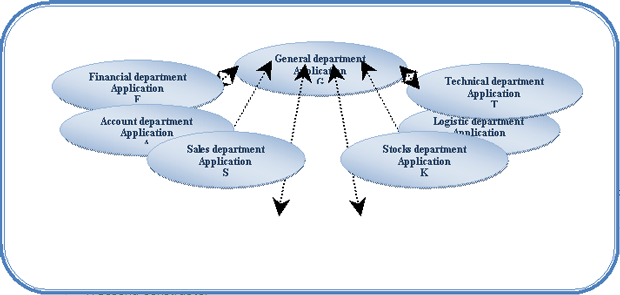
In such situation, the general department solution will listen to more than one application. The best manner to organize the ports sections is to group them in one section group instead of adding them separately. To achieve this goal we take the following steps:
- Add the custom configuration class to the project.
public class PortSectionHandler : ConfigurationSection<?xml:namespace prefix = o ns = "urn:schemas-microsoft-com:office:office" />
{
//First constructor
public PortSectionHandler() { }
//Second constructor
public PortSectionHandler(string SectionName,string Key, string Serial)
{
this.SectionName = SectionName; this.Key = Key; this.Serial = Serial;
}
//First property: SectionName
private string _SectionName;
public string SectionName
{
get { return _SectionName; }
set { _SectionName = value; }
}
//Second property: The port Key
[ConfigurationProperty("key", DefaultValue = "Account", IsRequired = true)]
[StringValidator(InvalidCharacters = "|~!@#$%^&*()[]{}/;'\\",MinLength = 1)]
public string Key
{
get { return (string)this["key"]; }
set { this["key"] = value; }
}
//Third property: The port serial
[ConfigurationProperty("serial", DefaultValue = "9000",IsRequired = true)]
[StringValidator(InvalidCharacters = "|~!@#$%^&*()[]{}/;'\\", MinLength = 1)]
public string Serial
{
get { return this["serial"] as string;}
set {this["serial"] = value;}
}
}
private static void AddNewSectionGroup()
{
/* This code provides access to configuration files using OpenMappedExeConfiguration method. You can use the OpenExeConfiguration method instead. For further informatons, consult the MSDN, it gives you more inforamtions about config files access methods*/
ExeConfigurationFileMap oConfigFile = new ExeConfigurationFileMap();
oConfigFile.ExeConfigFilename = Application.StartupPath + "\\" + Application.ProductName + ".exe.config";
Configuration oConfiguration = ConfigurationManager.OpenMappedExeConfiguration(oConfigFile, ConfigurationUserLevel.None);
// Create a configuration section group
ConfigurationSectionGroup oSectionGroup = new ConfigurationSectionGroup();
//This string array contains the departments names
string[] Departement = { "Acount", "Financial", "Logistic", "Stocks", "Sales", "Technical" };
/* As we are in not real case,we generate a serial port number using a random object*/
Random oRandom = new Random();
// Add the section group to the configuration object
oConfiguration.SectionGroups.Add("Ports", oSectionGroup);
//Create a new port section, do not initialise it
PortsSectionHandler.PortSectionHandler oSection;
//Five ports sections will be added
for (int i = 0; i < 6; i++)
{
oSection = new PortsSectionHandler.PortSectionHandler();
oSection.SectionName = "Port" + i.ToString();
oSection.Key = Departement[i] + "_department";
oSection.Serial = oRandom.Next(9000, 14000).ToString();
oSection.SectionInformation.ForceSave = true;
oSectionGroup.Sections.Add(oSection.SectionName, oSection);
}
//Save changes
oConfiguration.Save(ConfigurationSaveMode.Full);
MessageBox.Show("Ports section group is added");
Application.Restart();
}
- Call it from the code, switch to the configuration file and observe changes:
<?xml version="1.0" encoding="utf-8" ?>
<configuration><configSections>
<sectionGroup name="Ports" type="System.Configuration.ConfigurationSectionGroup, System.Configuration, Version=2.0.0.0, Culture=neutral, PublicKeyToken=b03f5f7f11d50a3a" >
<section name="Port0" type="AppConfig.PortsSectionHandler.PortSectionHandler,
<section name="Port1" type="AppConfig.PortsSectionHandler.PortSectionHandler,
<section name="Port2" type="AppConfig.PortsSectionHandler.PortSectionHandler,
<section name="Port3" type="AppConfig.PortsSectionHandler.PortSectionHandler,
<section name="Port4" type="AppConfig.PortsSectionHandler.PortSectionHandler,
<section name="Port5" type="AppConfig.PortsSectionHandler.PortSectionHandler,
</sectionGroup></configSections>
<Ports>
<Port0 key="Acount_department" serial="13339" />
<Port1 key="Financial_department" serial="9427" />
<Port2 key="Logistic_department" serial="13420" />
<Port3 key="Stocks_department" serial="12932" />
<Port4 key="Sales_department" serial="11599" />
<Port5 key="Technic_department" serial="13474" />
</Ports>
</configuration>
Now, suppose that we want to retrieve information about a given port, the port 5 for example. We can do that using this method:
private static void RetriveKeySerial()
{
/* This code provides access to configuration files using OpenMappedExeConfiguration, method. You can use the OpenExeConfiguration method instead. For further informatons, consult the MSDN, it gives you more inforamtions about config files access methods*/
ExeConfigurationFileMap oConfigFile = new ExeConfigurationFileMap();
oConfigFile.ExeConfigFilename = Application.StartupPath + “\\AppConfig.exe.config”;
Configuration oConfiguration = ConfigurationManager.OpenMappedExeConfiguration(oConfigFile,ConfigurationUserLevel.None);
//Create a configuration section group and set is as follow don’t miss to cast it
ConfigurationSectionGroup oSectionGroup = oConfiguration.GetSectionGroup(“Ports”) as ConfigurationSectionGroup;
//Create a new port section handler object and set it as follow
PortsSectionHandler.PortSectionHandler oSection = oSectionGroup.Sections[“Port5”] as PortsSectionHandler.PortSectionHandler;
//Display targeted informations
MessageBox.Show(oSection.Key);
MessageBox.Show(oSection.Serial);
}