
The following steps will guide you how to configure SharePoint 2013 to Shared Folder.
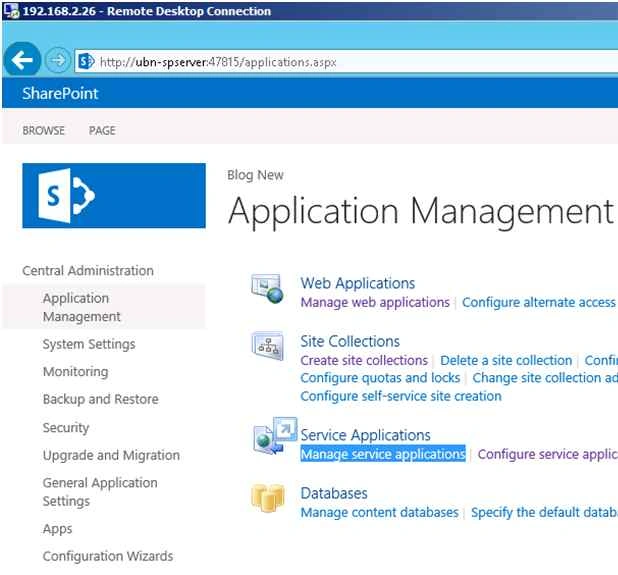
Step 1: Go to Central Administration, Service Application, then Manage Service Application.
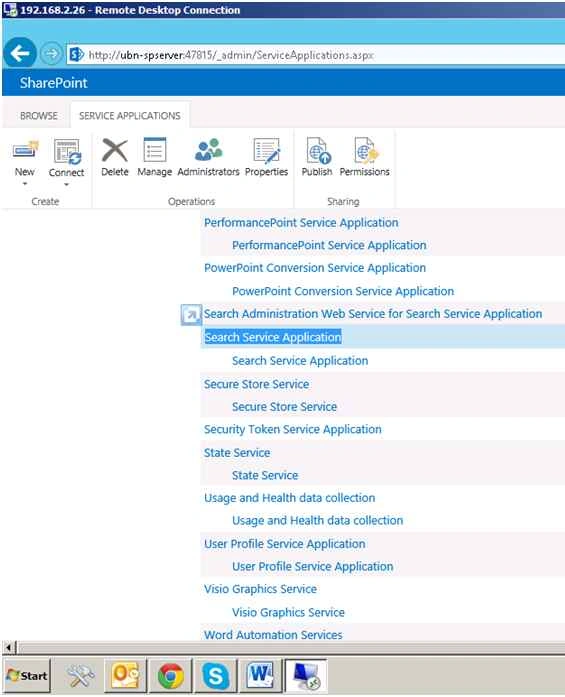
Step 2: Click Search Service Application.
Step 3: Click Content Source.
Step 4: Click New Content Source on top of the link bar.
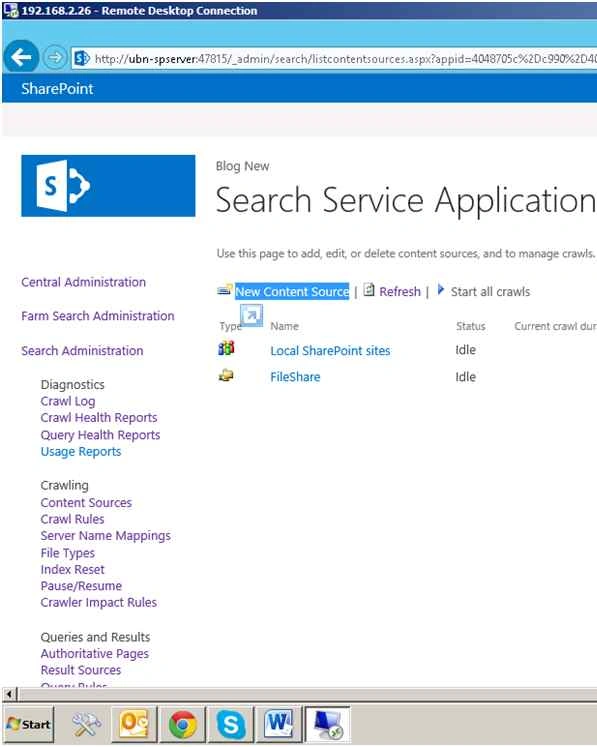
Step 5: Use this page to Add, Edit or Delete Content Source and to Manage Crawls. Click New Content Source.
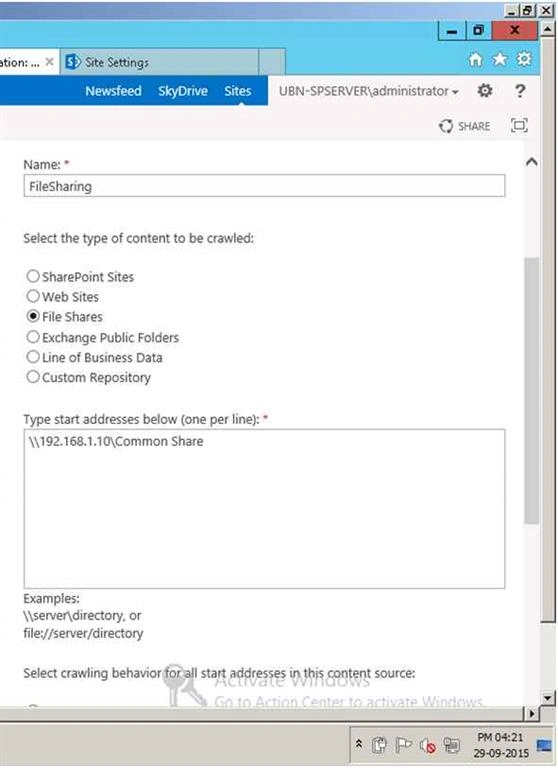
Content Source Type
Select what type of Content will be crawls.
Note: This cannot be changed after this content source is created because other settings depend on it.
Start Addresses
Type the URL from which the search system should start crawling.
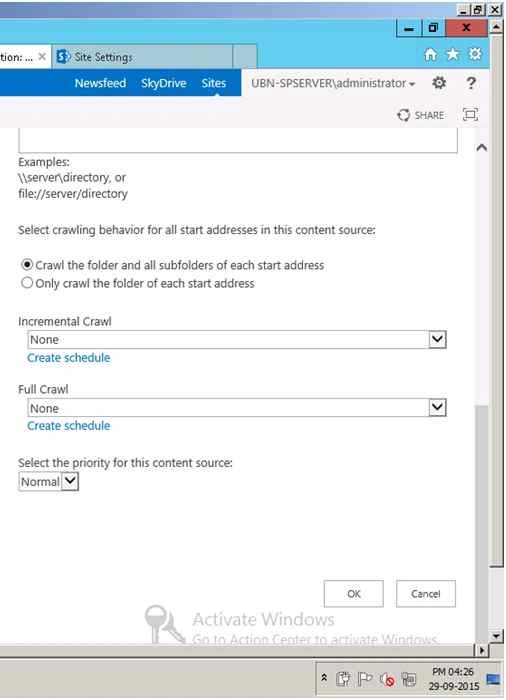
Step 6: Click OK to perform a full crawl of this content source.

Configure SharePoint 2013 Search To Crawl Files In Shared Folder
Join the conversation! Your thoughts help the community grow.
Sign in to leave a comment
It is the same account you read, post and publish with — and you will come straight back to this page.
Keith DouglasPosted Oct 8, 2020, 10:07 AM
Any drawbacks of doing this? Slower search results? Server overload as such?
Shobana JPosted Jul 12, 2016, 3:17 AM
Nice one
Santhakumar MunuswamyPosted Oct 18, 2015, 5:50 AM
Good one
Rajkiran SwainPosted Oct 7, 2015, 3:07 AM
you should provide ShareFolder addrss"FTP"
Ankit BansalPosted Oct 7, 2015, 1:28 AM
nice..thanks for sharing knowledge..
Sibeesh VenuPosted Oct 7, 2015, 12:58 AM
Nice Share
Rupali ShindePosted Oct 7, 2015, 12:58 AM
can you please explain - which address to provide as " Start Address " ?? is it means path of shared folder on system ?? where output of crwal get stored ??
Nilesh JadavPosted Oct 6, 2015, 9:23 PM
Nice one sir !
Priyaranjan K SPosted Oct 6, 2015, 1:06 PM
Good One ...