

Introduction
In this article we will see to create an application for calculating an astrophotography field of a view calculator. In this web application the user provides the focal length of the telescope and the dimensions of the camera sensor as the input. This application displays the optics of the view as the number of degrees of the sky.
We know that Backbone follows the MV* pattern, that is the Model View pattern. In this tutorial we will focus on the View part of backbone.js. The View of the Backbone is not only a view but also is also a controller for connecting the model to the data interaction.
Now we will see how to create this application.
Step 1
First we create a Web application as in the following:
- Start Visual Studio 2013.
- From the Start window select "New Project".
- Select "Installed" -> "Template" -> "Visual Studio" -> "Web" -> "Visual Studio2012" and select {see the following}.
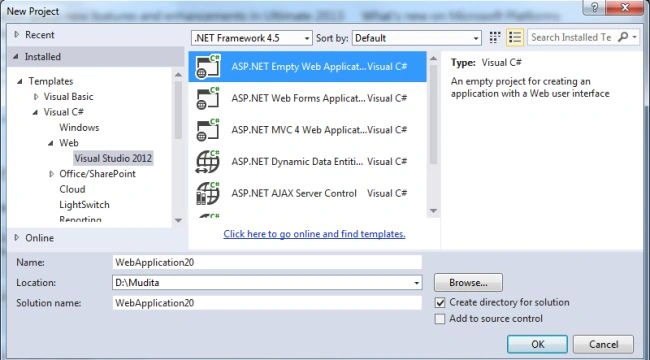
- Click on the "OK" button.
Step 2
Now we add some JavaScript to our project as in the following:
- In the Solution Explorer.
- Right-click on the project and select "Add" -> "New Item".
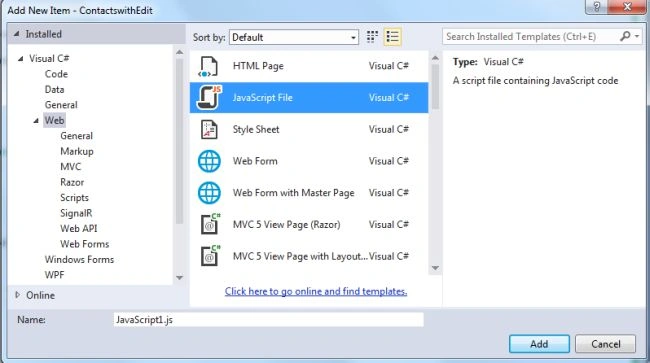
- Add a JavaScript file.
- Click on the "Add" button.
In the JavaScript file we need to create a View that receives the data from the user and calculates it and displays the results. Here we use "Backbone.View.extend" to create the View. We will pass the object in this method that defines the Backbone. The View already has the collection of data and methods.
var FovView = Backbone.View.extend({
initialize: function () {
this.render();
},
render: function () {
var template = _.template($('#fov-form-template').html(), {});
this.$el.html(template);
}
});
var fovView = new FovView({ el: '#fov-form' });
We need to add the event to the View. When the user does something then they want to see something. We create an event such as mouse click, mouse blurring, mouse over various types of events that the jQuery consists of on which the the objects can react. Here we create the click event, when the button is clicked then it will start the calculation. Now we will see our view with the event:
var FovView = Backbone.View.extend({
initialize: function () {
this.render();
},
render: function () {
var template = _.template($('#fov-form-template').html(), {});
this.$el.html(template);
},
events: {
'click #submit-optics': 'startCalculation'
}
});
Now we can see the entire code of the JavaScript file as:
var FovView = Backbone.View.extend({
initialize: function () {
this.render();
},
render: function () {
var template = _.template($('#fov-form-template').html(), {});
this.$el.html(template);
},
events: {
'click #submit-optics': 'startCalculation'
},
startCalculation: function (e) {
// Do some math to calculate FOV values from FL and sensor dimensions
var rad2deg = 180 / Math.PI;
var focalLen = $('#focal_len').val();
var fovX = Math.atan($('#dim-x').val() / focalLen) * rad2deg;
var fovY = Math.atan($('#dim-y').val() / focalLen) * rad2deg;
// Put the result into the result elements
$('#view-x').html(fovX);
$('#view-y').html(fovY);
}
});
var fovView = new FovView({ el: '#fov-form' });
Step 3
Now we need to add the HTML page to our project as in the following:
- In the Solution Explorer.
- Right-click on the project then select "Add" -> "HTML page".
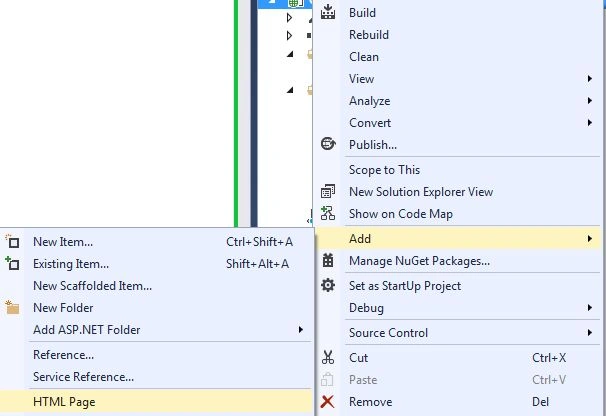
- Change the Name of the Page.
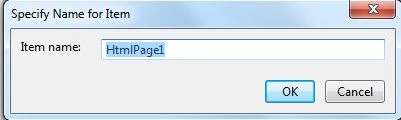
- Click on the "OK" button.
Now we add some actual functions and parameters to the code of HTML. These are useless without seeing the HTML it's working within.
<!doctype html>
<html lang="en">
<head>
<meta charset="utf-8">
<title></title>
<meta name="description" content="">
<link rel="stylesheet" href="css/screen.css">
</head>
<body>
<script type="text/template" id="fov-form-template">
<label for="focal_len">Camera Focal Length</label>
<input type="text" id="focal_len" name="focal-len"><br />
<label for="dim-x">Horizontal sensor size of camera(mm)</label>
<input type="text" id="dim-x" name="sensor-dimension-x"><br />
<label for="dim-x">Vertical sensor size of camera (mm)</label>
<input type="text" id="dim-y" name="sensor-dimension-y"><br />
<button type="submit" id="submit-optics">Submit</button><br />
<label>Horizontal field of view in degrees:</label>
<div id="view-x"></div>
<label>Vertical field of view in degrees:</label>
<div id="view-y"></div>
</script>
<div id="fov-form">
</div>
<script src="js/jquery.js"></script>
<script src="js/underscore.js"></script>
<script src="js/backbone.js"></script>
<script src="js/main.js"></script>
</body>
</html>
In the code above we can see the <script> tag. and the "Type" defined in the <script> tag that is "text/template". This is established by Backbone in the HTML inside the <script> with the text/template type, this template is for the "view".
Step 4
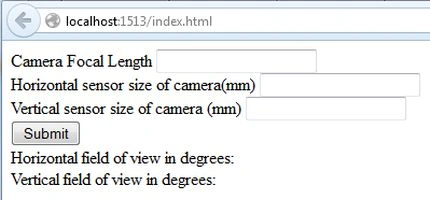
Now execute the application. It displays the form with TextBox and buttons as in the following:
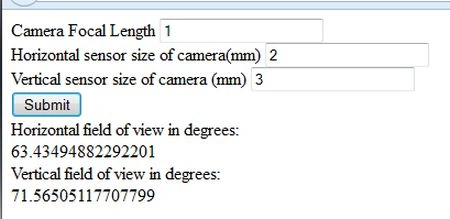
Display the converted output.
Join the conversation! Your thoughts help the community grow.