

Introduction
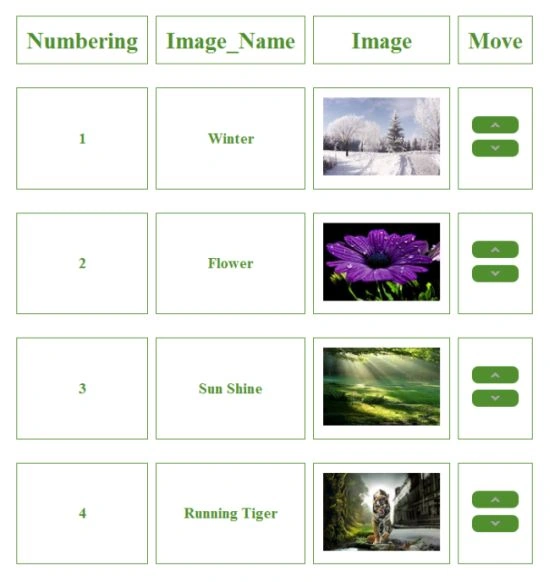
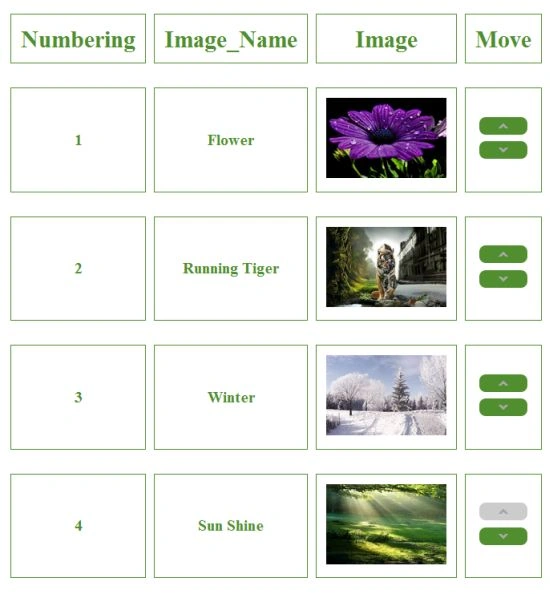
In this article we create an application in which we can exchange the position of images in a table using backbone.js. This tutorial create a CSS, "main.css", and adds some images to the project in the images folder. When we click on the move up and move down button then the images exchange positions.
Use the following procedure to create the application.
Step 1
- Start Visual Studio 2013.
- From the Start window select "New project".
- Select "Installed" -> "Template" -> "Visual C#" -> "Web" -> "Visual Studio 2012"and select "ASP.NET Web Application".
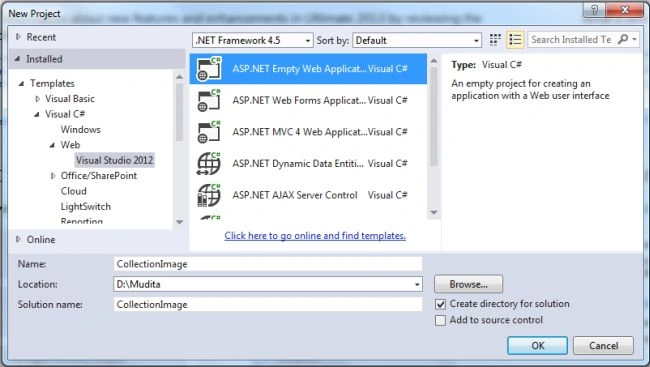
- Click on the "OK" button.
Step 2
Now add an HTML page to the project.
- In the Solution Explorer.
- Right-click on the project and select "Add" -> "HTML page".
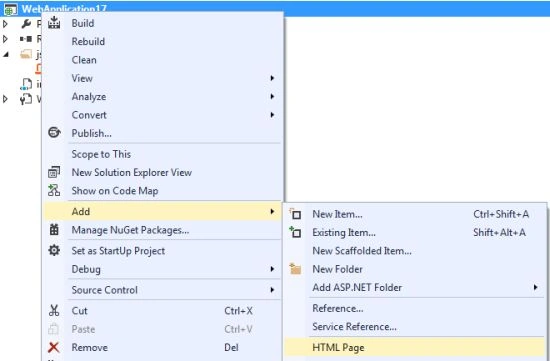
- Change the name of the page.
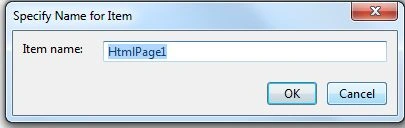
- Click on the "OK" button.
Add the following code:
<!DOCTYPE html>
<html>
<head>
<title>BACKBONE Tutorial 3: Collections</title>
<!-- requirements. -->
<script src="http://cdnjs.cloudflare.com/ajax/libs/jquery/1.7.1/jquery.min.js"></script>
<script src="http://cdnjs.cloudflare.com/ajax/libs/json2/20110223/json2.js"></script>
<script src="http://cdnjs.cloudflare.com/ajax/libs/underscore.js/1.3.1/underscore-min.js"></script>
<script src="http://cdnjs.cloudflare.com/ajax/libs/backbone.js/0.9.2/backbone-min.js"></script>
<script src="main.js"></script>
<script>
$(document).ready(function () {
var pictures = new NaturePictures([
new NaturePicture({ name: 'Winter', image_path: 'images/winter.jpg' }),
new NaturePicture({ name: 'Flower', image_path: 'images/flower.jpg' }),
new NaturePicture({ name: 'Running Tiger', image_path: 'images/tiger.jpg' })
]);
// Add new images in the table.
pictures.add([new NaturePicture({ name: 'Sun Shine', image_path: 'images/sun.jpg' })]);
// Create View
var picturesView = new NaturePicturesView({ collection: pictures });
picturesView.render();
});
</script>
<link href="../bootstrap.css" rel="stylesheet">
<!-- customizations for the table, imgs/buttons, etc. -->
<link href="main.css" rel="stylesheet">
</head>
<body>
<div id="contents">
<table id='nature_pictures' class='table-striped table-bordered'>
<tr class='header'>
<th class='rank_h'>Numbering</th>
<th class='name_h'>Image_Name</th>
<th class='image_h'>Image</th>
<th class='move_rank'>Move</th>
</tr>
</table>
<!-- Templates -->
<!-- *Remember, anything that you want to register an event on must be part of your view!* -->
<script type="text/template" id="nature_picture-template">
<td class='rank'><%= rank %></td>
<td class='name'><%= name %></td>
<td class='image'><img class='nature_picture_pic' src='<%= image_path %>' /></td>
<td class='move_rank'>
<div class='rank_up'><img class='rank_up <%= id %>' src='images/up.gif' /></div>
<div class='rank_down'><img class='rank_down <%= id %>' src='images/down.gif' /></div>
</td>
</script>
</div>
</body>
</html>
Step 3
Now we add a JavaScript file:
- In the Solution Explorer.
- Right-click on the project then select "Add" -> "New Item" -> "JavaScript".
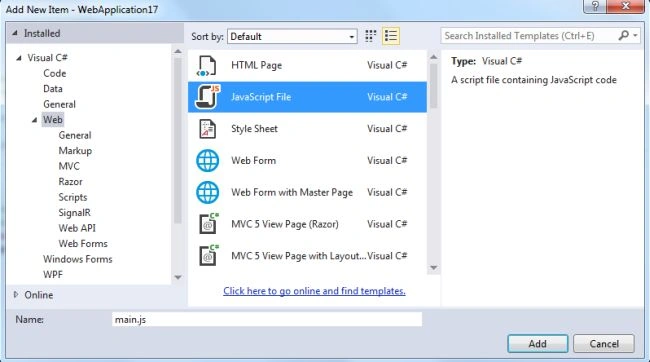
- Click on the "Add" button.
Add the following code:
$(document).ready(function () {
window.NaturePicture = Backbone.Model.extend({
defaults: {
rank: 0,
move: ''
},
rank_up: function () { this.set('move', 'up') },
rank_down: function () { this.set('move', 'down') }
});
// Collection
window.NaturePictures = Backbone.Collection.extend({
model: NaturePicture,
initialize: function (pictures) {
_.each(pictures, function (picture) {
// This is the *same* line of code as is in set_rank. How do I call that here?
picture.set('rank', _.max(pictures, function (picture) { return picture.get('rank') }).get('rank') + 1);
});
// If we are added via the 'add' method:
this.on('add', this.set_rank);
this.sort();
},
comparator: function (picture) {
return picture.get('rank');
},
trade_rank: function (move_picture, direction) {
var old_rank = move_picture.get('rank');
var new_rank = '';
(direction == 'up') ? new_rank = old_rank - 1 : new_rank = old_rank + 1;
var push_picture = _.find(this.models, function (picture) { return picture.get('rank') == new_rank });
if (new_rank < 1 || new_rank > this.models.length) {
return;
}
move_picture.set('rank', new_rank);
push_picture.set('rank', old_rank);
this.sort();
},
set_rank: function (picture) {
picture.set('rank', _.max(this.models, function (picture) { return picture.get('rank') }).get('rank') + 1);
}
});
window.NaturePictureView = Backbone.View.extend({
// This is responsible for automatically updating the UI
// in response to changes in the model
initialize: function () {
this.model.on('change', this.render, this);
},
tagName: 'tr',
className: 'nature_picture',
render: function () {
$(this.el).html(_.template($('#nature_picture-template').html(), {
id: this.model.cid,
rank: this.model.get('rank'),
name: this.model.get('name'),
image_path: this.model.get('image_path')
}));
return this;
}
});
// The Overall "App" View
window.NaturePicturesView = Backbone.View.extend({
el: $("div#contents"),
events: {
'click img.rank_up': 'rank_up',
'click img.rank_down': 'rank_down'
},
rank_up: function (event) {
this.collection.trade_rank(this.find_move_picture(event, 'up'), 'up');
this.render();
},
rank_down: function (event) {
this.collection.trade_rank(this.find_move_picture(event, 'down'), 'down');
this.render();
},
find_move_picture: function (event, direction) {
var classes = $(event.currentTarget).attr('class').split(' ');
var cid = _.find(classes, function (c) { return c != ('rank_' + direction) });
return this.collection.find(function (picture) { return picture.cid == cid });
},
// Show it!
render: function () {
var header = $("table#nature_pictures tr.header").clone();
$("table#nature_pictures > tbody:last").html('').append(header);
this.collection.sort();
this.collection.each(function (picture) {
var pictureView = new NaturePictureView({ model: picture });
$("table#nature_pictures > tbody:last").append(pictureView.render().el);
});
}
});
});
Step 4
Now we add a Stylesheet:
- In the Solution Explorer.
- Right-click on the project then select "Add" -> "New Item" -> "StyleSheet".
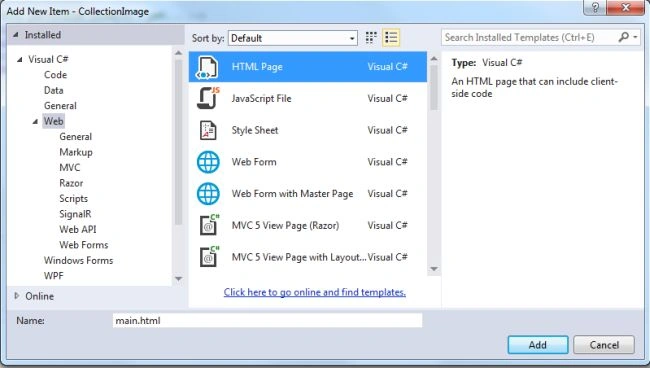
- Click on the "Add" button.
Add the following code:
img.nature_picture_pic {
height: 100px;
width: 150px;
}
#contents {
width: 500px;
margin-left: auto;
margin-right: auto;
}
#nature_pictures {
margin-top: 30px;
border-spacing:10px 30px;
}
#nature_pictures th {
font-size: 30px;
}
#nature_pictures td, table#nature_pictures th {
padding: 12px;
color:#508e2f;
border :1px solid;
text-align:center;
}
#nature_pictures td.rank div {
display: block;
text-align: center;
}
#nature_pictures .rank_up img, .rank_down img {
padding: 8px;
padding-right: 24px;
padding-left: 24px;
margin: 2px;
color: #fff;
background-color:#508e2f;
border-radius: 8px;
cursor: pointer;
}
#nature_pictures .rank_up img:hover, .rank_down img:hover {
background-color: #ccc;
}
#nature_pictures td.name {
font-size: 20px;
font-weight: bold;
color:#508e2f;
}
#nature_pictures .rank {
font-size: 20px;
font-weight: bold;
color:#508e2f;
}
Step 5
Now execute the application and see the output:
Join the conversation! Your thoughts help the community grow.