

Introduction
This article explains the Status Bar in Windows Phone 8.1. Status Bar is actually the System Tray located on top of your Windows Phone. It is actually the area of the phone where all the system-related information like Battery, Network and so on. are being shown to the users.
We can't control it through the XMAL code in Windows Phone 8.1 (since this is possible in Windows Phone 7/8). But we can do this from the C# code .
Step 1
To build a Windows Phone 8.1 application, ensure you have Visual Studio 2013 and the Windows Phone 8.1 SDK installed in your system.
Go to "New Project". Under "Installed" > "Templates" > "Visual C#" > "Store Apps" select "Windows Phone Apps" then select "Blank App (Windows Phone)" and provide it a name as you choose (here I am using "StatusBarWP8.1").
Step 2
Navigate to the "MainPage.xaml" section of the project and add four "Button" Controls for various purposes:<Grid>
- <Button x:Name="showStatusBar" Content="Show Status Bar" HorizontalAlignment="Left" Margin="42,196,0,0" VerticalAlignment="Top" FontSize="28" Click="showStatusBar_Click" Height="106" Width="314"/>
- <Button x:Name="hideStatusBar" Content="Hide Status Bar" HorizontalAlignment="Left" Margin="42,60,0,0" VerticalAlignment="Top" FontSize="28" Click="hideStatusBar_Click" Width="314" Height="106"/>
- <Button x:Name="changeColor" Content="Change Color" HorizontalAlignment="Left" Margin="42,461,0,0" VerticalAlignment="Top" FontSize="28" Click="changeColor_Click" Width="314" Height="106"/>
- <Button x:Name="changeOpacity" Content="Change Opacity" HorizontalAlignment="Left" Margin="42,336,0,0" VerticalAlignment="Top" FontSize="28" Click="changeOpacity_Click" Width="314" Height="106"/>
- </Grid>
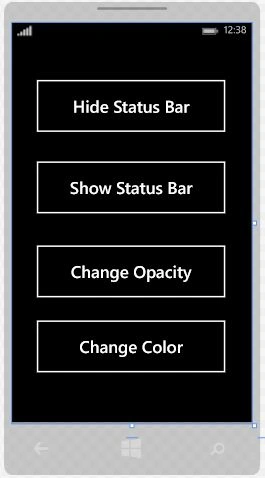
Your Main Page will be like:
Step 3
Now navigate to the Code section of the project. In MainPage.xaml.cs and in the Hide Button Event Handler add the following code:
- private async void hideStatusBar_Click(object sender, RoutedEventArgs e)
- {
- await Windows.UI.ViewManagement.StatusBar.GetForCurrentView().HideAsync();
- }
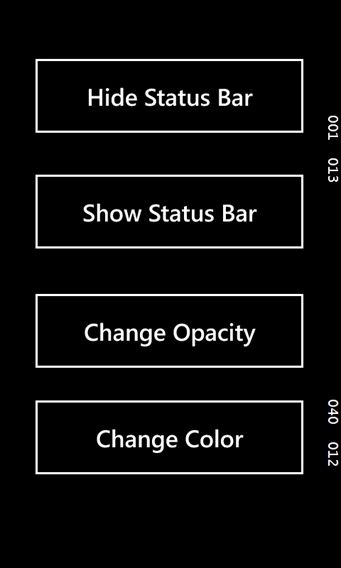
Similarly do this for all buttons:
- private async void showStatusBar_Click(object sender, RoutedEventArgs e)
- {
- //this will show the Status Bar
- await Windows.UI.ViewManagement.StatusBar.GetForCurrentView().ShowAsync();
- }
- private void changeColor_Click(object sender, RoutedEventArgs e)
- {
- //it will change the color of status bar
- //for this ensure that using Windows.UI has already been added
- Windows.UI.ViewManagement.StatusBar.GetForCurrentView().BackgroundColor = Colors.Green;
- }
- private void changeOpacity_Click(object sender, RoutedEventArgs e)
- {
- //it will change the opacity of the Status Bar
- Windows.UI.ViewManagement.StatusBar.GetForCurrentView().BackgroundOpacity = 0.5;
- }
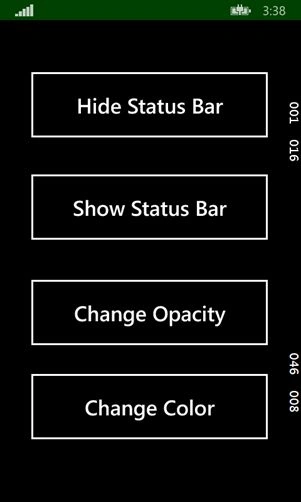
That's all for now.
In the future articles you will see more on Windows Phone 8.1.
I am including the source code also.
If you have any suggestion or query then please comment.
Thanks.
Riadh HrPosted Jan 7, 2015, 5:08 AM
I don't know why the color doesn't change when i click on change color button ,and it changes when i click on the opacity button