

Microsoft released the CTP2 of Visual Studio 2014 today July 8th 2014.
In my previous News item I mentioned that the biggest challenge in trying Visual Studio 2014 was Side-by-Side installation. This issue is claimed to be resolved in this new CTP2 release that can be downloaded from here , whereas I would suggest that you try it with your own responsibility and things might break.
What is CTP anyways?
CTPs are previews for the next major release of Visual Studio. These Visual Studio CTPs are intended to promote continuous feedback from early adopters to the Visual Studio development team.
CTPs have Limitations
CTPs are provided for testing and feedback purposes only. CTPs are unsupported, English-only releases. They are not subject to final validation and are not intended for use on production computers, or to create production code.
Some New COOL Features Added in CTP2
- Save and Apply Custom IDE Layouts. You can now save and apply custom layouts for tool windows in the IDE. The Save Window Layout and Apply Window Layout commands are under the Window Menu and you can also rename, reorder and delete layouts from Manage Window Layouts.
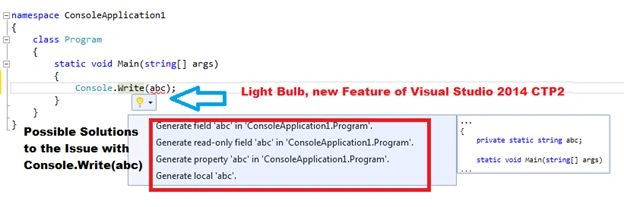
- Light Bulb Editor Adornment. How many times have you found yourself stuck in a complex syntax issue or compilation error that doesn't seem to go away? I have always wished that there was a legitimate way to have some options displayed as a solution to the problem.
Microsoft Introduced, Light Bulbs that is an extensible editor adornment to identify and help you fix issues in your code. To use them, place the caret on a line with an issue or hover over an issue and you'll see a light bulb that lists actions you can take to resolve the problem and even a preview of proposed solutions.
- Editor Touch Support. All devices these days support touch. Many software receive direct benefits from the support of touch. The Visual Studio Code Editor seemed to be an exception to getting the full benefit of touch, since development required typing. But Touch support will certainly enable developers to do some usual things like scrolling, pinch-to-zoom, tap-and-hold for context menus, double-tap for word selection and line selection by tapping in the margin and so on. All such gestures are now recognized by the Visual Studio 2014 code editor. Needless to say, you must have a computer system with Touch Support.
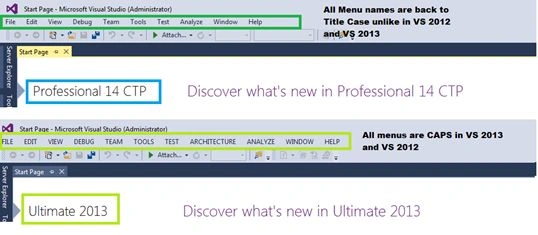
- All Caps. Remember, menu names in Capital letters (All caps) was kind of hard to read. So Microsoft has reverted it to be Title Case (Tools, File, View) as it has been used by various Visual Studio releases.
Microsoft Says.. Last week with the RC for Visual Studio 2013 Update 3 Microsoft added an option to sentence case menus; in this Visual Studio “14” CTP we changed Menu Bar styling to Title Case for everyone to help us get feedback on the change.
So Are you Installing?
I wanted to verify a few things and so I chose to install and try the CTP2 bits of Visual Studio 2014.
My current laptop settings are as follows:
- Windows 7 Enterprise
- Visual Studio 2012 Ultimate
- Visual Studio 2013 Ultimate
- Newly installed Visual Studio 2014 Professional
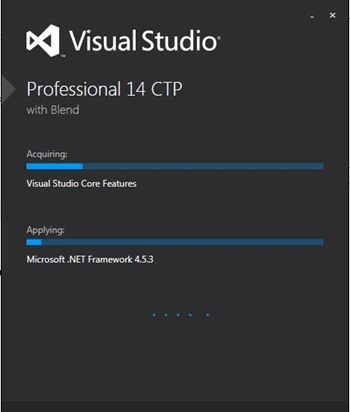
I just verified after installation and it actually works. I am able to open and work with all previously installed Visual Studios and have not observed or discovered any issues post Visual Studio 2014 CTP2 installation.
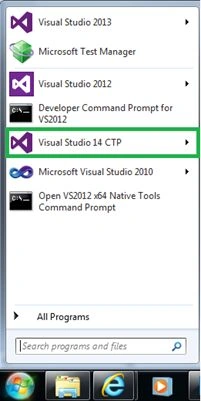
This is how my Start menu looks like with all the Visual Studio IDEs and all of them work fine.
Title Case Menus
In general reading Title case is much easier than all caps. At least this applies to me. With Visual Studio 2012 and Visual Studio 2013 menus were all caps. It appears to be an organization wide decision, even Microsoft Office 2013 has all caps menus.
Well, Microsoft has now given back the Title case menus with the new release of Visual Studio 2014 CTP2 and this is how it looks like in comparison to Visual Studio 2013 menus.
Light Bulb: a savior
Often when we code and make some silly / unknown mistakes then the first thing we do is either try some options or later search on Bing or Google. Microsoft has made the developer's life a little easier by helping them fix it with their own logical needs and code awareness.
Let's assume a scenario in which I made a silly mistake in the Visual Studio 2013 code editor as shown in the image below.

The message I am given (after I hover on the error) by Visual Studio is very generic and I am left with the confusion of what I should be trying to actually resolve this issue.
Whereas the Visual Studio 2014 Light Bulb feature works in a very advanced way and it offers some logical choices that a developer can choose from to have the issue resolved.
Sr KarthigaPosted May 6, 2016, 9:22 PM
good one sir
pranav davePosted Jul 15, 2014, 8:58 AM
thanks Vidya....nice information
Shweta LodhaPosted Jul 10, 2014, 2:08 AM
Lightbulb is really a cool feature. I like it !!!
Nimit JoshiPosted Jul 9, 2014, 11:32 PM
I like the new Light Bulb feature..
Nimit JoshiPosted Jul 9, 2014, 11:30 PM
So, now it is possible that we can use Visual Studio 2014 side by side?
Abhishek BhatPosted Jul 9, 2014, 1:01 PM
Looks like LightBulb concept is copied from Resharper....
Mahesh ChandPosted Jul 9, 2014, 6:38 AM
Love it. Yes I installed on my regular daily working Windows 8.1 Sony Vaio.
Vidya Vrat AgarwalPosted Jul 9, 2014, 2:52 AM
My article is based on real installation on my laptop and shown the same in the article
Guest UserPosted Jul 9, 2014, 2:21 AM
good one! Is VS2014 CTP2 working fine with existing VS versions in your machine?