

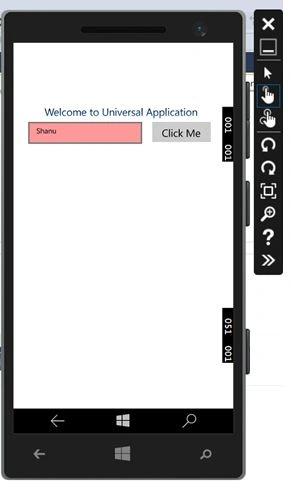
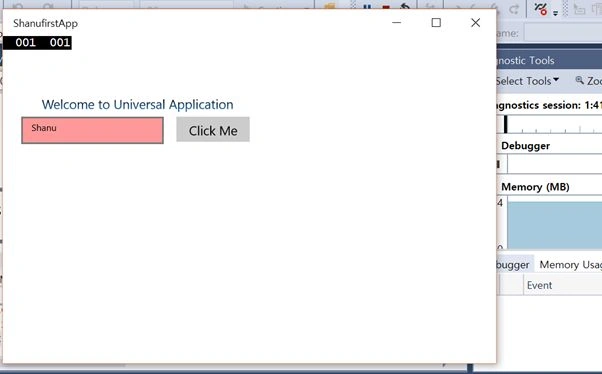
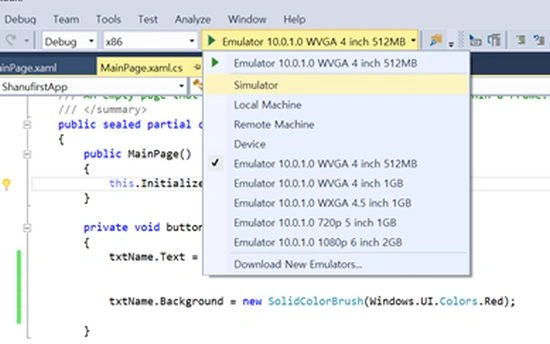
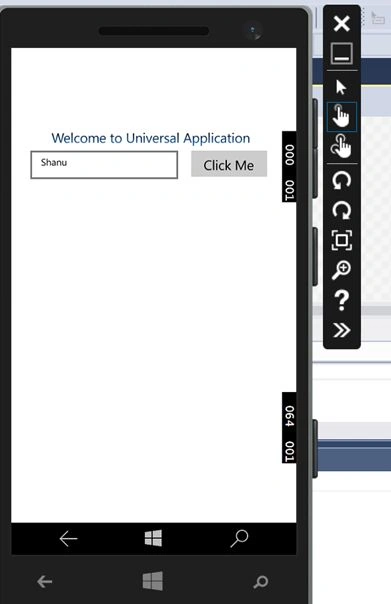
In this article let's see what's new with Windows 10 Technical Preview and how to create a simple Windows Universal App using Visual Studio 2015 RC.
Prerequisites
- Visual Studio 2015. You can download it from here. (In my example I used Visual Studio Community 2015 RC.)
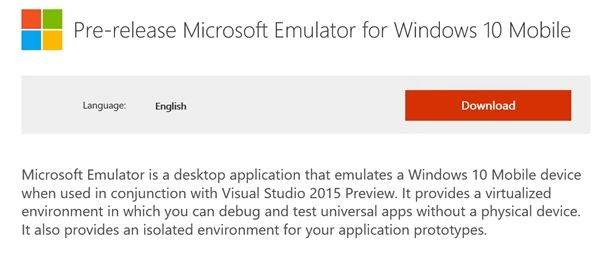
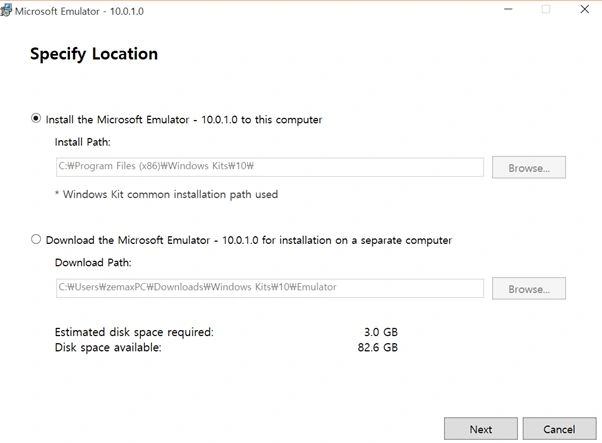
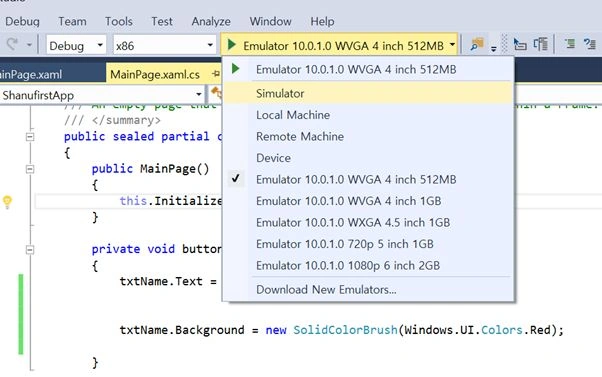
- Pre-release Microsoft Emulator for Windows 10 Mobile (downlod link).
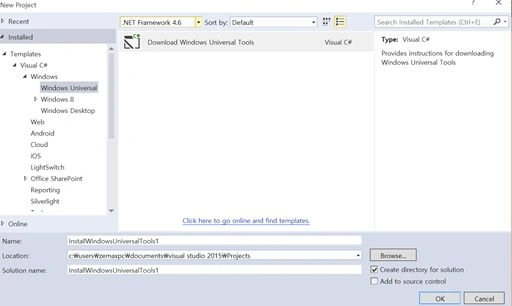
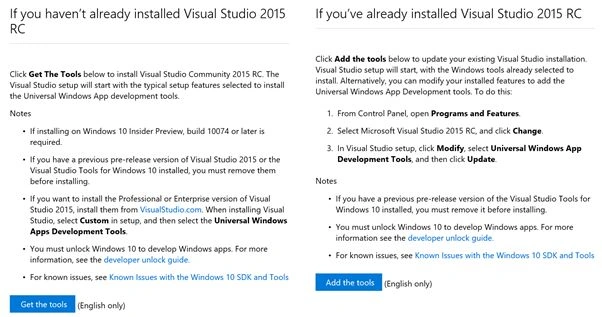
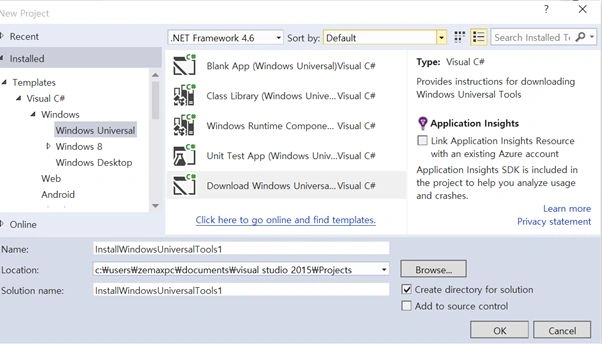
- Universal App development Tools (download Link).
Note: I have used the Windows 10 Technical preview OS in this sample program, if you have Windows 10 Technical preview then you can follow it. If you have Windows 8 then you can download the Windows 8 Emulator and follow the same procedure to create your first Universal App. (If you have installed Windows 8 then it will be easy to update Windows 10 Technical Preview with your system).
Windows 10 Technical Preview
Few new, simple and easy for working in Windows 10 Operating System.
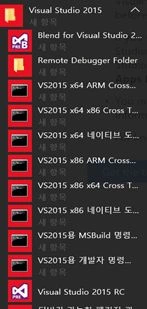
Windows Start: In windows 10 it's simpler and easier to use than Windows 8 that has both the Windows Start programs list in alphabetical order and with the list of apps as we can see below.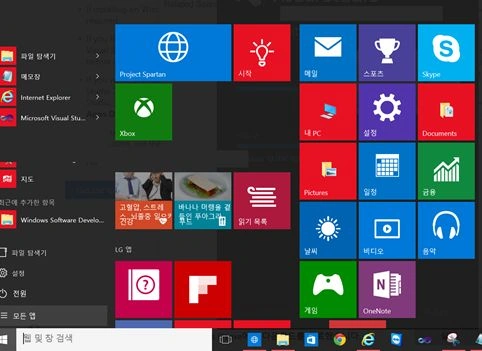
Programs in Alphabetical Order with easy access: The start programs list was displayed in Alphabetical order with each character as heading, for example if we click on any letter from the program list it displays all the letters with numbers.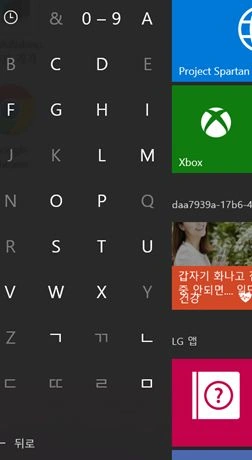
If we click on V then it display all the programs that start with V, for example Visual Studio 2015, as in the following.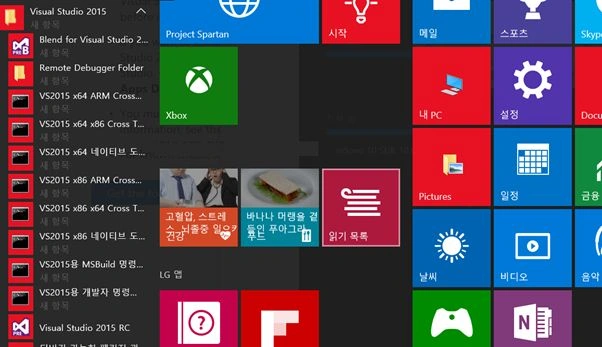
Windows programs Install and Uninstall List: In Windows 10 all the installed programs list has been displayed under Settings > System > App and features then wait a few seconds since it will load all your installed programs list in the right side.
Click setting from the Start Menu.
Click on the System of the first Icon (sorry I have used the Korean OS so the text is all in Korean but I have translated it here for you since the first Icon is System).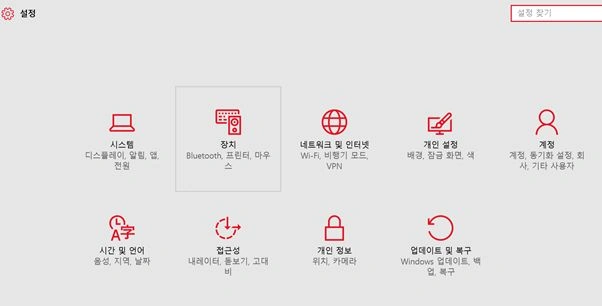
Click on Apps and features in the Left menu. This will display all the installed programs in the right side.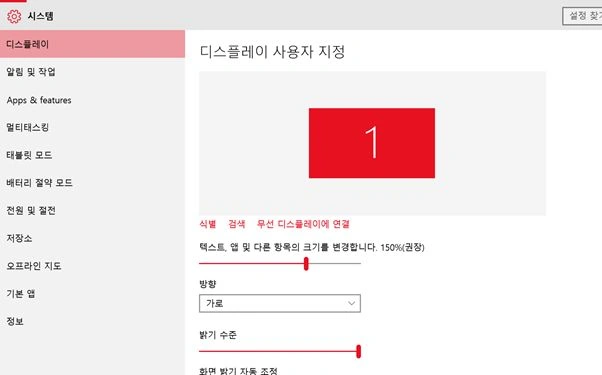
Wait a few seconds since the list of all installed programs will be loaded one by one in the right side.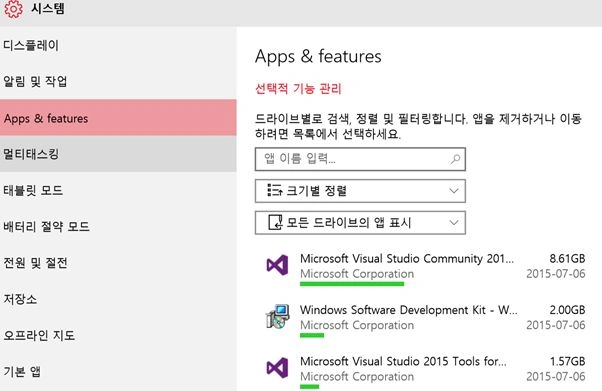
I hope this simple and basic info might help you for starting with Windows 10 Technical Preview for the first time.
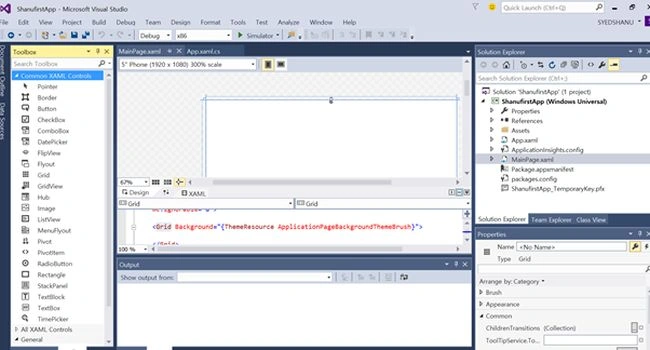
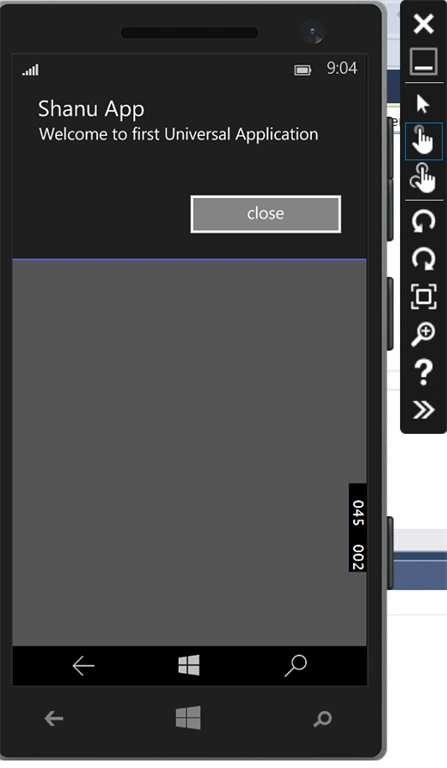
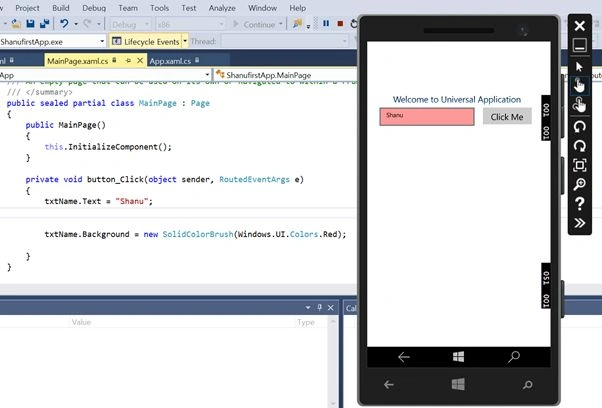
Windows Universal Application
Gowtham RajamanickamPosted Jul 8, 2015, 2:56 AM
Thanks for sharin
Gowtham RajamanickamPosted Jul 8, 2015, 2:56 AM
good one...
Sibeesh VenuPosted Jul 8, 2015, 12:42 AM
Good One! Thanks for sharing
Santhakumar MunuswamyPosted Jul 7, 2015, 3:02 PM
Good Article! Thanks for sharing
Afzaal Ahmad ZeeshanPosted Jul 7, 2015, 2:22 PM
Oh, I did not know that you live in Korea. Thank you Shanu, Ramzan mubarik to you too! :) Anyways, it is already time for Eid now. :D
Afzaal Ahmad ZeeshanPosted Jul 7, 2015, 10:23 AM
Hello Shanu, can I ask why do you use Korean fonts? I mean... Do you live in Korea or something?
Prasham SabadraPosted Jul 7, 2015, 7:04 AM
Great Article :)
Gowtham RajamanickamPosted Jul 7, 2015, 6:59 AM
good one..
Naren Kumar KumaresanPosted Jul 7, 2015, 5:53 AM
greate article
Gopi ChandPosted Jul 7, 2015, 3:55 AM
Commendable job
Suraj SahooPosted Jul 7, 2015, 2:58 AM
Sure Shanu.. :)
Suraj SahooPosted Jul 7, 2015, 1:38 AM
Great Article Sir..:)
Neeraj KumarPosted Jul 7, 2015, 1:20 AM
Nice
Sibeesh VenuPosted Jul 7, 2015, 12:49 AM
Nice Article! Thanks for sharing
Santhakumar MunuswamyPosted Jul 7, 2015, 12:17 AM
Great Article! Thanks for sharing