

In this article I am going to explain how to design the Ajax Accordion control using CSS.
Prerequisites
- AjaxControlToolkit 3.5
- Visual Studio 2008.
If you don't have AjaxControlToolkit 3.5 then you can download it from the link given below:
http://ajaxcontroltoolkit.codeplex.com/releases/view/90063
After downloading it install it via the toolbox in Visual Studio. Create a new tab in the toolbox via right-click and add new tab, rename it to ajax and then right-click on it and choose item and then browse to the location where you have download ajaxcontroltoolkit35.dll and add it and click ok.
<%@ Page Language="C#" AutoEventWireup="true" CodeFile="Default.aspx.cs" Inherits="_Default" %>
<%@ Register Assembly="AjaxControlToolkit" Namespace="AjaxControlToolkit" TagPrefix="asp" %>
<!DOCTYPE html PUBLIC "-//W3C//DTD XHTML 1.0 Transitional//EN" "http://www.w3.org/TR/xhtml1/DTD/xhtml1-transitional.dtd">
<html xmlns="http://www.w3.org/1999/xhtml">
<head runat="server">
<title>Untitled Page</title>
<link href="StyleSheet.css" rel="stylesheet" type="text/css" />
</head>
<body>
<form id="form1" runat="server">
<asp:ToolkitScriptManager ID="ToolkitScriptManager1" runat="server">
</asp:ToolkitScriptManager>
<div>
<asp:Accordion ID="Accordion1" AutoSize="None" ContentCssClass="accordionContent"
HeaderCssClass="accordionHeader" FadeTransitions="true" TransitionDuration="250"
FramesPerSecond="40" RequireOpenedPane="false" HeaderSelectedCssClass="accordionHeaderSelected" runat="server">
<Panes>
<asp:AccordionPane ID="AccordionPane1" runat="server">
<Header>
<a href="#" onclick="return false;">click to open first accordion</a>
</Header>
<Content>
<p>
This is accordion Pane1.
</p>
</Content>
</asp:AccordionPane>
<asp:AccordionPane ID="AccordionPane2" runat="server">
<Header>
<a href="#" onclick="return false;">click to open second accordion</a>
</Header>
<Content>
<p>
This is a second AcordinPane2.
</p>
</Content>
</asp:AccordionPane>
</Panes>
</asp:Accordion>
</div>
</form>
</body>
</html>
Your CSS file will look like this:
body
{
background:#006699;
}
.accordionHeader
{
border: 1px solid #2F4F4F;
color: white;
background-color: #2E4d7B;
font-family: Arial, Sans-Serif;
font-size: 12px;
font-weight: bold;
padding: 5px;
margin-top: 5px;
cursor: pointer;
}
.accordionHeader a
{
color: #FFFFFF;
background: none;
text-decoration: none;
}
.accordionHeader a:hover
{
background: none;
text-decoration: underline;
}
.accordionHeaderSelected
{
border: 1px solid #2F4F4F;
color: white;
background-color: #5078B3;
font-family: Arial, Sans-Serif;
font-size: 12px;
font-weight: bold;
padding: 5px;
margin-top: 5px;
cursor: pointer;
}
.accordionHeaderSelected a
{
color: #FFFFFF;
background: none;
text-decoration: none;
}
.accordionHeaderSelected a:hover
{
background: none;
text-decoration: underline;
}
.accordionContent
{
background-color: #D3DEEF;
border: 1px dashed #2F4F4F;
border-top: none;
padding: 5px;
padding-top: 10px;
}
Press F5 to run the website and see the output.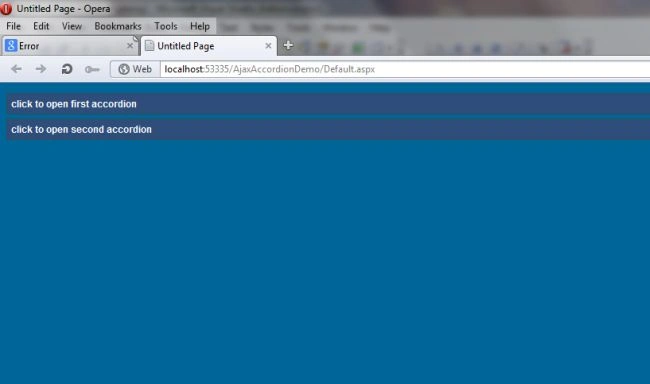
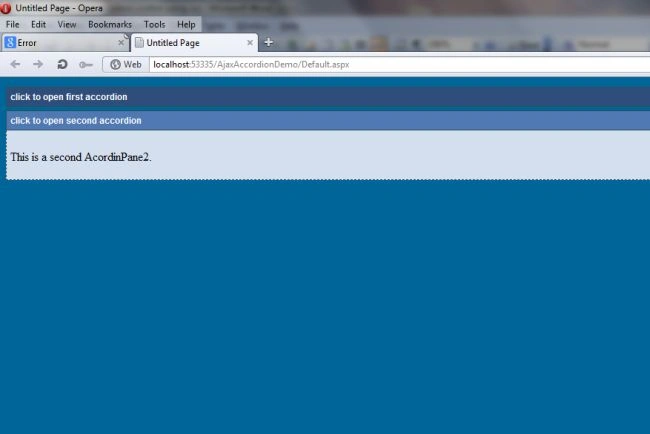
When you click on any link then it will be like this: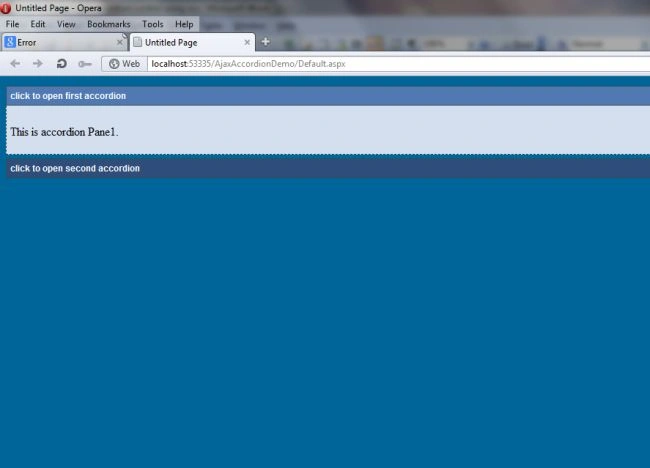
Mukesh KumarPosted Oct 19, 2015, 1:04 AM
Great Job
Megha GoyalPosted Sep 14, 2012, 4:16 AM
okk...
Honey ChawlaPosted Sep 12, 2012, 1:22 AM
1:Fadetransition property means that it will show some animated fading effect when opening or closing and that' why it is set to true. 2:TransitionDuration=250 means that the duration of animation effect will be 250 milliseconds.it will take 250 milliseconds to open or close with fading effect. 3:FramesPerSecond Property means number of frames it will show in the transition. 4:RequiredOpenPane Property means that it will show the the first accordionpane open and it is set to true so that whenever page loads it will always show one pane opened.
Megha GoyalPosted Sep 11, 2012, 11:32 PM
Would u please explain FadeTransitions="true" TransitionDuration="250" FramesPerSecond="40" RequireOpenedPane="false" these properties means what is the pupose of these properties.