

Introduction
We will tell you how to turn on/off notifications in the lock screen in Windows 10.
Procedure to turn on/off your notifications in the lock screen in Windows 10
Step 1
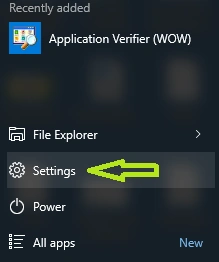
Go to the Start Menu.
Step 2
Click on Settings from there.
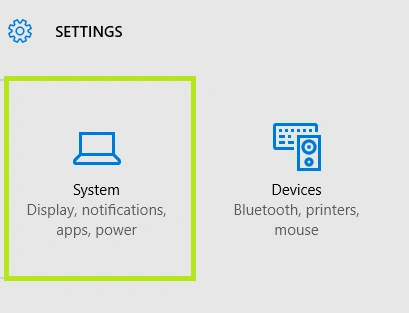
Step 4
After clicking on System a list bar will open, click on Notifications and actions.
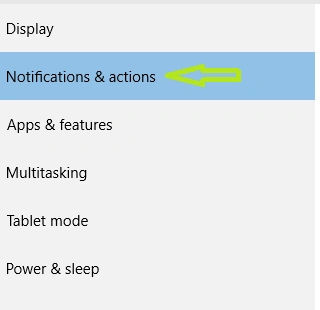
Step 5
You get a new Notification window, there are many options available there. The second option is "Show notification on lock screen".
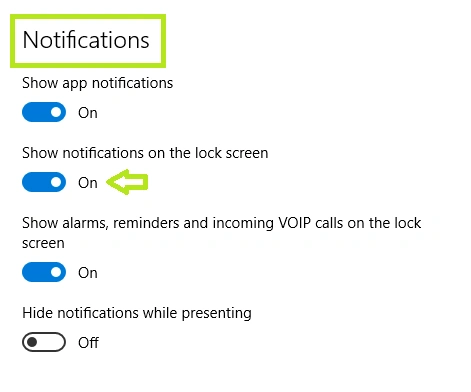
You can turn it on by sliding the button from left to right.
Note
If you want to off the notifications when your screen is locked, just slide the button right to left.
Summary
In this article, we saw how to turn on/off the notification in the lock screen in Windows 10.
Ben PyettPosted Jul 5, 2021, 7:24 PM
I realised that third party apps ie Chrome which I use for Google Calendar reminders etc, which you permit to show notifcations still come through on the lock screen even after adjusting this settings to off in the main setting, so you need to visit each application seperately in the same section and manually adjust the same settings for each "Hide Content when notifications are on lock screen"
Chervine BhiwooPosted Aug 8, 2015, 2:19 AM
Good one
Santhakumar MunuswamyPosted Aug 8, 2015, 2:08 AM
Good article. Thanks for sharing
RakeshPosted Aug 7, 2015, 1:17 PM
Good one
Nilesh JadavPosted Aug 7, 2015, 9:43 AM
Nice article sir :)
Sibeesh VenuPosted Aug 7, 2015, 8:21 AM
Nice Share!.
Neeraj KumarPosted Aug 7, 2015, 7:22 AM
Good
Ankit BansalPosted Aug 7, 2015, 7:02 AM
good..
Rajeesh MenothPosted Aug 7, 2015, 6:52 AM
Good Start