

The requirement is for three Dropdown List Controls, the contents of which are populated from a database table created in SQL Server. Also until we click a value in the first DDL, the second should not be activated and the same case is with the third DDL.
Solution
Step 1
Create a Web Application Project in ASP.NET and create 3 Dropdown Lists in it. The form should look such as shown below.
OR
Paste the following code into the HTML file of the ASPX Page.
- <%@ Page Language="C#" AutoEventWireup="true" CodeBehind="index.aspx.cs" Inherits="CascadingDDLDemo.index" %>
- <!DOCTYPE html>
- <html>
- <head runat="server">
- <title></title>
- </head>
- <body>
- <form id="form1" runat="server">
- <div>
- <asp:DropDownList ID="DropDownList1" runat="server" OnSelectedIndexChanged="DropDownList1_SelectedIndexChanged" AutoPostBack="True" DataTextField="CountryName" DataValueField="CountryID"></asp:DropDownList>
- <br />
- <br />
- <br />
- <asp:DropDownList ID="DropDownList2" runat="server" OnSelectedIndexChanged="DropDownList2_SelectedIndexChanged" AutoPostBack="True" DataTextField="StateName" DataValueField="StateID"></asp:DropDownList>
- <br />
- <br />
- <br />
- <asp:DropDownList ID="DropDownList3" runat="server" DataTextField="CityName" DataValueField="CityID"></asp:DropDownList>
- </div>
- </form>
- </body>
- </html>
Step 2
Open SQL Server Management Studio and execute the following SQL Queries.
Create Database CascadingDDLDemo.
- Create Database CascadingDDLDemo
- Use CascadingDDLDemo
- Create Table tblCountries(CountryID int Primary Key, CountryName nvarchar(50))
- Create Table tblStates(StateID int Primary Key, StateName nvarchar(50), CountryID int FOREIGN KEY REFERENCES tblCountries(CountryID))
- Create Table tblCities(CityID int Primary Key, CityName nvarchar(50), StateID int FOREIGN KEY REFERENCES tblStates(StateID))
- Insert Into tblCountries Values (1,'USA')
- Insert Into tblCountries Values (2,'Europe')
- Insert Into tblCountries Values (3,'India')
- Insert Into tblStates Values (1,'New York',1)
- Insert Into tblStates Values (2,'California',1)
- Insert Into tblStates Values (3,'Albania',2)
- Insert Into tblStates Values (4,'Austria',2)
- Insert Into tblStates Values (5,'Uttar Pradesh',3)
- Insert Into tblStates Values (6,'Maharashtra',3)
- Insert Into tblCities Values (1,'Bufflo',1)
- Insert Into tblCities Values (2,'Yonkers',1)
- Insert Into tblCities Values (3,'Richmond',2)
- Insert Into tblCities Values (4,'Norwalk',2)
- Insert Into tblCities Values (5,'Tirana',3)
- Insert Into tblCities Values (6,'Fier',3)
- Insert Into tblCities Values (7,'Hard',4)
- Insert Into tblCities Values (8,'Enns',4)
- Insert Into tblCities Values (9,'Allahbad',5)
- Insert Into tblCities Values (10,'Lucknow',5)
- Insert Into tblCities Values (11,'Aurangabad',6)
- Insert Into tblCities Values (12,'Akola',6)
- Create Procedure spGetCountries
- As
- Begin
- Select CountryName,CountryID from tblCountries
- End
- Create Procedure spGetStates @CountryID int
- As
- Begin
- Select StateName,StateID from tblStates where CountryID = @CountryID
- End
- Create Procedure spGetCities @StateID int
- As
- Begin
- Select CityName,CityID from tblCities where StateID = @StateID
- End
Step 3
Return to Visual Studio and press the F7 key and paste in the following code.
- using System;
- using System.Configuration;
- using System.Data;
- using System.Data.SqlClient;
- using System.Web.UI.WebControls;
- namespace CascadingDDLDemo
- {
- public partial class index : System.Web.UI.Page
- {
- protected void Page_Load(object sender, EventArgs e)
- {
- if (!IsPostBack)
- {
- DropDownList2.Enabled = false;
- DropDownList3.Enabled = false;
- DropDownList1.DataSource = getData("spGetCountries", null);
- DropDownList1.DataBind();
- ListItem LICountry = new ListItem("----Select----", "-1");
- DropDownList1.Items.Insert(0, LICountry);
- ListItem LIState = new ListItem("----Select----", "-1");
- DropDownList2.Items.Insert(0, LIState);
- ListItem LICity = new ListItem("----Select----", "-1");
- DropDownList3.Items.Insert(0, LICity);
- }
- }
- protected void DropDownList1_SelectedIndexChanged(object sender, EventArgs e)
- {
- if (DropDownList1.SelectedValue == "-1")
- {
- DropDownList2.SelectedIndex = 0;
- DropDownList3.SelectedIndex = 0;
- DropDownList2.Enabled = false;
- DropDownList3.Enabled = false;
- }
- else
- {
- DropDownList2.Enabled = true;
- SqlParameter Parameter = new SqlParameter("@CountryID", DropDownList1.SelectedValue);
- DropDownList2.DataSource = getData("spGetStates", Parameter);
- DropDownList2.DataBind();
- ListItem LIState = new ListItem("----Select----", "-1");
- DropDownList2.Items.Insert(0, LIState);
- DropDownList3.SelectedIndex = 0;
- DropDownList3.Enabled = false;
- }
- }
- protected void DropDownList2_SelectedIndexChanged(object sender, EventArgs e)
- {
- if (DropDownList2.SelectedValue == "-1")
- {
- DropDownList3.SelectedIndex = 0;
- DropDownList3.Enabled = false;
- }
- else
- {
- DropDownList3.Enabled = true;
- SqlParameter Parameter = new SqlParameter("@StateID", DropDownList2.SelectedValue);
- DropDownList3.DataSource = getData("spGetCities", Parameter);
- DropDownList3.DataBind();
- ListItem LICity = new ListItem("----Select----", "-1");
- DropDownList3.Items.Insert(0, LICity);
- }
- }
- private DataSet getData(string Proc, SqlParameter Parameter)
- {
- string CS = ConfigurationManager.ConnectionStrings["CS"].ConnectionString;
- using (SqlConnection con = new SqlConnection(CS))
- {
- con.Open();
- SqlDataAdapter DA = new SqlDataAdapter(Proc, con);
- DA.SelectCommand.CommandType = CommandType.StoredProcedure;
- if (Parameter != null)
- {
- DA.SelectCommand.Parameters.Add(Parameter);
- }
- DataSet DS = new DataSet();
- DA.Fill(DS);
- return DS;
- }
- }
- }
- }
Step 4
Go the Solution Explorer in the project and double-click on the web.config file and paste in the following code.
- <?xml version="1.0"?>
- <configuration>
- <system.web>
- <compilation debug="true" targetFramework="4.5" />
- <httpRuntime targetFramework="4.5" />
- </system.web>
- <connectionStrings>
- <add name="CS" providerName="System.Data.SqlClient" connectionString="Data Source=(local);Initial Catalog=CascadingDDLDemo;Integrated Security=True"/>
- </connectionStrings>
- </configuration>
Step 5
Press F5 to run the application. Remember to name the project CascadingDDLDemo if you are running exactly the same preceding code. After running the application, it should look as in the following screenshot.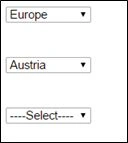
Explanation of the Preceding Code
Explanation of Step 1
We added 3 Dropdown List controls from the toolbox. The main focus is on the first and the second Dropdown List because when the data is selected in them, that data should be posted back to the server and on the basis of which the values will be populated in the next Dropdown List control. So we set the AutoPostBack property to “true” of these two controls.
Explanation of Step 2
- We created the 3 tables Country, State and City. All of them are interrelated with each other. On the basis of the country selection, the states are populated and on the basis of the state selection, the cities are populated. So, we related them using the primary and foreign keys. If you are new to this concept, please learn about database keys in SQL Server.
- Then, we inserted some sample data into these tables.
- Then we created 3 Stored Procedures to fetch the data in the ASP.NET web application and on the basis of that data, we will populated our Dropdown lists.
Explanation of Step 3
First, we will create a private method that fetches the data through the database on the basis of the two arguments the Stored Procedure we created in SQL and the parameters they accepts. We have named this method getData().
- A simple ADO.NET code is used to fetch the data using the Stored Procedures and remember the method is returning the DataSet, in other words after fetching the data, it stores the values in the dataset. This increases the productivity of the application.
- In the Page_Load method, we are disabling the second and the third DDL and populate the first one using our private method. A ListItem is inserted at 0 index of the DDL to just show a “----Select----”. So, we have set the Data Source to the method that fetches data and then DataBind() to bind the data to the control.
- The same procedure is done with the other two DDLs. But it is done on the SelectedIndexChanged event of DDLs. So be careful.
Explanation of Step 4
We have just added the connection string to the Web.config file of the application.
Please comment in case of any queries.
I hope you like the preceding article.
Himanshu SharmaPosted Jun 8, 2015, 4:24 AM
nice explanation
RakeshPosted Jun 7, 2015, 9:55 PM
Good
Pankaj Kumar ChoudharyPosted Jun 7, 2015, 8:47 PM
Nice Article...........