

Introduction
In this article I have explained the "PictureBox" Control and how to use this control in a Windows Forms application. The "PictureBox" Control is generally used for containing images; its just like a container of images. You will see the images with the scrollable container and I have explained the "SizeMode" Property of the "PictureBox" Control.
PictureBox Control
The "PictureBox" Control is generally used to display an image in a Windows Forms application. The Image can be of any type, like jpg, jpeg, .png, bitmap and so on. The "PictureBox" control is a control of the PictureBox class. You can specify the image by the "ImageLocation" property of the "PictureBox" class.
Syntax:
- let imagebox=new PictureBox(SizeMode=PictureBoxSizeMode.AutoSize,BorderStyle=BorderStyle.FixedSingle,Top=10)
SizeMode Property
-
Show the picture at the upper-left corner (Normal mode) by default.
-
Center the picture within the control (CenterSize)
-
Adjust the size of image depending on the control size (AutoSize).
-
Stretch the picture it displays to the fit to the control (StretchSize).
The "AutoSize" property is replaced by the SizeMode property in Visual Studio 2008. We can do the "AutoSize" and normal modes. In addition options are center, stretch, or zoom. Normal mode is the default mode; that means that the image is placed at the upper-left corner of the Windows Forms application. CenterImage means that the image is localize at the centered of the form. "AutoSize" is used when the image size is greater than the control. The autosize is then adjusted to the control size depending on the image's size and Stretch size is for the streched size of the image to adjust it to the control size.
SizeMode=PictureBoxSizeMode.AutoSize,BorderStyle=BorderStyle.FixedSingle
Now let's use the following procedure.
Step 1
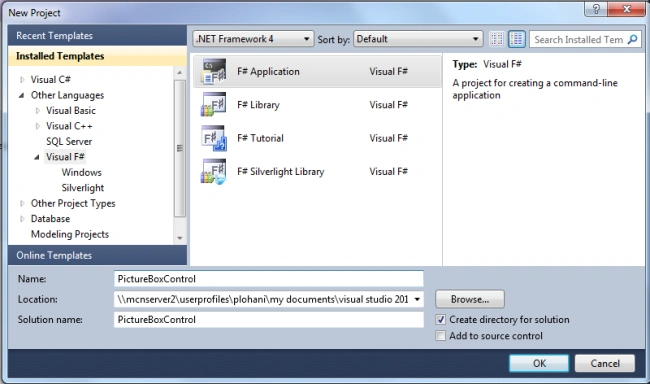
Open Visual Studio then seelct "Create New Project" --> "F# Console Application".
Step 2
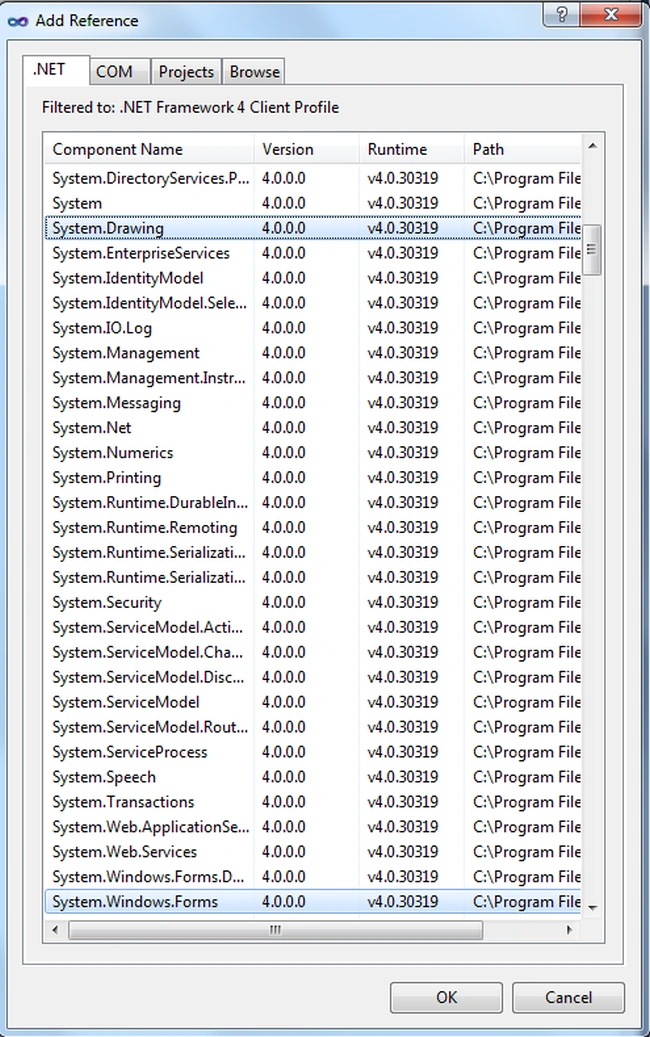
Now go the Solution Explorer on the right side of Visual Studio. Select the references and right-click on it and select "Add references".


Step 3
After selecting "Add References", in the framework template you need to select "System.Windows.Forms" and "System.Drawing" while holding down the "Ctrl" key and click on "Ok."
Step 4
Write the code for the F# application as in the following
- open System
- open System.Drawing
- open System.Windows.Forms
- let pictureboxform=new Form(Text="PictureBoxControl")
- let scrollbar=new HScrollBar(Location=new System.Drawing.Point(0, 260),Width=350)//Horizontal Scroll bar
- let scrollbar2=new HScrollBar(Location=new System.Drawing.Point(0, 510),Width=350)//Horizontal Scroll bar
- let tip=new ToolTip(IsBalloon=true,ToolTipIcon=ToolTipIcon.Info) //define tooltip
- let tip2=new ToolTip(IsBalloon=true,ToolTipIcon=ToolTipIcon.Info) //define tooltip
- let imagebox=new PictureBox(SizeMode=PictureBoxSizeMode.AutoSize,BorderStyle=BorderStyle.FixedSingle,Top=10)//Create picturebox that contains the images
- let imagebox2=new PictureBox(SizeMode=PictureBoxSizeMode.AutoSize,BorderStyle=BorderStyle.FixedSingle,Top=350)
- imagebox.ImageLocation<-("C:\csharp.png") //image for imagebox
- imagebox2.ImageLocation<-("C:\ms.png") //image for imagebox2
- pictureboxform.Controls.Add(imagebox) //adding the controls in form
- pictureboxform.Controls.Add(imagebox2) //adding the controls in form
- pictureboxform.Controls.Add(scrollbar) //adding the controls in form
- pictureboxform.Controls.Add(scrollbar2) //adding the controls in form
- scrollbar.MouseHover.Add(fun moving->tip.SetToolTip(scrollbar,"Move the image by draging"))
- scrollbar2.MouseHover.Add(fun moving->tip2.SetToolTip(scrollbar2,"Move the picture by draging"))
- scrollbar.Scroll.Add(fun move->imagebox.Left<-Convert.ToInt32(scrollbar.Value.ToString()))
- scrollbar2.Scroll.Add(fun move->imagebox2.Left<-Convert.ToInt32(scrollbar2.Value.ToString()))
- pictureboxform.Show()
- Application.Run(pictureboxform)
Step 5
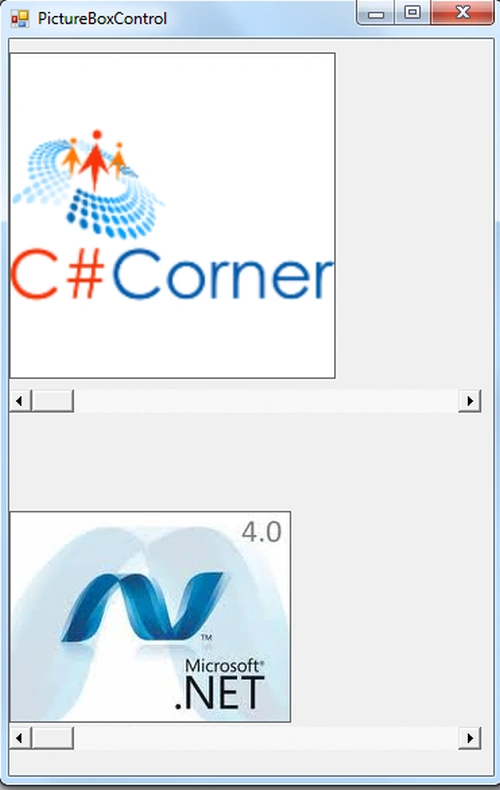
Debug the application by pressing F5 and the results will be shown in the application as in the figure below.
Step 6
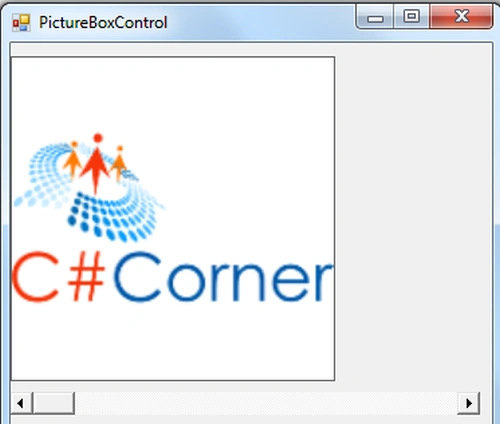
It's the first picture box containing an image, you can move this image by the horizontal scroll bar.
Step 7
It's Second picture box containing image you can move this image to by horizontal scroll bar.

Summary
In this article, we explained how to create and use a "PictureBox" control. First we explained how to create a "PictureBox" Control in a Windows Forms application then how to use the "SizeMode" Property of the PictureBox Control. I hope it will help you to understand the "PictureBox" control.
Join the conversation! Your thoughts help the community grow.