

Introduction
In this article I have explained prisms and how to compute the volume of a rectangular prism in a Windows Forms application.
Prism
A prism has flat sides and the same cross-section along its length. A cross-section is the shape you get when cutting straight across an object.
Volume of a Rectangular Prism
To calculate the volume of a rectangular prism you need to know its height, width and length. To determine the volume of a rectangular prism, just use the following procedure:
- Find the length of the rectangular prism: The longest side of the flat surface of the rectangle on the top or bottom of the rectangle prism.
- Find the width of rectangular prism: Width is the shorter side of the flat surface of the rectangle on the top or bottom of the rectangle prism.
- Find the height of rectangle prism: Height is the part of the rectangular prism that rises up and stretches up a flat rectangle until it becomes a three-dimensional shape.
- Volume of the Prism: After determining the height, width and length, multiply them in any order to get the same output. The formula for determining the volume of a rectanglar prism is:
volume = height * width * length - State your answer in cubic units: The volume unit is in cubit units because you are working in three-dimensional space. For example: 20 will be 20 in3.
Now I want to show you how to compute the volume of a rectangular prism in a Windows Forms application. Let's use the following procedure.
Step 1:
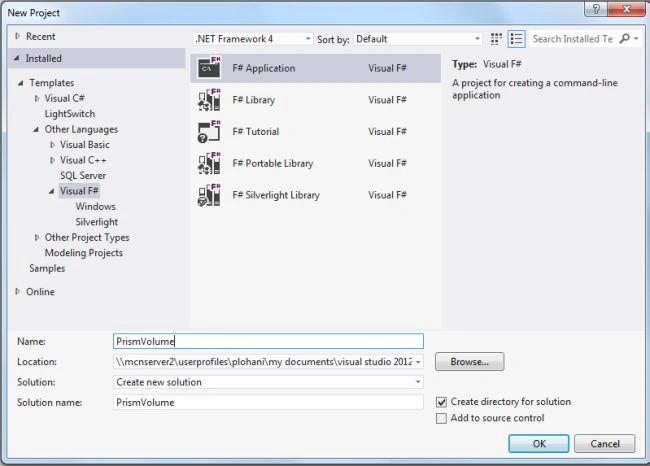
Open Visual Studio then select "Create New Project" --> "F# Console Application".
Step 2:
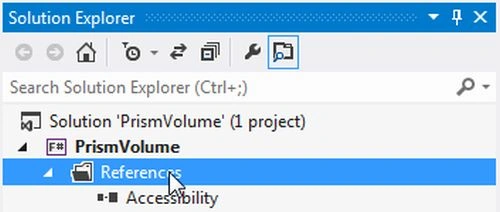
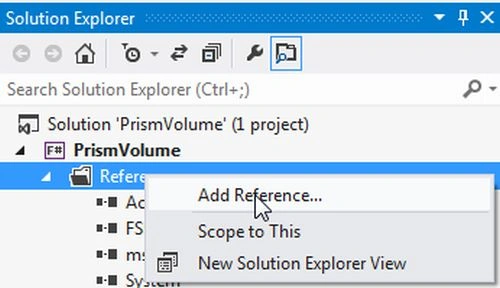
Now go to the Solution Explorer on the right side of the application. Right-click on "References" and select "Add references".
Step 3:
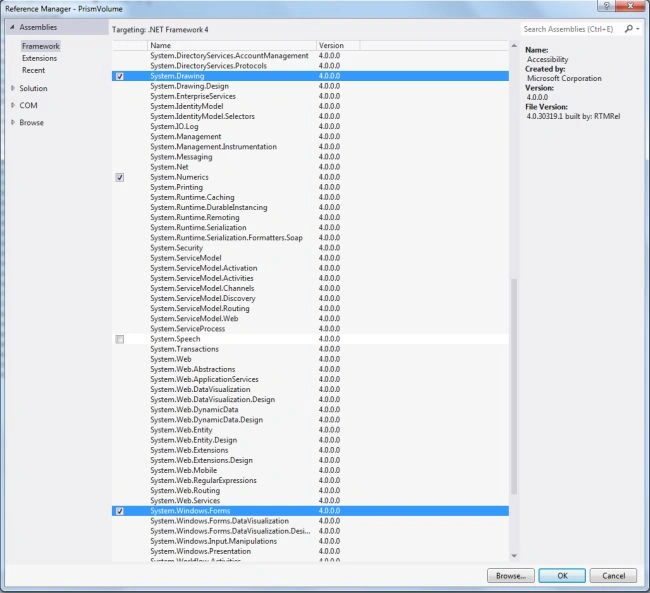
After selecting "Add References", in the framework template you need to select "System.Windows.Forms" and "System.Drawing" while holding down the Ctrl key and click on "Ok".
Step 4:
Provide the following code in the F# editor:
open System
open System.Windows.Forms
open System.ComponentModel
open System.Drawing
let RecPrismForm=new Form(Text="Rectangular prism volume")
RecPrismForm.BackColor<-Color.Bisque
//enter the length value
let lengthlbl=new Label(Top=10,Left=0,Width=130)
lengthlbl.Text<-"Enter Length value:"
let lenghttxtbox=new TextBox(Top=10,Left=140,Width=80)
//enter the width value
let widthlbl=new Label(Top=40,Left=0,Width=130)
widthlbl.Text<-"Enter Width value:"
let widthtxtbox=new TextBox(Top=40,Left=140,Width=80)
//enter the height value
let heightlbl=new Label(Top=70,Left=0,Width=130)
heightlbl.Text<-"Enter Height Value:"
let heighttxtbox=new TextBox(Top=70,Left=140,Width=80)
//after compute prism volume displayed here
let pvolumelbl=new Label(Top=120,Left=80,Width=80)
pvolumelbl.Text<-"Prism Volume:"
let prismvolumelabel=new Label(Top=120,Left=180,BorderStyle=BorderStyle.FixedSingle)
//create buttons
let manipulatebtn=new Button(Top=180,Left=120,Width=80)
manipulatebtn.BackColor<-Color.Ivory
manipulatebtn.Text<-"Compute"
let exitbutton=new Button(Top=180,Left=220,Width=80)
exitbutton.BackColor<-Color.Ivory
exitbutton.Text<-"Exit"
//adding the controls in form
RecPrismForm.Controls.Add(lengthlbl)
RecPrismForm.Controls.Add(lenghttxtbox)
RecPrismForm.Controls.Add(widthlbl)
RecPrismForm.Controls.Add(widthtxtbox)
RecPrismForm.Controls.Add(heightlbl)
RecPrismForm.Controls.Add(heighttxtbox)
RecPrismForm.Controls.Add(pvolumelbl)
RecPrismForm.Controls.Add(prismvolumelabel)
RecPrismForm.Controls.Add(manipulatebtn)
RecPrismForm.Controls.Add(exitbutton)
//Manipulate the prism valume
manipulatebtn.Click.Add(fun compute->
let lenghtvalue=Convert.ToDouble(lenghttxtbox.Text)
let widthvalue=Convert.ToDouble(widthtxtbox.Text)
let heightvalue=Convert.ToDouble(heighttxtbox.Text)
let prismvol=lenghtvalue*widthvalue*heightvalue
prismvolumelabel.Text<-Convert.ToString(prismvol))
exitbutton.Click.Add(fun exit -> RecPrismForm.Close())
Application.Run(RecPrismForm)
Step 5:
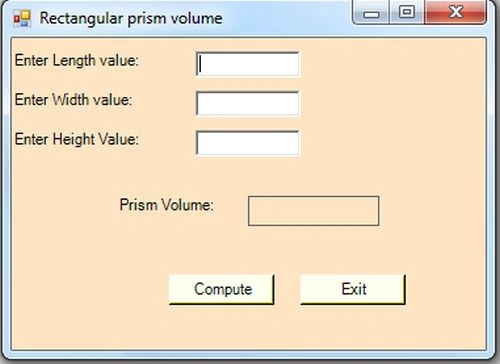
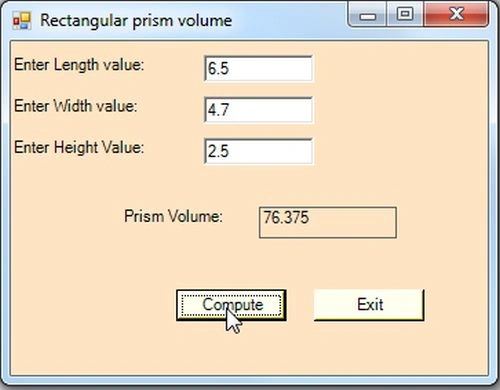
Debug the application by pressing F5 to execute the Windows Forms application. After debugging the application the output will be as shown in the following figure:
Step 6:
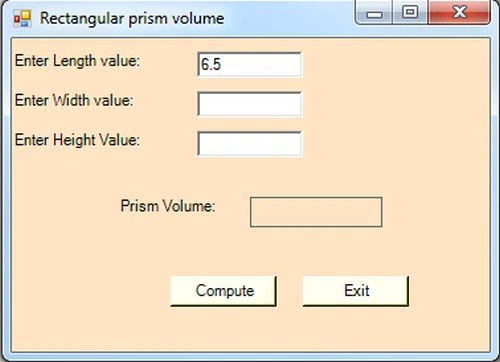
Enter the Length value.
Step 7 :
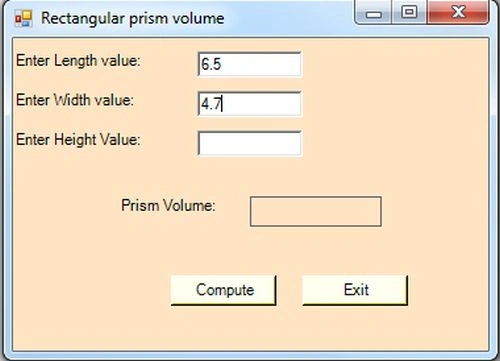
Enter the Width value.
Step 8:
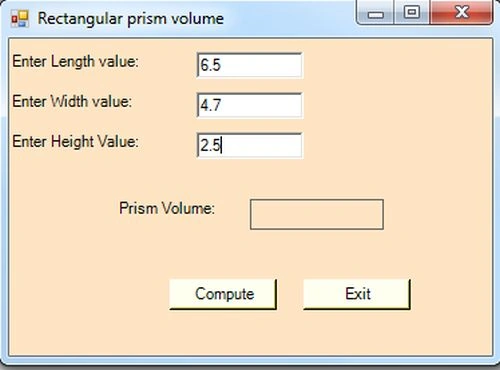
Enter the Height value.
Step 9:
Compute the rectangular prism value; just click the "Compute" button.
Summary
In this article we explained how to determine the volume of rectangular prism in a Windows Forms application.
Join the conversation! Your thoughts help the community grow.