

Introduction
My previous article explaiined how to use Group by clause using Stored Procedure in Windows Forms application now I will describe in this article the Having Clause and how to use this clause in Windows in a Stored Procedure.
Having Clause
The having clause is used in combination with the Group By clause and the Select statement to filter the records that a Group By returns. The Having clause is generally used with the Group by clause. The Having clause applies to the records in a result set to filter the grouped data. The where clause does not work with the aggregate functions so we use the having clause instead of a where clause, for example sum, max, avg, min and so on.
Syntax:
Select col1, col2, col3,......col n, aggregateFunction (exp)
from table_name
where predicates
Group By col1, col2, col3,....Con
having Condition
Write the following procedure for creating a sample database and table in SQL Server:
Create database StudentResults
use StudentResults
create table StudentMarks
(
RollNo int,
FirstName varchar(max),
LastName varchar(max),
Subject varchar(max),
Marks int
)
Write the following procedure to insert values into the table columns:
insert into StudentMarks (RollNo,FirstName,LastName,Subject,Marks) values(1,'Pankaj','Lohani','Math',70)
insert into StudentMarks (RollNo,FirstName,LastName,Subject,Marks) values(1,'Pankaj','Lohani','Physics',65)
insert into StudentMarks (RollNo,FirstName,LastName,Subject,Marks) values(1,'Pankaj','Lohani','Chemestry',75)
insert into StudentMarks (RollNo,FirstName,LastName,Subject,Marks) values(2,'Pravesh','Khanduri','Math',85)
insert into StudentMarks (RollNo,FirstName,LastName,Subject,Marks) values(2,'Pravesh','Khanduri','Physics',60)
insert into StudentMarks (RollNo,FirstName,LastName,Subject,Marks) values(2,'Pravesh','Khanduri','Chemestry',70)
insert into StudentMarks (RollNo,FirstName,LastName,Subject,Marks) values(3,'Nimit','Joshi','Math',90)
insert into StudentMarks (RollNo,FirstName,LastName,Subject,Marks) values(3,'Nimit','Joshi','Physics',60)
insert into StudentMarks (RollNo,FirstName,LastName,Subject,Marks) values(3,'Nimit','Joshi','Chemestry',75)
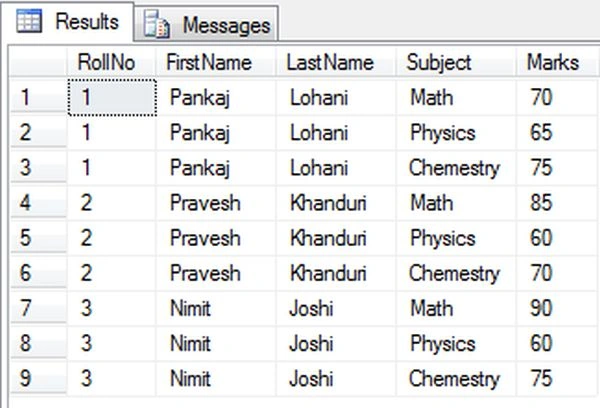
Write the following query to execute the table schema:
select * from StudentMarks
Having Clause using Aggregate Functions
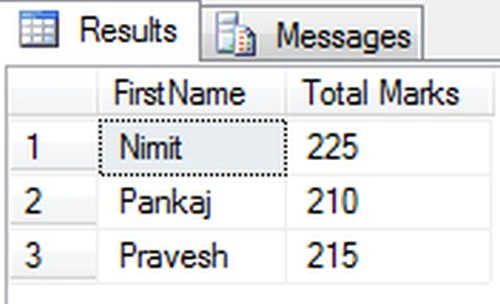
- Using Sum Function
Select FirstName, Sum(Marks) as 'Total Marks'
from StudentMarks
Group By FirstName
Having Sum(Marks)>200
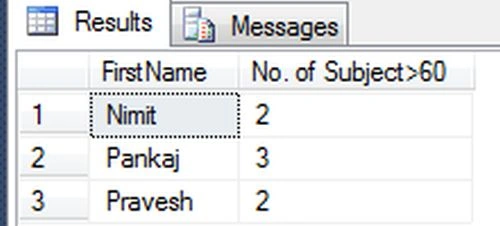
- Using Count Function
Select FirstName, Count(*) as 'No. of Subject'
from StudentMarks
Where Marks>60
Group By FirstName
Having Count(*)>1
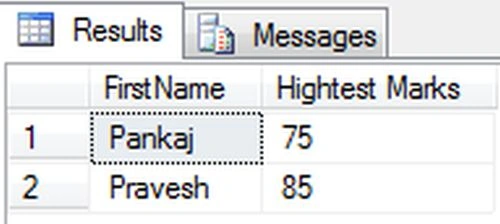
- Using Max Function
Select FirstName , Max(Marks) as 'Hightest Marks'
from StudentMarks
Group By FirstName
Having Max(Marks)<88
Create the following Stored Procedure for students marks who have scored more than 200 marks:
Create proc ScoreHaving
as
begin
select FirstName, Sum(Marks) as 'Scored > 200'
from StudentMarks
Group by FirstName
Having Sum(Marks)>210
end
Create the following Stored Procedure for students average marks:
Create proc UsingWhereConditon
as
begin
SELECT FirstName, Avg(Marks) AS 'Average > 60'
FROM StudentMarks
where RollNo between 1 and 3
GROUP BY FirstName
HAVING Avg(Marks) > 60
end
Now I will show you how to bind the records of a database table and display them in a Windows Forms application. Use the following procedure to do that.
Step 1:
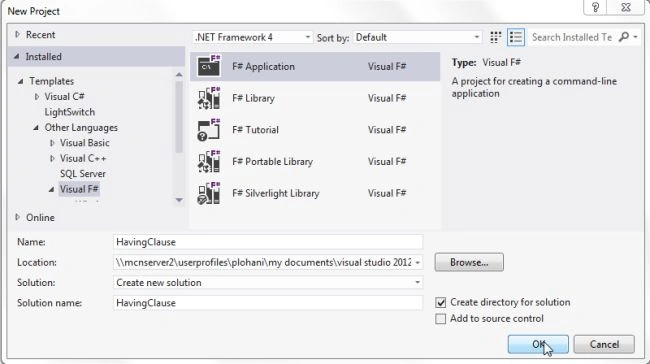
Open Visual Studio then select "Create New Project" --> "F# Console Application".
Step 2:
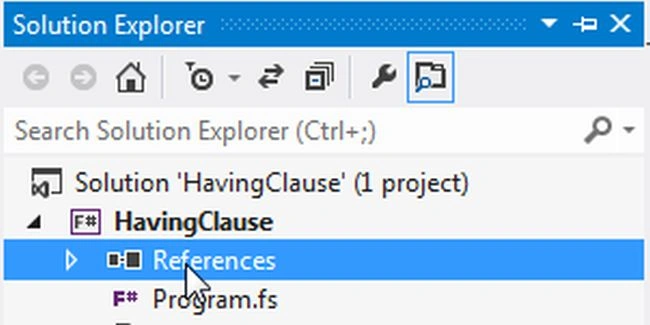
Now go the Solution Explorer on the right side of the application. Right-click on "References" and select "Add references".

Step 3:
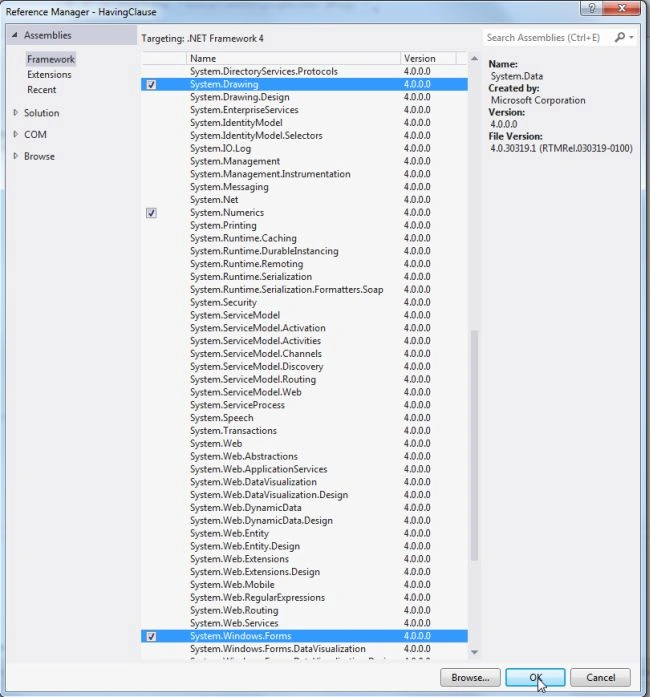
After selecting "Add References", in the framework template you need to select "System.Windows.Forms", "System.Drawing" and "System.Data" while holding down the Ctrl key then click on "Ok".
Write the following code to bind the data table into the datagrid and work with the Having Clause from the data source to the Windows Forms form:
Step 4:
open System
open System.Windows.Forms
open System.Drawing
open System.Data
open System.Data.SqlClient
//Create the new Window form
let havform=new Form(Text="Filter the Records")
//ConnectionString that establishes the connection with the specified database.
let constring = @"Data Source=MCNDESKTOP34;Initial Catalog=StudentResults;User ID=; Password="
let con=new SqlConnection(constring)
let com=new SqlCommand()
let adap=new SqlDataAdapter("select * from StudentMarks",constring)
let dt=new DataTable()
adap.Fill(dt) |>ignore
//DataGrid it shows the data in tabular format.
let datagrid=new DataGridView(Top=50,Left=0,Width=500,Height=250)
havform.Controls.Add(datagrid)
let grupbylbl=new Label(Text="Having Clause",Top=270,Width=120,Left=20)
havform.Controls.Add(grupbylbl)
datagrid.DataSource<-dt
let totalbtn=new Button(Top=350,Left=20,Width=220)
totalbtn.Text<-"Students Having Scored More Than 210"
totalbtn.ForeColor<-Color.Black
totalbtn.BackColor<-Color.Ivory
havform.Controls.Add(totalbtn)
totalbtn.Click.Add(fun _->
let com = new SqlCommand()
com.Connection <- con
com.CommandType <- CommandType.StoredProcedure
//ScoreHaving is a StoredProcedure it is shows the stdudent name who have scored more than 210 marks
com.CommandText <- "ScoreHaving"
let adapter = new SqlDataAdapter("ScoreHaving",con)
let dt = new DataTable()
adapter.Fill(dt) |>ignore
let gridview = new DataGridView(Top=380,Left=20,Width=240,Height=120)
havform.Controls.Add(gridview)
gridview.DataSource <- dt
)
let avgbtn=new Button(Top=510,Left=20,Width=180)
avgbtn.Text<-"Average Marks of Students"
avgbtn.BackColor<-Color.Ivory
avgbtn.ForeColor<-Color.Black
havform.Controls.Add(avgbtn)
avgbtn.Click.Add(fun _->
let com = new SqlCommand()
com.Connection <- con
com.CommandType <- CommandType.StoredProcedure
//UsingWhereCondition is a StoredProcedure it is applies for having clause using Where condtion
com.CommandText <- "UsingWhereConditon"
let adapter = new SqlDataAdapter("UsingWhereConditon",con)
let dt = new DataTable()
adapter.Fill(dt) |>ignore
let gridview = new DataGridView(Top=540,Left=20,Width=240,Height=120)
havform.Controls.Add(gridview)
gridview.DataSource <- dt
)
let exitbtn=new Button(Top=350,Left=470,Width=40)
exitbtn.Text<-"Exit"
exitbtn.ForeColor<-Color.Black
exitbtn.BackColor<-Color.Ivory
havform.Controls.Add(exitbtn)
exitbtn.Click.Add(fun exit->
havform.Close())
//Run the application
Application.Run(havform)
Step 5 :
Debug the application by pressing F5 to execute the Windows Forms application. After debugging the application the output will be as in the following figure:
f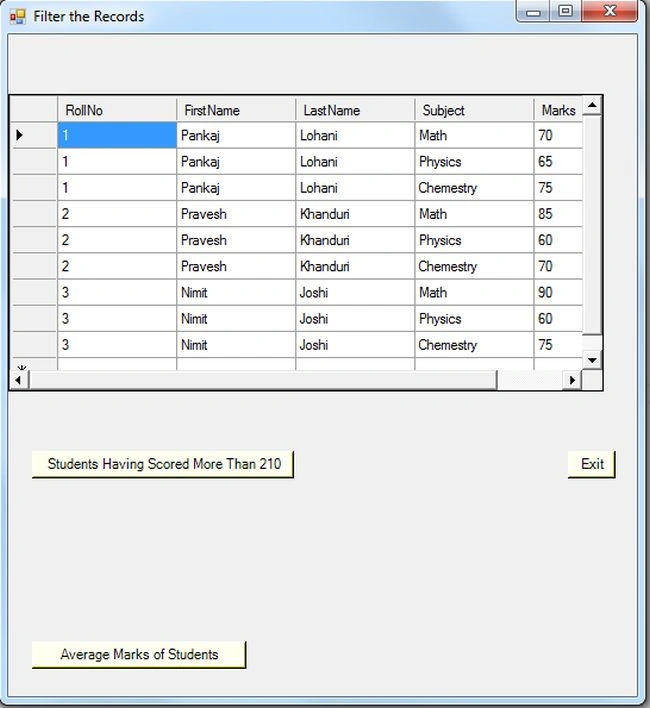
Step 6 :
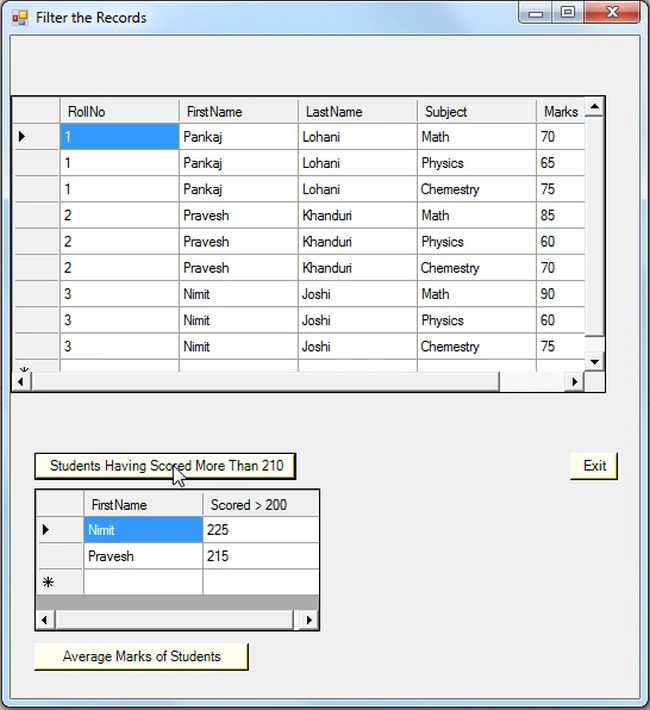
Now click on the button "Student having more than 210". It will display the name of the student with more than 210 marks. See the following figure:
Step 7 :
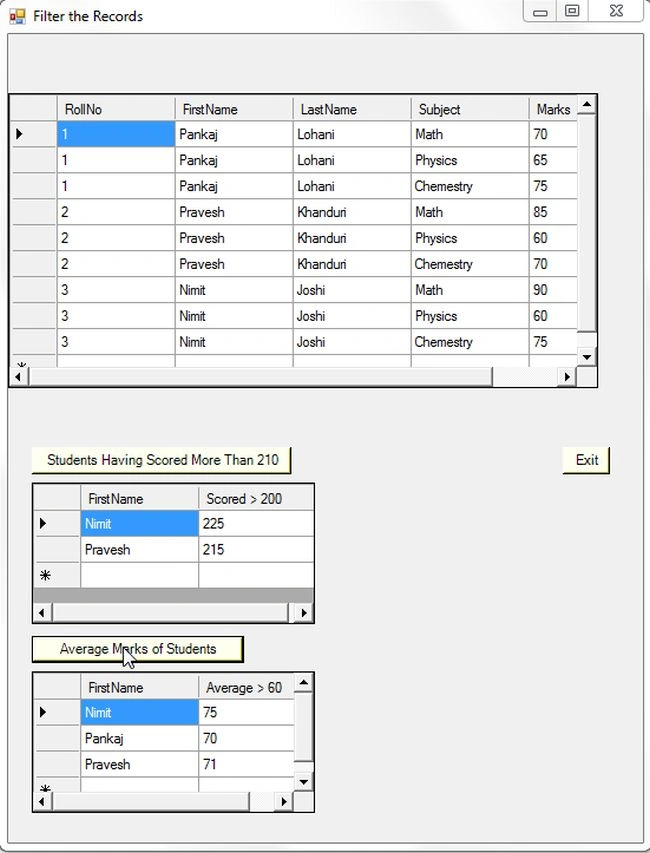
Now click on the button "Average Marks of Students"; it will display the average marks of the students. See the following figure:
Summary
In this article you saw how to use the Having Clause in a Stored Procedure in a Windows Forms application and you saw the Group By Clause in my previous article.
Join the conversation! Your thoughts help the community grow.