

Google Analytics is a website statistics service offered by the internet giant Google. With the basic service being free of charge, it is definitely the most popular tool that the vast majority of webmasters rely on. It helps to gather a wide range of statistics about the visitors, social networks, search engines, or even Pay-Per-Click (PPC) networks and advertising.
All these statistics are comfortably accessible using the web interface, so webmasters can easily keep an eye on them. But what if you just need to display the statistics in your own website or desktop application? In this case, the Google Analytics API (currently in version V3) is available for fetching any kind of statistics you can think of.
Please note that discussing the entire API would be out of the scope of this article. I will focus solely on fetching some data (statistics) and displaying it in the form of a chart in a Windows Forms application.
The reporting API is a simple yet powerful Application Programming Interface (API) that allows developers to retrieve the Google Analytics data gathered by Google. To retrieve the statistics, some must be gathered first. Therefore, there is one important prerequisite to use the API. You need to have a Google account and a website with the tracking code. I assume you already know how to generate the JavaScript tracking code and insert it into your website. 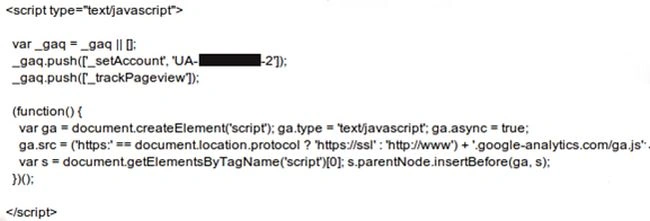 Image 1: Google Analytics tracking code
Enabling the API Access
There are two options for fetching the data. The first option is the Simple API access that doesn't allow accessing any private user data, so it is not sufficient for our purpose. The second approach is the Authorized API access (OAuth 2.0) which allows us to access private user data, so we will use it.
In order to rely on OAuth 2.0, our application must be authenticated and the user must grant access to it. To do so, several steps must be taken.
First, we need to log on to the Google Developers Console with our Google account and create a new project.
Image 1: Google Analytics tracking code
Enabling the API Access
There are two options for fetching the data. The first option is the Simple API access that doesn't allow accessing any private user data, so it is not sufficient for our purpose. The second approach is the Authorized API access (OAuth 2.0) which allows us to access private user data, so we will use it.
In order to rely on OAuth 2.0, our application must be authenticated and the user must grant access to it. To do so, several steps must be taken.
First, we need to log on to the Google Developers Console with our Google account and create a new project.
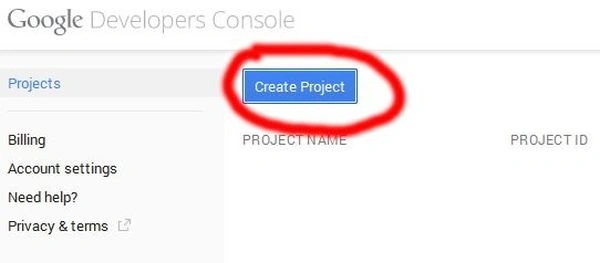 Image 2: Creating Google Developers' project
We will name the project “Csharpacess” and leave the auto-generated Project ID as it is.
Image 2: Creating Google Developers' project
We will name the project “Csharpacess” and leave the auto-generated Project ID as it is.
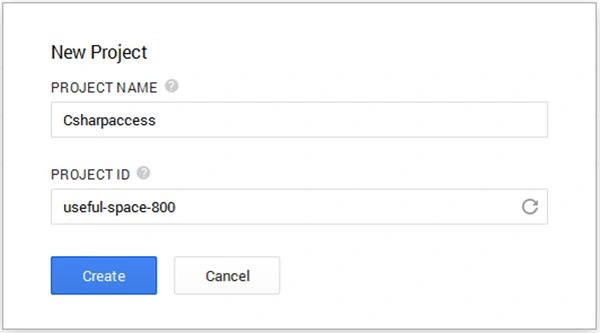 Image 3: Creating a new project
Once the project is created, we are being redirected to its dashboard. Now, we need to enable the analytics API and create new access credentials.
Image 3: Creating a new project
Once the project is created, we are being redirected to its dashboard. Now, we need to enable the analytics API and create new access credentials.
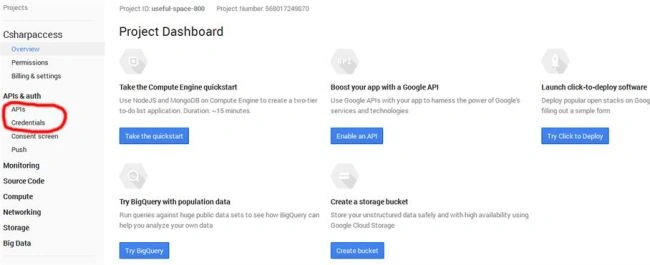 Image 4: Newly created project's dashboard
After clicking on “APIs” in the left menu bar, we are being taken to the APIs list. Now we scroll down to find the Analytics API and turn it on by clicking on the “OFF” button.
Image 4: Newly created project's dashboard
After clicking on “APIs” in the left menu bar, we are being taken to the APIs list. Now we scroll down to find the Analytics API and turn it on by clicking on the “OFF” button.
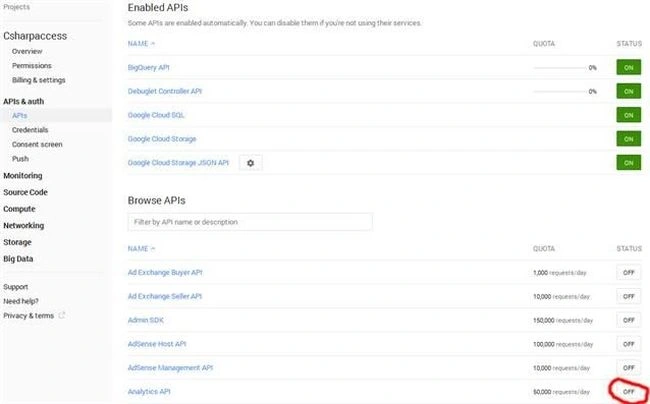 Image 5: Enabling the Analytics API
Once turned on, we will create new credentials by clicking the “Credentials” in the menu on the left. As said above, we need to rely on OAuth if we want to access private user's data, so we will create a new ID by clicking on the “Create new Client ID” button.
Image 5: Enabling the Analytics API
Once turned on, we will create new credentials by clicking the “Credentials” in the menu on the left. As said above, we need to rely on OAuth if we want to access private user's data, so we will create a new ID by clicking on the “Create new Client ID” button.
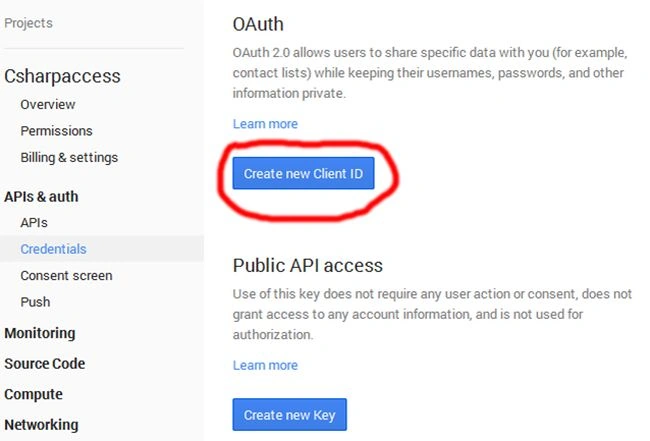 Image 6: Creating new access credentials
Now, we need to choose between three types of Client IDs. Because we will use it in our desktop application, we will choose the “Service account” option.
Image 6: Creating new access credentials
Now, we need to choose between three types of Client IDs. Because we will use it in our desktop application, we will choose the “Service account” option.
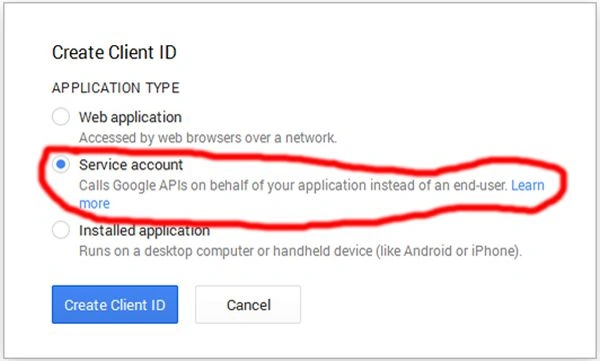 Image 7: Creating the Service Account client ID
Once created, the browser will prompt us to save the private key to our computer. We will need the certificate for authentication, so we will save it to our computer for later use. Also, we will rename it to “Csharpaccess.p12” for easier use. Please pay attention to the auto-generated private key's password “notasecret”. We will need it in our C# application, so I encourage you to write it down or save it to some temporary file.
Image 7: Creating the Service Account client ID
Once created, the browser will prompt us to save the private key to our computer. We will need the certificate for authentication, so we will save it to our computer for later use. Also, we will rename it to “Csharpaccess.p12” for easier use. Please pay attention to the auto-generated private key's password “notasecret”. We will need it in our C# application, so I encourage you to write it down or save it to some temporary file.
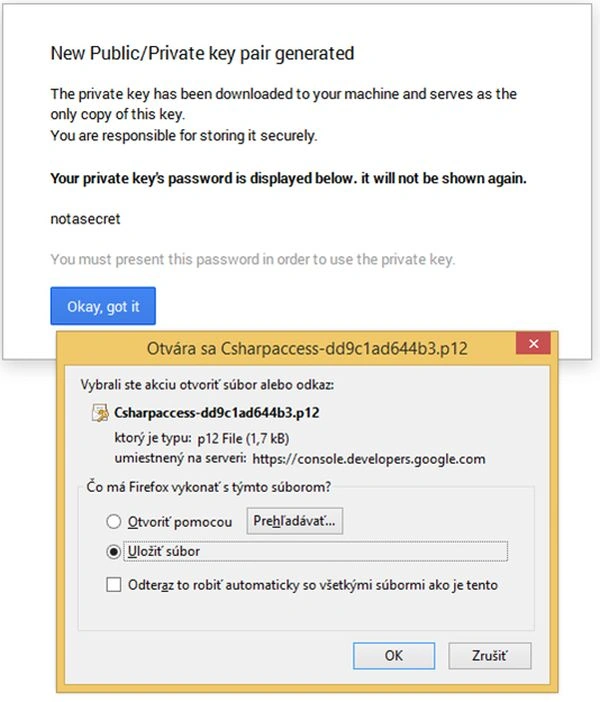 Image 8: Downloading the certificate
After the download, we are being redirected back to the dashboard with the added Service account credentials. These are now accessible anytime we need to through the Google Developers Console. However, we will need these credentials later, so we will copy them to some temporary text file for faster access.
Image 8: Downloading the certificate
After the download, we are being redirected back to the dashboard with the added Service account credentials. These are now accessible anytime we need to through the Google Developers Console. However, we will need these credentials later, so we will copy them to some temporary text file for faster access.
 Image 9: Created Service Account credentials
From now on, we have successfully created an OAuth 2.0 access. The next step is to pair it with our website through Google Analytics.
Pairing with Google Analytics
The Reporting API credentials we have just created can be used to access as many websites as we need to. All we need to do is add a new user for the desired website(s) using the Google Analytics User Management. Like an email address, we need to use the email address that was generated for the OAuth 2.0 authentication in the previous step.
Therefore, we will use “568017249870-9pqlki56dvp3bn64hb2pnvlnais8ndes@developer.gserviceaccount.com” in the email TextBox while leaving the default Read and Analyze permission since that is all we need in this case.
Image 9: Created Service Account credentials
From now on, we have successfully created an OAuth 2.0 access. The next step is to pair it with our website through Google Analytics.
Pairing with Google Analytics
The Reporting API credentials we have just created can be used to access as many websites as we need to. All we need to do is add a new user for the desired website(s) using the Google Analytics User Management. Like an email address, we need to use the email address that was generated for the OAuth 2.0 authentication in the previous step.
Therefore, we will use “568017249870-9pqlki56dvp3bn64hb2pnvlnais8ndes@developer.gserviceaccount.com” in the email TextBox while leaving the default Read and Analyze permission since that is all we need in this case.
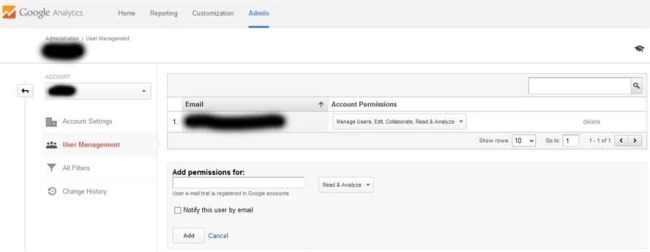 Image 10: Adding new Google Analytics user
From now, everything is set up, so we can start Visual Studio and create our desktop application.
Creating Simple Windows Forms Application
I assume you already have some C# basics, so I will not talk about creating the form or the buttons. Instead, I will focus solely on retrieving and displaying the gathered data using the OAuth 2.0 authentication we have just created.
Note: We must ensure that our Visual Studio project is set to target the .NET Framework 4.0 or .NET Framework 4.5.
Adding necessary references
We start by adding some required libraries' references. To install Google.Apis.Analytics.v3 Client Library, we use the popular NuGet Package Manager Console (Tools -> NuGet Package Manager). Open the console and use the following command to install the library:
Image 10: Adding new Google Analytics user
From now, everything is set up, so we can start Visual Studio and create our desktop application.
Creating Simple Windows Forms Application
I assume you already have some C# basics, so I will not talk about creating the form or the buttons. Instead, I will focus solely on retrieving and displaying the gathered data using the OAuth 2.0 authentication we have just created.
Note: We must ensure that our Visual Studio project is set to target the .NET Framework 4.0 or .NET Framework 4.5.
Adding necessary references
We start by adding some required libraries' references. To install Google.Apis.Analytics.v3 Client Library, we use the popular NuGet Package Manager Console (Tools -> NuGet Package Manager). Open the console and use the following command to install the library:
Google Analytics Reporting API
Install-Package Google.Apis.Analytics.v3
 Image 11: Installing Google.Apis.Analytics.v3 library with NuGet Console
After the installation process is over, we can open the project's references to verify that the additional libraries were added.
Image 11: Installing Google.Apis.Analytics.v3 library with NuGet Console
After the installation process is over, we can open the project's references to verify that the additional libraries were added.
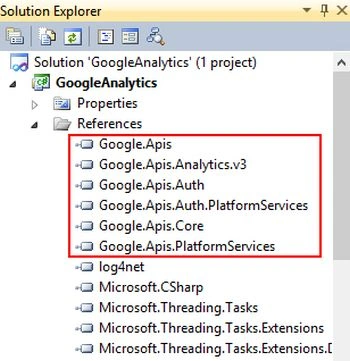 Image 12: New references successfully added
Initializing and authenticating the service
We start by declaring some variables we will need.
Image 12: New references successfully added
Initializing and authenticating the service
We start by declaring some variables we will need.
- private string keyFilePath = @"Csharpaccess.p12";
- private string serviceAccountEmail = "568017249870-9pqlki56dvp3bn64hb2pnvlnais8ndes@developer.gserviceaccount.com";
- private string keyPassword = "notasecret";
- private string websiteCode = "86391935";
- private AnalyticsService service = null;
- keyFilePath: This is the private key file we have downloaded earlier. We will copy it to the Debug folder of our project, so we don't need to add the path.
- serviceAccountEmail: This is the email address from the Service Account credentials. If you did not write it down after the creation, you can access it anytime using the Google Developers Console.
- keyPassword: This is the private key's password that was generated along with the key.
- websiteCode: This is the code of the website we have paired with the Reporting API. To get the code, the fastest way is to navigate to the settings of the desired website in Google Analytics and copy the eight-digit code following the letter “p” from the URL of the browser.
 Image 13: Getting the website code
 - service: This is the Analytics service that will be used for querying the statistics. We need to add “using Google.Apis.Analytics.v3;” so Visual Studio is able to resolve the type.
Authenticating the service
For authenticating purposes, we create a private method called Authenticate.
First, we start by creating the X509Certificate2 object. In order to work with this type of object, we need to import the corresponding namespace with the "using" directive. The object's constructor takes three arguments – the physical file path of the certificate, the password to access it, and a storage flags that handles the private key import. We have already declared the first two arguments in the previous step and for the third one, we will choose Exportable from the X509KeyStorageFlags enumeration.
Don't forget: the first parameter is the physical path and name of the certificate, so do not forget to copy the downloaded certificate to the debug folder of the project.
- using System.Security.Cryptography.X509Certificates;
- //loading the Key file
- var certificate = new X509Certificate2(keyFilePath, keyPassword, X509KeyStorageFlags.Exportable);
- var scopes =
- new string[] {
- AnalyticsService.Scope.Analytics, // view and manage your analytics data
- AnalyticsService.Scope.AnalyticsEdit, // edit management actives
- AnalyticsService.Scope.AnalyticsManageUsers, // manage users
- AnalyticsService.Scope.AnalyticsReadonly}; // View analytics data
- using Google.Apis.Auth.OAuth2;
- var credential = new ServiceAccountCredential(new ServiceAccountCredential.Initializer(serviceAccountEmail)
- {
- Scopes = scopes
- }.FromCertificate(certificate));
- using Google.Apis.Services;
- service = new AnalyticsService(new BaseClientService.Initializer()
- {
- HttpClientInitializer = credential
- });
- DataResource.GaResource.GetRequest request = service.Data.Ga.Get(
- "ga:" + websiteCode,
- DateTime.Today.AddDays(-15).ToString("yyyy-MM-dd"),
- DateTime.Today.ToString("yyyy-MM-dd"),
- "ga:sessions");
- request.Dimensions = "ga:year,ga:month,ga:day";
- var data = request.Execute();
- private List<ChartRecord> visitsData = new List<ChartRecord>();
- class ChartRecord
- {
- public ChartRecord(string date, int visits)
- {
- _date = date;
- _visits = visits;
- }
- private string _date;
- public string Date
- {
- get { return _date; }
- set { _date = value; }
- }
- private int _visits;
- public int Visits
- {
- get { return _visits; }
- set { _visits = value; }
- }
- }
- foreach (var row in data.Rows)
- {
- visitsData.Add(new ChartRecord(new DateTime(int.Parse(row[0]), int.Parse(row[1]), int.Parse(row[2])).ToString("MM-dd-yyyy"), int.Parse(row[3])));
- }
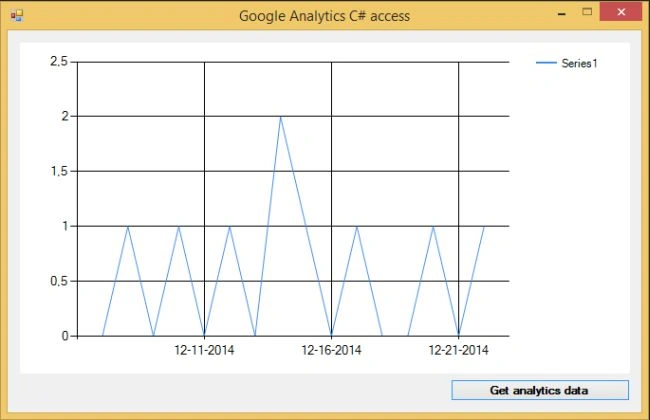
- analyticsChart.Series[0].XValueMember = "Date";
- analyticsChart.Series[0].YValueMembers = "Visits";
- analyticsChart.DataSource = visitsData;
- analyticsChart.DataBind();
Guest UserPosted Feb 26, 2020, 8:33 AM
Michael i am looking something similar. i want some examples like analytics on mvc asp.net shows current location. Any idea? i dont have background to this logic, please assist
Adrian AriasPosted Aug 1, 2019, 12:51 PM
Excellent, easy and functional.
Vaishnavi KulkarniPosted Apr 15, 2019, 4:41 AM
Google.GoogleApiException: 'Google.Apis.Requests.RequestErrorUser does not have sufficient permissions for this profile. [403] Errors [ Message[User does not have sufficient permissions for this profile.] Location[ - ] Reason[insufficientPermissions] Domain[global]
Thuy HoangPosted Jun 16, 2017, 12:33 AM
Thanks Michal!!!!!
Mudassar ShahbazPosted Mar 23, 2016, 6:05 PM
System.Security.Cryptography.CryptographicException was unhandled HResult=-2147024810 Message=The specified network password is not correct.
Sanjay PanchalPosted Mar 22, 2016, 8:31 AM
This is a very good article on how to get google analytics data using service account. I didn't found the same explanation elsewhere. Great work.
vaishnavi pmPosted Feb 26, 2016, 8:11 AM
Hi Michal..getting 403 error..with the demo application.can you help pls?
muzammil anwarPosted Nov 20, 2015, 8:56 AM
hi! can I keep track of visitor on my website that whether he is comming from organic search or paid search?
damin jPosted Sep 30, 2015, 7:18 AM
thanks Michel
Ajaruddin AliPosted Aug 20, 2015, 6:48 AM
Hi Michal, vivid description of each and every steps. I have followed each and every steps. I am able to Authenticate properly but get getting issue in the QueryData() function in the var data = testRequest.Execute(); line the error is: Error:"invalid_grant", Description:"", Uri:"" . I am putting my code below and could you please check a quick check and let me know if there is any mistake. Thanks in advance. private void QueryData() { AnalyticsService serviceData = new AnalyticsService(); Authenticate(); DataResource.GaResource.GetRequest testRequest = serviceData.Data.Ga.Get("ga:" + websiteCode, "2015-08-03", "2015-08-04", "ga:sessions,ga:pageviews"); testRequest.Dimensions = "ga:year,ga:month,ga:day"; var data = testRequest.Execute(); foreach (var row in data.Rows) { visitsData.Add(new ChartRecord(new DateTime(int.Parse(row[0]), int.Parse(row[1]), int.Parse(row[2])).ToString("MM-dd-yyyy"), int.Parse(row[3]))); } }
ananthram bhatPosted Jul 8, 2015, 5:22 AM
Hi Michael, Great Work !! But,i have followed all the above mentioned steps,but am getting an error stating :- Locating source for 'c:\code\google.com\google-api-dotnet-client\default\Tools\Google.Apis.Release\bin\Debug\test\default\Src\GoogleApis.Auth.DotNet4\OAuth2\ServiceAccountCredential.cs'. Could you please guide and help me with the error.
Santhakumar MunuswamyPosted Jun 17, 2015, 11:43 PM
Good work
Gowtham RajamanickamPosted May 28, 2015, 10:42 AM
this is great..
Pramod ThakurPosted Dec 24, 2014, 12:14 AM
Nice one.. Keep writing :)
Nitin PalPosted Dec 23, 2014, 7:07 AM
Usefull
Sai KumarPosted Dec 23, 2014, 12:50 AM
nice article..
Michal HabalcikPosted Dec 22, 2014, 10:18 AM
glad you like it
Jitendra KumarPosted Dec 22, 2014, 10:03 AM
Good one..
Guest UserPosted Dec 22, 2014, 7:38 AM
Good article Michal! It recalls my memory of Google Analytics that I used in past.
Manish Kumar ChoudharyPosted Dec 22, 2014, 5:22 AM
Nice one..
Vithal WadjePosted Dec 22, 2014, 5:18 AM
another good article keep it up