

The following are the highlights of this article:
- Create a Database. (SchoolManagement).
- Create a Table (Student).
- Create a MVC 4 application.
- Add a WEB API.
- Use AngularJs to consume WEB API.
- Perform the CRUD (Create, Read, Update & Delete) operations using Angular with WEB API.
Angular
AngularJS is a structural framework for dynamic web apps. It lets you use HTML as your template language and lets you extend HTML's syntax to express your application's components clearly and succinctly. AngularJS is a JavaScript framework. Its goal is to augment browser-based applications with Model–View–Controller (MVC) capability, in an effort to make both development and testing easier.
This article shows how to manage Student Data.
The following is my Data Table.
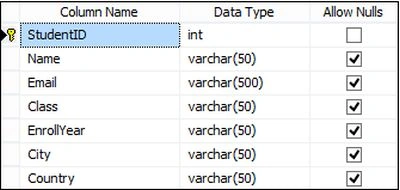
Image 1
The following is the script for my Data Table:
The following is my Data Table.
Image 1
The following is the script for my Data Table:
- CREATE TABLE [dbo].[Student](
- [StudentID] [int] IDENTITY(1,1) NOT NULL,
- [Name] [varchar](50) NULL,
- [Email] [varchar](500) NULL,
- [Class] [varchar](50) NULL,
- [EnrollYear] [varchar](50) NULL,
- [City] [varchar](50) NULL,
- [Country] [varchar](50) NULL,
- CONSTRAINT [PK_Student] PRIMARY KEY CLUSTERED
- (
- [StudentID] ASC
- )WITH (PAD_INDEX = OFF, STATISTICS_NORECOMPUTE = OFF, IGNORE_DUP_KEY = OFF, ALLOW_ROW_LOCKS = ON, ALLOW_PAGE_LOCKS = ON) ON [PRIMARY]
- ) ON [PRIMARY]
- GO
- SET ANSI_PADDING OFF
- GO
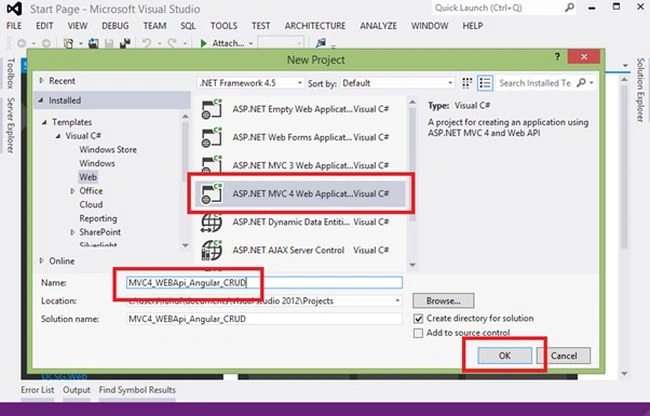
Image 2
Select ASP.NET MVC 4 Web Application then click OK.
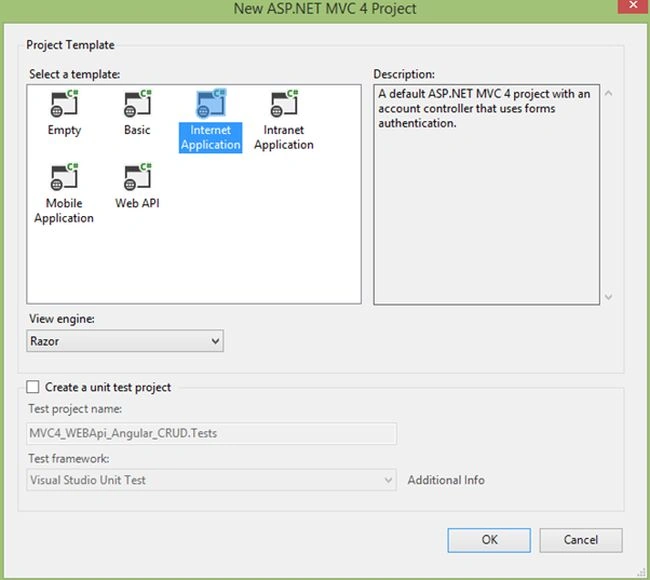
Image 3
Now we will add the database. So right-click on the Model then select Add -> ADO.NET Entity Data Model.
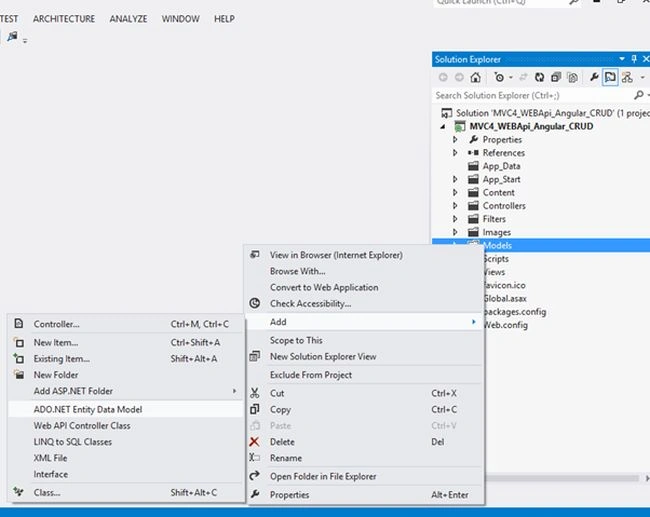
Image 4
Provide it a name.
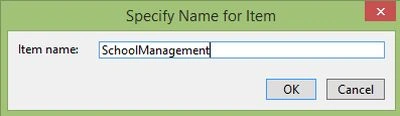
Image 5
Enter your database connection properties.
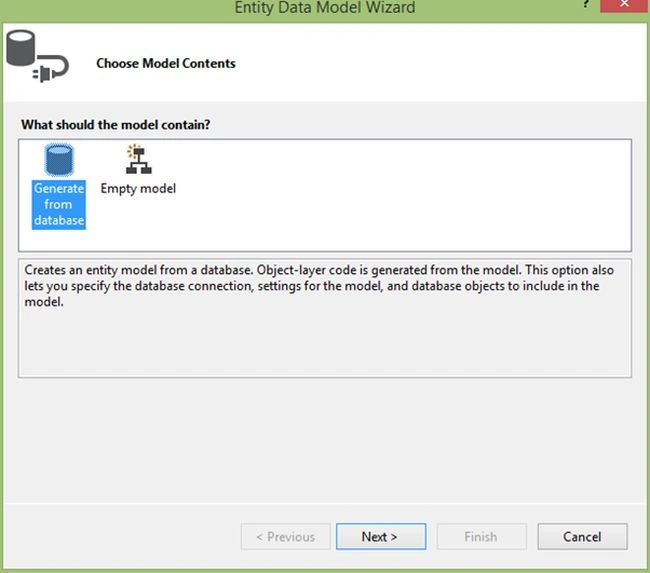
Image 6
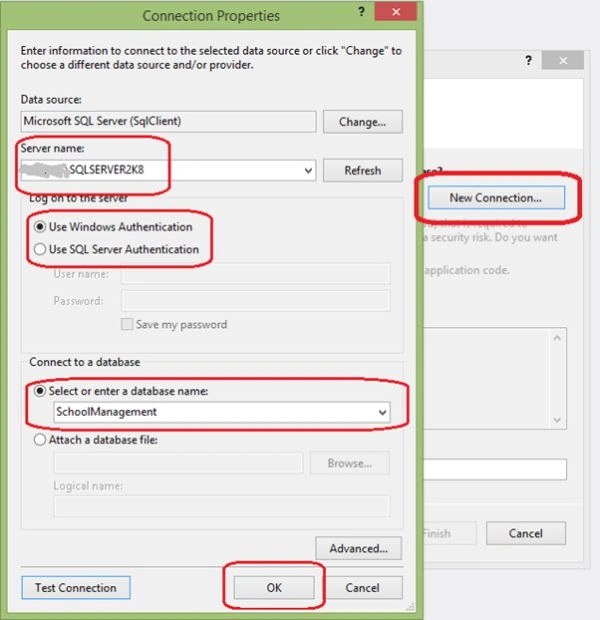
Image 7
Image 8
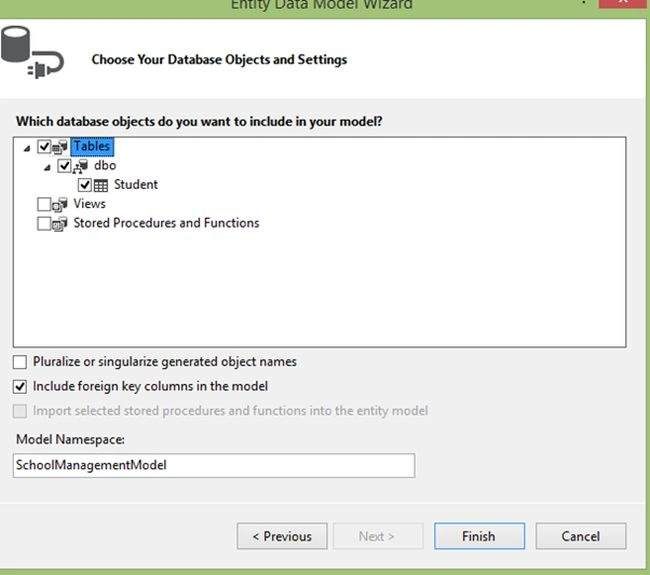
Image 9
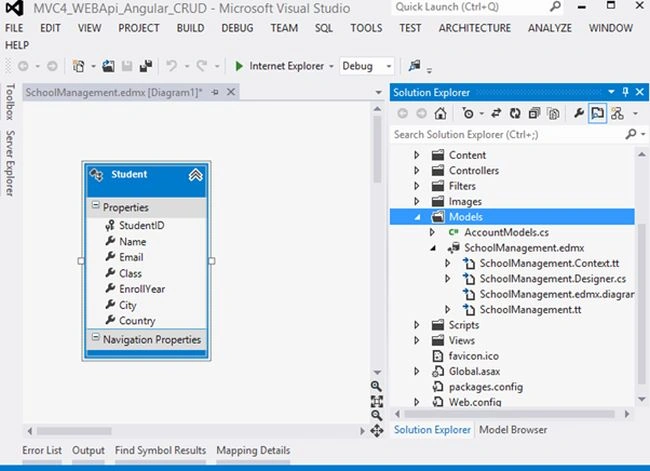
Image 10
Now it is time to add a new Web API controller. So right-click on the Controller then select Add -> Controller.
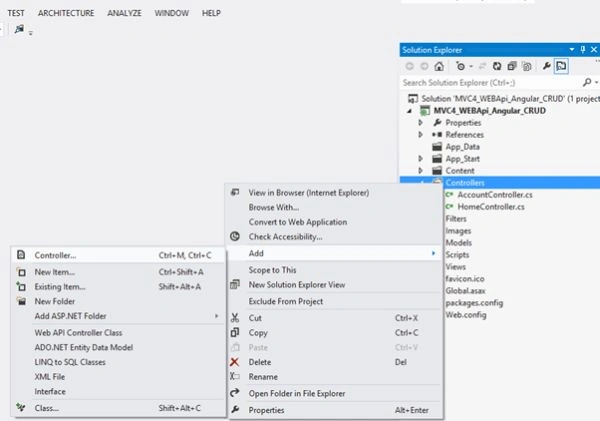
Image 11
Here select API controller with read/write actions, using Entity Framework in Template option, select Model class and select Data Context Class ->ADD.
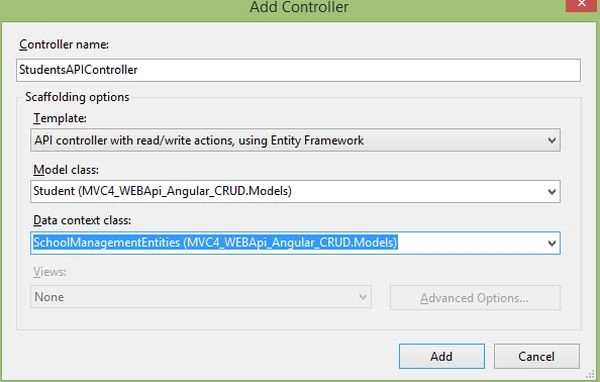
Image 12
It will add a StudentAPI controller with the following automatically generated code with methods for GET, PUT, POST and DELETE.
- using System;
- using System.Collections.Generic;
- using System.Data;
- using System.Data.Entity;
- using System.Data.Entity.Infrastructure;
- using System.Linq;
- using System.Net;
- using System.Net.Http;
- using System.Web;
- using System.Web.Http;
- using MVC4_WEBApi_Angular_CRUD.Models;
- namespace MVC4_WEBApi_Angular_CRUD.Controllers
- {
- public class StudentsAPIController : ApiController
- {
- private SchoolManagementEntities db = new SchoolManagementEntities();
- // GET api/StudentsAPI
- public IEnumerable<Student> GetStudents()
- {
- return db.Student.AsEnumerable();
- }
- // GET api/StudentsAPI/5
- public Student GetStudent(int id)
- {
- Student student = db.Student.Find(id);
- if (student == null)
- {
- throw new HttpResponseException(Request.CreateResponse(HttpStatusCode.NotFound));
- }
- return student;
- }
- // PUT api/StudentsAPI/5
- public HttpResponseMessage PutStudent(int id, Student student)
- {
- if (ModelState.IsValid && id == student.StudentID)
- {
- db.Entry(student).State = EntityState.Modified;
- try
- {
- db.SaveChanges();
- }
- catch (DbUpdateConcurrencyException)
- {
- return Request.CreateResponse(HttpStatusCode.NotFound);
- }
- return Request.CreateResponse(HttpStatusCode.OK);
- }
- else
- {
- return Request.CreateResponse(HttpStatusCode.BadRequest);
- }
- }
- // POST api/StudentsAPI
- public HttpResponseMessage PostStudent(Student student)
- {
- if (ModelState.IsValid)
- {
- db.Student.Add(student);
- db.SaveChanges();
- HttpResponseMessage response = Request.CreateResponse(HttpStatusCode.Created, student);
- response.Headers.Location = new Uri(Url.Link("DefaultApi", new { id = student.StudentID }));
- return response;
- }
- else
- {
- return Request.CreateResponse(HttpStatusCode.BadRequest);
- }
- }
- // DELETE api/StudentsAPI/5
- public HttpResponseMessage DeleteStudent(int id)
- {
- Student student = db.Student.Find(id);
- if (student == null)
- {
- return Request.CreateResponse(HttpStatusCode.NotFound);
- }
- db.Student.Remove(student);
- try
- {
- db.SaveChanges();
- }
- catch (DbUpdateConcurrencyException)
- {
- return Request.CreateResponse(HttpStatusCode.NotFound);
- }
- return Request.CreateResponse(HttpStatusCode.OK, student);
- }
- protected override void Dispose(bool disposing)
- {
- db.Dispose();
- base.Dispose(disposing);
- }
- }
- }
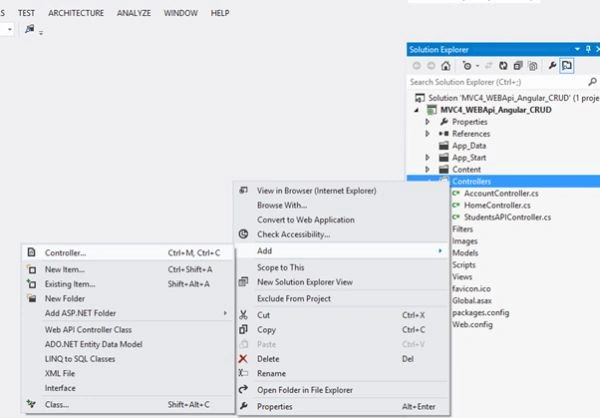
Image 13
Select here Empty MVC controller from (Template) Scaffolding options.
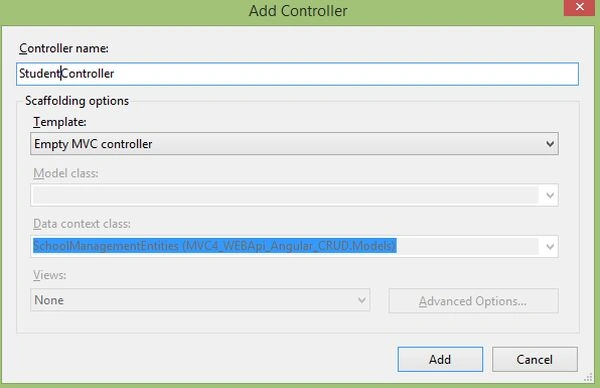
Image 14
Code
- using System;
- using System.Collections.Generic;
- using System.Linq;
- using System.Web;
- using System.Web.Mvc;
- namespace MVC4_WEBApi_Angular_CRUD.Controllers
- {
- public class StudentController : Controller
- {
- //
- // GET: /Student/
- public ActionResult Index()
- {
- return View();
- }
- }
- }
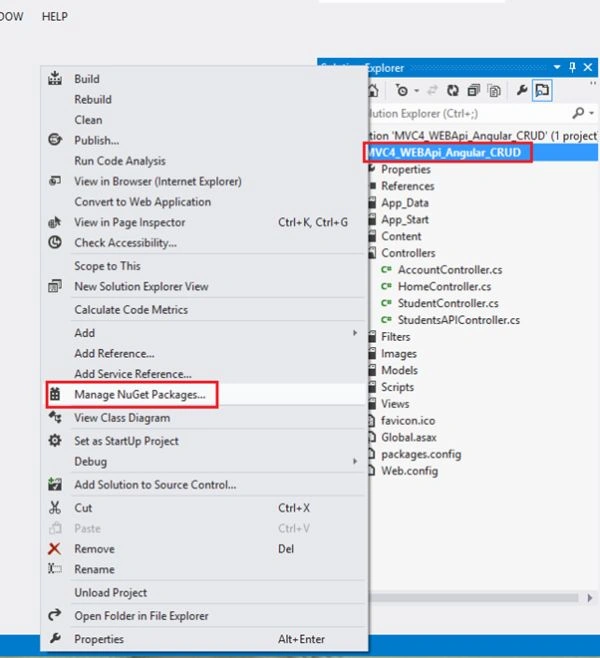
Image 15
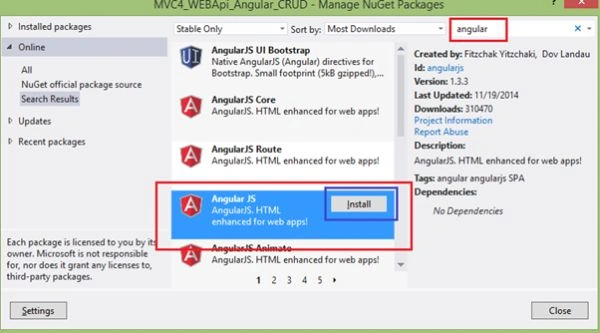
Image 16
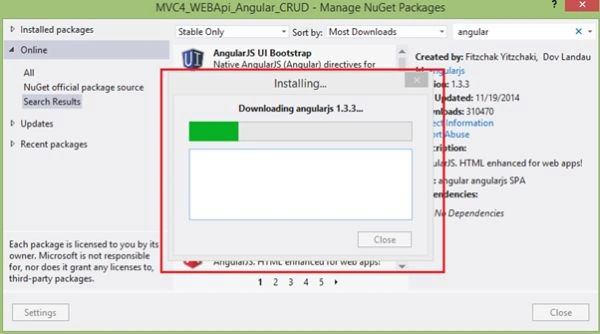
Image 17
After adding an AngularJs reference now create a new folder in the Script folder then do something with MyAngularjsScripts and 3 the JavaScript files named as below.
- Module.js
- Service.js
- Controller.js
Module.js
- var app;
- (function () {
- app = angular.module("crudModule", []);
- })()
- app.service('CRUD_OperService', function ($http) {
- //Create new record
- this.post = function (Student) {
- var request = $http({
- method: "post",
- url: "/api/StudentsAPI",
- data: Student
- });
- return request;
- }
- //Get Single Records
- this.get = function (StudentID) {
- return $http.get("/api/StudentsAPI/" + StudentID);
- }
- //Get All Student
- this.getAllStudent = function () {
- return $http.get("/api/StudentsAPI");
- }
- //Update the Record
- this.put = function (StudentID, Student) {
- var request = $http({
- method: "put",
- url: "/api/StudentsAPI/" + StudentID,
- data: Student
- });
- return request;
- }
- //Delete the Record
- this.delete = function (StudentID) {
- var request = $http({
- method: "delete",
- url: "/api/StudentsAPI/" + StudentID
- });
- return request;
- }
- });
- app.controller('CRUD_OperController', function ($scope, CRUD_OperService) {
- $scope.OperType = 1;
- //1 Mean New Entry
- GetAllRecords();
- //To Get All Records
- function GetAllRecords() {
- var promiseGet = CRUD_OperService.getAllStudent();
- promiseGet.then(function (pl) { $scope.Students = pl.data },
- function (errorPl) {
- $log.error('Some Error in Getting Records.', errorPl);
- });
- }
- //To Clear all input controls.
- function ClearModels() {
- $scope.OperType = 1;
- $scope.StudentID = "";
- $scope.Name = "";
- $scope.Email = "";
- $scope.Class = "";
- $scope.EnrollYear = "";
- $scope.City = "";
- $scope.Country = "";
- }
- //To Create new record and Edit an existing Record.
- $scope.save = function () {
- var Student = {
- Name: $scope.Name,
- Email: $scope.Email,
- Class: $scope.Class,
- EnrollYear: $scope.EnrollYear,
- City: $scope.City,
- Country: $scope.Country
- };
- if ($scope.OperType === 1) {
- var promisePost = CRUD_OperService.post(Student);
- promisePost.then(function (pl) {
- $scope.StudentID = pl.data.StudentID;
- GetAllRecords();
- ClearModels();
- }, function (err) {
- console.log("Err" + err);
- });
- } else {
- //Edit the record
- Student.StudentID = $scope.StudentID;
- var promisePut = CRUD_OperService.put($scope.StudentID, Student);
- promisePut.then(function (pl) {
- $scope.Message = "Student Updated Successfuly";
- GetAllRecords();
- ClearModels();
- }, function (err) {
- console.log("Err" + err);
- });
- }
- };
- //To Delete Record
- $scope.delete = function (Student) {
- var promiseDelete = CRUD_OperService.delete(Student.StudentID);
- promiseDelete.then(function (pl) {
- $scope.Message = "Student Deleted Successfuly";
- GetAllRecords();
- ClearModels();
- }, function (err) {
- console.log("Err" + err);
- });
- }
- //To Get Student Detail on the Base of Student ID
- $scope.get = function (Student) {
- var promiseGetSingle = CRUD_OperService.get(Student.StudentID);
- promiseGetSingle.then(function (pl) {
- var res = pl.data;
- $scope.StudentID = res.StudentID;
- $scope.Name = res.Name;
- $scope.Email = res.Email;
- $scope.Class = res.Class;
- $scope.EnrollYear = res.EnrollYear;
- $scope.City = res.City;
- $scope.Country = res.Country;
- $scope.OperType = 0;
- },
- function (errorPl) {
- console.log('Some Error in Getting Details', errorPl);
- });
- }
- //To Clear all Inputs controls value.
- $scope.clear = function () {
- $scope.OperType = 1;
- $scope.StudentID = "";
- $scope.Name = "";
- $scope.Email = "";
- $scope.Class = "";
- $scope.EnrollYear = "";
- $scope.City = "";
- $scope.Country = "";
- }
- });
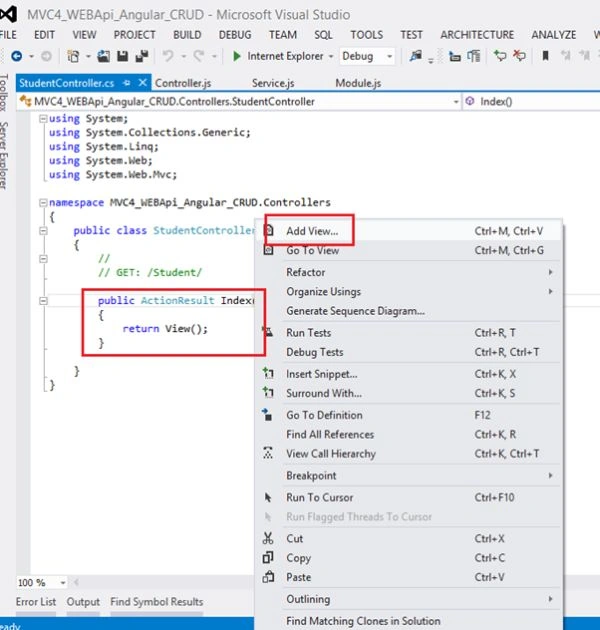
Image 18
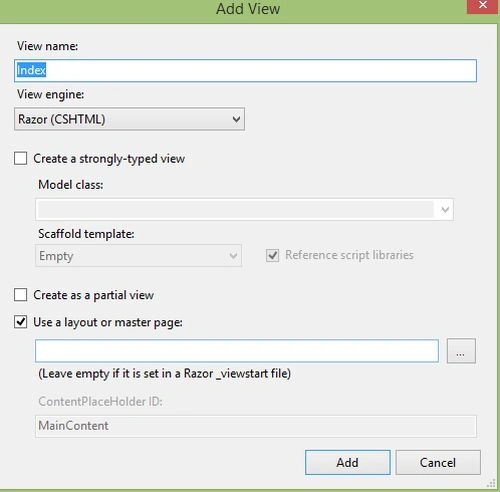
Image 19
Our Index.cshtml is:
- <html data-ng-app="crudModule">
- @{
- ViewBag.Title = "Manage Student Information using AngularJs, WEB API & MVC4";
- }
- <body>
- <table id="tblContainer" data-ng-controller="CRUD_OperController">
- <tr>
- <td>
- <table style="border: solid 2px Green; padding: 5px;">
- <tr style="height: 30px; background-color: skyblue; color: maroon;">
- <th></th>
- <th>ID</th>
- <th>Name</th>
- <th>Email</th>
- <th>Class</th>
- <th>Year</th>
- <th>City</th>
- <th>Country</th>
- <th></th>
- <th></th>
- </tr>
- <tbody data-ng-repeat="stud in Students">
- <tr>
- <td></td>
- <td><span>{{stud.StudentID}}</span></td>
- <td><span>{{stud.Name}}</span></td>
- <td><span>{{stud.Email}}</span></td>
- <td><span>{{stud.Class}}</span></td>
- <td><span>{{stud.EnrollYear}}</span></td>
- <td><span>{{stud.City}}</span></td>
- <td><span>{{stud.Country}}</span></td>
- <td>
- <input type="button" id="Edit" value="Edit" data-ng-click="get(stud)" /></td>
- <td>
- <input type="button" id="Delete" value="Delete" data-ng-click="delete(stud)" /></td>
- </tr>
- </tbody>
- </table>
- </td>
- </tr>
- <tr>
- <td>
- <div style="color: red;">{{Message}}</div>
- <table style="border: solid 4px Red; padding: 2px;">
- <tr>
- <td></td>
- <td>
- <span>Student ID</span>
- </td>
- <td>
- <input type="text" id="StudentID" readonly="readonly" data-ng-model="StudentID" />
- </td>
- </tr>
- <tr>
- <td></td>
- <td>
- <span>Student Name</span>
- </td>
- <td>
- <input type="text" id="sName" required data-ng-model="Name" />
- </td>
- </tr>
- <tr>
- <td></td>
- <td>
- <span>Email</span>
- </td>
- <td>
- <input type="text" id="sEmail" required data-ng-model="Email" />
- </td>
- </tr>
- <tr>
- <td></td>
- <td>
- <span>Class</span>
- </td>
- <td>
- <input type="text" id="sClass" required data-ng-model="Class" />
- </td>
- </tr>
- <tr>
- <td></td>
- <td>
- <span>Enrollement Year</span>
- </td>
- <td>
- <input type="text" id="sEnrollYear" required data-ng-model="EnrollYear" />
- </td>
- </tr>
- <tr>
- <td></td>
- <td>
- <span>City</span>
- </td>
- <td>
- <input type="text" id="sCity" required data-ng-model="City" />
- </td>
- </tr>
- <tr>
- <td></td>
- <td>
- <span>Country</span>
- </td>
- <td>
- <input type="text" id="sCountry" required data-ng-model="Country" />
- </td>
- </tr>
- <tr>
- <td></td>
- <td></td>
- <td>
- <input type="button" id="save" value="Save" data-ng-click="save()" />
- <input type="button" id="Clear" value="Clear" data-ng-click="clear()" />
- </td>
- </tr>
- </table>
- </td>
- </tr>
- </table>
- </body>
- </html>
- <script src="~/Scripts/angular.js"></script>
- <script src="~/Scripts/angular-route.js"></script>
- <script src="~/Scripts/MyAngularjsScripts/Module.js"></script>
- <script src="~/Scripts/MyAngularjsScripts/Service.js"></script>
- <script src="~/Scripts/MyAngularjsScripts/Controller.js"></script>
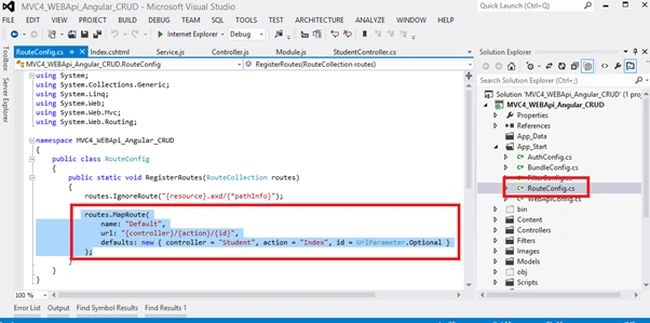
Image 20
Run application: See your all records.
From here you can add a new record, edit any record and delete any record.
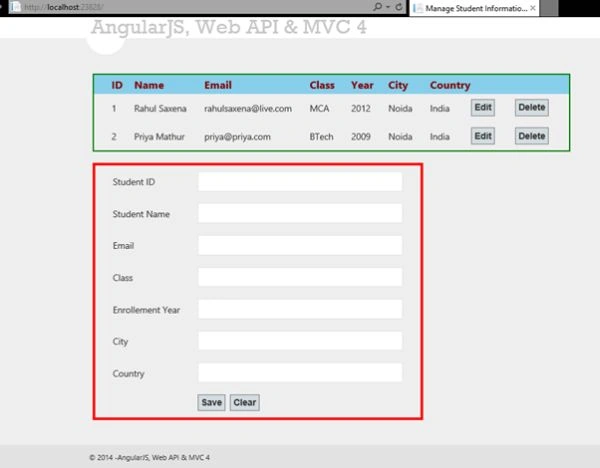
Image 21
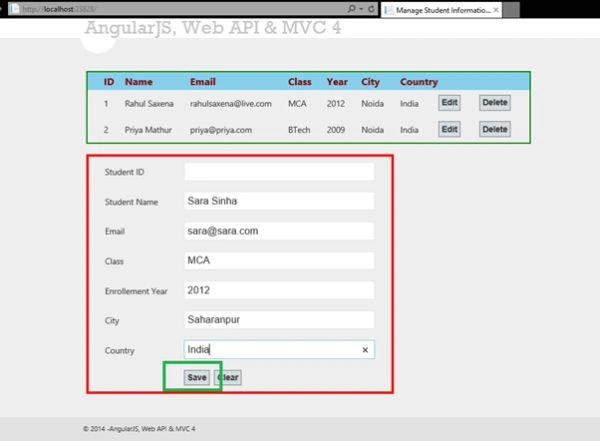
Image 22
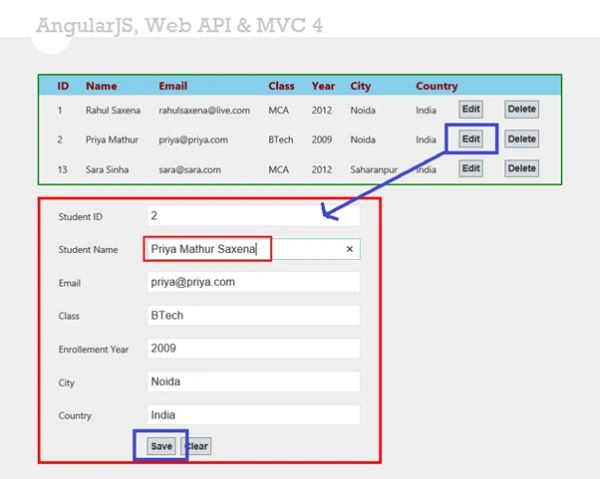
Image 23
ankit dixitPosted Nov 8, 2017, 8:19 AM
Its working thank you sir it was my fault my taking Controller Not API Controller Thank a lot sir
ankit dixitPosted Nov 8, 2017, 7:55 AM
You have creating perfect thank you sir but when you pass the url parameter in service.js url: ""/api/StudentsAPI/"", is not inserting record in student table what is api and student api can u explain than you
Jose MezaPosted Jul 7, 2016, 4:30 PM
Hi. I have problem creating Angular Module, Service and controller. The page said me the app is not define. I follow your steps to create this example. Thanks
vijayalaya kandhaPosted May 9, 2016, 2:54 PM
Thanks foir the wonderful artice Rahul. Am getting the below error ,am not sure what am missing here. Any help on this is greatly appreciated. <b> Description: </b>HTTP 404. The resource you are looking for (or one of its dependencies) could have been removed, had its name changed, or is temporarily unavailable. Please review the following URL and make sure that it is spelled correctly. <br><br> <b> Requested URL: </b>/api/StudentsAPI<br><br>
vijayalaya kandhaPosted May 9, 2016, 2:54 PM
Thanks Rahul for the article.
Sandeep RaturiPosted Apr 29, 2016, 2:04 AM
any bodey help me facing reterive metadata error at the time add controller class
Sandeep RaturiPosted Apr 29, 2016, 1:46 AM
thanks for good artical. But im facing unable to reterive metadata error at the time add controller class. please give solution ??
prasad aPosted Mar 16, 2016, 6:31 AM
Hi Rahul, If there adding the uploading student photo and displayed
arpita poojaryPosted Jan 25, 2016, 3:01 AM
Thank You very much. Excellent example with working condition. Am just a beginner your example has taught me angularjs.
John NaguPosted Jan 9, 2016, 5:15 AM
Any One Pls Explain Whats Api/StudentsApi in Controller page Code
saurabh kumarPosted Jan 5, 2016, 2:00 AM
hello when i m save the record it throw this exception ("Additional information: Unable to update the EntitySet 'Teacher' because it has a DefiningQuery and no <DeleteFunction> element exists in the <ModificationFunctionMapping> element to support the current operation.")
Virender MehtaPosted Dec 18, 2015, 7:51 AM
Hii it is not working at all.
Swathi VullangiPosted Dec 10, 2015, 3:41 AM
thanks its really helpful
Nilesh JadavPosted Oct 1, 2015, 9:44 AM
Great Article sir
Rahul Kumar SaxenaPosted Sep 30, 2015, 1:30 AM
Is Connection string correct Bhanu Priya
Rahul Kumar SaxenaPosted Sep 30, 2015, 1:30 AM
Welcome vikash kumar
vikash kumarPosted Sep 29, 2015, 3:37 AM
Many many thanks sir. your tutorial helped me alot.
Rahul Kumar SaxenaPosted Jul 20, 2015, 9:03 AM
Stud is the object of Students.. nha le hong
Rahul Kumar SaxenaPosted Jul 20, 2015, 9:02 AM
Thanks Vipul Malhotra
Rahul Kumar SaxenaPosted Jul 20, 2015, 9:02 AM
thanks bestin Sebastian
Vipul MalhotraPosted Jul 20, 2015, 8:28 AM
Thanks for sharing. Really helpful
bestin SebastianPosted Jul 16, 2015, 7:30 AM
If there adding Validations is much more better,even if its helpful and worthy!!
nha le hongPosted Jul 7, 2015, 10:54 PM
Hi sir I don't know "stud" in data-ng-reapeat="stud in Students" ??? where is stud
Jun Wei NgPosted Jun 18, 2015, 3:14 AM
hi sir, when i finished enter student information, when i clicked the save it prompted me an error about "db.SaveChanges();"
Deepak kumarPosted May 30, 2015, 7:29 AM
Hi Rahul, I was trying to enhance this example. I want student first login to the application and then enter there details. I have created User table in database to save UserName and password. I have added the table in Model (StudentManagement.edmx) but was unable to hit the User table when I click on log in button on login page. In sort I want to have login page which will authenticate user from database username and password and if successful, then it will redirect the above example page.
Rahul Kumar SaxenaPosted May 23, 2015, 7:56 AM
salah sayed You can use Partial View and make a Ajax form to edit record in different view...
Rahul Kumar SaxenaPosted May 9, 2015, 9:28 AM
Thanks Debendra Dash...
Debendra DashPosted May 9, 2015, 3:26 AM
Very useful Rahul....Thanks a lot
Bharath Radhekrishna ChennuPosted Apr 15, 2015, 8:33 AM
Hi Rahul..I have created a Data Entities in controller files it shows GET: /Students/ so if click in browser with /students/ I am getting data. But If use the same in service.js it is showing no data. this.getAllRecords = function () {return $http.get(/Students/); Its not giving any data here. Please suggest any idea
Umesh BhardwajPosted Apr 8, 2015, 5:16 AM
Angular issue with IE9- Application is not working with IE9
salah sayedPosted Mar 25, 2015, 7:11 AM
how to make edit in another view not in same view
Rahul Kumar SaxenaPosted Mar 14, 2015, 1:51 AM
Thanks Sanket... If u see in Index.cshtml Above Image 20. I have added Module, Service & Controller references....
sanket shahPosted Mar 13, 2015, 3:36 AM
Hi Rahul, error is solved. I have not included the respective reference javascript files in module.js, service.js and controller.js as I am new to the angular js. Even also you not included the same in above code :P.
sanket shahPosted Mar 13, 2015, 3:20 AM
hi rahul. I have created above application step by step as you explained. but I am getting error. error description is below.Error: [ng:areq] Argument 'CRUD_OperController' is not a function, got undefinedhttp://errors.angularjs.org/1.3.14/ng/areq?p0=CRUD_OperController&p1=not%20a%20function%2C%20got%20undefinedminErr/<@http://localhost:57673/Scripts/angular.js:63:12 assertArg@http://localhost:57673/Scripts/angular.js:1580:1 assertArgFn@http://localhost:57673/Scripts/angular.js:1590:1 $ControllerProvider/this.$get</<@http://localhost:57673/Scripts/angular.js:8431:9 nodeLinkFn/<@http://localhost:57673/Scripts/angular.js:7599:34 forEach@http://localhost:57673/Scripts/angular.js:331:11 nodeLinkFn@http://localhost:57673/Scripts/angular.js:7586:11 compositeLinkFn@http://localhost:57673/Scripts/angular.js:7078:13 compositeLinkFn@http://localhost:57673/Scripts/angular.js:7081:13 compositeLinkFn@http://localhost:57673/Scripts/angular.js:7081:13 compositeLinkFn@http://localhost:57673/Scripts/angular.js:7081:13 compositeLinkFn@http://localhost:57673/Scripts/angular.js:7081:13 publicLinkFn@http://localhost:57673/Scripts/angular.js:6957:30 bootstrapApply/<@http://localhost:57673/Scripts/angular.js:1450:11 $RootScopeProvider/this.$get</Scope.prototype.$eval@http://localhost:57673/Scripts/angular.js:14401:16 $RootScopeProvider/this.$get</Scope.prototype.$apply@http://localhost:57673/Scripts/angular.js:14500:18 bootstrapApply@http://localhost:57673/Scripts/angular.js:1448:9 invoke@http://localhost:57673/Scripts/angular.js:4185:14 bootstrap/doBootstrap@http://localhost:57673/Scripts/angular.js:1446:1 bootstrap@http://localhost:57673/Scripts/angular.js:1466:1 angularInit@http://localhost:57673/Scripts/angular.js:1360:5 @http://localhost:57673/Scripts/angular.js:26176:5 trigger@http://localhost:57673/Scripts/angular.js:2744:7 createEventHandler/eventHandler@http://localhost:57673/Scripts/angular.js:3014:9 http://localhost:57673/Scripts/angular.js Line 11607
Rahul Kumar SaxenaPosted Mar 2, 2015, 11:36 AM
ur Welcome !...
Rahul Kumar SaxenaPosted Mar 2, 2015, 11:36 AM
Thanks jcjensen 1...
jcjensen1Posted Mar 2, 2015, 11:10 AM
Ohhh, I understand, I GET it : ) . Great article. Thank you for posting.
Rahul Kumar SaxenaPosted Feb 27, 2015, 11:39 PM
Hi jcjensen1 in service you can see we are passing Method: also like Post, Put, Delete etc.. from here my service knowing which methocd of WEB API is calling...
jcjensen1Posted Feb 27, 2015, 6:04 PM
Can you explain how the GetStudents() WebAPI method is called by the service. The controller calls the service which gets the data from the API but how? The API method is GetStudents() but the service does not use that method name. The sevice uses a URI /api/SutdentsAPI without the method name, so how can that be enough to call the correct (GetStudents) method????
Rahul Kumar SaxenaPosted Feb 26, 2015, 12:57 PM
Thanks 2 All...
Dinesh BeniwalPosted Jan 31, 2015, 4:18 AM
Congratulations Rahul Saxena again Article of the day on ASP.NET
Ramchand RepallePosted Nov 24, 2014, 8:53 AM
nice article Rahul Saxena
Manish Kumar ChoudharyPosted Nov 23, 2014, 11:08 PM
nice one Rahul Saxena sir..
Jayraj GoswamiPosted Nov 22, 2014, 5:04 AM
wow rahul best example in angular js i like
Vithal WadjePosted Nov 22, 2014, 3:41 AM
Yes Rahul Sir u can nominate
Vithal WadjePosted Nov 21, 2014, 3:39 PM
Just out standing ,just i can say this will be another article of the day on Asp.net official site,great work keep it up
Guest UserPosted Nov 21, 2014, 8:06 AM
i liked the way you included Angular using Nuget packages.
Rahul Kumar SaxenaPosted Nov 20, 2014, 11:18 PM
Always Welcome Nimit Joshi ...
Nimit JoshiPosted Nov 20, 2014, 11:06 PM
That's the same what i want this time. I have been searching for this. Thanks.