

Here I will explain how to bind a generic list to a GridView and how to bind database values to a generic list using ASP.NET. To do that, first we start with a database table.
Creating Table
Now create a table named UserDetail with columns Name, Address and Country. The table looks like below.
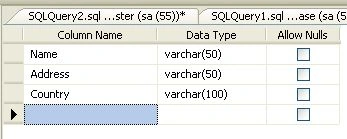
After creating the table, insert some values into the table.
We can build a collection of objects; we first need an object. I tend to use a Class1 object for that example. The Class1 object simply holds some information about a user - Name, Address, and Country.
To do that, add one class file to your website; for that, right-click on your website and select Add New Item; a window will open; in that select Class file and give the name Class1.
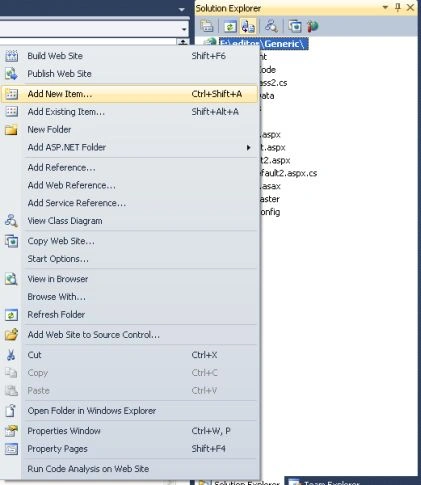
The following is the object I'm going to use.
using System;
using System.Collections.Generic;
using System.Linq;
using System.Web;
/// <summary>
/// Summary description for Class2
/// </summary>
public class Class1
{
//
// TODO: Add constructor logic here
//
private string name;
private string address;
private string country;
public string Name
{
get
{
return name;
}
set
{
name = value;
}
}
public string Address
{
get
{
return address;
}
set
{
address = value;
}
}
public string Country
{
get
{
return country;
}
set
{
country = value;
}
}
}
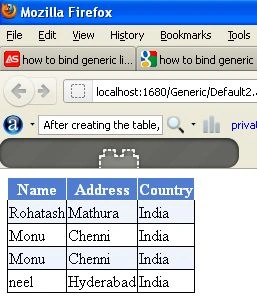
Now create a new website and drag and drop a GridView control onto the aspx page. The GridView code looks like this.
<%@ Page Language="C#" AutoEventWireup="true" CodeFile="Default2.aspx.cs" Inherits="Default2" %>
<!DOCTYPE html PUBLIC "-//W3C//DTD XHTML 1.0 Transitional//EN" "http://www.w3.org/TR/xhtml1/DTD/xhtml1-transitional.dtd">
<html xmlns="http://www.w3.org/1999/xhtml">
<head runat="server">
<title></title>
</head>
<body>
<form id="form1" runat="server">
<div>
<asp:GridView runat="server" ID="gvUserDetails" AutoGenerateColumns="false">
<RowStyle BackColor="#EFF3FB" />
<FooterStyle BackColor="#507CD1" Font-Bold="True" ForeColor="White" />
<PagerStyle BackColor="#2461BF" ForeColor="White" HorizontalAlign="Center" />
<HeaderStyle BackColor="#507CD1" Font-Bold="True" ForeColor="White" />
<AlternatingRowStyle BackColor="White" />
<Columns>
<asp:BoundField HeaderText="Name" DataField="Name" />
<asp:BoundField HeaderText="Address" DataField="Address" />
<asp:BoundField HeaderText="Country" DataField="Country" />
</Columns>
</asp:GridView>
</div>
</form>
</body>
</html>
Now that we have an object, we need a collection to hold them. One of my favorite collection objects is the List, located in the System.Collections.Generic namespace, so we'll start with that.
List<Class1> obj1 = new List<Class1>();
Connection String
string strConnection = "Data Source=.; uid=sa; pwd=wintellect;database=Genericdatabase;";
Now double-click on the form and add the following code in Default.aspx.cs file.
using System;
using System.Collections.Generic;
using System.Data;
using System.Data.SqlClient;
public partial class Default2 : System.Web.UI.Page
{
List<Class1> obj1 = new List<Class1>();
protected void Page_Load(object sender, EventArgs e)
{
if (!IsPostBack)
{
BindUserDetails();
}
}
protected void BindUserDetails()
{
obj1 = GetUserDetails();
gvUserDetails.DataSource = obj1;
gvUserDetails.DataBind();
}
protected List<Class1> GetUserDetails()
{
string strConnection = "Data Source=.; uid=sa; pwd=wintellect;database=Genericdatabase;";
DataTable dt = new DataTable();
SqlConnection con = new SqlConnection(strConnection);
con.Open();
SqlCommand cmd = new SqlCommand("select * from UserDetail", con);
SqlDataAdapter da = new SqlDataAdapter(cmd);
da.Fill(dt);
if (dt.Rows.Count > 0)
{
for (int i = 0; i < dt.Rows.Count; i++)
{
Class1 userinfo = new Class1();
userinfo.Name = dt.Rows[i]["Name"].ToString();
userinfo.Address = dt.Rows[i]["Address"].ToString();
userinfo.Country = dt.Rows[i]["Country"].ToString();
obj1.Add(userinfo);
}
}
return obj1;
}
}
Join the conversation! Your thoughts help the community grow.