
Introduction
Jquery is one of the best JavaScript framework. With jQuery we can create amazing effects on the web pages, writing some few lines of codes, and you don't need to be an experienced web programmer.
In this article I will show you how to create a nice and simple horizontal menu with css and jQuery, writing few lines of code. With JQuery I will move and animate the link on the right when the mouse is over, so I need to move the image too, and for the reason that I've used the image like background and no like image in the html code, I need to move that when the link will animated, maybe using directly the image in the code the effect will come better, you can try at your own. so let see that how we will make it.
Step 1: Firstly we have to create a Web Application.
- Go to Visual Studio 2010.
- Create the web Application.
- Click OK.
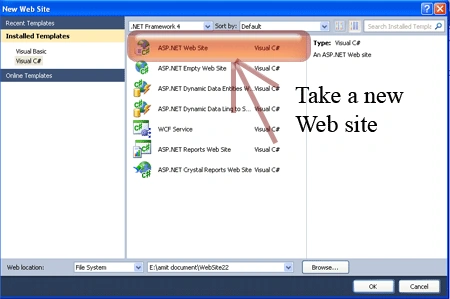
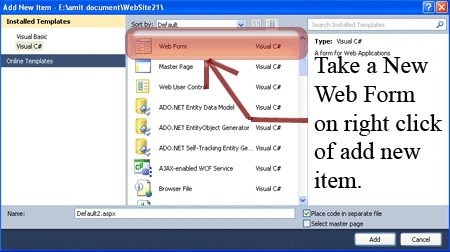
Step 2: Secondly you have to add a new page to the website.
- Go to the Solution Explorer.
- Right Click o Project name.
- Select add new item.
- Add new web page and give it a name.
- Click OK.

Step 3: In this step we are going to see that see from where the js reference will be added to the source page of the default2.aspx page.
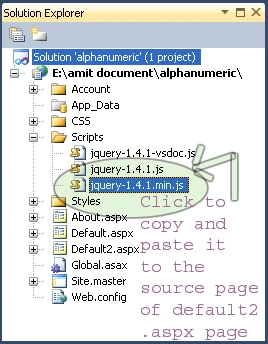
Step 4: Now we are going to write the script code which will be inside either on the head section or in the body section it will depend upon you which way you like most to placed it.
<script type="text/javascript" src="Scripts/jquery-1.4.1.min.js"></script>
Step 5: In this step we will write code for the css inside the Default2.aspx page which will be always inside between <style></style> let see the code of css given below.
<style
type="text/css">
*
{
margin: 0;
padding: 0;
}
body
{
font: 12px
Arial, Helvetica,
sans-serif;
color: black;
}
a
{
text-decoration:
none;
color: black;
}
#wrapper
{
padding: 40px
40px;
}
#menu
{
float: left;
}
ul, li
{
list-style:
none;
}
li
{
padding: 10px
10px;
height: 40px;
float: left;
width: 100px;
background-color:
#FFFF99;
border-right:
1px solid
#666666;
overflow:
hidden;
display:
block;
}
li a
{
float: left;
vertical-align:
top;
position:
absolute;
}
li p
{
vertical-align:
top;
text-align:
left;
margin-left:
0;
margin-top: 0;
padding-left:
65px;
width: 155px;
text-align:
right;
color:
#FF00FF;
display: none;
}
</style>
Step 6: In this step we are going to write the code of the jQuery which is given below.
<script
type="text/javascript">
$(document).ready(function () {
// initialize default menu width
initwidth = $("li").width();
// updated
// hover in
$("li").hover(function
() {
// get the title inside <a>
description = $(this).children("a").attr("title");
// start the animation
$(this).stop().animate({
width: "220" }, { queue:
false, duration: "fast" });
// remove previously <p>
$(this).children("p").remove();
// create <p> and attach title
into it
$(this).find("a").after("<p>"
+ description + "</p>")
// create animation to make it
looks good
$(this).children("p").stop().animate({ opacity: "show" }, { queue: false,
duration: "fast" });
// hover out
}, function () {
// animate it to the basic width
$(this).stop().animate({
width: initwidth }, { queue: false, duration:
"fast" });
// fade out animation
$(this).children("p").stop().animate({ opacity: "0" }, { queue: false, duration:
"fast" });
});
});
</script>
Step 7: In this step we will write the code
for the design part of the default2.aspx page which will be inside the
<body></body> tag.
<body>
<form
id="form1"
runat="server">
<div
id="wrapper">
<ul
id="menu">
<li><a
href="http://www.c-sharpcorner.com/"
title="jump to the front
page">Home</a></li>
<li><a
href="#"
title="Want to know more
about us?">About Us</a></li>
<li><a
href="#"
title="Contact us, call
any time you want">Contact Us</a></li>
<li><a
href="#"
title="See our
advertise, call any time for advertising service">Advertise</a></li>
</ul>
</div>
</form>
</body>
Step 8: In this step we will write complete code for the source file of Default2.aspx page let see the code which is given below.
Code:
<%@
Page Language="C#"
AutoEventWireup="true"
CodeFile="Default2.aspx.cs"
Inherits="Default2"
%>
<!DOCTYPE
html PUBLIC
"-//W3C//DTD XHTML 1.0 Transitional//EN"
"http://www.w3.org/TR/xhtml1/DTD/xhtml1-transitional.dtd">
<html
xmlns="http://www.w3.org/1999/xhtml">
<head
runat="server">
<title>Simple
horizontal menu with css and jquery</title>
<script
type="text/javascript"
src="Scripts/jquery-1.4.1.min.js"></script>
<script
type="text/javascript">
$(document).ready(function () {
// initialize default menu width
initwidth = $("li").width();
// updated
// hover in
$("li").hover(function
() {
// get the title inside <a>
description = $(this).children("a").attr("title");
// start the animation
$(this).stop().animate({
width: "220" }, { queue:
false, duration: "fast" });
// remove previously <p>
$(this).children("p").remove();
// create <p> and attach title
into it
$(this).find("a").after("<p>"
+ description + "</p>")
// create animation to make it
looks good
$(this).children("p").stop().animate({ opacity: "show" }, { queue: false,
duration: "fast" });
// hover out
}, function () {
// animate it to the basic width
$(this).stop().animate({
width: initwidth }, { queue: false, duration:
"fast" });
// fade out animation
$(this).children("p").stop().animate({ opacity: "0" }, { queue: false, duration:
"fast" });
});
});
</script>
<style
type="text/css">
*
{
margin: 0;
padding: 0;
}
body
{
font: 12px
Arial, Helvetica,
sans-serif;
color: black;
}
a
{
text-decoration:
none;
color: black;
}
#wrapper
{
padding: 40px
40px;
}
#menu
{
float: left;
}
ul, li
{
list-style:
none;
}
li
{
padding: 10px
10px;
height: 40px;
float: left;
width: 100px;
background-color:
#FFFF99;
border-right:
1px solid
#666666;
overflow:
hidden;
display:
block;
}
li a
{
float: left;
vertical-align:
top;
position:
absolute;
}
li p
{
vertical-align:
top;
text-align:
left;
margin-left:
0;
margin-top: 0;
padding-left:
65px;
width: 155px;
text-align:
right;
color:
#FF00FF;
display: none;
}
</style>
<body>
<form
id="form1"
runat="server">
<div
id="wrapper">
<ul
id="menu">
<li><a
href="http://www.c-sharpcorner.com/"
title="jump to the front
page">Home</a></li>
<li><a
href="#"
title="Want to know more
about us?">About Us</a></li>
<li><a
href="#"
title="Contact us, call
any time you want">Contact Us</a></li>
<li><a
href="#"
title="See our
advertise, call any time for advertising service">Advertise</a></li>
</ul>
</div>
</form>
</body>
Step 9: In this step we will see the design page of the default2.aspx page let see the figure given below.
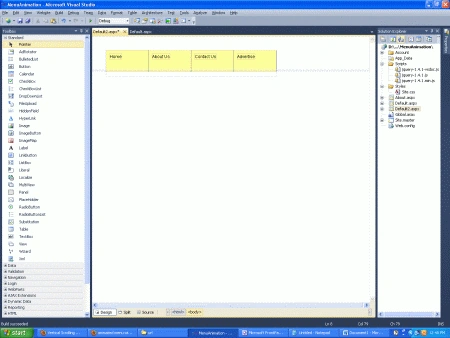
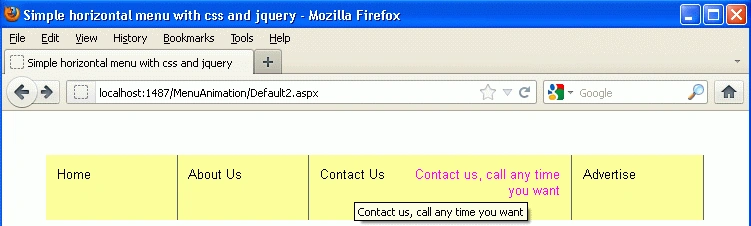
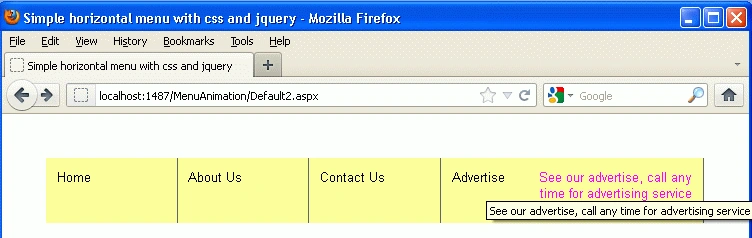
Step 10: In this step we are going to run the application by pressing F5 let see the output given below.
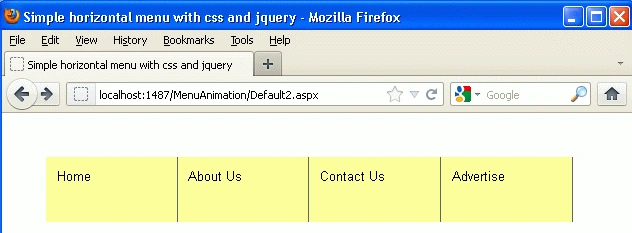
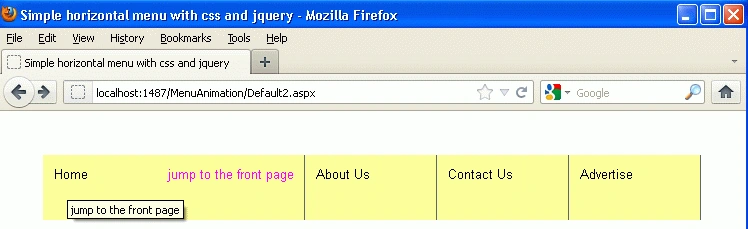
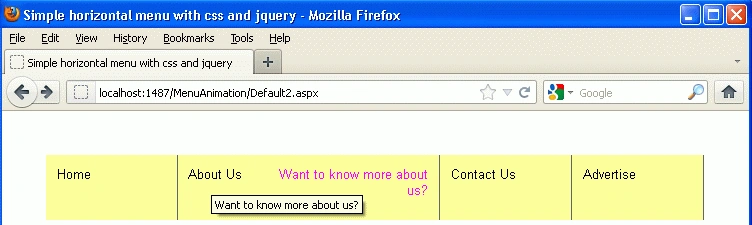
Now Mousehover on the menu you will see the effect like as.
Join the conversation! Your thoughts help the community grow.