

Here are the steps:
- Go to the website dreamspark.com in your browser.

- Click on the students menu there, then scroll down the page and click on Create Account.

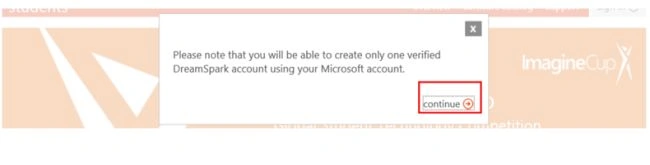
- A pop up saying "Please note that you will be able to create only one verified DreamSpark account using your Microsoft account." appears, Click on continue.
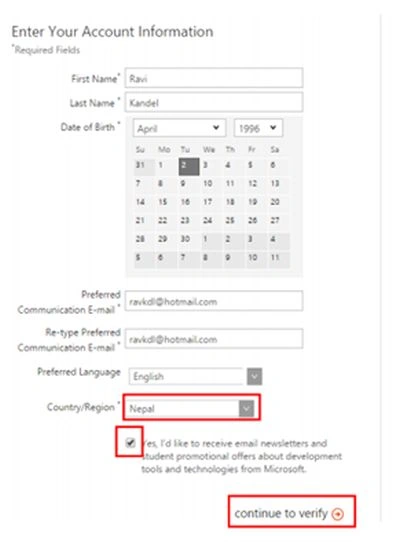
- Sign in using your Microsoft Email. You will be redirected to the page as shown below. Select the name of your Country in Country/Region, In my Context I have selected “Nepal”, then tick in the checkbox below that, as highlighted in the following picture and click on “Continue to verify”.
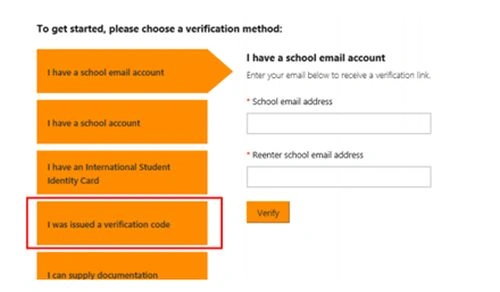
- You will be redirected to the page as shown below. Click on “I issued a verification code” .
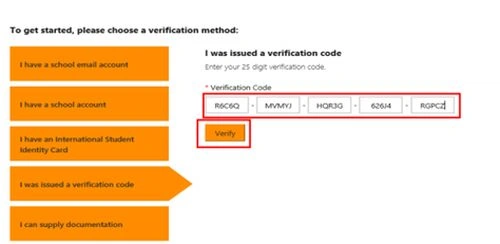
- Enter the “Access key” provided in the Token and Click on “Verify”.
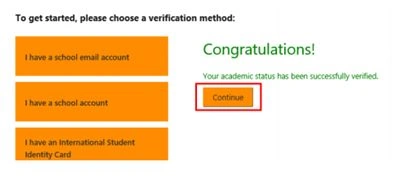
- The page shown below will be displayed. Click on “Continue”.
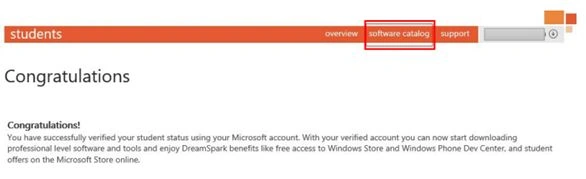
- You will be redirected to the website “Dreamspark.com”. Click on “software catalog” there.
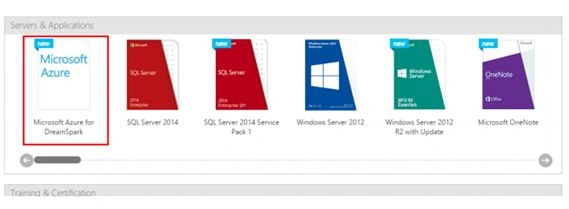
- Scroll down the page and click on “Microsoft Azure for DreamSpark”.
- You will be redirected to another page where you have to click on “Register now”.

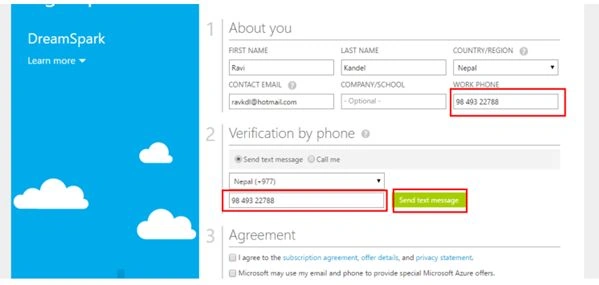
- You will be redirected to the “Microsoft Azure” Sign up page. You must enter your “phone number” there and click on “Send text Message button” to receive a verification code in your phone.
- Enter the “Verification Code” that you recently received in your Phone and click on “Verify code”.
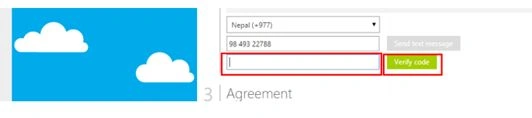
- After completion of verification stage tick the checkboxes in the agreement and click on “Sign up”.

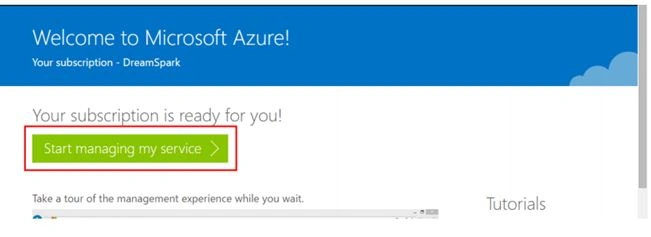
- You will be redirected to another page as shown below, where you have to click on “Start managing my service”.
- You will be redirected to another page, which takes couple of minutes to load the Azure. The display will look like as shown below:
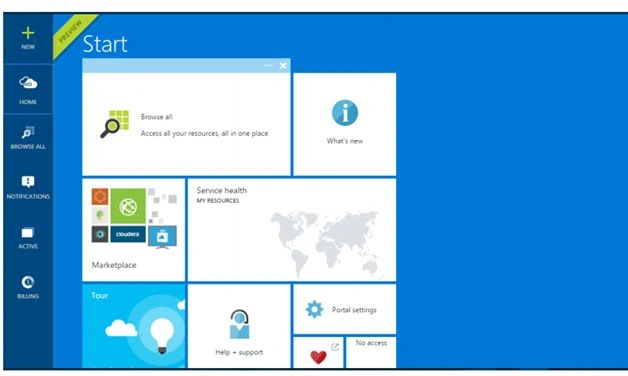
- Finally, you will get the preview as shown below, which indicate that your AZURE is activated.
Happy using AZURE!
Santhakumar MunuswamyPosted Oct 25, 2015, 11:57 AM
Good one
Mukesh KumarPosted Oct 21, 2015, 12:38 AM
Good Share
Sibeesh VenuPosted Oct 20, 2015, 3:08 AM
Nice Share
Humayun Kabir MamunPosted Oct 20, 2015, 12:29 AM
Thanks for sharing...
Mohammed IbrahimPosted Oct 19, 2015, 9:55 PM
nice
Priyaranjan K SPosted Oct 19, 2015, 12:45 PM
Good One
Anoop Kumar SharmaPosted Oct 19, 2015, 10:16 AM
Nice Share..!! Activated my token successfully :-)
Nilesh JadavPosted Oct 19, 2015, 9:47 AM
Good Share !!