As you probably know, Visual Studio LightSwitch is a tool provided by Microsoft to build business applications. In this article you will see how to add an URL to the navigation menu of a LightSwitch application.
An URL is a Uniform Resource Locator, it is also known as a web address. When we want to open a website then we write a web address in the address bar in the internet browser. If you want to add any URL in your LightSwitch navigation menu then you can do that.
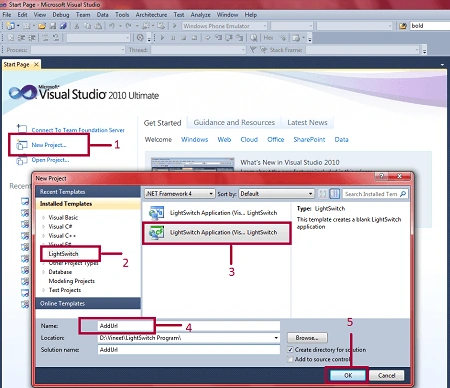
Step 1 : First of all open Visual Studio LightSwitch->Click on new project->Select LightSwitch->Select LightSwitch application->Write name (AddUrl)->Ok.
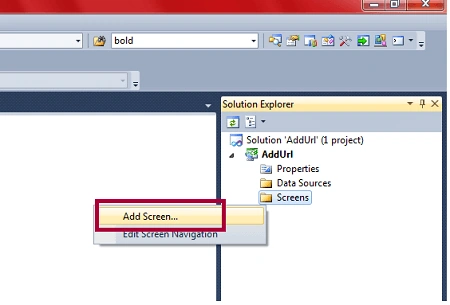
Step 2 : Right-click on screens->Add screen.
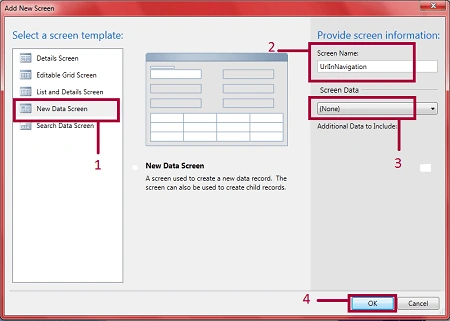
Step 3 : Select new data screen->Write screen name (UrlInNavigation)->Select screen data (None)->Ok.
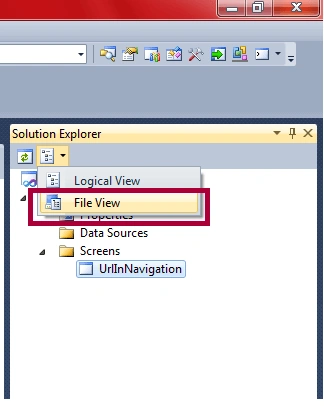
Step 4 : Go to Solution Explorer->Click on file view.
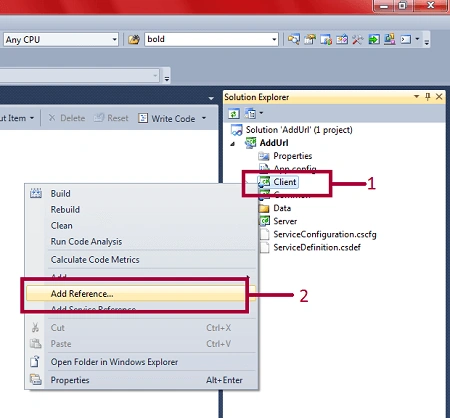
Step 5 : Right-click on client->Add references.
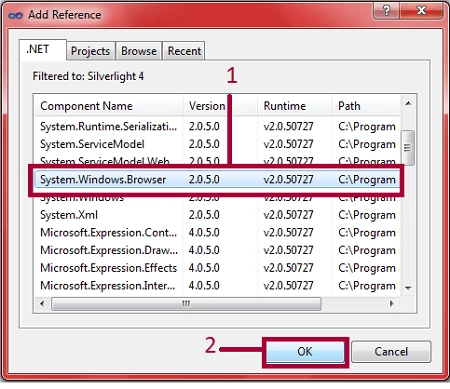
Step 6 : Select System.Windows.Browser->Ok.
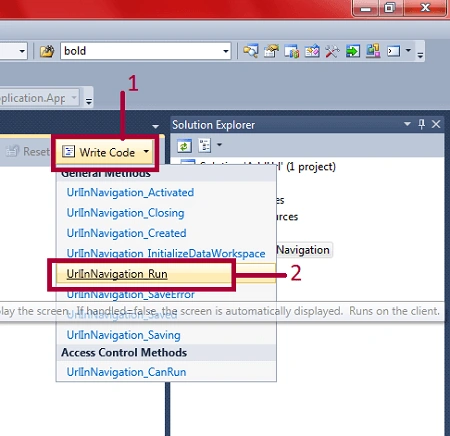
Step 7 : Expand write code->Select UrlInNavigation_Run->Write code.
Code
using System;
using System.Linq;
using System.IO;
using System.IO.IsolatedStorage;
using System.Collections.Generic;
using Microsoft.LightSwitch;
using Microsoft.LightSwitch.Framework.Client;
using Microsoft.LightSwitch.Presentation;
using Microsoft.LightSwitch.Presentation.Extensions;
using System.Runtime.InteropServices.Automation;
using System.Windows.Browser;
using Microsoft.LightSwitch.Client;
using Microsoft.LightSwitch.Threading;
namespace LightSwitchApplication
{
public partial class Application
{
partial void UrlInNavigation_Run(ref bool handled)
{
// Set handled to 'true' to stop further processing.
var uri = new Uri("http://www.c-sharpcorner.com/", UriKind.RelativeOrAbsolute);
Dispatchers.Main.BeginInvoke(() =>
{
if (AutomationFactory.IsAvailable)
{
var shell = AutomationFactory.CreateObject("Shell.Application");
shell.ShellExecute(uri.ToString());
}
else
{
throw new InvalidOperationException();
}
});
}
}
}
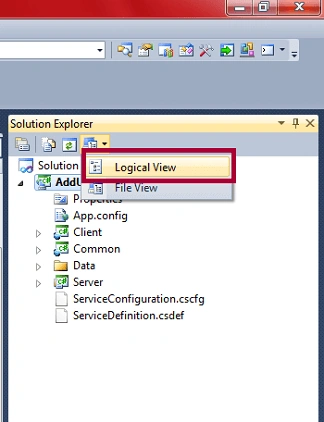
Step 8 : Go to Solution Explorer->Click on logical view.
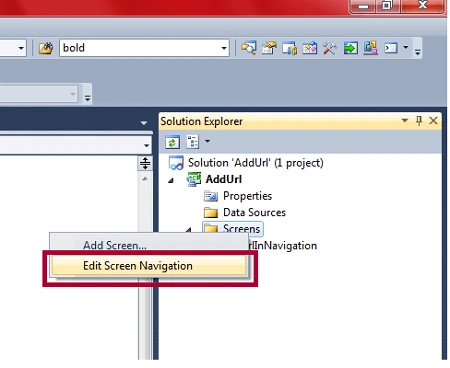
Step 9 : Right click on screens->Select edit screen navigation.
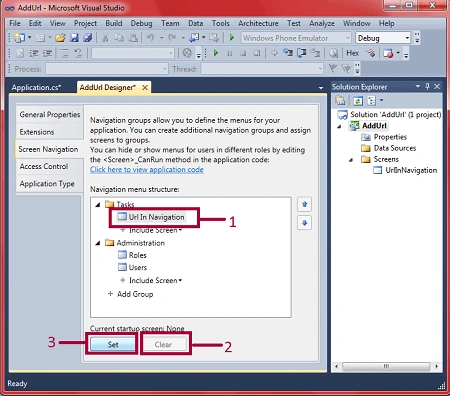
Step 10 : Select UrlInNavigation->Clear->Set.
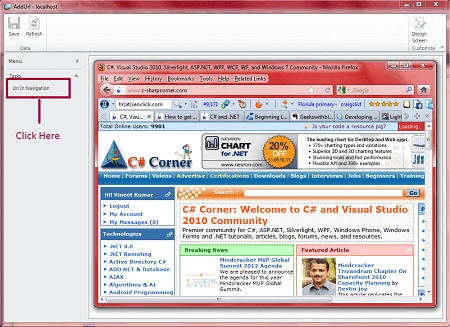
Step 11 : Run the application (Press F5). When you will click on URL In Navigation then you will see c-sharpcorner web page will open in your LightSwitch application.
Conclusion
So in this article you saw how to add an URL of any web page in navigation menu of LightSwitch application.
Some Helpful Resources


anil babuPosted Jul 31, 2012, 4:56 AM
What is URLredirection how can i use this in my ASP.NET webpage? http://www.example.com/Empno=1 I passing parameter Empno=1 I want display Ename corresponding Empno=1 employaa table in database? plz help me I am new this concept Thank you, anil
sandeep mahamulkarPosted Feb 16, 2012, 11:49 PM
can you give me some code to use me to make email extracter application mail id : [email protected] 9762442668