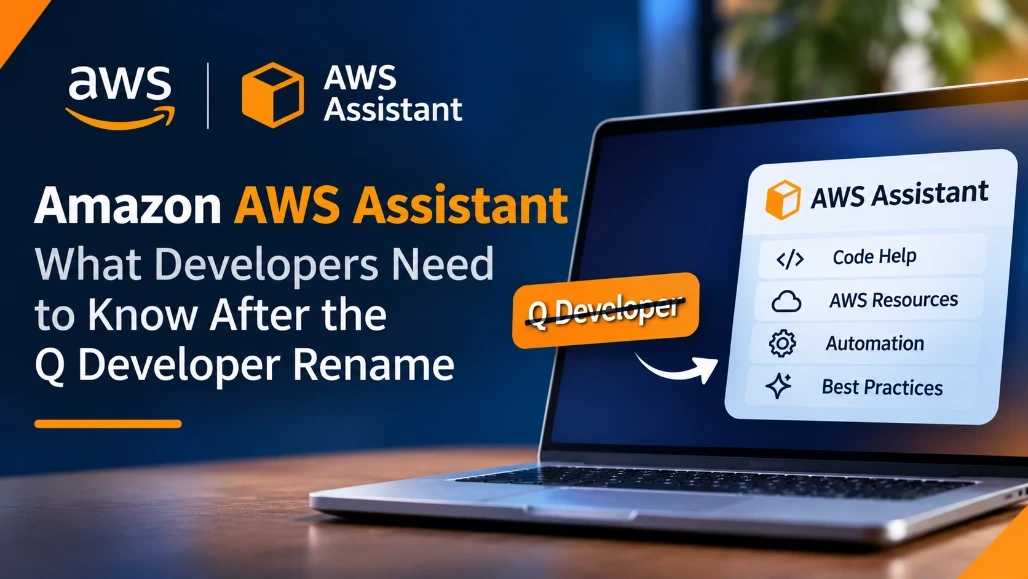
AWS developer tooling has been changing as Amazon continues to bring generative AI capabilities into its cloud development workflow. One change developers may encounter is the transition from Amazon Q Developer branding toward the AWS Assistant experience.
For developers, a product rename is easy to treat as a documentation or user-interface change. It can be more important than that when the tool is already part of development workflows, IDE usage, AWS troubleshooting, infrastructure work, or internal engineering processes.
The practical question is not only what the assistant is called. Developers need to understand where the assistant fits, which existing workflows are affected, and what should be checked before updating documentation, tooling, or team processes.
What the AWS Assistant Change Means for Developers
An AI assistant inside a cloud development environment can sit across several parts of the development lifecycle:
Developer
    ↓
AWS Assistant
    ↓
Code / Infrastructure / AWS Resources
    ↓
Testing
    ↓
Deployment
    ↓
Monitoring
This means the assistant may be used for more than code generation.
Typical developer tasks can include:
- Understanding AWS services.
- Explaining infrastructure configuration.
- Generating or modifying code.
- Troubleshooting AWS resources.
- Investigating configuration problems.
- Working with command-line workflows.
- Understanding logs and errors.
- Improving development productivity.
The important distinction is that the assistant is a developer aid, not a replacement for validating the infrastructure or code it suggests.
Why the Rename Matters
A product rename can affect several layers of a development organization.
| Area | What Developers Should Check |
|---|
| Documentation | Old product names and references |
| IDE tooling | Installed extensions and displayed names |
| CLI workflows | Commands and authentication behavior |
| Internal guides | Team instructions and screenshots |
| Access policies | IAM permissions and organizational controls |
| Training | Developer onboarding material |
| Automation | Scripts or integrations referencing old names |
| Support | Troubleshooting documentation |
If a team already uses the previous product name extensively, the change can create confusion when developers search documentation or troubleshoot an issue.
Updating internal terminology early can reduce that friction.
Separate Branding Changes From Technical Changes
The first thing to establish is whether a change is purely a naming change or whether the underlying product, capabilities, interfaces, permissions, or workflows have also changed.
Do not assume that a renamed product means the API, CLI, extension, or configuration has changed.
Likewise, do not assume that everything remains identical simply because the primary capability looks familiar.
For an existing integration, document:
Old product name
        ↓
Current product name
        ↓
Affected interface
        ↓
Required configuration changes
        ↓
Required workflow changes
This makes migration discussions more precise.
Review Existing Developer Workflows
Start by identifying where the previous assistant is being used.
For example:
IDE
 ↓
Developer asks for code assistance

AWS Console
 ↓
Developer investigates cloud resources

CLI
 ↓
Developer performs operational tasks

Documentation
 ↓
Developer follows internal troubleshooting instructions
For each workflow, determine whether the rename changes the way developers interact with the service.
This is especially important for organizations that have created internal onboarding material around the previous product name.
Review IDE Integrations
Developers often interact with AI assistants through their IDE rather than directly through a cloud console.
If your team uses an AWS-related AI coding assistant, check:
- Extension name.
- Installation instructions.
- Authentication process.
- Supported IDEs.
- Team onboarding instructions.
- Screenshots.
- Configuration files.
- Troubleshooting steps.
An outdated installation guide can be surprisingly disruptive.
For example, an internal document might contain:
Install the Amazon Q Developer extension.
Sign in using your AWS credentials.
Open the assistant panel.
If the product is now presented differently, the documentation should be reviewed even if the underlying workflow remains similar.
Do not rewrite the technical instructions until you have confirmed which parts actually changed.
Review AWS Console Workflows
Cloud developers increasingly troubleshoot infrastructure from the AWS console.
An assistant can be useful when developers need help understanding:
EC2 configuration
IAM permissions
CloudWatch information
Networking
Storage
Serverless resources
Application configuration
However, AI-generated explanations should not be treated as authoritative infrastructure changes.
For example, if an assistant suggests an IAM permission:
{
  "Effect": "Allow",
  "Action": [
    "s3:GetObject"
  ],
  "Resource": "*"
}
A developer should still review whether the permission is appropriately scoped.
The assistant can explain the likely cause of a problem, but the developer remains responsible for validating security and operational impact.
Review Authentication and Access
AI development tools connected to AWS environments require careful access management.
Review:
Identity
Permissions
Account access
Role assumptions
Credential handling
Session behavior
Organization policies
Do not give an assistant broader permissions simply because it makes troubleshooting easier.
Use least-privilege access wherever possible.
A useful rule is:
Assistant needs visibility
        ≠
Assistant needs unrestricted modification access
If the assistant can execute or recommend actions that affect production resources, the access model deserves additional review.
Review Internal Documentation
A rename creates a documentation maintenance task.
Search internal repositories, wiki pages, onboarding documents, and support guides for references to the old product name.
Look for:
Product name
Extension name
CLI instructions
Screenshots
Authentication instructions
Troubleshooting steps
Policy references
Training material
Do not blindly replace every occurrence.
Some historical references may need to remain because they describe an older workflow or release.
For example:
Before:
Amazon Q Developer was used for this workflow.

Current:
The AWS Assistant is used for this workflow.
The surrounding instructions should also be checked for technical accuracy.
Update Developer Onboarding
New developers should not have to learn two names for the same workflow unless there is a genuine technical reason.
An onboarding guide should clearly explain:
What the assistant is
Where developers access it
How developers authenticate
What it can help with
What it should not be trusted to do automatically
How to report problems
This is particularly important for junior developers who may assume that AI-generated cloud recommendations are automatically safe to apply.
Use the Assistant for Investigation, Not Blind Execution
One useful workflow is to treat the assistant as an investigation layer.
For example:
CloudWatch error
      ↓
Assistant explains possible causes
      ↓
Developer checks configuration
      ↓
Developer reproduces issue
      ↓
Developer applies verified fix
      ↓
Monitoring confirms result
This is safer than:
CloudWatch error
      ↓
Assistant suggests command
      ↓
Developer executes command immediately
The second workflow removes an important verification step.
For production systems, developers should understand the proposed change before applying it.
Validate Infrastructure Suggestions
AI assistants can generate infrastructure configuration quickly, but generated configuration should still pass normal engineering controls.
For example, a suggested Terraform resource should go through the same review process as manually written infrastructure:
AI-generated Terraform
        ↓
Format
        ↓
Static validation
        ↓
Security checks
        ↓
Plan
        ↓
Code review
        ↓
Apply
Do not bypass infrastructure review simply because the assistant produced the configuration.
This is especially important for IAM, networking, encryption, public access, and production resources.
Protect Sensitive Information
Developers should understand what information is safe to provide to an AI assistant.
Avoid unnecessarily exposing:
Secrets
Private keys
Passwords
Access tokens
Customer information
Production credentials
Confidential source code
Sensitive infrastructure details
Use the organization's approved AI usage policies.
The exact data-handling behavior depends on the product, account configuration, and organizational controls, so teams should verify the applicable AWS documentation and internal policies before adopting the assistant for sensitive workflows.
Test the Assistant With Real Developer Tasks
Instead of evaluating an assistant only with artificial prompts, use representative development tasks.
For example:
Task 1:
Explain an IAM access-denied error.

Task 2:
Suggest a safer configuration for an AWS resource.

Task 3:
Explain a CloudWatch error.

Task 4:
Generate a small infrastructure change.

Task 5:
Explain an unfamiliar AWS SDK method.
Evaluate the results using criteria such as:
| Evaluation Area | Question |
|---|
| Accuracy | Is the explanation technically correct? |
| Context | Does it understand the AWS environment? |
| Security | Does it avoid unsafe recommendations? |
| Completeness | Does it identify relevant causes? |
| Clarity | Can developers understand the response? |
| Verification | Does it indicate what should be checked? |
This provides a better assessment than judging the assistant by how natural its responses sound.
Watch for Hallucinated AWS Details
AI assistants can produce plausible but incorrect cloud information.
A response may contain:
- Incorrect CLI parameters.
- Unsupported service options.
- Incorrect IAM actions.
- Outdated SDK methods.
- Invalid configuration properties.
- Incorrect assumptions about resource behavior.
For this reason, developers should verify important recommendations against authoritative AWS documentation and the actual environment.
The assistant should accelerate investigation, not become the source of truth.
Common Mistakes
Treating the Rename as a Complete Migration
A name change does not automatically mean every technical interface has changed.
Identify the actual impact before modifying code or automation.
Updating Names Without Updating Screenshots
Screenshots containing the old product name can make otherwise correct documentation confusing.
Review visual documentation as well as text.
Giving Excessive Permissions
Do not expand AWS permissions simply to make the assistant more useful.
Follow least-privilege principles.
Trusting Generated Infrastructure
AI-generated Terraform, CloudFormation, CLI commands, and IAM policies still require review.
Ignoring Existing Automation
Search scripts and CI/CD configuration for product-specific references before making assumptions about compatibility.
Failing to Train Developers
A new interface without updated developer guidance can create inconsistent usage patterns.
Best Practices
Treat the assistant as part of the developer toolchain rather than an isolated chatbot.
Define clear boundaries for:
Code generation
Cloud troubleshooting
Infrastructure suggestions
Production changes
Security decisions
Credential handling
Keep human approval in workflows that modify production resources.
Use pull requests, infrastructure plans, security scanning, and deployment controls even when configuration was generated with AI assistance.
Maintain internal documentation using the current product terminology while preserving historical references where they are necessary for troubleshooting older workflows.
Advantages and Disadvantages
Advantages
- Can help developers understand AWS services faster.
- Reduces time spent searching for explanations.
- Can assist with code and infrastructure tasks.
- Helps investigate cloud errors.
- Can support developers working across many AWS services.
Disadvantages
- AI-generated answers can contain incorrect technical details.
- Security recommendations require review.
- Product renames can create documentation confusion.
- Existing workflows may contain old terminology.
- Access permissions require careful management.
- Developers may become overly dependent on generated answers.
The value of an AWS assistant depends heavily on how it is integrated into existing engineering controls.
Production Checklist
Before adopting or updating an AWS Assistant workflow, verify:
[ ] Current product name confirmed
[ ] Existing references to the old name identified
[ ] IDE integrations reviewed
[ ] AWS Console workflow reviewed
[ ] Authentication tested
[ ] IAM permissions reviewed
[ ] Least-privilege access maintained
[ ] Internal documentation updated
[ ] Screenshots reviewed
[ ] Developer onboarding updated
[ ] Sensitive-data policy reviewed
[ ] Infrastructure suggestions tested
[ ] Generated code reviewed
[ ] Production changes still require approval
[ ] Representative developer tasks evaluated
[ ] Troubleshooting guidance updated
Summary
The transition from the Amazon Q Developer name to the AWS Assistant experience is more useful to developers when viewed as a tooling and workflow change rather than simply a branding update.
Start by identifying where the previous assistant is used across IDEs, AWS console workflows, documentation, automation, and developer onboarding. Then separate genuine technical changes from terminology changes.
The assistant can help developers investigate AWS problems, understand code, and work with cloud infrastructure, but generated recommendations still require normal engineering review.
For production environments, the safest approach is to keep the assistant inside existing security, code review, infrastructure validation, and deployment controls. This allows developers to use AI assistance without turning generated suggestions into unverified production changes.


Join the conversation! Your thoughts help the community grow.