

This feature is helpful in transmitting large files over low bandwidth connection.
You can see my previous articles on IIS 7.5 Feature:
- An Overview Of IIS 7.5 Feature - WebDAV
- An Overview of IIS 7.5 feature - Request Filtering
- An Overview Of IIS 7.5 Feature - Failed Request Event Buffering
- An Overview Of IIS 7.5 Feature - IP & Domain Restrictions
- An Overview Of IIS 7.5 Feature - HTTP Redirect
- An Overview Of IIS 7.5 Feature - Logging
Let’s open IIS 7.5 manager and check whether Compression module is present or not under IIS section as shown below:

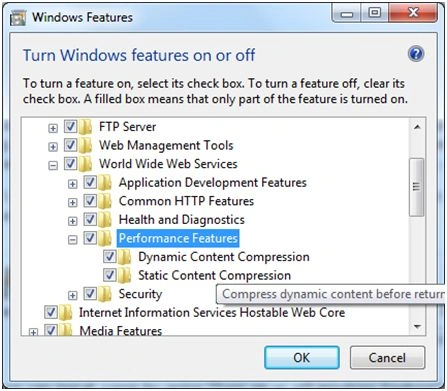
If it does not exist, we can install same by going “Turn on or off Windows Feature” in Control Panel and selecting same under Internet Information Services, WWW Services, then Performance Features.
Let’s select “Default Web Site”, double-click on Compression and understand its settings:
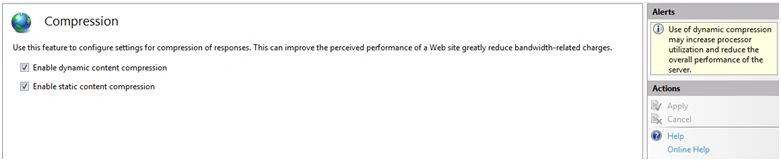
Dynamic compression
Enabling it will compress all dynamic content like ASP or ASP.NET content and same will not be cached [response varies from user to user]. This will increase processor utilization and may affect server performance. We can also set attributes to stop compression based on CPU usage using dynamicCompressionEnableCpuUsage.
Static compression
Enabling it will compress and cache static content like images, css, js, html files in a directory specified at server level and same will be served to client browsers. We can even compress WORD, EXCEL files for faster download. After a file compression, subsequent requests will get a compressed copy of the file from cache directory.
We can set a size limit for compressing files, so that only files more than that size will get compressed.
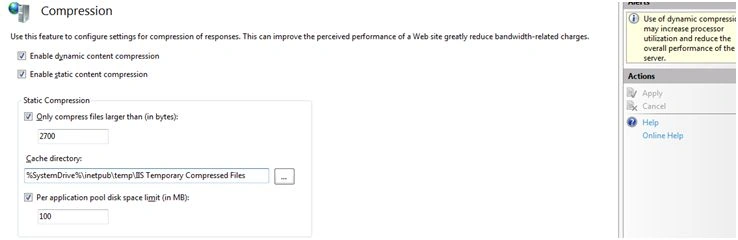
IIS supports two types of compression: Deflate, GZip. It sends compressed content if client browser sends appropriate HTTP Accept-Encoding header. If client is not having HTTP compression capability, header will not be passed and IIS will send uncompressed data back.
Instead of IIS Manager, We can use appcmd.exe to configure it with the following command:
C:\Windows\System32\inetsrv>appcmd.exe set config -section:system.webServer/http
Compression /+"dynamicTypes.[mimeType=‘application/vnd.ms-powerpoint’,enabled='True']" /commit
:apphost [ This will add powerpoint MIME type to dynamic compression types]

Please ensure to use option /Commit:apphost to commit changes to correct location section in IIS configuration file [ApplicationHost.config].
Vivek KumarPosted Apr 24, 2016, 3:00 PM
Good one
Rahul Kumar SaxenaPosted Apr 2, 2016, 12:34 PM
Nice One
Joginder BangerPosted Mar 31, 2016, 1:21 PM
Thanks for valuable information...
Joginder BangerPosted Mar 31, 2016, 1:18 PM
Hello sir can give more details about Deflate, GZip this topic ...Not a explore i want just simple way know about this topic.
Mohammed IbrahimPosted Mar 31, 2016, 9:40 AM
nice
Vignesh ManiPosted Mar 31, 2016, 8:50 AM
nice