

Introduction
The following are the topics at high level which I'm going to cover. By the end of the article you will have an idea of how to build a custom watch face service.
- Android Wear Watch Face
- Key things to consider while designing apps for watch faces
- Demo Watch Face Service
- Watch Face Service Engine
- Project Structure
- AndroidManifest.xml
- Watch Face Service - onCreate override
- Watch Face Service – onDraw override
- Handling Ambient mode
- Redrawing watch face with the updated time
- Handling Time zone changes
- Handling text offsets for rounded and square watches
- Registering and Unregistering the Broadcast Receiver
- Reference
Please take a look into the following link to have some understanding about Android Wear
Android Wear Watch Face
If you are new to watch faces or haven’t heard about it, then you might be wondering what exactly it is? Android wear smart watches supports custom watch faces or apps that are designed to show time and other helpful information to the user. With Android wear, it’s very flexible in terms of changing the way how the watch UI or faces look like. You can literally pick the available watch faces or download one and use the same.
That being said, Android wear provides full customization to developers to build custom watch faces, which is very important as the smart watch users will have an option to choose the watch faces they wish. In December 2014, Google released office API for watch face development. Today, you will see numerous watch faces on play store.
Coming to the design challenges, if you are a developer who is interested in developing a custom watch face, you really have to take a look into the following design guidelines from android wearable team.
Here’s an example of a typical watch face would look like.
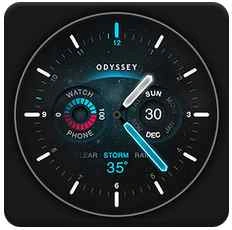
(Image credit - Smartwatchface)
Key things to consider while designing apps for watch faces
Quote: The key things are based on Android Design Guidelines.
- Battery life – It’s very critical and highly important to take the battery usage into account which developing apps for watch faces. There are two modes with which the watch faces run. With ambient mode, you can show something really simply without even having to worry about the background image, etc. that’s because at this point of time, there will be no user interactions. The other mode is, interactive mode. It’s when the user is interacting with the watch, you can show watch faces with graphics and display with pleasing colors.
- Display – As a watch face designer or a developer should consider displaying watch faces for ambient and interactive modes so one can take advantage of the battery usage. Also, the watch faces should be designed in such a way that it should work transparently in rectangular and rounded watches. Which means, the contents should not strip off or there should not be any offsets in displaying things on watch faces.
- Data Fetch – There are times when you have to fetch data and show them on watch faces, say you wish to show the weather temperature information, do not fetch the data each and every minute. But instead, you can fetch it ones onCreate of watch faces service and later use the same. The idea is, you don’t want the watch battery drained.
- Configurable – It’s not really a mandatory option but it’s good to have. You should let the user to configure watch faces, say choosing colors background or setting some text, etc.
Demo Watch Face Service
Let us see a demo on how to build a Watch Face Service and try to understand the inner workings of it. Here's the snapshot of our custom watch face service. The first image is shown on press of watch face, it allows the user to choose one of the available watch faces. The second one is what you will see after choosing the watch face.
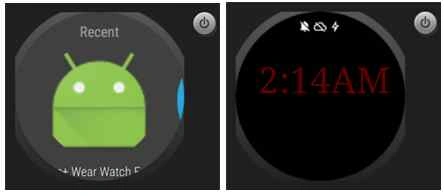
Please Note – We are going to reuse the sample code from [2]. This code is open source and has “Apache Version 2.0” License.
Before, we take a look into the sample code. First, we need to understand the necessary requirements for building a Watch Face Service. Create a new java class and extend the same from CanvasWatchFaceService to create our own Watch Face Service. Further, we have to override the following method to return an Engine instance.
You can see below, we have a private inner class named “WatchFaceEngine” which extends from Engine and overrides certain methods required for building the watch face service.
- public class CustomWatchFaceService extends CanvasWatchFaceService {
- @Override
- public Engine onCreateEngine() {
- return new WatchFaceEngine();
- }
- private class WatchFaceEngine extends Engine {...}
- }
The CanvasWatchFaceService has an “Engine” class, which contains methods that one can override and draw on canvas and that’s how we are going to display something on watch face service. The following is the code snippet of “Engine” class.
- public class Engine extends android.support.wearable.watchface.WatchFaceService.Engine {
- public Engine() {
- super(CanvasWatchFaceService.this);
- }
- public void onDestroy() {
- }
- public void onSurfaceChanged(SurfaceHolder holder, int format, int width, int height) {
- }
- public void onSurfaceRedrawNeeded(SurfaceHolder holder) {
- }
- public void onSurfaceCreated(SurfaceHolder holder) {
- }
- public void invalidate() {
- }
- public void postInvalidate() {
- }
- public void onDraw(Canvas canvas, Rect bounds) {
- }
- }
The following is the skeleton of the “Engine” class. We are going to override and implement some of the methods of Engine class.
- public class Engine extends android.support.wearable.watchface.WatchFaceService.Engine {
- public void onAmbientModeChanged(boolean inAmbientMode) {
- }
- public void onInterruptionFilterChanged(int interruptionFilter) {
- }
- public void onPeekCardPositionUpdate(Rect rect) {
- }
- public void onUnreadCountChanged(int count) {
- }
- public void onPropertiesChanged(Bundle properties) {
- }
- public void onTimeTick() {
- }
- public void onCreate(SurfaceHolder holder) {
- }
- public void onVisibilityChanged(boolean visible) {
- }
- public final boolean isInAmbientMode() {
- }
- public final int getInterruptionFilter() {
- }
- public final int getUnreadCount() {
- }
- public final Rect getPeekCardPosition() {
- }
- }
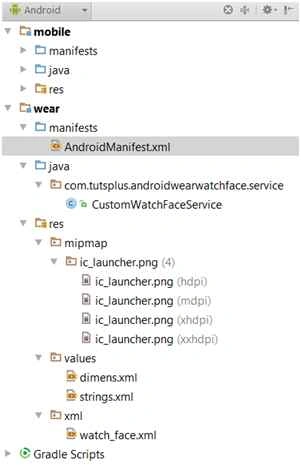
Let us take a look into the project structure and see the necessary things required to build a watch face service. The following is the snapshot of the project structure, all we need is a custom watch face service class, launcher icons that we will be using within the AndroidManifest.xml file for displaying the watch face service icon.
AndroidManifest.xml
The following is the code snippet of the AndroidManifest.xml file content where you can see the required permissions for our application. The “WAKE_LOCK” permission is something which makes the smart watch CPU on so that the watch face service can do some operation such as redrawing the canvas. It’s required as the wearable goes to asleep if it’s ideal for some time.
Under <application> element, you will see the <service> element defined with our custom watch service. Also the meta-data for wallpaper, preview and preview_circular is also required. In the end, we are going to set the <intent-filter> with the action as WallpaperService and category as WATCH_FACE.
- <?xml version="1.0" encoding="utf-8"?>
- <manifest xmlns:android="http://schemas.android.com/apk/res/android"
- package="com.tutsplus.androidwearwatchface" >
- <uses-feature android:name="android.hardware.type.watch" />
- <uses-permission android:name="com.google.android.permission.PROVIDE_BACKGROUND" />
- <uses-permission android:name="android.permission.WAKE_LOCK" />
- <application
- android:allowBackup="true"
- android:icon="@mipmap/ic_launcher"
- android:label="@string/app_name"
- android:theme="@android:style/Theme.DeviceDefault" >
- <service
- android:name=".service.CustomWatchFaceService"
- android:label="Tuts+ Wear Watch Face"
- android:permission="android.permission.BIND_WALLPAPER" >
- <meta-data
- android:name="android.service.wallpaper"
- android:resource="@xml/watch_face" />
- <meta-data
- android:name="com.google.android.wearable.watchface.preview"
- android:resource="@mipmap/ic_launcher" />
- <meta-data
- android:name="com.google.android.wearable.watchface.preview_circular"
- android:resource="@mipmap/ic_launcher" />
- <intent-filter>
- <action android:name="android.service.wallpaper.WallpaperService" />
- <category android:name="com.google.android.wearable.watchface.category.WATCH_FACE" />
- </intent-filter>
- </service>
- </application>
- </manifest>
Let’s dig into the custom watch face service class to understand the inner working. Here’s the code snippet of onCreate override. We are going to set the watch face style by making a call tosetWatchFaceStyle method by passing in an instance of WatchFaceStyle. Notice the Builder method is called with the custom watch face service. Various other methods for setting the background visibility, card peek mode etc. is called so it sets the appropriate WatchFaceStyle properties.
- @Override
- public void onCreate(SurfaceHolder holder) {
- super.onCreate(holder);
- setWatchFaceStyle( new WatchFaceStyle.Builder( CustomWatchFaceService.this )
- .setBackgroundVisibility( WatchFaceStyle.BACKGROUND_VISIBILITY_INTERRUPTIVE )
- .setCardPeekMode( WatchFaceStyle.PEEK_MODE_VARIABLE )
- .setShowSystemUiTime( false )
- .build()
- );
- initBackground();
- initDisplayText();
- mDisplayTime = new Time();
- }
- private void initBackground() {
- mBackgroundColorPaint = new Paint();
- mBackgroundColorPaint.setColor( mBackgroundColor );
- }
- private void initDisplayText() {
- mTextColorPaint = new Paint();
- mTextColorPaint.setColor( mTextColor );
- mTextColorPaint.setTypeface( WATCH_TEXT_TYPEFACE );
- mTextColorPaint.setAntiAlias( true );
- mTextColorPaint.setTextSize( getResources().getDimension( R.dimen.text_size ) );
- }
Now let us try to understand the code block for onDraw override method. We need to set the display time and make a call to draw the background and text displaying the current time.
- @Override
- public void onDraw(Canvas canvas, Rect bounds) {
- super.onDraw(canvas, bounds);
- mDisplayTime.setToNow();
- drawBackground( canvas, bounds );
- drawTimeText( canvas );
- }
- private void drawBackground( Canvas canvas, Rect bounds ) {
- canvas.drawRect( 0, 0, bounds.width(), bounds.height(), mBackgroundColorPaint );
- }
- private void drawTimeText( Canvas canvas ) {
- String timeText = getHourString() + ":" + String.format( "%02d", mDisplayTime.minute );
- if( isInAmbientMode() || mIsInMuteMode ) {
- timeText += ( mDisplayTime.hour < 12 ) ? "AM" : "PM";
- } else {
- timeText += String.format( ":%02d", mDisplayTime.second);
- }
- canvas.drawText( timeText, mXOffset, mYOffset, mTextColorPaint );
- }
- private String getHourString() {
- if( mDisplayTime.hour % 12 == 0 )
- return "12";
- else if( mDisplayTime.hour <= 12 )
- return String.valueOf( mDisplayTime.hour );
- else
- return String.valueOf( mDisplayTime.hour - 12 );
- }
Let us take a look into the code block of watch face service to handle ambient mode. As previously discussed about the watch face service design, the ambient mode is something we have to explicitly handle to make sure we set appropriate background or set color etc. Here’s the place you can do something to minimize the battery usage.
Here’s what we are doing.
- Set the text color to white in case of ambient mode only.
- Make a call to setAntiAlias method which will be set to false in ambient mode. Anti-aliasing basically makes the borders smooth, visually it looks appealing but we don’t have to do this in ambient mode.
- Make a call to invalidate method to redraw the canvas.
- Update timer so we are not going to redraw canvas for every one second, which is not really required for ambient mode.
- @Override
- public void onAmbientModeChanged(boolean inAmbientMode) {
- super.onAmbientModeChanged(inAmbientMode);
- if( inAmbientMode ) {
- mTextColorPaint.setColor( Color.parseColor( "white" ) );
- } else {
- mTextColorPaint.setColor( Color.parseColor( "red" ) );
- }
- if( mIsLowBitAmbient ) {
- mTextColorPaint.setAntiAlias( !inAmbientMode );
- }
- invalidate();
- updateTimer();
- }
When the watch face service is running, you want to make sure the time gets updated every second. The following is the code which is responsible for redrawing the canvas with the update rate as 1000 millisecond.
Below you see we are overriding handleMessage method and coding the logic to update or redraw canvas only for interactive mode. If the user is actively using the watch and it’s not in ambient mode, then we get the current time in milliseconds and calculate the delay based on the current time and the update rate i.e. 1000 millisecond.
If you are wondering how the time hander gets called for every one second, there is a method sendEmptyMessageDelayed which we are calling with the “int” value - MSG_UPDATE_TIME_ID and delay which triggers the handleMessage call.
- private final Handler mTimeHandler = new Handler() {
- @Override
- public void handleMessage(Message msg) {
- switch( msg.what ) {
- case MSG_UPDATE_TIME_ID: {
- invalidate();
- if( isVisible() && !isInAmbientMode() ) {
- long currentTimeMillis = System.currentTimeMillis();
- long delay = mUpdateRateMs - ( currentTimeMillis % mUpdateRateMs );
- mTimeHandler.sendEmptyMessageDelayed( MSG_UPDATE_TIME_ID, delay );
- }
- break;
- }
- }
- }
- };
Let us see how the time zone changes are handled in updating the watch face with the time as per the time zone where you are in.
The following is the code snippet where you can see the time instance is cleared by making a call to “clear” method and then we are setting the time to current time.
- final BroadcastReceiver mTimeZoneBroadcastReceiver = new BroadcastReceiver() {
- @Override
- public void onReceive(Context context, Intent intent) {
- mDisplayTime.clear( intent.getStringExtra( "time-zone" ) );
- mDisplayTime.setToNow();
- }
- };
When it comes to displaying text in canvas for square and rounded devices, we should be setting the appropriate offset so the text gets displayed correctly. For that, we need to override onApplyWindowInsets method and set the offset based on whether the device is rounded or not.
- @Override
- public void onApplyWindowInsets(WindowInsets insets) {
- super.onApplyWindowInsets(insets);
- mYOffset = getResources().getDimension( R.dimen.y_offset );
- if( insets.isRound() ) {
- mXOffset = getResources().getDimension( R.dimen.x_offset_round );
- } else {
- mXOffset = getResources().getDimension( R.dimen.x_offset_square );
- }
- }
Previously, we have seen the usage of a broadcast receiver in our watch face service. In order for the broadcast receiver to function, we have to register with the appropriate IntentFilter. We are going to register the broadcast receiver only when the watch face is visible and if we have not yet registered. You can see below, we are creating an instance of IntentFilter with the action Intent.ACTION_TIMEZONE_CHANGED and then make a call to registerReceiver method passing in the broadcast receiver and intent filter instance.
There’s one important thing we have to do is to unregister receiver when the watch is not active. The visibility gets set to false so we can make a call to unregisterReceiver passing in the broadcast receiver instance.
- @Override
- public void onVisibilityChanged( boolean visible ) {
- super.onVisibilityChanged(visible);
- if( visible ) {
- if( !mHasTimeZoneReceiverBeenRegistered ) {
- IntentFilter filter = new IntentFilter( Intent.ACTION_TIMEZONE_CHANGED );
- CustomWatchFaceService.this.registerReceiver( mTimeZoneBroadcastReceiver, filter );
- mHasTimeZoneReceiverBeenRegistered = true;
- }
- mDisplayTime.clear( TimeZone.getDefault().getID() );
- mDisplayTime.setToNow();
- } else {
- if( mHasTimeZoneReceiverBeenRegistered ) {
- CustomWatchFaceService.this.unregisterReceiver( mTimeZoneBroadcastReceiver );
- mHasTimeZoneReceiverBeenRegistered = false;
- }
- }
- updateTimer();
- }
- Android Design Guidelines.
- Github Code Sample with Apache 2.0 opensource License.
Sr KarthigaPosted Feb 14, 2016, 7:53 AM
Good one sir
Nilesh JadavPosted Oct 19, 2015, 1:16 AM
Good share !!
Ankit BansalPosted Oct 19, 2015, 12:43 AM
nice one..thanks for sharing with us..
Gowtham KPosted Oct 18, 2015, 6:03 AM
Nice One
Santhakumar MunuswamyPosted Oct 18, 2015, 2:13 AM
Good Article