

Introduction
We will create a sample approval process in this chapter, which will give an overview of how you can create your own approval processes in your business. We will first create a SharePoint list.
Building the SharePoint List
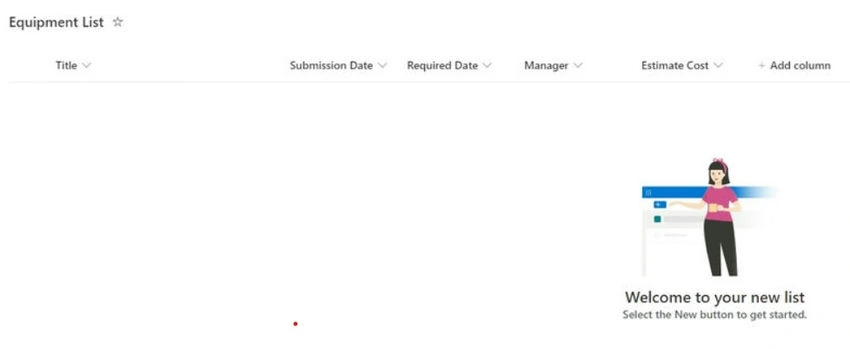
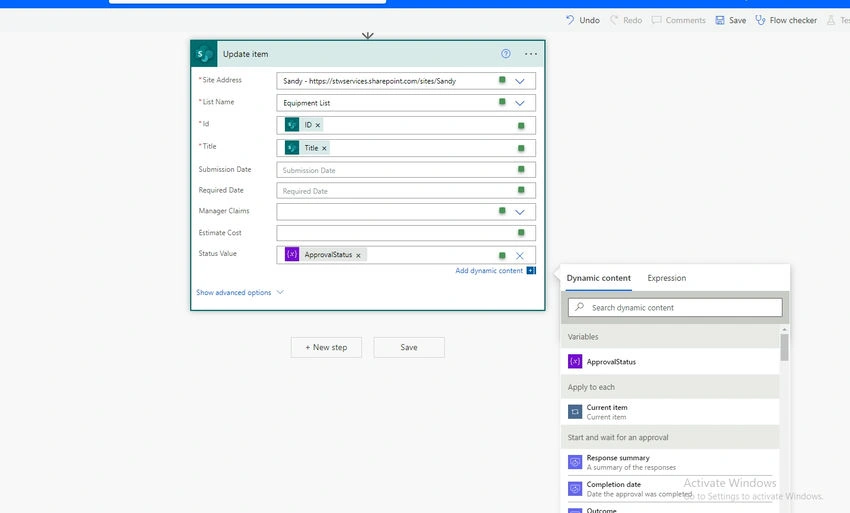
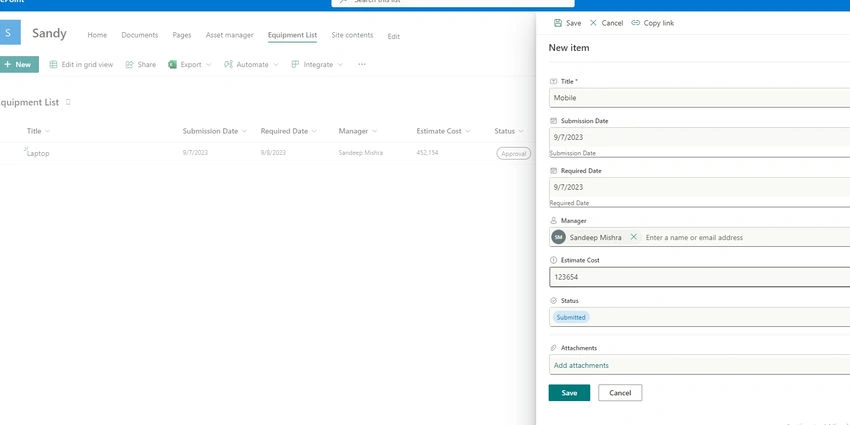
For example, we will create an Equipment List. We add columns ‘Submission Date’, ‘Required Date’, ‘Manager’, ‘Estimated Cost’, etc. We also added a Status column and used default to ‘Submitted’. And then set via Power Automate to either Approved or Rejected based on the approval results.
Creating the Power Automate Flow
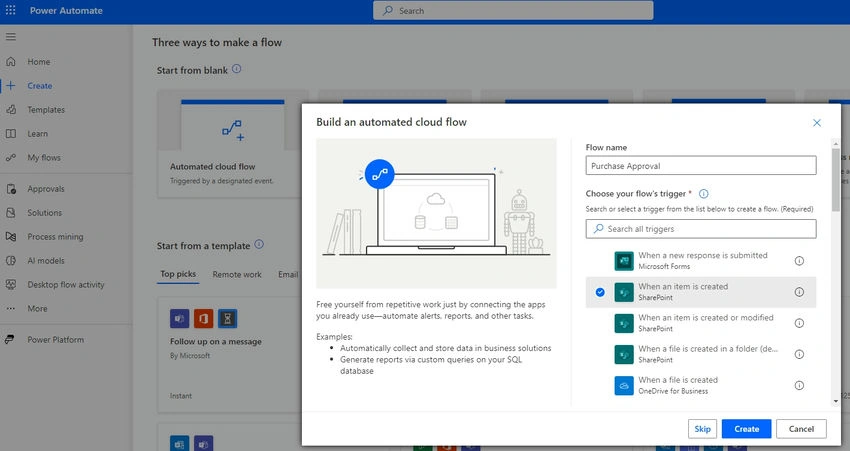
Create an Automated cloud flow. So, it will run automatically when triggered by an event. Select a trigger ‘when an item is created’.
Select the SharePoint site and then select the Equipment List from the list in the step of ‘When an item is created’.
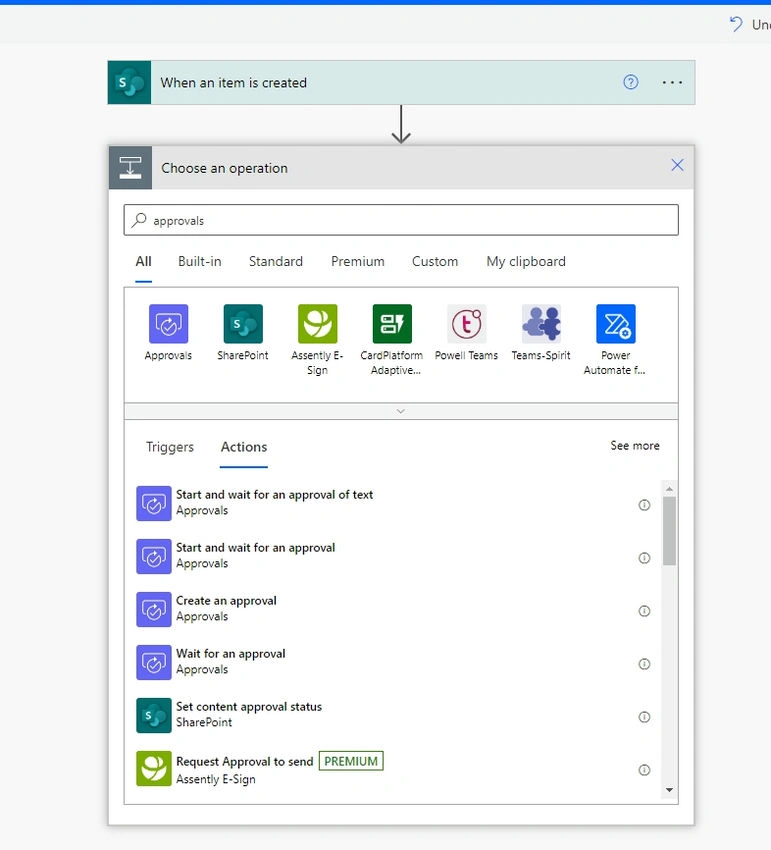
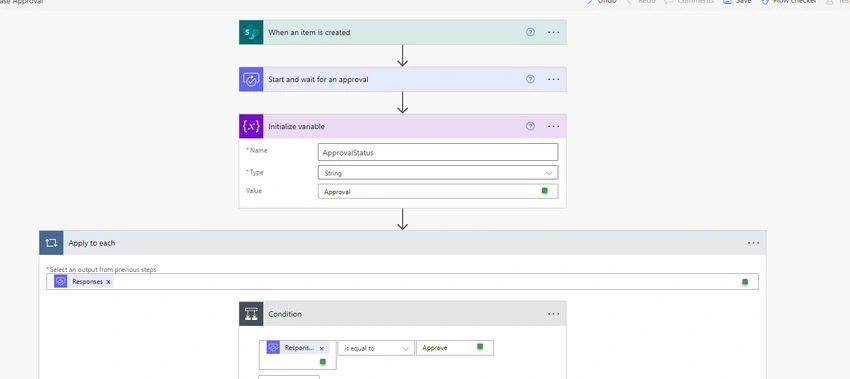
Our next step is to select Approvals (you can search to find it) and then choose ‘Start and wait for approval’.
Since we are only doing a single approval for the manager, we can choose to select ‘First to Respond’ or ‘Everyone Must Respond’. One of the great things about Power Automate is that it offers up what information is available when you select Add dynamic content. We include the list item ‘Title’ column as part of the approval title and then choose the ‘Manager Email’ for the Assigned to value.
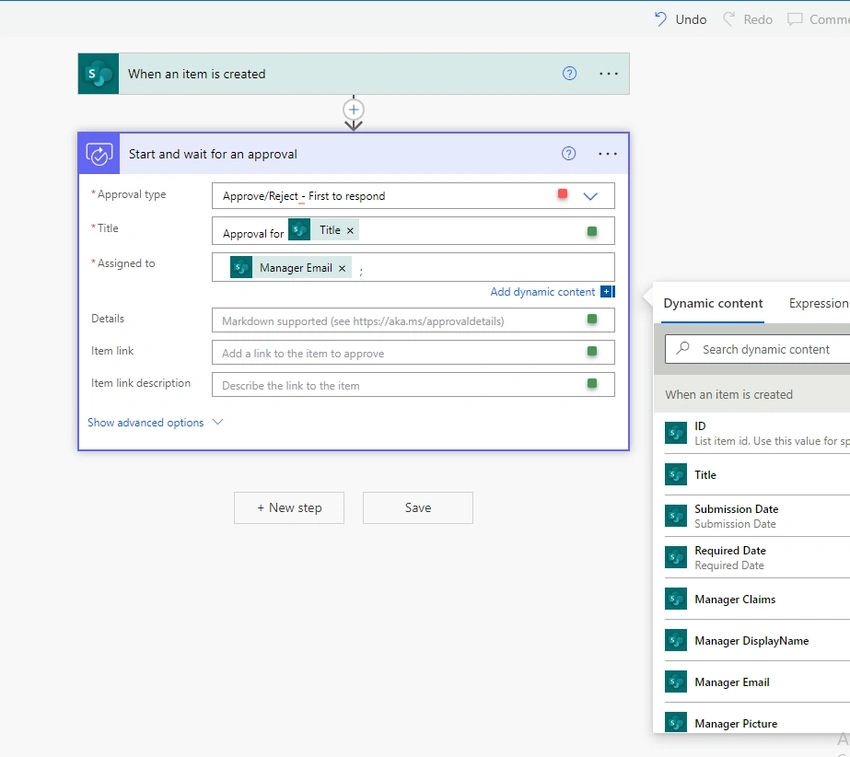
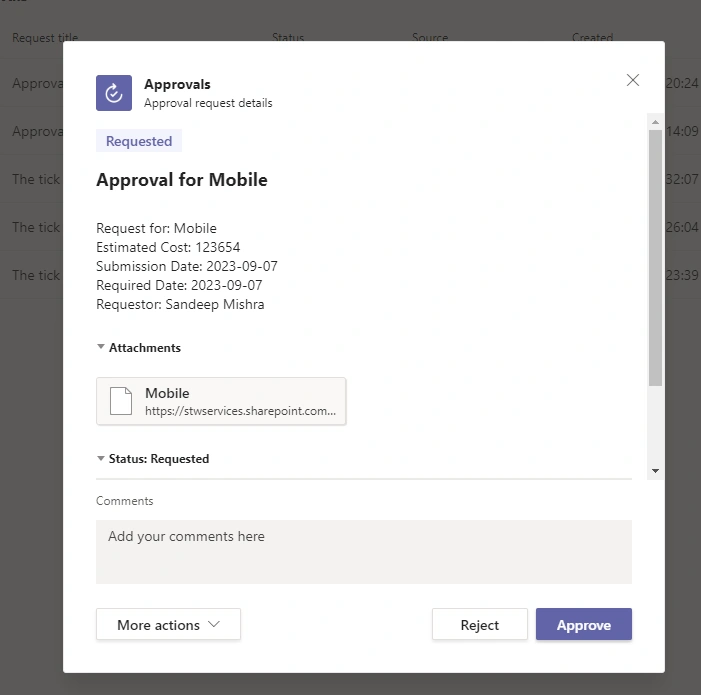
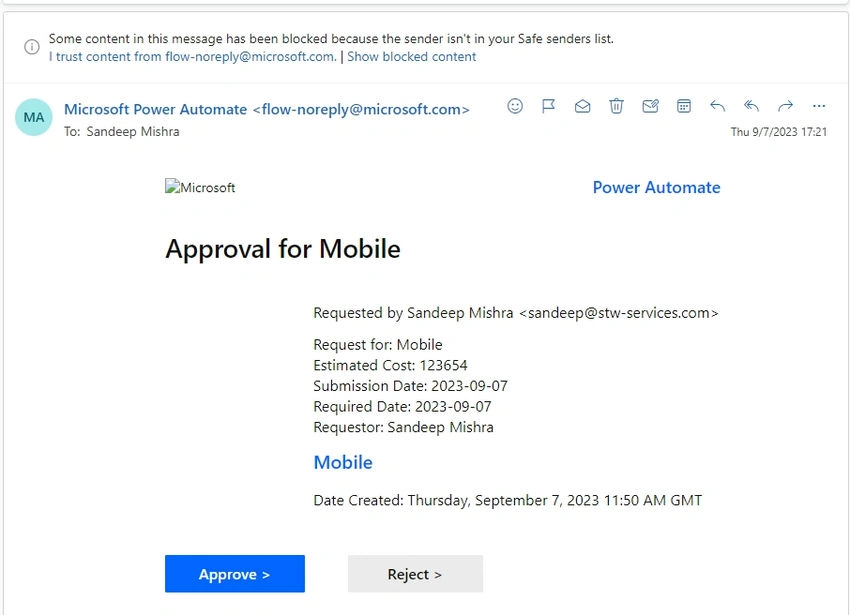
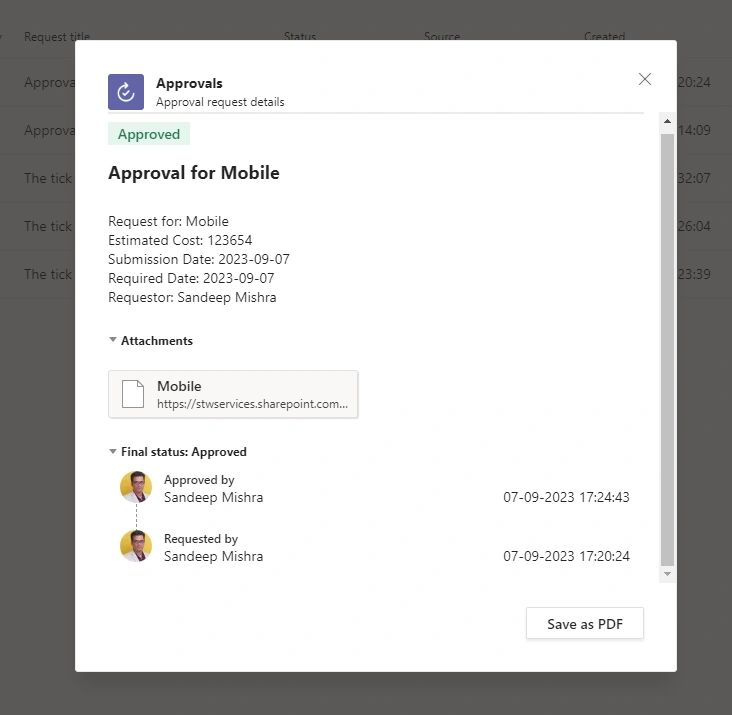
Notice all the information that we include in the Details. This avoids the need for the approver to go back to the original SharePoint list item unless they need still more data, though the link to the list item makes the original request just a click away.
For example, you can set columns like this.
| Title | Approval for 'Title' |
| Assigned To | Manager's Email |
| Details | Request for: 'Title' |
| Estimated Cost | 'Estimated Cost' |
| Submission Date | 'Submission Date' |
| Requested Date | 'Requested Date' |
| Requestor | 'Created by Display Name' |
| Item Link | 'Link to Item' |
| Item Link Description | 'Name' |
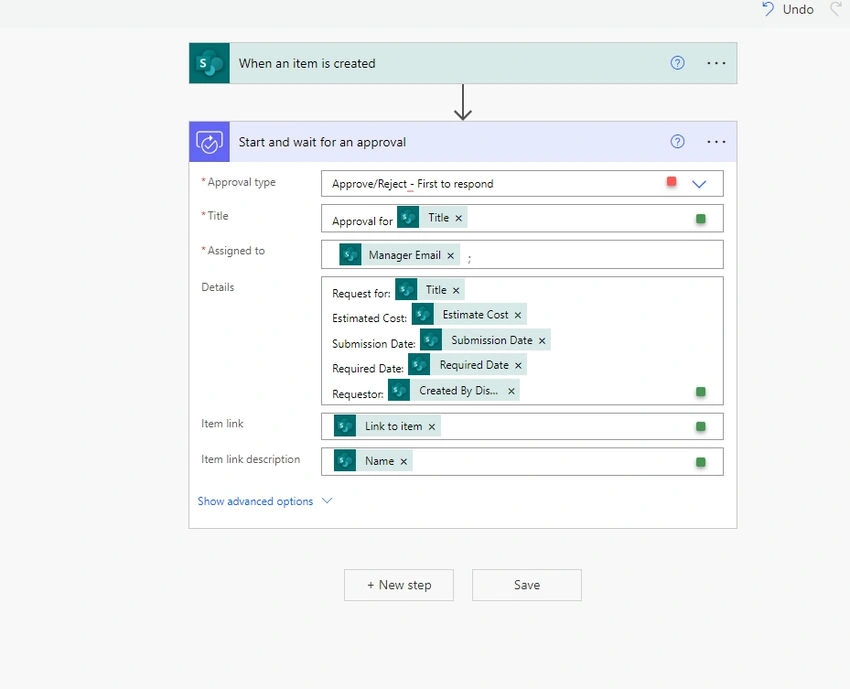
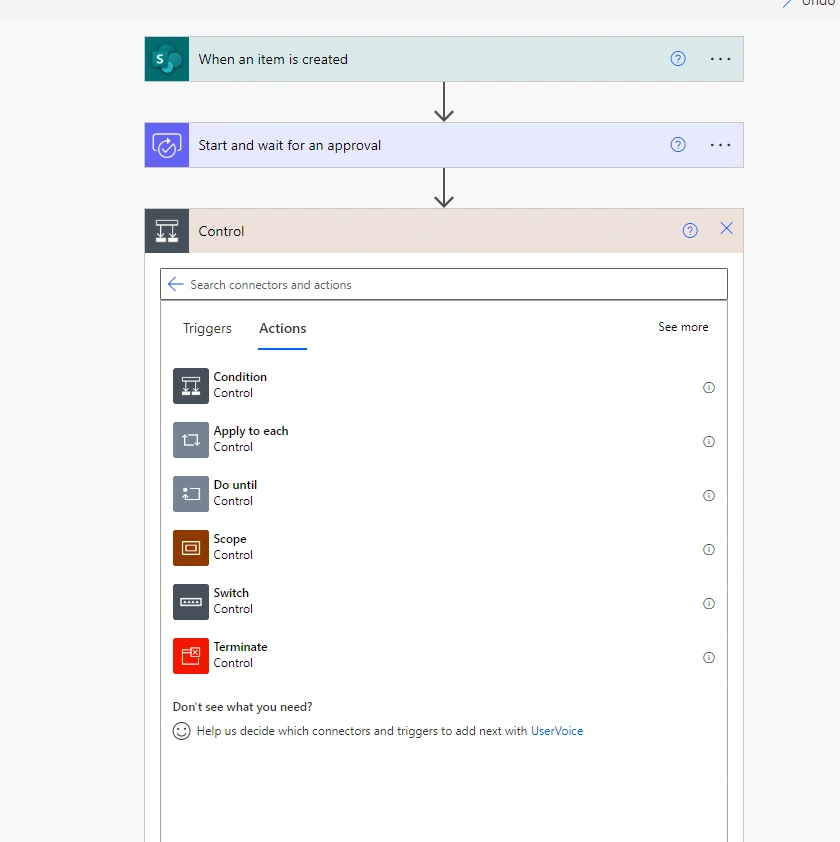
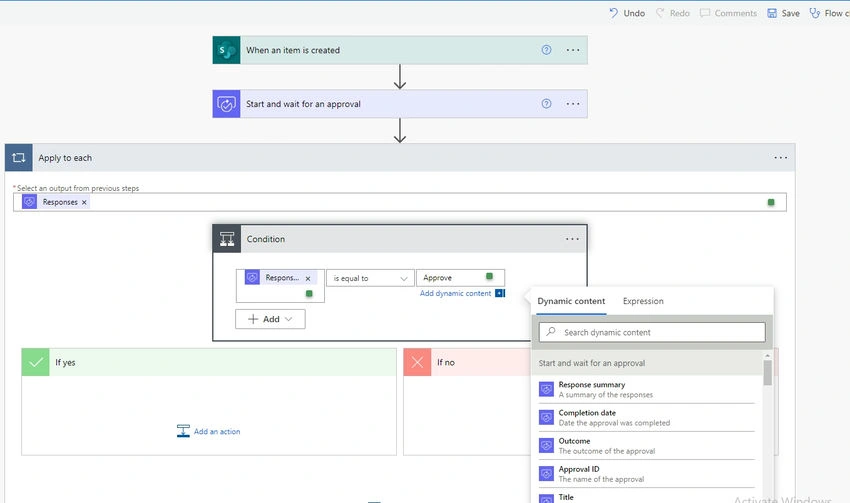
Our next step is to do some logic based on what the approver decides. We add a new step and select Control and then Condition.
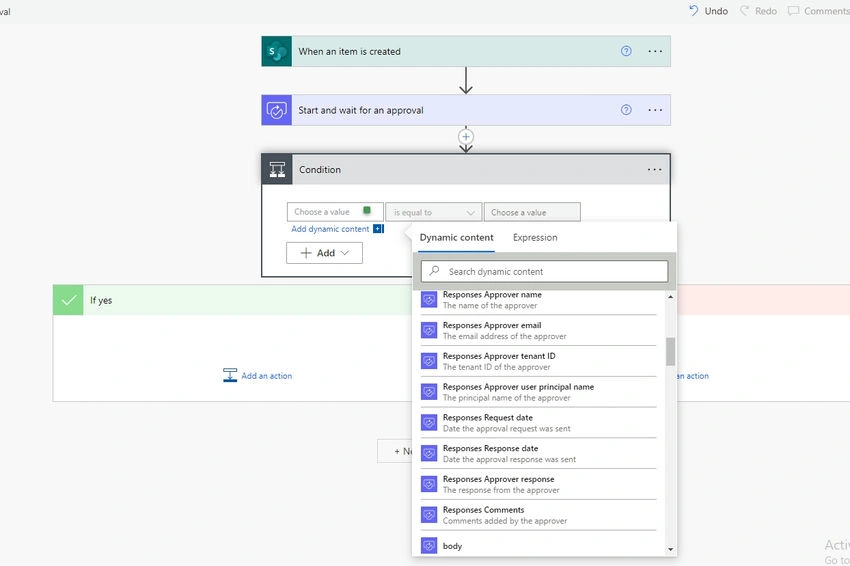
Then in the condition choose value and select ‘Responses Approver response’.
As soon as you select responses, it will convert in apply to each control along with conditions as well. It will consider multiple responses.
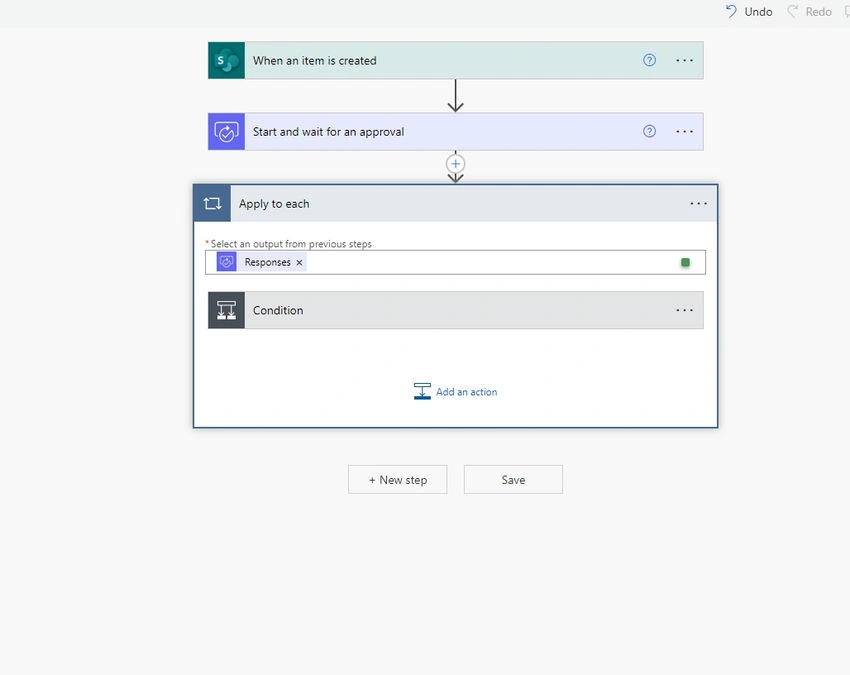
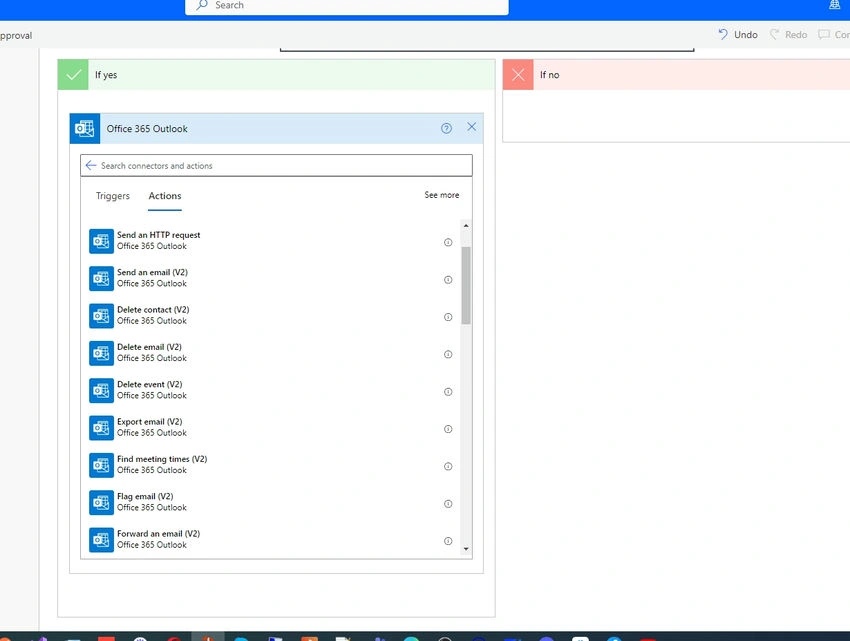
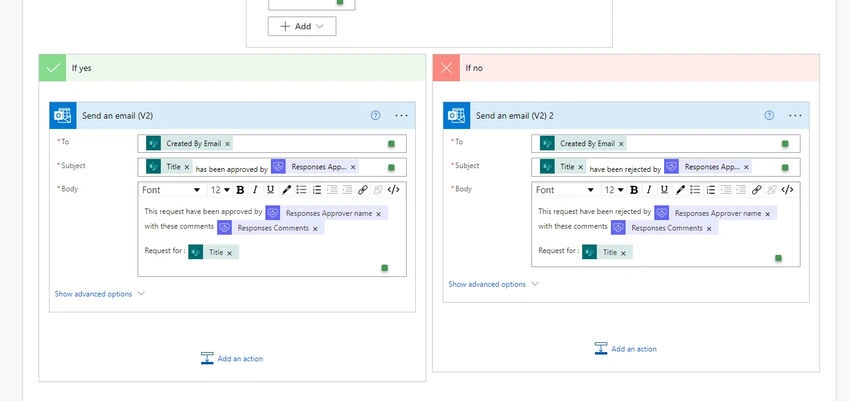
Now in the condition, select choose value ‘Response’ is equal to Approve for true condition. And if it is disapproved, then it will go in false condition.

Join the conversation! Your thoughts help the community grow.