Introduction
In this article, you will learn how to build a serverless solution using AWS Lambda and PnP PowerShell to automate SharePoint list item retrieval.
Prerequisites
Architecture Diagram
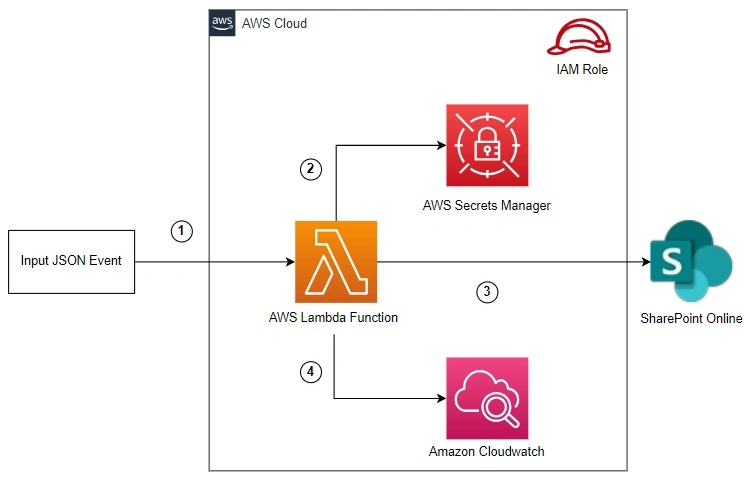
The solution works as follows.
- To invoke the Lambda function, send input JSON request: {"requestId": "Value"}
- Retrieve the clientId, tenant name, and certificate details from AWS Secrets Manager.
- Retrieve the list item from the SharePoint Online site collection using the requestId value.
- Send the results and logs to Amazon CloudWatch.
Configure SharePoint List
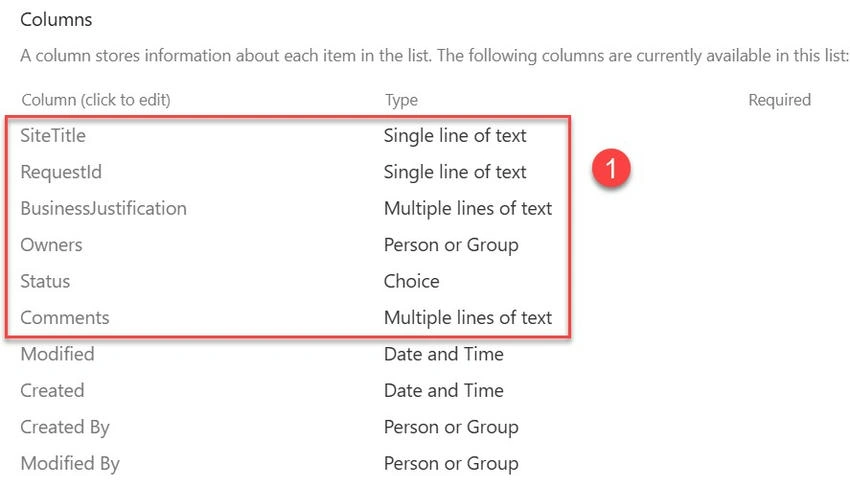
Create a new list in your SharePoint Online site collection and name it as SiteRequests. Add the following columns to the SharePoint list.
Register an app in Microsoft Entra ID
Register a Microsoft Entra ID application to use with PnP PowerShell using the following steps.
- Launch PowerShell 7.
- Run the following command to register an Entra ID application. Replace the tenant name and output with actual values.
$result = Register-PnPEntraIDApp `
    -ApplicationName "App for PnP PowerShell" `
    -Tenant vigneshganesan.com `
    -OutPath "C:\Users\******\Documents\Vijai\Blogs\code\PowerShell" `
    -GraphApplicationPermissions "User.Read.All" `
    -SharePointApplicationPermissions "Sites.Read.All" `
    -Interactive

$result
- Note down the Client ID and Base64 encoded private key certificate value from the $result parameter.
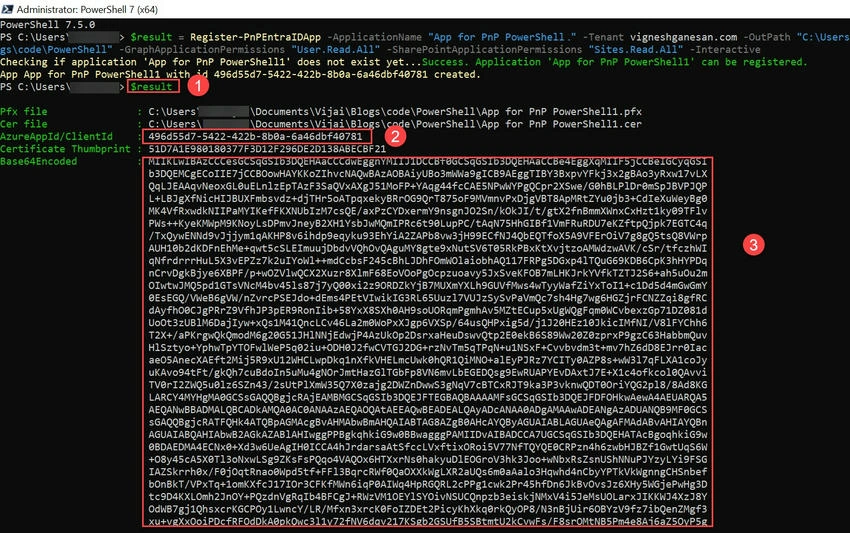
Note. As of September 9th, 2024, this has become a mandatory step.
Configure AWS Secrets Manager to store the secrets
Configure AWS Secrets Manager to store SharePoint Online credentials using the following steps.
- Sign in to the AWS Management Console.
- Navigate to AWS Secrets Manager and choose Store a new secret.
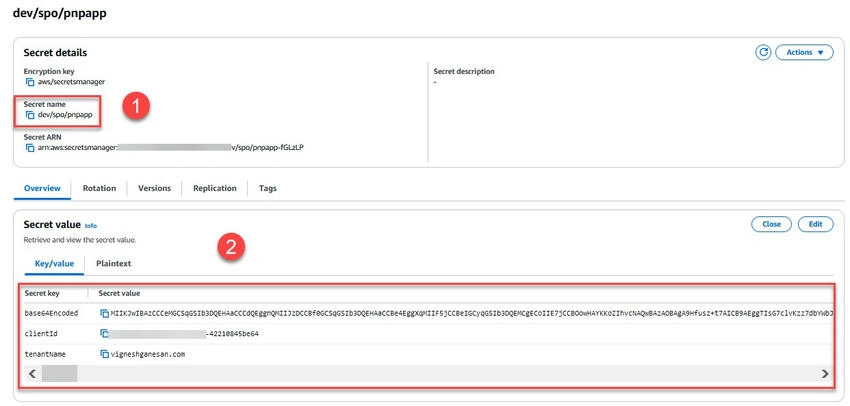
- For the secret type, select the Other type of secret and add the following key-value pairs.
base64Encoded  - Certificate Base64 Encoded value copied in previous step
clientId       - Entra ID app client ID copied in previous step
tenantName     - Tenant Name
- Choose Next and specify the secret name.
- Choose Next, then choose Store to create the secret. Note down the secret name.
Create a Lambda Function
Create a Lambda function to execute the PowerShell script using the following steps.
- Launch PowerShell 7.
- Change to your desired working directory.
- Run the following command to create a sample script based on the Basic template.
New-AWSPowerShellLambda `
    -ScriptName RetrieveSharePointListItem `
    -Template Basic
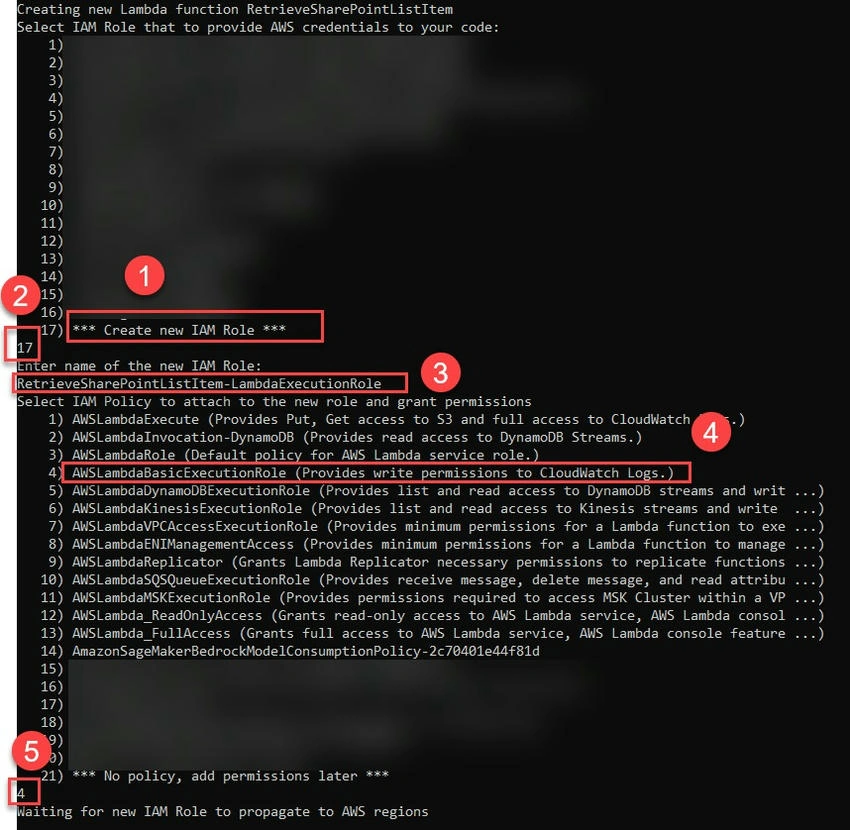
- Select Create new IAM role and enter the role name.
- Select AWSLambdaBasicExecutionRole policy.
- Update the script in your working directory to include the SharePoint Online list item retrieval logic.
# Requires AWS and PnP PowerShell modules
#Requires -Modules @{ModuleName='AWS.Tools.Common';ModuleVersion='4.1.518'}
#Requires -Modules @{ModuleName='AWS.Tools.SecretsManager';ModuleVersion='4.1.763'}
#Requires -Modules @{ModuleName='PnP.PowerShell';ModuleVersion= '2.12.0' }

# Accessing AWS Lambda environment variables
$secretName = $env:secretName
$siteURL = $env:siteURL
$listName = $env:listName

# Lambda Input: Get the request ID
$input = ConvertTo-Json -InputObject $LambdaInput
$requestId = $LambdaInput.requestId

Write-Host "Starting process for RequestId: $requestId"

try {
    # Retrieve the secret values from AWS Secrets Manager
    Write-Host "Retrieving secret values from AWS Secrets Manager..."
    $secretValues = Get-SECSecretValue -SecretId $secretName

    # Parse the SecretString from JSON format
    $secretJson = $secretValues.SecretString | ConvertFrom-Json

    # Retrieve the clientId, tenantName, and certificate details from the secret
    $clientId = $secretJson.clientId
    $tenantName = $secretJson.tenantName
    $base64Encoded = $secretJson.base64Encoded
    Write-Host "Secret values retrieved successfully."

    # Connect to SharePoint Online site using the retrieved credentials
    Write-Host "Connecting to SharePoint Online site: $siteURL"
    Connect-PnPOnline -Url $siteURL -ClientId $clientId -Tenant $tenantName -CertificateBase64Encoded $base64Encoded

    # Retrieve the list item based on the RequestId
    Write-Host "Querying SharePoint list for RequestId: $requestId"
    $listItem = Get-PnPListItem -List $listName -Query "<View><Query><Where><Eq><FieldRef Name='RequestId'/><Value Type='Text'>$requestId</Value></Eq></Where></Query></View>"

    # Check if the list item is found
    if ($listItem) {
        Write-Host "List item found, converting to JSON format..."
        # Convert the FieldValues to JSON format
        $fieldValuesJson = $listItem.FieldValues | ConvertTo-Json
        Write-Host "FieldValues JSON output: $fieldValuesJson"

        # Output the JSON
        return $fieldValuesJson
    } else {
        Write-Host "No list item found for RequestId: $requestId"
        return "No list item found"
    }
} catch {
    # Exception Handling
    Write-Host "An error occurred: $_"
    return "Error: $($_.Exception.Message)"
} finally {
    Write-Host "Process completed."
}
- Save the changes.
- Run the following command to publish the script to Lambda.
Publish-AWSPowerShellLambda `
    -ScriptPath .\RetrieveSharePointListItem.ps1 `
    -Name RetrieveSharePointListItem `
    -Region us-east-1
Add the environment variables
Add environment variables to your Lambda function using the following steps.
- Sign in to the AWS Management Console.
- Navigate to AWS Lambda and select your function GetSharePointListItem.
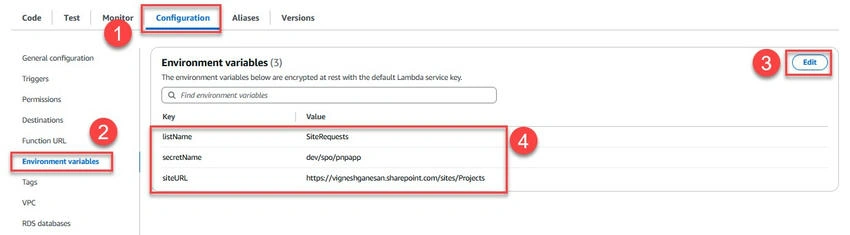
- Choose the Configuration tab and select Environment variables.
- Choose Edit, then Add environment variable to configure the following.
listName - SharePoint list name
secretName - Secret name copied in previous step
siteURL - SharePoint Online site URL
- Choose Save to apply your changes.
Update the Lambda execution role permissions
Update the Lambda execution role permissions to access Secrets Manager using the following steps.
- Sign in to the AWS Management Console.
- Navigate to AWS Lambda and select your function GetSharePointListItem.
- Choose the Configuration tab and select Permissions.
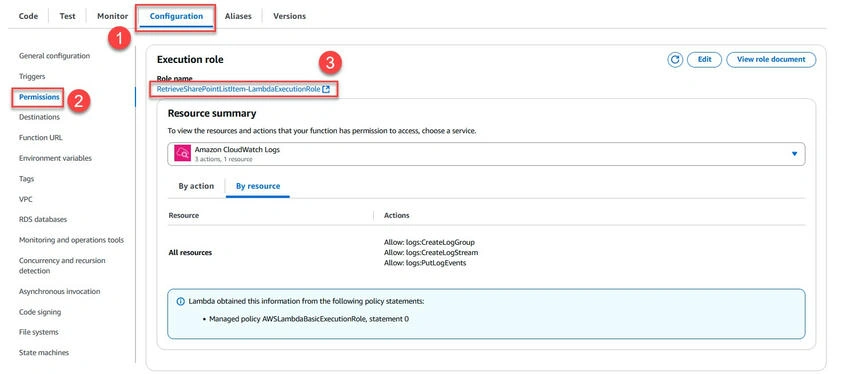
- Choose your execution role and add SecretsManagerReadWrite permissions to the role.
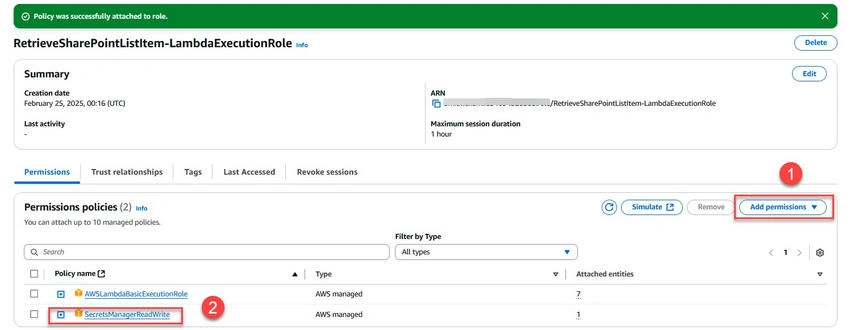
Note. The SecretsManagerReadWrite permission is recommended only for testing. For production environments, follow the principle of least privilege by granting only the minimum required permissions
Test the Lambda function
Invoke the Lambda function using the following steps.
- Sign in to the AWS Management Console.
- Navigate to AWS Lambda and select your function GetSharePointListItem.
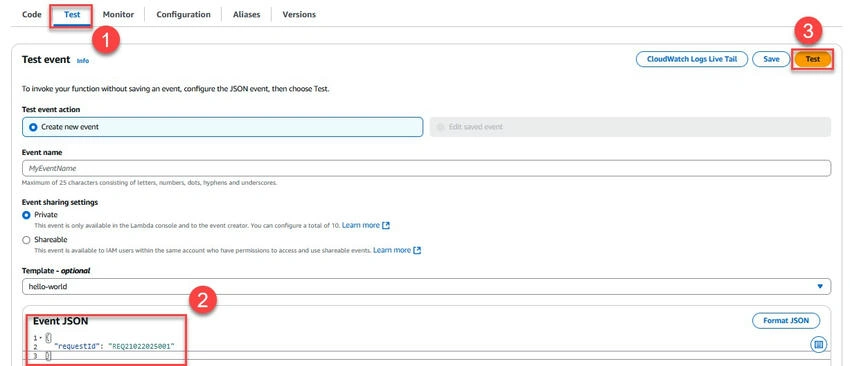
- Choose the Test tab and enter the following JSON.
{
  "requestId": "REQ21022025001"
}
- Choose Test to invoke the function.
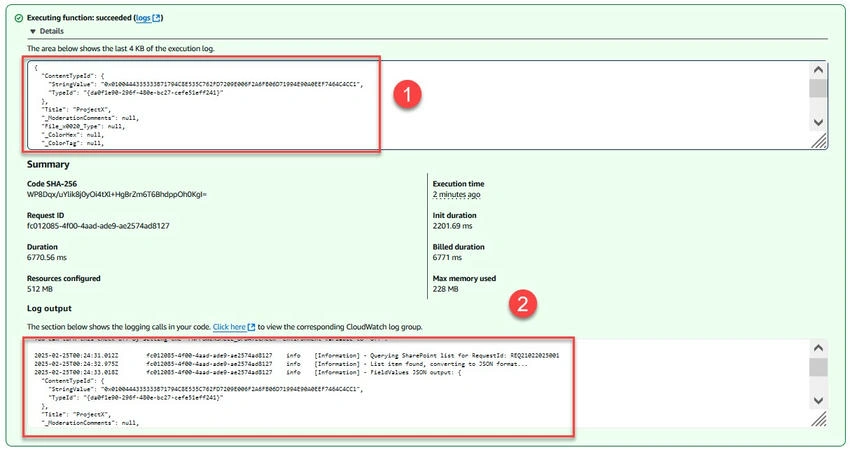
- View the execution results.
References
https://docs.aws.amazon.com/lambda/latest/dg/lambda-powershell.html
Summary
This article describes how to build a serverless solution using AWS Lambda and PnP PowerShell to automate SharePoint list item retrieval.


Join the conversation! Your thoughts help the community grow.