

Introduction
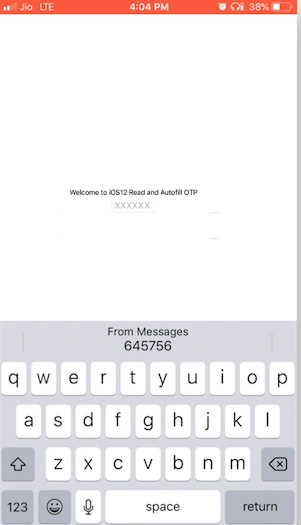
Passwords and security codes (OTP) are a modern necessity required for security and privacy but initially, iOS did not support the auto-read feature. iOS 12 eases the tedious aspects of account setup and sign-in by automatically suggesting and using strong, unique passwords and by bringing a one-time password to the QuickTypebar so users can fill them in one tap. Here, we’ll learn how to implement autofill OTP in our app using Xamarin.Forms.
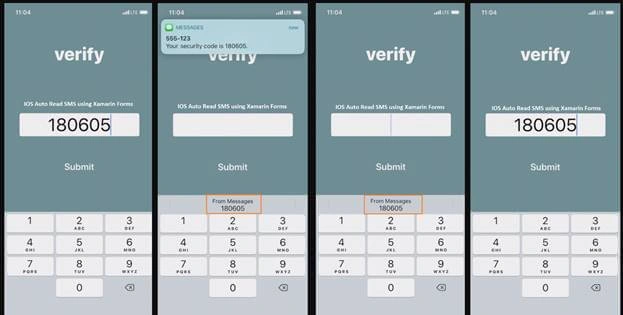
Message Format Rules
- Security code only works with System keyboard. So, avoid using a custom keyboard.
- Make sure the OTP message phrase has “code” or “passcode” and the message is a copied.
Create New Xamarin.Forms Application
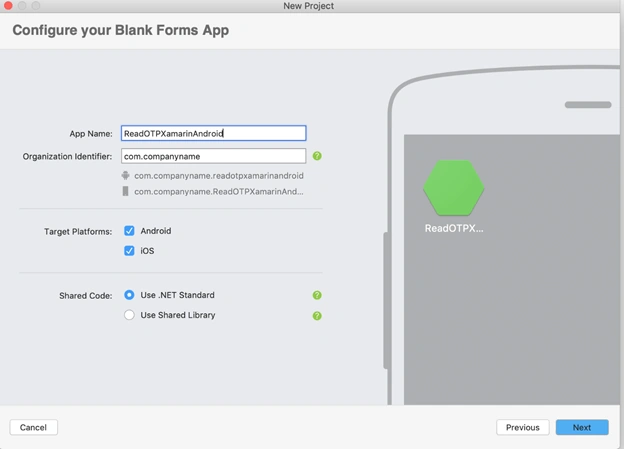
In order to implement the Autofill OTP message, let’s start creating a new Xamarin.Forms project using Visual Studio 2019 or VS for Mac. When accessing Visual Studio 2019 Mac for the first time, you will come across a new interface for opening and creating the projects.
Open Visual Studio Mac >>Create New Project or select "Open Recent Application".

The available templates will appear on a Mac like below. Select Xamarin.Forms application with different mobile platforms.
Custom Control
The "OneTimeCode" type is available only specific to the iOS device, not in Android. So, create a Xamarin.Forms custom entry control in the .NET Standard library project, enabling developers to override the default native rendering with their own platform-specific customization.
- using System;
- using Xamarin.Forms;
- namespace ReadOTPIOS
- {
- public class AutoFillControl : Entry
- {
- public AutoFillControl()
- {
- }
- }
- }
UI Design
The AutoFillControl control can be referenced in XAML in the .NET Standard library project by declaring a namespace for its location and using the namespace prefix on the control element. The following code example shows how the AutoFillControl control can be consumed by a XAML page.
Delpin Susai RajPosted Jul 11, 2019, 12:24 AM
Great Brother.