

In our previous articles (listed below), we learned how to create a DevTest lab and also configured policies in the DevTest lab to reduce the waste and cost.
- Azure DevTest Labs: A Self-Service Sandbox Environment – Basics
- Azure DevTest Labs: Policies To Control Costs - Part One
- Azure DevTest Labs: Policies To Control Costs - Part Two
- Azure DevTest Lab – Administration - Add Developer / Tester to the Lab
- Azure DevTest Lab: Review Policies As DevTest Lab Users - Developers Or Testers
In this article, we will learn how to configure market place image settings in the DevTest lab.
If you remember, while creating the virtual machine within the lab, there was a huge list of the images from the market pace. We have selected an image with Windows Server and Visual Studio “15” preview edition.
Let’s say, the owner of the lab doesn’t want his developers / testers to go-ahead and create any kind of image. Instead, the owner would like to allow his team to create virtual machines with only a couple of options to reduce the waste. In this case, the owner can put some restrictions by configuring the settings.
Navigate to the Azure management portal, select the DevTest lab and go to the settings blade, as shown below:
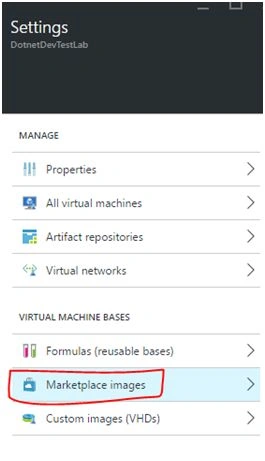
Click the “Marketplace images” and it will list all the allowed images, as shown below;
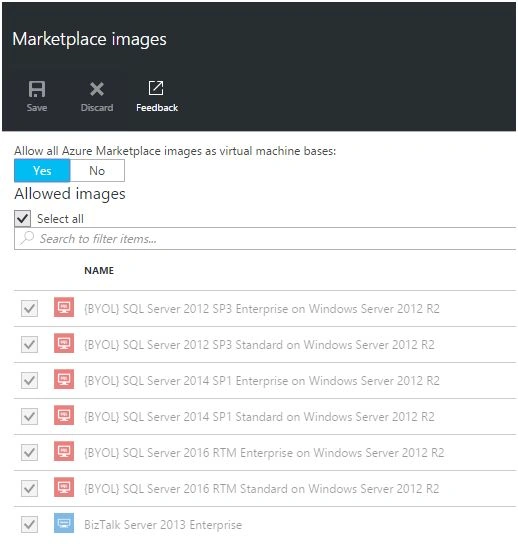
By default, all the users of the lab will be able to select any of the images available in the list. Let’s go ahead and restrict the user to creating only the images with Visual Studio.
In the “Marketplace Images” blade, click the “No” toggle button, as shown below:
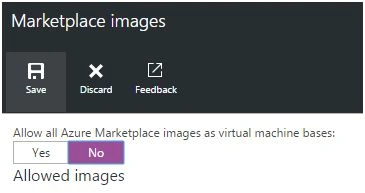
Once you select “NO’, the checkboxes will be enabled so that you can only select the required images. Now, uncheck the “Select All” checkbox and search for “Visual” in the “Search to filter items” textbox, as shown below:
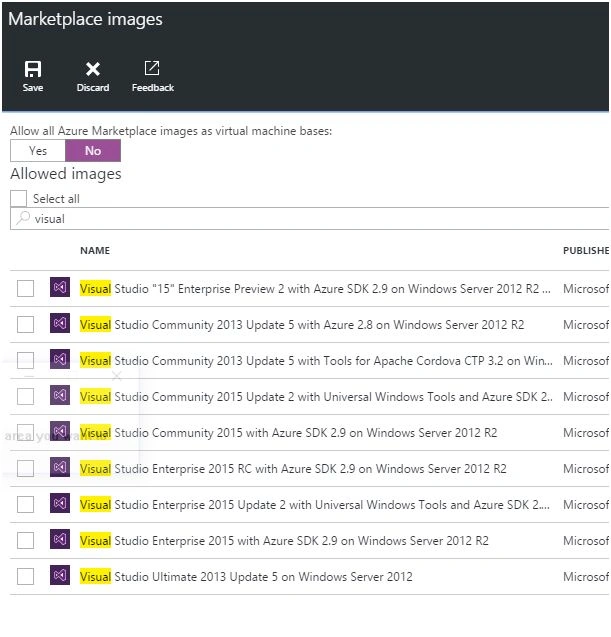
You would see around 9 images matching with “Visual”. Check all the above images and click “Save” button.
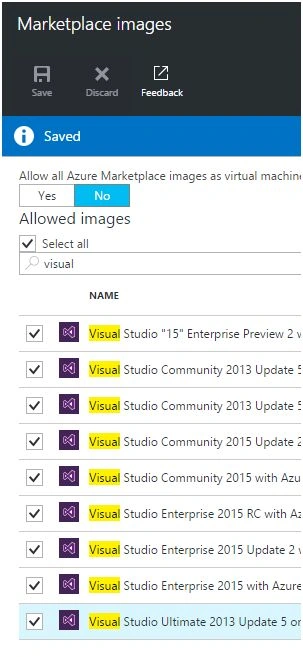
You will get a confirmation message, once the settings are successfully saved.
Now, navigate to the lab’s essentials blade and click the “Virtual Machine” link, as shown below:
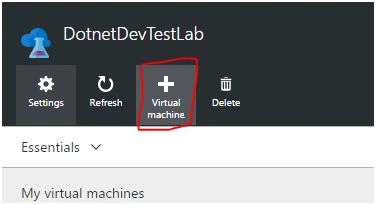
You will be taken to the “Choose a base” blade, where you will only find the images that you have chosen in the “Marketplace images” settings in one of our previous steps.
That’s it. In this article, we learned how to restrict the user to select the images based on the settings.
Praveen SreeramPosted Jun 9, 2016, 5:24 AM
thanks Vignesh Mani
Vignesh ManiPosted Jun 9, 2016, 5:18 AM
Nice
Praveen SreeramPosted Jun 9, 2016, 12:54 AM
Thanks Santhakumar Munuswamy
Santhakumar MunuswamyPosted Jun 9, 2016, 12:28 AM
Thank you for nice share
Praveen SreeramPosted Jun 7, 2016, 8:47 PM
Thanks @Debasis
Debasis SahaPosted Jun 7, 2016, 3:53 PM
Nice share..