

Introduction
Azure live presentations or screen recordings are a big challenge because of security problems. Viewers may see a Subscription ID, email address, or keys which are visible on a big screen, or visible in the session recordings afterwards. However, Microsoft has shared a Google Chrome and Firefox browser add-on known as Azure Mask. Now, you can use Azure Mask to mask your secure content.
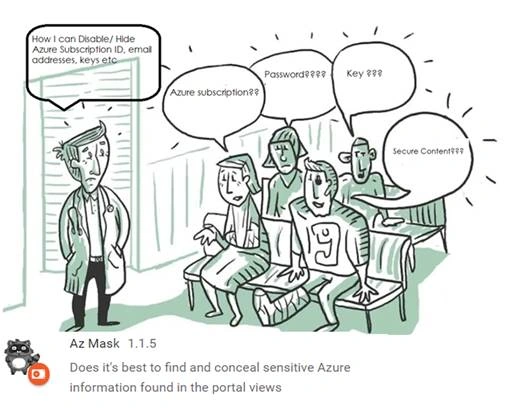
Features
The following features are available in the Azure Mask extension:
- Blurs username key
- Blurs GUIDs (such as Subscription IDs)
- Blurs your account email and other secure content
- Hides the "Report a Bug" button (if found)
Installing the Chrome Extension
Microsoft has currently not published the extension in the Chrome Web Store. You can download a release version and add it manually to Chrome as shown in the below steps.
Step 1
Download the latest .crx file.
Step 2
Go to your Chrome browser and select the extension.
Step 3
Make sure that "Developer mode” is enabled.
Step 4
Drag the .crx file to your Chrome window that has the extensions view open
Step 5
Confirm any prompts:
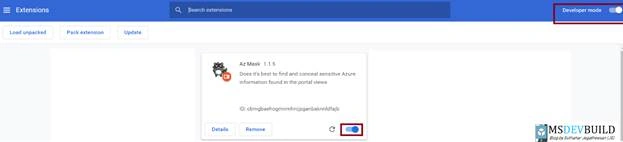
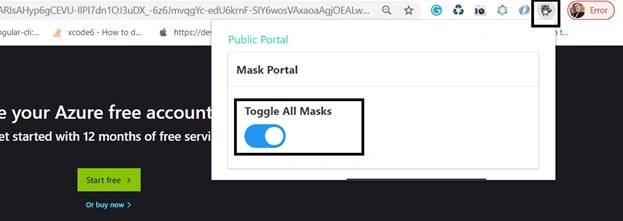
You have successfully added Chrome extensions. Let's continue to see how its working. In the browser near to address bar, the Azure mask icon should be there. Just toggle on the mask.
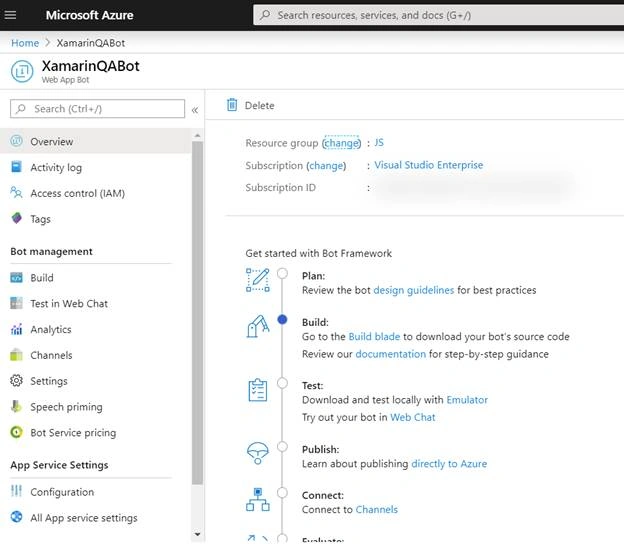
You can login to Azure Portal and see that all sensitive information has been blurred, such as Subscription IDs and user ID, like shown below.
Summary
I hope this article gave you some valuable information. This is a fantastic tool which saves you a lot of time and makes your presentations more secure. Please leave your feedback/queries using the comment box below, and if you like this article, please share it with your friends.
Kasam ShaikhPosted Apr 3, 2020, 3:05 PM
Chrome has now disabled the extension, not allowing to enable the same.
Rushi MehtaPosted Feb 7, 2020, 4:17 AM
Great Stuff..!