
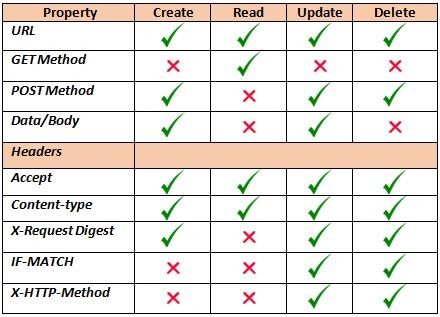
List of REST request properties used in this article:
URL:This is the REST resource endpoint URL.
Method/Type (GET, POST):
It’s a HTTP request method, where GET is for read operations and POST is for
write operations. POST can perform updates or delete operations by giving a
DELETE,MERGE verb in the X-HTTP-Method header.
Data/Body: This will be used in POST requests where we want to send data
in the request body.
Headers:
X-RequestDigest:
If you aren’t using OAuth to authorize your requests, creating, updating,
and deleting SharePoint entities require the server’s request form digest value
as the value of the X-RequestDigest header.SharePoint-hosted add-ins can get the
value from the #__REQUESTDIGEST page control available on the SharePoint page.
This you can find by inspecting element in your SharePoint webpage like below,

Accept:
The Accept header specifies the format of response data from the server. The
default format is application/atom+xml. Here we will be using "accept":"application/json;odata=verbose"
which can be parsed easily.
Content-type:
The Content-type header specifies the format of the data that the client is
sending to the server. The default format is application/atom+xml. Here we will
be using"content-type":"application/json;odata=verbose".
IF-MATCH:
This will used in POST requests for DELETE, MERGE, or PUT operations for
changing lists and libraries. It provides a way to verify that the object being
changed has not been changed since it was last retrieved. Or, lets you specify
to overwrite any changes, as shown in the following Ex: "IF-MATCH":"*".
X-HTTP-Method:
This method will used in POST requests for DELETE, MERGE, or PUT
operations.Used to specify that the request performs an Update or Delete
operation. Ex: "X-HTTP-Method":"MERGE".
Usage of the above properties:
Apart from all these properties there is another important object called “spPageContextInfo”.This
is very helpful when writing SP JavaScript code. It’s a simple object which you
can find on every SharePoint page.This object is containing many properties
which we can directly use in our code. Let’s see few of its properties.
- webServerRelativeUrl
- webAbsoluteUrl
- siteAbsoluteUrl
- serverRequestPath
- layoutsUrl
- webTitle
- webTemplate
- webLanguage
- currentLanguage
- currentCultureName
- userId
- userLoginName
- systemUserKey
- alertsEnabled
- siteServerRelativeUrl Etc.,
These you can see by inspecting the sharepoint page.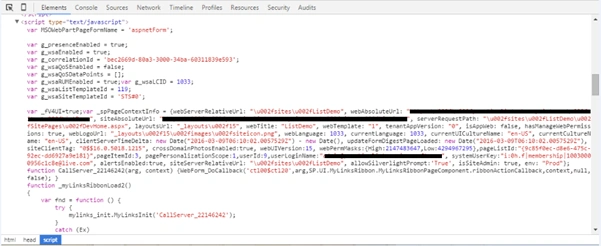
Among all the properties for this article I am going to use siteAbsoluteUrl to get my site url.
Now let’s start working on CRUD operations one by one. We are going to use simple HTML and JavaScript in this article for easy understanding.
In this article I have used a custom list called “ProductList” which containsfew basic columns as below.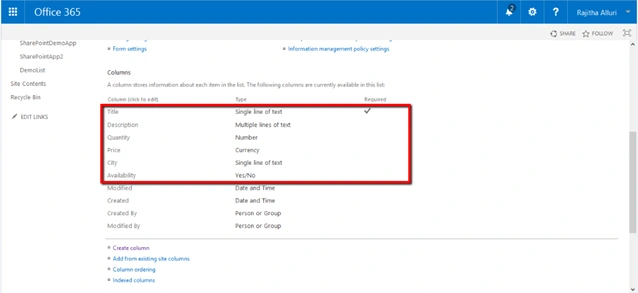
- Creating a list item
a) HTMLThe above HTML looks like as below and fill the respective fields.- <divclass="container-wrap">
- <h2>Create a list item</h2>
- <table>
- <tr>
- <td>Title:</td>
- <td>
- <inputtype="text" id="title" />
- </td>
- </tr>
- <tr>
- <td>Description:</td>
- <td>
- <textareaid="description">
- </textarea>
- </td>
- </tr>
- <tr>
- <td>Quantity:</td>
- <td>
- <inputid="Quantity" type="text" />
- </td>
- </tr>
- <tr>
- <td>Price:</td>
- <td>
- <inputid="Price" type="text" />
- </td>
- </tr>
- <tr>
- <td>City:</td>
- <td>
- <inputid="City" type="text" />
- </td>
- </tr>
- <tr>
- <td>Availability:</td>
- <td>
- <selectid="Availability">
- <optionvalue="true">Yes</option>
- <optionvalue="false">No</option>
- </select>
- </tr>
- <tr>
- <td></td>
- <td>
- <buttontype="button" onclick="AddNewItem()">Create</button>
- </td>
- </tr>
- </table>
- </div>
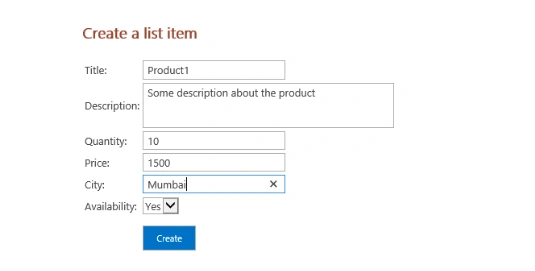
b) Write a JavaScript function as below on the button click action,Now go to theSharePoint list and you will find a list item has been created in the list.- functionAddNewItem()
- {
- varTitle,
- Description,
- Quantity,
- Price,
- City,
- Availability;
- Title = $("#title").val();
- Description = $("#description").val();
- Quantity = $("#Quantity").val();
- Price = $("#Price").val();
- City = $("#City").val();
- Availability = $("#Availability").val();
- varurl = _spPageContextInfo.siteAbsoluteUrl + "/_api/web/lists/getbytitle('ProductList')/items";
- var data = JSON.stringify(
- {
- "__metadata":
- {
- "type": "SP.Data.ProductListListItem"
- },
- "Title": Title,
- "Description": Description,
- "Quantity": Quantity,
- "Price": Price,
- "City": City,
- "Availability": Availability
- })
- $.ajax
- ({
- url: url,
- type: "POST",
- data: data,
- headers: {
- "Accept": "application/json;odata=verbose",
- "Content-Type": "application/json;odata=verbose",
- "X-RequestDigest": $("#__REQUESTDIGEST").val()
- },
- success: function(data)
- {
- alert("New list item has been created successfully.");
- },
- error: function(data)
- {
- alert("Failed to create list item.");
- }
- });
- }
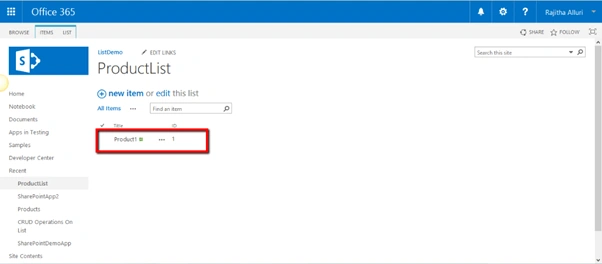
Click on the product1 item to view its details,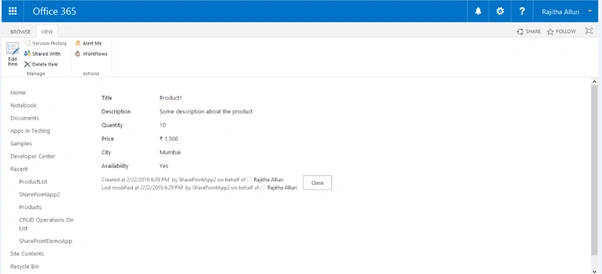
- Reading the list items
a) Below is the simple HTML used for this and bind the list items dynamically using java script,The above HTML looks like this.- <divclass="container-wrap">
- <h2>Get all List Items</h2>
- <buttontype="button" onclick="GetListItems()">Get Items</button>
- <tableid="GetItems" style="display:none">
- <thead>
- <tr>
- <td>Id</td>
- <td>Title</td>
- <td>Description</td>
- <td>Quantity</td>
- <td>Price</td>
- <td>City</td>
- </tr>
- </thead>
- <tbody>
- <%-- Bind the tbody data here from script -- %>
- </tbody>
- </table>
- </div>
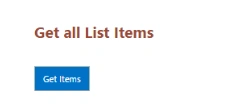
b) Call JavaScript function on Get Items Click,
- functionGetListItems()
- {
- var row = "";
- varurl = _spPageContextInfo.siteAbsoluteUrl + "/_api/web/lists/getbytitle('ProductList')/items";
- $.ajax
- ({
- url: url,
- type: "GET",
- headers:
- {
- "Accept": "application/json;odata=verbose",
- "Content-Type": "application/json;odata=verbose",
- },
- success: function(data)
- {
- var result = data.d.results;
- $.each(result, function(key, item)
- {
- var l = item.Title;
- row = row + '<tr><td>' + item.Id + '</td><td>' + item.Title + '</td><td>' + item.Description +
- '</td><td>' + item.Quantity + '</td><td>' + item.Price +
- '</td><td>' + item.City + '</td></tr>';
- })
- $("#GetItems>tbody").html(row);
- $("#GetItems").show();
- },
- error: function(data)
- {
- alert("Failed to get list items.");
- }
- });
- }
Below is the items list you will get,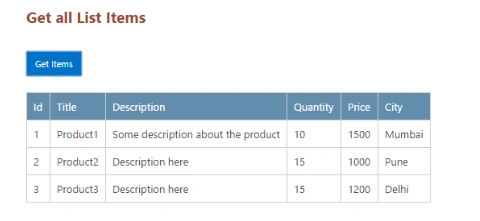
- Update a list item
To update a list item we need to pass the item Id to the REST resource endpoint URL.
Here I am simply updating the Title and Price of the product by passing its Id for easy understanding.
a) HTMLThe above HTML looks like this.- <divclass="container-wrap" id="Update-Item">
- <h2>Update list item</h2>
- <table>
- <tr>
- <td>Id:</td>
- <td>
- <inputtype="text" id="ItemId" />
- </td>
- </tr>
- <tr>
- <td>Title:</td>
- <td>
- <inputtype="text" id="NewTitle" />
- </td>
- </tr>
- <tr>
- <td>Price:</td>
- <td>
- <inputtype="text" id="NewPrice" />
- </td>
- </tr>
- <tr>
- <td></td>
- <td>
- <buttontype="button" onclick="UpdateListItem()">Update</button>
- </td>
- </tr>
- </table>
- </div>
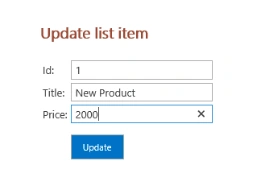
b) Call JavaScript function on Update Click,This method updates the list item based on the ID of that particular list item,- functionUpdateListItem()
- {
- var Id, Title, Price;
- Id = $("#ItemId").val();
- Title = $("#NewTitle").val();
- Price = $("#NewPrice").val();
- varurl = _spPageContextInfo.siteAbsoluteUrl + "/_api/web/lists/getbytitle('ProductList')/items(" + Id + ")";
- var data = JSON.stringify
- ({
- "__metadata":
- {
- "type": "SP.Data.ProductListListItem"
- },
- "Title": Title,
- "Price": Price,
- })
- $.ajax
- ({
- url: url,
- type: "POST",
- data: data,
- headers: {
- "accept": "application/json;odata=verbose",
- "content-type": "application/json;odata=verbose",
- "X-RequestDigest": $("#__REQUESTDIGEST").val(),
- "IF-MATCH": "*",
- "X-HTTP-Method": "MERGE"
- },
- success: function(data)
- {
- alert("List Item has been updated successfully")
- },
- error: function(data)
- {
- alert("Failed to update list items.");
- }
- });
- }
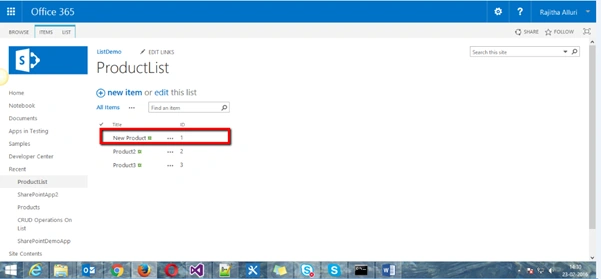
Once you click on the list item you will get the list item which is updated.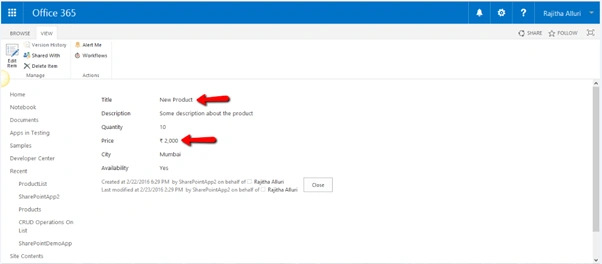
- Delete a list item
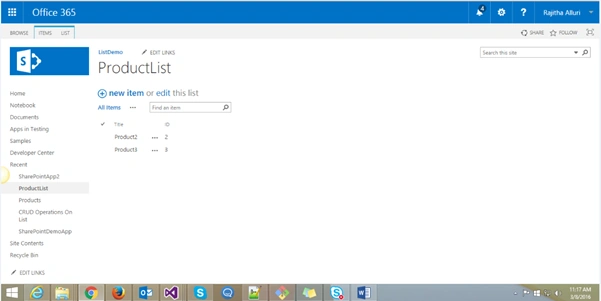
In deleting list item will directly see the Ajax call by passing the list item id. Will use this API whenever we want to delete a list item by passing its ID.Open the list and u can find that the list item is deleted.- functionDeleteListItem()
- {
- varurl = _spPageContextInfo.siteAbsoluteUrl + "/_api/web/lists/getbytitle('ProductList')/items(1)";
- $.ajax
- ({
- url: url,
- method: "POST",
- headers:
- {
- "accept": "application/json;odata=verbose",
- "content-type": "application/json;odata=verbose",
- "X-RequestDigest": $("#__REQUESTDIGEST").val(),
- "IF-MATCH": "*",
- "X-HTTP-Method": "DELETE"
- },
- success: function(data)
- {
- alert("List Item has been deleted successfully.")
- },
- error: function(data)
- {
- alert("Failed to delete the list item");
- }
- });
- }
Read more articles on SharePoint:
Ronika JencyPosted Oct 22, 2019, 6:18 AM
Nice Article.
Swadesh SwainPosted Dec 15, 2017, 11:25 PM
Good One..Thanks for sharing
Madhan ThuraiPosted Jul 27, 2017, 7:54 AM
Very Useful...Thankz fr Sharing...
Rahul Kumar SaxenaPosted Apr 4, 2016, 7:48 AM
Good one
Rajitha AlluriPosted Mar 30, 2016, 3:06 AM
Thanks All
Kiran Kumar TalikotiPosted Mar 29, 2016, 4:44 AM
Awesome Bro.Thanks for sharing
Sibeesh VenuPosted Mar 29, 2016, 4:39 AM
Nice Share
Mohammed IbrahimPosted Mar 29, 2016, 3:48 AM
nice
Rajitha AlluriPosted Mar 29, 2016, 1:08 AM
Thanks Kabir and Saha
Debasis SahaPosted Mar 29, 2016, 12:12 AM
Good One..
Humayun Kabir MamunPosted Mar 29, 2016, 12:12 AM
Nice...
Vinodh NarayananPosted Mar 28, 2016, 10:24 PM
Good one
Prasham SabadraPosted Mar 28, 2016, 12:37 PM
Thanks Rajitha for sharing :)