

This is the first of three articles about creating PDF documents using iTextSharp. The Namespace is big, so I will focus on the parts you'll probably use when you need to create PDFs daily. There are tons of articles out there but they often just show a specific task, so I thought I might do one simple step-by-step, starting with the basics.
In this article series, I use a web application to show how easily you can create a valid PDF document with just a few lines of code, using the tool iTextSharp which is a free .NET component downloadable at http://sourceforge.net/projects/itextsharp/. (Version 5.0.6) You can easily do the same thing with some other project type, as well, so choose what suits you best.
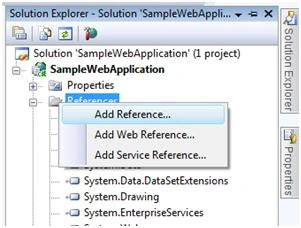
After we have downloaded and unzipped the iTextSharp dll and created our project we need to add a reference to iTextSharp.dll. Do that by right-clicking the Reference folder in your solution.
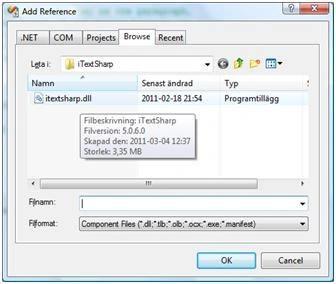
Select the file by browsing to the save directory and selecting the file iTextSharp.dll.
To make the use of the component simple in code, add the following statements in your code.
using iTextSharp;
using iTextSharp.text;
using iTextSharp.text.pdf;
Let's also create a folder where we save our PDFs; right-click the solution and add a folder, naming it "pdf". Okay, we are now all set to create our first PDF document.
Our first document
First, we create a file stream object representing the actual file and name it whatever you want.
(By using the method MapPath we target the folder we created earlier as this is a Web application)
System.IO.FileStream fs = new FileStream(Server.MapPath("pdf") + "\\" + "First PDF document.pdf", FileMode.Create)
To create a PDF document, create an instance of the class Document and pass the page size and the page margins to the constructor.
Then use that object and the file stream to create the PdfWriter instance enabling us to output text and other elements to the PDF file.
// Create an instance of the document class which represents the PDF document itself.
Document document = new Document(PageSize.A4, 25, 25, 30, 30);
// Create an instance to the PDF file by creating an instance of the PDF
// Writer class using the document and the filestream in the constructor.
PdfWriter writer = PdfWriter.GetInstance(document, fs);
A good thing is always to add meta information to files, this makes it easier to index the file properly. You can easily add meta information by using these methods. (NOTE: This is optional, you don't have to do it, just keep in mind that it's good to do it!)
// Add meta information to the document
document.AddAuthor("Micke Blomquist");
document.AddCreator("Sample application using iTextSharp");
document.AddKeywords("PDF tutorial education");
document.AddSubject("Document subject - Describing the steps creating a PDF document");
document.AddTitle("The document title - PDF creation using iTextSharp");
Before we can write to the document, we need to open it.
// Open the document to enable you to write to the document
document.Open();
// Add a simple and well-known phrase to the document in a flow layout manner
document.Add(new Paragraph("Hello World!"));
// Close the document
document.Close();
// Close the writer instance
writer.Close();
// Always close open file handles explicitly
fs.Close();
That's it, now you've got the file in your PDF folder and the document output looks like the following:
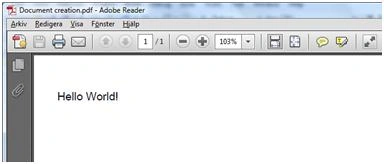
Simple, but it is a PDF and that was our goal!
The properties we added are found in the document by choosing File - Properties in the open PDF document:
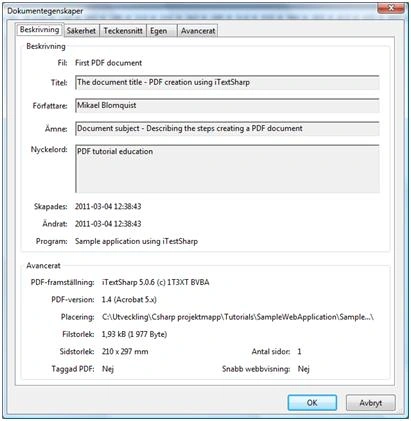
Well, I have a Swedish version of Acrobat Reader as you all can see, I mean; as you all CAN'T see (!), but the fields are self-explained.
(Title, Author, Subject, keywords, and the creator "Sample application using iTextSharp)
You could also wrap the PDF document instance in a memory stream if you want to just output the file directly to the client without saving it to disk, like this.
using (MemoryStream ms = new MemoryStream())
{
    // Create an instance of the document class which represents the PDF document itself.
    Document document = new Document(PageSize.A4, 25, 25, 30, 30);
    // Create an instance to the PDF file by creating an instance of the PDF
    // Writer class using the document and the memory stream in the constructor.
    PdfWriter writer = PdfWriter.GetInstance(document, ms);
    // Open the document to enable you to write to the document
    document.Open();
    // Add a simple and well-known phrase to the document in a flow layout manner
    document.Add(new Paragraph("Hello World"));
    // Close the document
    document.Close();
    // Close the writer instance
    writer.Close();
    // Set the response content type to PDF
    Response.ContentType = "application/pdf";
    // Add a header to specify the filename for the PDF
    Response.AddHeader("content-disposition", "attachment; filename=First_PDF_document.pdf");
    // Write the PDF content from the memory stream to the response output stream
    Response.OutputStream.Write(ms.GetBuffer(), 0, ms.GetBuffer().Length);
}
Okay, that's it for Part I.
Please, check out Part II describing how to write text, place images, and some simple graphics in the PDF document.
HENRY NOAHPosted Apr 8, 2026, 11:47 AM
For this scenario i can suggest free pdf editor from ilovepdf2(dot)com since while iTextSharp is great for programmatically creating PDFs a PDF editor allows users to open, modify, and save PDFs which is ideal if someone wants to edit content without coding
bainapalli krishnaPosted Jan 1, 2019, 4:55 AM
My code iam geeting the document has no pages error can you solve ti
bainapalli krishnaPosted Jan 1, 2019, 4:55 AM
[HttpPost] [ValidateInput(false)] public FileResult Export(string GridHtml) { using (MemoryStream stream = new System.IO.MemoryStream()) { StringReader sr = new StringReader(GridHtml); Document pdfDoc = new Document(PageSize.A4, 10f, 10f, 100f, 0f); PdfWriter writer = PdfWriter.GetInstance(pdfDoc, stream); pdfDoc.Open(); XMLWorkerHelper.GetInstance().ParseXHtml(writer, pdfDoc, sr); Paragraph para = new Paragraph(); pdfDoc.NewPage(); pdfDoc.Add(new Paragraph(para)); pdfDoc.Close(); return File(stream.ToArray(), "application/pdf", "District.pdf"); } }
Arun Kumar SinghPosted Oct 14, 2017, 7:49 AM
Nice solution i know it will work because i used same in past
Raihan HabibPosted May 30, 2017, 1:22 AM
I am a novice C# Developer but following this Article, I was able to create a pdf file with classical Hello World text. To add iTextSharp library I used NuGet Package Manager. Thanks Micke!
Bhuvanesh MohankumarPosted May 11, 2016, 1:35 AM
Useful article
Nasurudeen YasuPosted Jan 5, 2016, 2:56 AM
how to use hyphenation concept.
Paul AinnopPosted Jun 14, 2014, 10:35 PM
Is there a way to code in vb .net intend of C# only. Thanks
ketan italiyaPosted Nov 12, 2013, 5:25 AM
thanks a lot sir your all article is so useful...
sadun ssssssPosted Apr 12, 2013, 10:54 PM
Thank a lot for this tutorial part.....
Ali ahmadeditedPosted Feb 6, 2013, 5:42 PMEdited Feb 6, 2013, 5:43 PM
thank you very very much :) you explain it also very good :)
Greg ClarPosted Oct 17, 2012, 11:17 AM
Hi. I deployed a C# application using a standard Visual Studio Setup Project. Now error come up when user trying to create .PDF file. In code I use ‘itextsharp.dll’ Error is ‘Could not load file or assembly 'itextsharp, Version=5.1.2.0, Could not load file or assembly 'itextsharp, Version=5.1.2.0,’ In which directory have to store ‘itextsharp.dll’ Do I have to register itextsharp.dll Thank you Greg
maurizio giacobbePosted Jul 6, 2012, 11:27 AM
I read the content of Docx, with ReadAllBytes but i can't to write it in the .pdf file. I don't find the instruction to write the singole byte[] in the .pdf file; sorry for my english....
gumuruh ssp jayadilagaPosted Jul 6, 2012, 11:18 AM
if you want to convert from docx to pdf, I suggest do this algorithm: 1) Opening the Docx, read the content 2) Creating the Pdf, write the content 3) Done!
maurizio giacobbePosted Jul 6, 2012, 10:55 AM
Good, thank for the cod; how is the code to convert a file Word as .pdf Thank you, Maurizio
chandra shekhareditedPosted Apr 21, 2012, 4:09 AMEdited Apr 21, 2012, 4:10 AM
you have done a good job nd help me asap
chandra shekharPosted Apr 21, 2012, 4:07 AM
Hi How to create pdf file without .dll
silvia stanilaeditedPosted Mar 6, 2012, 1:07 PMEdited Mar 6, 2012, 1:10 PM
Thank you for this super cool article - it's exactly what I've needed ! I lost couple of days searching for something that would allow me to generate invoices in iTextSharp with exact positioning, and I'm very happy that I found your article - it solves all my problems. Thanks again. P.S. And I loved that your code works as it is (a lot of examples in the internet need "adjusting" before using - I certainly hate that)
Cameron ConacherPosted Dec 4, 2011, 5:58 PM
I would like to be able to fill and then open the PDF. Do I need to register the iTextSharp DLL on my machine to access the API, or is it sufficient to have it installed in the same directory as the application itself? I need to understad if I should change my application installed to register the iTextSharp DLL, after installing. My plan is to send the data from my application to a PDF template, and programatically open the template when the User clicks a button. I appreciate this is not exactly related to your article, but I thought it was a good entry level question. Maybe the real answer is "Don't do it!". Thanks
gumuruh ssp jayadilagaPosted Jun 5, 2011, 11:58 PM
Hello Micke Blomquist.. I read your articles several times, and I already did converting it from C# into VB.net somehow... the output of generating pdf without saving into disk seems failed. The browsers give me nothing. Could you emphasize abit where we should take care of configuring something? The first (upper) article seems work, but the "generating pdf without saving into disk" seems gives me nothing. I'm confused.
arockia samyPosted Apr 4, 2011, 10:38 AM
your article was nice,, i m trying to convert Url of a web page into pdf .. is there any possibility to do that using itextsharp
Syed ShakeerPosted Mar 11, 2011, 8:28 AM
Nice article,easy to Understand....
Blocked AccountPosted Mar 11, 2011, 12:40 AM
Good work.