

Agenda
- Definition of Bootstrap
- Discussion about responsive web applications
- Benefits of Responsive website
- Official website walkthrough
- Downloading Bootstrap from official website
- Customizing Bootstrap theme
- Integration of downloaded theme files in the project
- ASP.NET web application with Bootstrap demo in Visual Studio
According to the official Bootstrap website, "Bootstrap is the most popular HTML, CSS and JavaScript framework for developing responsive, mobile first projects on the web.".
Responsive websites
The first understanding of Responsive websites that comes to a beginner's mind is responsive means a website that responds to a user. But actually, responsiveness here means that a website is designed in such a way that it can be used on any platform whether it is a large desktop, laptop, tablet or mobile.
So a responsive website actually is one that responds to the changing width and height of a device or screen.
Benefits of a responsive website
- We all know that in today's world, all of the business work can be done using a small device like a tablet or a mobile. So it makes it easier for the user to access the website using a device. Thus, increasing the user base and traffic on a website.
- When the user base increases, it also adds to the increase in the business of the website and the product sale will also increase.
- Makes it easy for an organisation to analyse the user base and its productivity.
- Increase in the visibility in search engines. This is the major part of the success of an organisation.
- Save time and cost on mobile development.
Official Website Walkthrough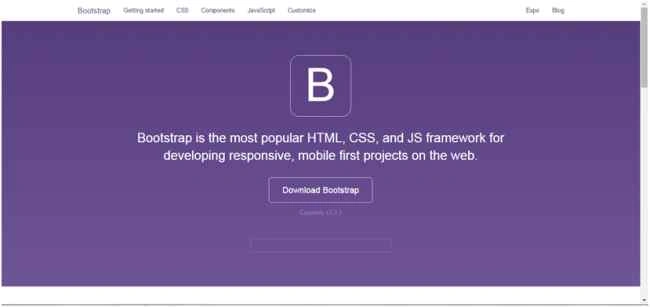
In the image above, the navigation bar has many options. I will tell you above each of them.
Getting Started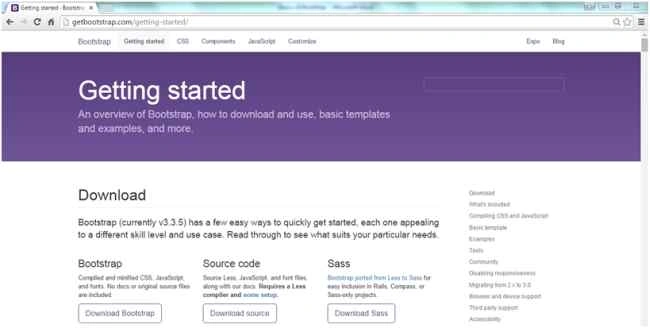
The preceding image has some options on the right hand side. I will cover them nearly all.
Download Option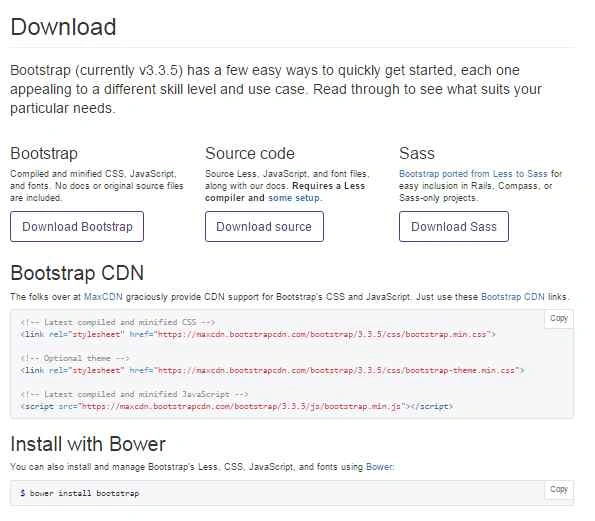
You can download Bootstrap from the buttons shown in the image above. You can also use CDN to include Bootstrap into your application.
What's included option
You can see the source code and the files that are available in Bootstrap after downloading.
Compiling CSS and JavaScript option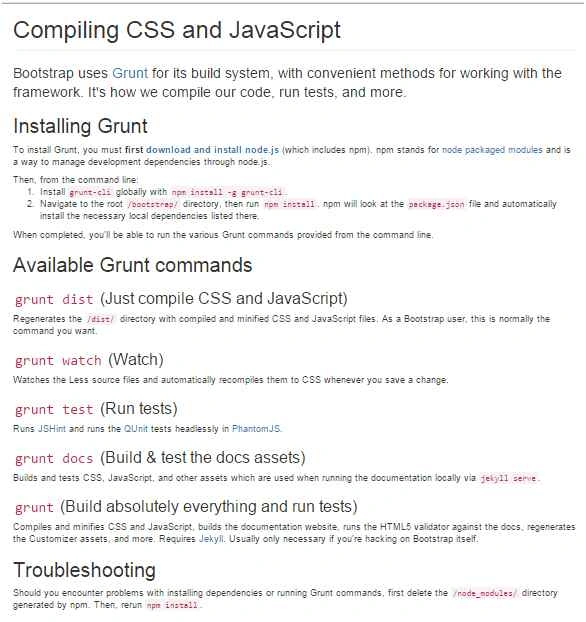
This is just to show you how the Bootstrap team compiles their CSS and JavaScript files.
Basic Template option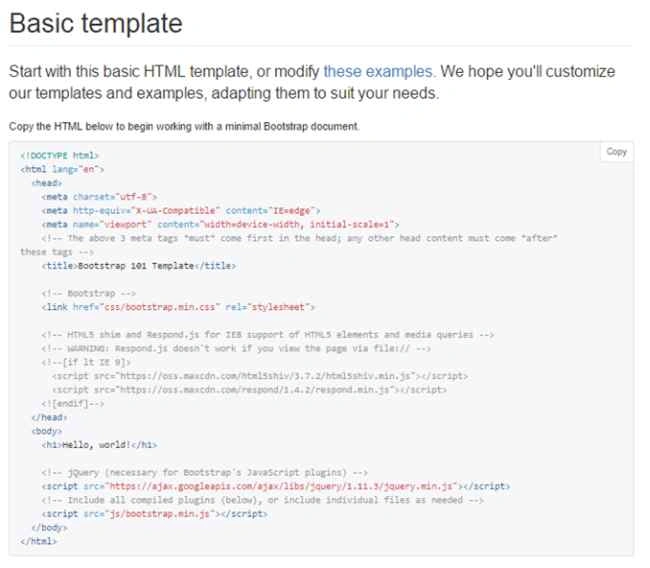
This is just a small example of Bootstrap with Simple HTML.
Examples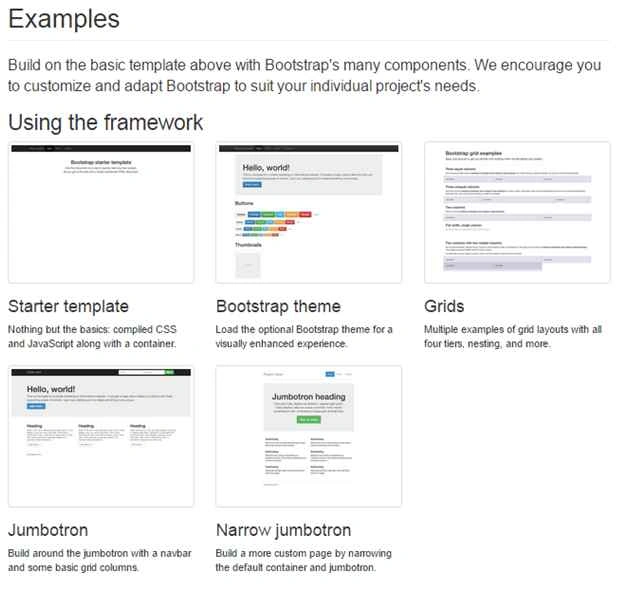
These are some of the examples of Bootstrap.
I think you should explore the options yourself since they are self-explanatory. In case you need help in understanding any of them, please leave a comment and I will reply to it.
Now for the CSS option of the Navigation bar of the Bootstrap site.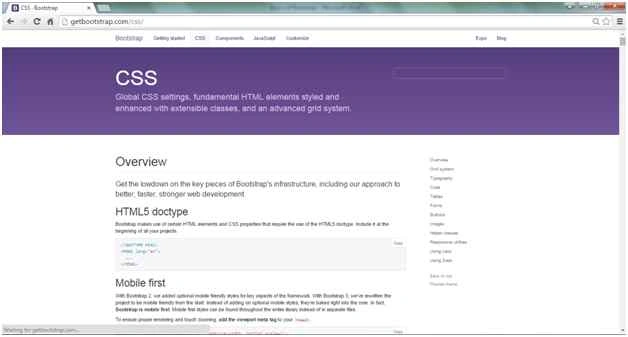
It is the complete documentation of the CSS classes used on HTML elements to make them responsive and look nice. I will use some of these explained classes in my demo that explains in this article. But, I strongly recommend you read this documentation so that it will be easy for you to understand the demo.
Components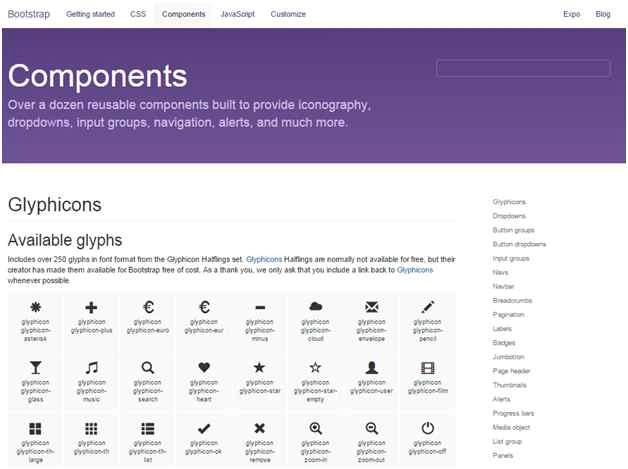
It explains the various styles that can be added to components of HTML like a design to button control, or a design to drop down control and so on. So, it is also a part of documentation. You also must read this before proceeding with the demo.
JavaScript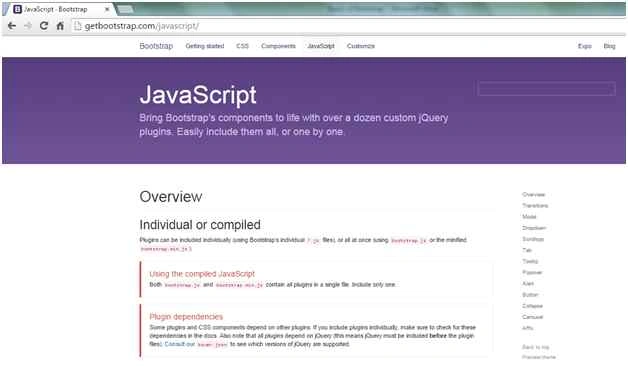
These are the various JavaScript functions that we can use to create some effects in HTML controls. This is not necessary in this demo but is necessary if you wish to implement JavaScript animations and other effects.
Customize
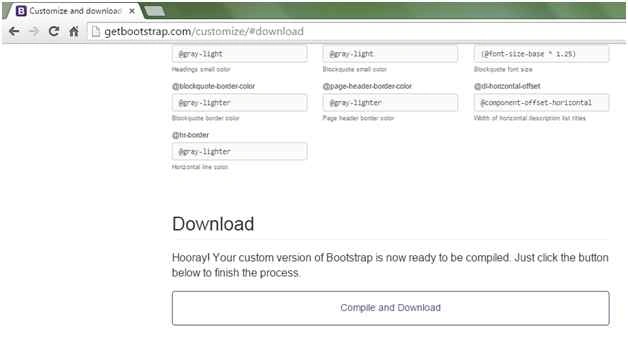
Here you can customize you CSS of Bootstrap like colour, border, font size, font style and many more. And at the bottom of this page, there is a compile and download button that will download the Bootstrap files to your local machine.
When you download the file, extract this file and you will see this.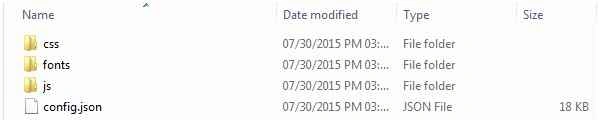
Just copy them to the root directory of your web application.
Demo
In this demo we will create an ASP.NET web application, add some controls to it and provide them a look and responsive using Bootstrap.
Step 1
Create an empty ASP.NET web application. Go to the Nuget Package Manager and search for Bootstrap and install it in your project.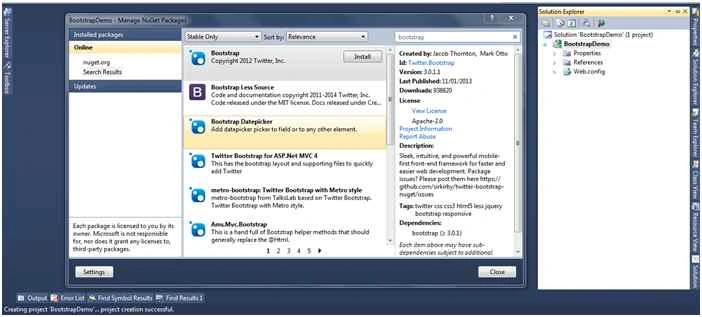
Or you can just copy the files that you have downloaded from Bootstrap's official website.
Step 2
Add a webform1.aspx to the project.
Step 3
Go to the source of the page and add the references of the following files in the head section of the page.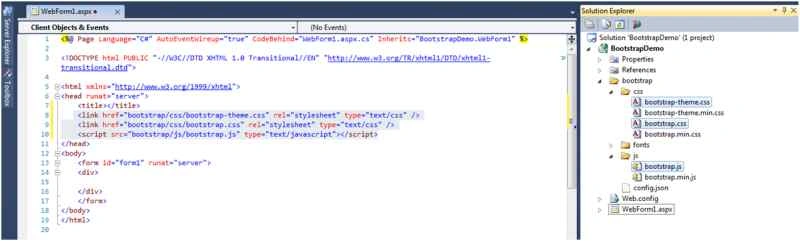
Step 4
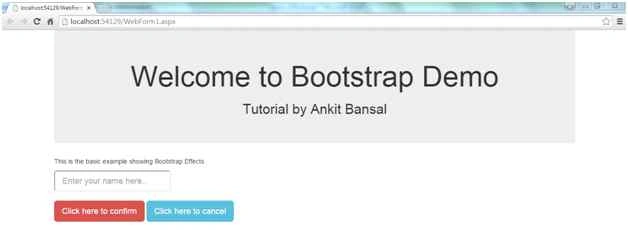
Now we will add some HTML to the div tag in the preceding image.
Joe WilsonPosted Dec 25, 2016, 4:27 AM
Well, Thank you very much for sharing.
SubashPosted Jul 28, 2016, 4:08 AM
Nice
Shridhar SharmaPosted Jul 31, 2015, 10:24 AM
good one Ankit.
Chervine BhiwooPosted Jul 31, 2015, 9:40 AM
Great intro to bootstrap!
Rajeesh MenothPosted Jul 31, 2015, 8:15 AM
Good One
Nilesh JadavPosted Jul 31, 2015, 6:26 AM
Nice one sir
Sibeesh VenuPosted Jul 31, 2015, 3:38 AM
Nice Share.
Sonu SaraswatPosted Jul 31, 2015, 1:33 AM
Greate!!!!!
Debasis SahaPosted Jul 31, 2015, 12:42 AM
Good One..
Gopi ChandPosted Jul 31, 2015, 12:36 AM
Well written
Neeraj KumarPosted Jul 30, 2015, 10:27 PM
Nice